The Smell of Molten Projects in the Morning

Ed Nisley's Blog: Shop notes, electronics, firmware, machinery, 3D printing, laser cuttery, and curiosities. Contents: 100% human thinking, 0% AI slop.

Author: Ed

  • X Server Auto-Configuration Requires a Monitor: Duh

    The used Optiplex GX270 that will eventually become my mother’s “new” PC has been booting absolutely reliably in the basement, so whatever was troubling it a few months ago seems to have Gotten Better By Itself. I don’t have to like that, but so far, so good.

    This morning I ssh-ed into it, as I do every few days, then fired up krdc on my desktop, which immediately complained that there wasn’t anything there to connect with. Uh-oh

    But the ssh worked, so at least there’s a Linux system at the end of that network cable.

    A changing cast of PCs has gone through the basement lab in that time and I’ve been swapping the desktop monitor among them. Most recently, a friend gave me an ancient Aptiva that might turn into a dedicated controller and I’d left the monitor connected to it.

    After I figured out that the monitor wasn’t hitched to the Optiplex, traced the cable, and fixed that oversight, I was confronted with a command-line prompt. A bit of rummaging in /var/log/Xorg.0.log turned up some useful information:

    (II) intel(0): Output VGA disconnected
    (EE) intel(0): No valid modes.
    ... <snippage> ...
    (EE) Screen(s) found, but none have a usable configuration.
    Fatal server error:
    no screens found

    In the Bad Old Days, you told X exactly what output to produce by providing modelines that specified the exact video timings. That was fraught with peril, as you could do the Digibomber thing to a fussy fixed-frequency monitor by specifying timings beyond its abilities.

    Nowadays, the X server feels around, detects the video card, asks it what it can produce, detects the monitor, asks it what it can display, figures out the best match from the ensuing matrix of possibilities, and shazam slaps up a GUI. Might not be exactly what you want, but more likely than not it’ll be pretty close and you can apply some tweakage to get it right.

    If there’s no monitor connected, then the X server doesn’t know quite what to do. I’m sure it’s possible to specify a default fallback configuration, but maybe it’s better to just ensure the monitor is always connected. Those cute little screws on the connector might be a clue, eh?

    The command line continues to work, of course, so you can figure this stuff out either locally or through ssh. Alas, it’s really hard to reconnect a monitor cable through ssh.

    If you’re still not convinced to improve your command-line chops, I commend to your attention Stephenson’s In the Beginning was the Command Line.

    Memo to Self: Use the Screws!

  • Arduino Fast PWM: Faster

    Although you can change the Arduino runtime’s default PWM clock prescaler, as seen there, the default Phase-correct PWM might not produce the right type of output for the rest of your project’s circuitry.

    I needed a fixed-width pulse to drive current into a transformer primary winding, with a variable duty cycle (hence, period) to set the power supply’s output voltage. The simplest solution is Fast PWM mode: the output goes high when the timer resets to zero, goes low when the timer reaches the value setting the pulse width, and remains low until the timer reaches the value determining the PWM period.

    The best fit for those requirements is Fast PWM Mode 14, which stores the PWM period in ICRx and the PWM pulse width in OCRxA. See page 133 of the Fine Manual for details on the WGMx3:0 Waveform Generation Mode bits.

    I needed a 50 μs pulse width, which sets the upper limit on the timer clock period. Given the Diecimila’s 16 MHz clock, the timer prescaler can produce these ticks:

    • 1/1 = 62.5 ns
    • 1/8 = 500 ns
    • 1/64 = 4 μs
    • 1/256 = 16 μs
    • 1/1024 = 64 μs

    So anything smaller than 1/1024 would work. For example, three ticks at 1/256 works out to 48 μs, which is close enough for my purposes. A 1/8 prescaler produces an exact match at 100 ticks and gives a nice half-microsecond resolution for pulse width adjustments.

    The overall PWM period can vary from 200 μs to 10 ms, which sets the lower limit on the tick rate. The timer is 16 bits wide: 65535 counts must take more than 10 ms. The 1/1 prescaler is too fast at 4 ms, but the 1/8 prescaler runs for 32 ms.

    So I selected the 1/8 prescaler. The table on page 134 gives the CSx2:0 Clock-Select mode bits.

    Define the relevant values at the top of the program (uh, sketch)

    #define TIMER1_PRESCALE 8	// clock prescaler value
    #define TCCR1B_CS20 0x02	// CS2:0 bits = prescaler selection
    
    #define BOOST_PERIOD_DEFAULT	(microsecondsToClockCycles(2500) / TIMER1_PRESCALE)
    #define BOOST_ON_DEFAULT	(microsecondsToClockCycles(50) / TIMER1_PRESCALE)
    
    #define BOOST_PERIOD_MIN	(microsecondsToClockCycles(200) / TIMER1_PRESCALE)
    #define BOOST_PERIOD_MAX	(microsecondsToClockCycles(10000) / TIMER1_PRESCALE)
    

    The microsecondsToClockCycles() conversion comes from the Arduino headers; just use it in your code and it works. It’ll give you the right answer for 8 MHz units, too, but you must manually adjust the timer prescaler setting; that could be automated with some extra effort.

    Then, in the setup() routine, bash the timer into its new mode

    analogWrite(PIN_BOOSTER,1);	// let Arduino setup do its thing
    TCCR1B = 0x00;			// stop Timer1 clock for register updates
    
    TCCR1A = 0x82;			// Clear OC1A on match, Fast PWM Mode: lower WGM1x = 14
    ICR1 = BOOST_PERIOD_DEFAULT;	// drive PWM period
    OCR1A = BOOST_ON_DEFAULT;	// ON duration = drive pulse width
    TCNT1 = BOOST_ON_DEFAULT - 1;	// force immediate OCR1A compare on next tick
    TCCR1B = 0x18 | TCCR1B_CS20;	// upper WGM1x = 14, Clock Sel = prescaler, start running
    

    The Arduino analogWrite() function does all the heavy lifting to set the PWM machinery for normal use, followed by the tweakage for my purposes. All this happens so fast that the first normal PWM pulse would still be in progress, but turning the PWM timer clock off is a nice gesture anyway. Forcing a compare on the first timer tick means the first pulse may be a runt, but that’s OK: the rest will be just fine.

    What you don’t want is a booster transistor drive output stuck-at-HIGH for very long, as that will saturate the transformer core and put a dead short across the power supply: not a good state to be in. Fortunately, the ATmega168 wakes up with all its pins set as inputs until the firmware reconfigures them, so the booster transistor stays off.

    The PWM machinery is now producing an output set to the default values. In the loop() routine, you can adjust the timer period as needed

    noInterrupts();			// no distractions for a moment
    TCCR1B &= 0xf8;			// stop the timer - OC1A = booster may be active now
    
    TCNT1 = BOOST_ON_DEFAULT - 1;	// force immediate OCR1A compare on next tick
    ICR1 = BasePeriod;		// set new PWM period
    
    TCCR1B |= TCCR1B_CS20;		// start the timer with proper prescaler value
    interrupts();			// allow distractions again
    

    The ATmega168 hardware automagically handles the process of updating a 16-bit register from two 8-bit halves (see page 111 in the Manual), but you must ensure nobody else messes with the step-by-step process. I don’t know if the compiler turns off interrupts around the loads & stores, but this makes sure it works.

    Once again, setting the TCNTx register to force a compare on the next timer tick will cause a runt output pulse, but that’s better than a stuck-HIGH output lasting an entire PWM period. You can get fancier, but in my application this was just fine.

    You can update the PWM pulse width, too, using much the same hocus-pocus.

    And that’s all there is to it!

    Memo to Self: always let the Arduino runtime do its standard setup!

  • Reading a Quadrature Encoded Knob in Double-Quick Time

    The simple technique of reading a quadrature knob I described there works fine, except for the knob I picked for a recent project. That’s what I get for using surplus knobs, right?

    I picked this knob because it has a momentary push-on switch that I’ll be using for power; the gizmo should operate only when the knob is pressed. The rotary encoder part of the knob has 30 detents, but successive “clicks” correspond to rising and falling clock edges: the encoder has only 15 pulses in a full turn.

    So, while advancing the knob counter on, say, the falling edges of the A input worked, it meant that the count advanced only one step for every other click: half the clicks did nothing at all. Disconcerting, indeed, when you’re controlling a voltage in teeny little steps.

    Worse, the encoder contacts are painfully glitchy; the A input (and the B, for that matter) occasionally generated several pulses that turned into multiple counts for a single click.

    Fortunately, the fix for both those problems is a simple matter of software…

    The Arduino interrupt setup function can take advantage of the ATmega168’s ability to generate an interrupt on a pin change, at least for the two external interrupts that the Arduino runtime code supports. So it’s an easy matter to get control on both rising & falling edges of the A input, then make something happen on every click of the knob as you’d expect.

    The hardware is straightforward: connect the knob’s A output to INT0, the B  output to D7, and the common contact to circuit ground. Although you can use the internal pullups, they’re pretty high-value, so I added a 4.7 kΩ resistor to Vcc on each input. The code defining that setup:

    #define PIN_KNOB_A	2			// LSB - digital input for knob clock (must be 2 or 3!))
    #define IRQ_KNOB_A	(PIN_KNOB_A - 2)	//  set IRQ from pin
    #define PIN_KNOB_B	7			// MSB - digital input for knob quadrature
    

    Because we’ll get an interrupt for each click in either direction, we can’t simply look at the B input to tell which way the knob is turning. The classy way to do this is to remember where we were, then look at the new inputs and figure out where we are. This buys two things:

    • Action on each edge of the A input, thus each detent
    • Automatic deglitching of crappy input transitions

    So we need a state machine. Two states corresponding to the value of the A input will suffice:

    enum KNOB_STATES {KNOB_CLICK_0,KNOB_CLICK_1};

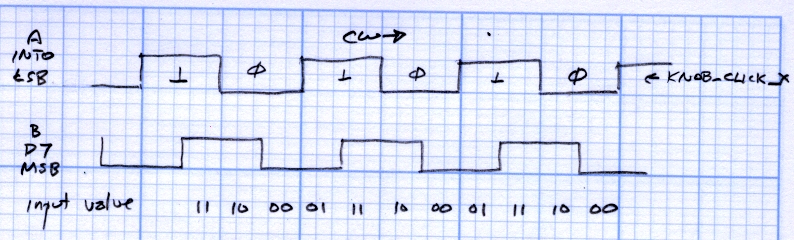
    A sketch (from one of these scratch pads) shows the states in relation to the knob inputs. Think of the knob as being between the detents for each state; the “click” happens when the state changes.

    Knob encoder states and inputs
    Knob encoder states and inputs

    In order to mechanize that, put it in table format. The knob state on the left shows where the knob was and the inputs along the top determine what we do.

    Knob state table
    Knob state table

    So, for example, if the knob was resting with input A = 0 (state KNOB_CLICK_0), then one detent clockwise means the inputs are 01. The second entry in the top row has a right-pointing arrow (→) showing that the knob turned clockwise and the next state is KNOB_CLICK_1. In that condition, the code can increment the knob’s position variable.

    The entries marked with X show glitches: an interrupt happened, but the inputs didn’t change out of that state. It could be due to noise or a glitchy transition, but we don’t care: if the inputs don’t change, the state doesn’t change, and the code won’t produce an output. Eventually the glitch will either vanish or turn into a stable input in one direction or the other, at which time it’s appropriate to generate an output.

    Two variables hold all the information we need:

    volatile char KnobCounter = 0;
    volatile char KnobState;
    

    KnobCounter holds the number of clicks the knob has made since the last time the mainline code read the value.

    KnobState holds the current (soon to be previous) state of the A input.

    Now we can start up the knob hardware interface:

    pinMode(PIN_KNOB_B,INPUT);
    digitalWrite(PIN_KNOB_B,HIGH);
    pinMode(PIN_KNOB_A,INPUT);
    digitalWrite(PIN_KNOB_A,HIGH);
    KnobState = digitalRead(PIN_KNOB_A);
    attachInterrupt(IRQ_KNOB_A,KnobHandler,CHANGE);
    

    An easy way to handle all the logic in the state table, at least for small values of state table, is to combine the state and input bits into a single value for a switch statement. With only eight possible combinations, here’s what it the interrupt handler looks like:

    void KnobHandler(void)
    {
    byte Inputs;
    	Inputs = digitalRead(PIN_KNOB_B) << 1 | digitalRead(PIN_KNOB_A);	// align raw inputs
    	Inputs ^= 0x02;								// fix direction
    
    	switch (KnobState << 2 | Inputs)
    	{
    	case 0x00 : // 0 00 - glitch
    		break;
    	case 0x01 : // 0 01 - UP to 1
    		KnobCounter++;
    		KnobState = KNOB_CLICK_1;
    		break;
    	case 0x03 :	// 0 11 - DOWN to 1
    		KnobCounter--;
    		KnobState = KNOB_CLICK_1;
    		break;
    	case 0x02 : // 0 10 - glitch
    		break;
    	case 0x04 : // 1 00 - DOWN to 0
    		KnobCounter--;
    		KnobState = KNOB_CLICK_0;
    		break;
    	case 0x05 : // 1 01 - glitch
    		break;
    	case 0x07 : // 1 11 - glitch
    		break;
    	case 0x06 :	// 1 10 - UP to 0
    		KnobCounter++;
    		KnobState = KNOB_CLICK_0;
    		break;
    	default :	// something is broken!
    		KnobCounter = 0;
    		KnobState = KNOB_CLICK_0;
    	}
    }
    

    Reading the knob counter in the main loop is the same as before:

    noInterrupts();
    KnobCountIs = KnobCounter;	// fetch the knob value
    KnobCounter = 0;		//  and indicate that we have it
    interrupts();
    

    And that’s all there is to it!

  • Fixed Point Arithmetic: Percentages

    Problem: increment or decrement a variable by a fixed percentage, without using floating-point arithmetic routines. This is the sort of problem that crops up in microcontroller projects, because there’s just not enough storage for the floating-point library stuff and your program at the same time.

    Suppose you want to increment the variable BaseNum by 10%. Using floating point, that’s just

    BaseNum = 1.1 * BaseNum;

    In fixed point, it would look like

    BaseNum = (BaseNum * 11) / 10;

    Similarly, to increment by 5%, you’d use

    BaseNum = (BaseNum * 105) / 100;

    The general idea is that you scale the operation to eliminate the fractional part, then chop off the scaling to get the final answer. The parentheses are vital: the multiplication must precede the division.

    The integer division operator truncates any fractional part, it does not round. This becomes a nasty gotcha if you’re expecting the final value to change.

    For example, incrementing 15 by 10% would look like

    15 ->  165 -> 16

    But incrementing 15 by 5% goes like

    15 -> 1575 -> 15

    For obvious reasons, you should make sure the multiplication can’t overflow. If you’re incrementing by 5% (multiplying by 105), then an int BaseNum can’t exceed 312, which might come as a surprise. Casting the operands to long int would be prudent for many problems:

    BaseNum = ((long int)BaseNum * 105) / 100;

    Suppose you want to increment BaseNum several times in succession, with that number stored in Ticks. With floating point, you could use the pow() function

    BaseNum = BaseNum * pow(1.1,Ticks);

    In fixed point, the same thing seems like it ought to work

    BaseNum = (BaseNum * pow(11,Ticks)) / pow(10,Ticks);

    Unfortunately, that idea runs out of gas pretty quickly: pow(11,9) falls just outside the range of a long int, so even if BaseNum is, say, 2, you’re screwed. It’s even worse for smaller percentages, as pow(105,5) is about 13e9.

    One solution, which works well for reasonable values of Ticks, is to iterate the process

    for (Counter = Ticks; Counter; --Counter)
    {
        BaseNum = ((long int)BaseNum * 11) / 10;
    }

    That won’t overflow in the middle. However, if the division truncates away the increment you were expecting, then the loop just whirs for a while and accomplishes exactly nothing.

    That could come as a surprise if you were expecting, say, five 5% increments to add up to a 28% boost: pow(1.05,5) = 1.276, right?

    Bottom line: when you use fixed-point arithmetic, always check the low end of the range for underflow and the high end for overflow.

    Hint: store the numerator and demoninator of the fixed-point percentage fraction in variables. You can’t decrement by the same percentage by just swapping the numerator and denominator, but it might be close enough for human-in-the-loop knob twiddling adjustments.

    Memo to Self: always check for underflow and overflow!

  • Reading a Quadrature Knob

    Most analog projects will benefit from an adjustment knob; the notion of pressing those UP and DOWN arrows just doesn’t give that wonderful tactile feedback. These days “knob” means a rotary encoder with quadrature outputs and some software converting digital bits into an adjustment value.

    Sounds scary, doesn’t it?

    This is actually pretty simple for most microcontrollers and the Arduino in particular. The Arduino website has some doc on the subject, but it seems far too complicated for most projects.

    A quadrature rotary encoder has two digital outputs, hereinafter known as A and B. The cheap ones are mechanical switch contacts that connect to a common third terminal (call it C), the fancy ones are smooth optical interrupters. You pay your money and get your choice of slickness and precision (clicks per turn). I take what I get from the usual surplus sources: they’re just fine for the one-off projects I crank out most of the time.

    How does quadrature encoding work?

    On each falling edge of the A signal, look at the B signal. If it’s HIGH, the knob has turned one click thataway. If it’s LOW, the knob has turned one click the other way. That’s all there is to it!

    Here’s how you build a knob into your code…

    Connect one of the outputs to an external interrupt, which means it goes to digital input D2 or D3 on the Arduino board. The former is INT0, the latter INT1, and if you need two interrupts for other parts of your project, then it gets a lot more complex than what you’ll see here. Let’s connect knob output A to pin D2.

    Connect the other output, which we’ll call B, to the digital input of your choice. Let’s connect knob output B to D7.

    Define the pins and the corresponding interrupt at the top of your program (yeah, in Arduino-speak that’s “sketch”, but it’s really a program):

    #define PIN_KNOB_A 2			// digital input for knob clock (must be 2 or 3!))
    #define IRQ_KNOB_A (PIN_KNOB_A - 2)	//  set IRQ from pin
    #define PIN_KNOB_B 7			// digital input for knob quadrature
    

    The external circuitry depends on whether you have a cheap knob or fancy encoder. Assuming you have a cheap knob with mechanical contacts, the C contact goes to circuit common (a.k.a, “ground”). If you have a fancy knob with actual documentation, RTFM and do what it say.

    The two inputs need resistors (“pullups”) connected to the supply voltage: when the contact is open, the pin sees a voltage at the power supply (“HIGH“), when it’s closed the voltage is near zero (“LOW“).

    Ordinary digital inputs have an internal pullup resistor on the ATmega168 (or whatever the Arduino board uses) that will suffice for the B signal. Unfortunately, the external interrupt pins don’t have an internal pullup, so you must supply your own resistor. Something like 10 kΩ will work fine: one end to the power supply, the other to INT0 or INT1 as appropriate.

    With the knob connected, set up the pins & interrupt in your setup() function:

    attachInterrupt(IRQ_KNOB_A,KnobHandler,FALLING);
    pinMode(PIN_KNOB_B,INPUT);
    digitalWrite(PIN_KNOB_B,HIGH);
    

    The first statement says that the interrupt handler will be called when the A signal changes from HIGH to LOW.

    The Arduino idiom for enabling the chip’s internal pullup on a digital input pin is to define the pin as an input, then write a HIGH to it.

    Set up a variable to accumulate the number of clicks since the last time:

    volatile char KnobCounter = 0;

    The volatile tells the compiler that somebody else (the interrupt handler or the main routine) may change the variable’s value without warning, so the value must be read from the variable every time it’s used.

    The variable’s size depends on the number of counts per turn and the sluggishness of the routine consuming the counts; a char should suffice for all but the most pathological cases.

    Define the handler for the knob interrupt:

    void KnobHandler(void)
    {
        KnobCounter += (HIGH == digitalRead(PIN_KNOB_B)) ? 1 : -1;
    }
    

    KnobHandler executes on each falling edge of the A signal and either increments or decrements the counter depending on what it sees on the B signal. This is one of the few places where you can apply C’s ternary operator without feeling like a geek.

    Define a variable that will hold the current value of the counter when you read it:

    char KnobCountIs, Count;
    

    Now you can fetch the count somewhere in your loop() routine:

    noInterrupts();
    KnobCountIs = KnobCounter;	// fetch the knob value
    KnobCounter = 0;		//  and indicate that we have it
    interrupts();
    

    Turning interrupts off while fetching-and-clearing KnobCounter probably isn’t necessary for a knob that will accumulate at most one count, but it’s vital for programs that must not lose a step.

    Now you can use the value in KnobCountIs for whatever you like. The next time around the loop, you’ll fetch the count that’s accumulated since the previous sample.

    Even if you RTFM, apply painstaking logic, and wire very carefully, there’s a 50% chance that the knob will turn the wrong way. In that case, change one of these:

    • In the interrupt handler, change HIGH to LOW
    • In the attachInterrupt() statement, change FALLING to RISING

    There, now, wasn’t that easy? Three wires, a resistor, a dozen lines of code, and your project has a digital quadrature knob!

    If you have a painfully slow main loop, the accumulated counts in KnobCounter could get large. In that case, this code will give you a rubber-band effect: the accumulated count can be big enough that when the knob starts turning in the other direction it’s just decreasing the count, not actually moving count to the other side of zero. Maybe you need some code in the interrupt handler to zero the count when the direction reverses?

    But that’s in the nature of fine tuning… twiddle on!
  • Storm Door Latch Lube

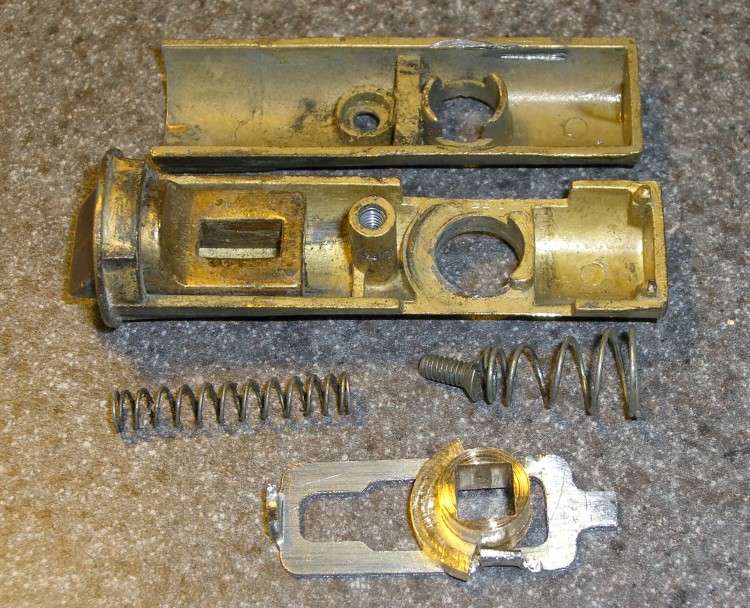
    Storm door latch parts
    Storm door latch parts

    Our old house has storm doors with brass latch bolts and brass strike plates. Brass-on-brass is nicely self-lubricating, unlike the steel-on-steel contraptions available these days, but of late our back door hasn’t been closing smoothly.

    I fiddled with the door closer’s tension and release point to no avail, then (re)discovered that a dab of PTFE lubricant on the latch and strike plate makes the storm door close exceedingly smoothly. The base grease is clear and doesn’t make a black mess of things.

    Duh.

    Maybe everybody knows that and perhaps I knew it at one time.

    I wrote about rebuilding the strike pull and shaft cam of these latches as CNC projects in my Digital Machinist column. Naturally, the replacement latches available in the local hardware stores didn’t fit the door, so the simplest course of action was some quality shop time.

  • Analon Slide Rule

    Whenever I do anything even slightly out of the ordinary with magnetics, I must drag out my trusty Analon slipstick to make sure I haven’t lost a dimension.

    Analon slide rule - front
    Analon slide rule – front

    Go ahead, you verify that the area inside a BH hysteresis curve is proportional to power loss in a given transformer core. I’ll wait…

    Analon slide rule - back
    Analon slide rule – back

    My recollection is that I bought it in the Lehigh University Bookstore in the early 70s, but that doesn’t square up with the Analon’s history: they should have been out of circulation by then. I’m pretty sure I didn’t get it in high school, extreme geek though I was, and it’s for damn sure I wouldn’t have bought one after graduation. Come to think of it, if the LU Bookstore wasn’t among the last bastion of Analon holdouts, where would you look?

    Over the decades I’ve penciled in a few handy dimensions they didn’t think of. Unlike most of the 600 597 (plus one in the Smithsonian) Analons in the wild, this one actually gets used, so it’s not New-In-Box (which means you collectors need not suffer from involuntary hip motions). It’s also not as grubby as it looks: I didn’t spend a lot of time futzing with the scans.

    Anyway, that’s called beausage and it enhances the value.

    Works that way with other antiques, right?

    Links:

    Yeah, OK, it’s a Slide Rule Gloat…