The Smell of Molten Projects in the Morning

Ed Nisley's Blog: Shop notes, electronics, firmware, machinery, 3D printing, laser cuttery, and curiosities. Contents: 100% human thinking, 0% AI slop.

Author: Ed

  • Tour Easy Rack Mounting Hack

    Photo 1 - Spherical Washer
    Photo 1 – Spherical Washer in Action

    A recumbent’s comfy seat doesn’t have a seat post, so standard rear racks don’t fit very well. The usual solution involves nylon cable ties and some cursing, but that just didn’t appeal to me. Here’s how I mounted an ordinary JandD rear rack on our Tour Easy ‘bents.

    Because both the angle and position of the seat support struts changes change with each seat adjustment, you can’t simply bolt the rack to a plate across the struts. This is a job for spherical washers, as shown in Photo 1, which allow both angular adjustment and rigid mounting.
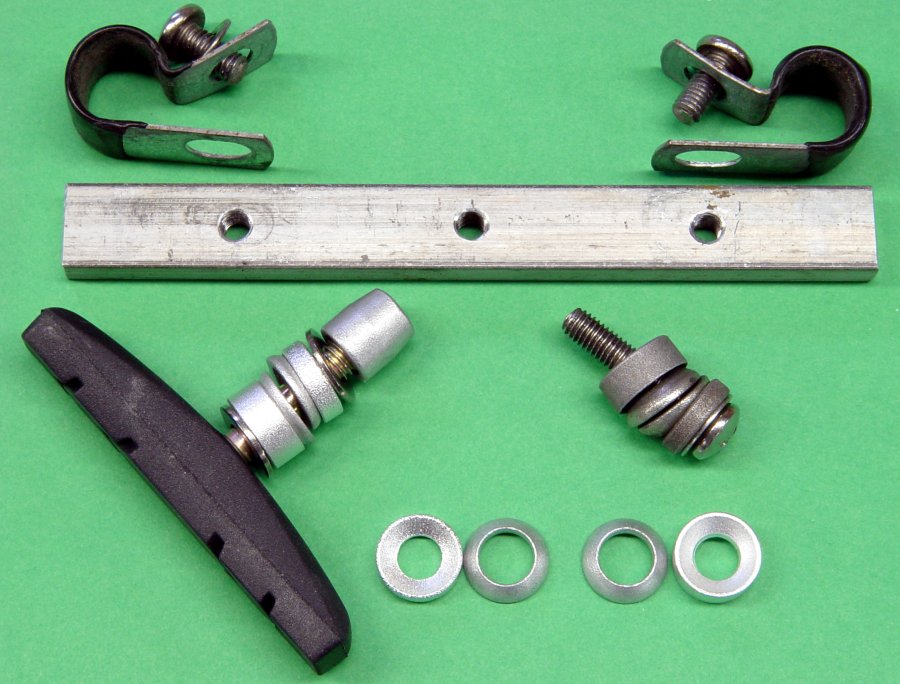
    Photo 2 - Rack Mount Parts
    Photo 2 – Rack Mount Parts

    Even if you’ve never heard of a spherical washer before, your bike parts box may already have some: one old brake pad provides the two washers you’ll need for one rack. Each washer has one convex and one concave piece, which you must assemble with the curved surfaces nested together and the flat sides out. You need one washer on each side of the angled plate. The six spherical washers in Photo 2 show the details.

    You’ll also need a ¼x½-inch rectangular aluminum bar long enough to span the seat support struts just in front of the rack, three 10-32 or 5-mm stainless-steel machine screws and washers, and a pair of padded tubing clamps. You can get all that from your favorite home-repair store.

    Drill a hole in the middle of the bar and a matching hole in the middle of the rack’s front face. I used a 10-32 tap to put threaded holes in the rod, but you can drill clearance holes and use nuts.

    Photo 3 - Mounting Screw
    Photo 3 – Mounting Screw

    Put a spherical washer on a screw, insert the screw through the rack, add another washer, put the screw into the crossbar, align the crossbar on the seat struts, and finger-tighten the screw. Photo 3 shows the screw from the top of the rack.

    Slip the tubing clamps on the seat struts as shown in Photo 4, mark the clamp openings on the crossbar, remove the crossbar, and drill the two holes.

    Photo 4 - Bottom View
    Photo 4 – Bottom View

    Reassemble everything, apply Loctite to the threads, and tighten the screws. Remember to loosen all three screws before you adjust your seat position!

    I wrote this a while back for the late, lamented Recumbent Cyclist News, but it never got into print. I found the files while looking for something else; seems like this might be useful to somebody.

  • Xubuntu Multimedia Keyboard Keys

    I still haven’t figured out why the audio volume & mute keys on my desktop box’s keyboard don’t work, but this process sets ’em up on my Dell Inspiron E1405 laptop… which I just reloaded with Xubuntu / XFCE 4.6 using more-or-less the procedure described starting there, including saving, blowing away, repartitioning, and restoring the Windows partition.

    If the audio mixer icon doesn’t show up on the top XFCE panel, other-click the panel -> Add New Items -> Mixer to get it there.

    Then do System Settings -> Keyboard -> Layout. Verify that you’re using the default system keyboard layout, as that’s what I’m doing on the laptop and it works. The desktop, now, that’s another matter; I think having two X sessions confuses it mightily.

    Then click the Application Shortcuts tab, click Add, and type in each of these…

    • amixer sset Master 10%+
    • amixer sset Master 10%-
    • amixer sset Master toggle

    For each command, click OK after typing. You’ll get another pop-up, at which point you press the corresponding volume / mute key.

    Note that the Master keyword is case-sensitive and may be something entirely different on your box. Use amixer to find out what you should be typing, thusly:

    amixer
    Simple mixer control 'Master',0
      Capabilities: pvolume pswitch
      Playback channels: Front Left - Front Right
      Limits: Playback 0 - 31
      Mono:
      Front Left: Playback 27 [87%] [-6.00dB] [on]
      Front Right: Playback 27 [87%] [-6.00dB] [on]
    Simple mixer control 'PCM',0
      Capabilities: pvolume
      Playback channels: Front Left - Front Right
      Limits: Playback 0 - 255
      Mono:
      Front Left: Playback 245 [96%] [-2.00dB]
      Front Right: Playback 245 [96%] [-2.00dB]
    ... snippage ...

    Shazam: audio control should then Just Work…

    The irony of having to futz around that much before having something Just Work is not lost on me. Really.

  • What I Did At The Trinity Robotics Contest

    Dressing the Granny Doll
    Dressing the Granny Doll

    Back from a weekend in Hartford, doing Useful Things in support of the 15th Annual Trinity College Firefighting Home Robot Contest.

    In case you were wondering what goes on backstage at an event like that, here’s the truth: I play with dolls…

    The Granny Doll was part of the Assistive Robotics contest: the robot had to locate a dish of food and carry it from a refrigerator to a table. She acted as an obstacle in the middle of the room; I had just finished duct-taping the stand to her rump in preparation for the practice runs on Saturday.

    As it turned out, her overcoat consisted of cloth that rendered her invisible to the robots: the poor dear got run over, smacked aside, and pushed around.

    Next year the scoring system will include Elder Abuse penalty points!

  • Why You Should Replace PCI Card Slot Covers

    Mouse-infested PC Overview
    Mouse-infested PC Overview

    My eagle-eyed daughter spotted a Dell PC by the side of the road on her way home from school, so we snagged it en passant to a school meeting later that evening. We dropped it in the workshop, figuring that she could do some forensics, then install Puppy Linux or some such.

    The next morning the entire Basement Laboratory was filled with the unmistakable odor of stale piss and I noticed that the back panel of the PC had two missing card slot covers. I immediately hauled the carcass outside and set a bunch of mouse traps around the basement.

    When we popped the cover, we found a very well-built mouse nest covering the entire surface of the system board. The previous owners had evidently run the PC flat on the floor (it’s a Dimension 8100 beside-the-desk tower) with two of the back-panel card slot covers missing and the mice decided this was just about the finest neighborhood in the building.

    Mouse nest below power supply
    Mouse nest below power supply

    The power supply in this model covers the system board with an inch or so of clearance. We swung the supply box up on its hinges and found a thick layer of furry padding underneath; perhaps this was the sleeping quarters?

    The mouse latrine was over by the CD burner, which was a dead loss, and corrosion had eaten one corner of the DVD ROM drive’s case. The previous owners had removed the hard drive (good for them!) and dislodged the CPU and heatsink. I think this model had an exhaust duct over the heatsink, which was missing.

    We salvaged the CPU (for show-n-tell), heatsink (aluminum plate), DVD drive (amusement value), and the Soundblaster Live! audio card (on general principles). The rest wasn’t worth the risk of huffing more hantavirus; we tipped it into the trash. In theory, we’re supposed to recycle this stuff, but I’m not going to keep it around for a few months until hazmat day.

    [Update: I just got a flyer saying that the next town hazmat day is mid-April, so I dug the damn thing out of the trash. I’ll run a bunch of dead PCs and toxins down the road; depending on the load, maybe I can use the bicycle trailer. That’s always good for a laugh around the dumpsters.]

    All the prizes except the DVD drive’s guts went into a dishpan of hot soapy water and ought to be in good condition when they dry out. If the drive doesn’t smell bad, we’ll put it to some good use.

    Clogged air inlets
    Clogged air inlets

    Now, you might think the mice moved into a dead PC stored in a corner. As nearly as I can tell, that’s not the case: the CPU chip was in (relatively) pristine condition and, when we removed the front cover, the air inlets were clogged with a thick layer of fuzz. So I think the mice had a nice, heated nest with plenty of ventilation, right up until the system quite literally crapped out.

    According to Dell’s records, this box shipped 20 August 2001 with WinXP home, 64 MB of Rambus memory, and a 40 GB hard drive.

    Times have changed since then, in more ways than one…

  • TaxAct vs TurboTax: The Bottom Line

    After considerable bashing & crashing, both TurboTax and TaxAct produced the same bottom-line number. TA requires considerably more manual intervention in spots where TT simply does the right thing.

    The NY state tax refund apportionment issue is entirely non-obvious; if we hadn’t been running TT in parallel we’d have missed that one entirely. The need to manually patch up the maximum IRA contribution limits took a while to figure out, too, as we’d based our contributions on half the total, which put one of us over the “limit” computed by TA.

    TA does have linkages to (some of) the source lines used in its calculations, but doesn’t have nearly the same level of hand-holding as TT.

    TaxAct is far less expensive overall: $20 with “free” Fed plus $8 for NYS e-file. TurboTax is about $45 with “free” Fed and $20 NYS e-file. Basically, you can buy TaxAct and file both returns for less than the base cost of TurboTax.

    You could probably use TaxAct for most personal returns with no problems other than the state tax refund gotcha. It’s marginal for the complexity of our return.

    So our bottom line is that we might just continue to run both in parallel next year:

    • TurboTax wins hands-down for closely following the gruesome details of the tax code.
    • TaxAct wins for cross-checking and less-expensive filing
  • TaxAct: Roth IRA Calculation Puzzlement

    Another issue with TaxAct, which seems to have arbitrarily divided our Earned Income amount between us for the purpose of computing the maximum IRA contributions.

    My query to Tech Support:

    Line 8 of the Roth IRA Contribution Worksheet produces the correct value for our return.

    Line 9 divides that number into two unequal parts, placing the larger part in the first column as a calculated (blue) value and the smaller part in the second column as an editable (green) value.

    The two parts in Line 9 add up to Line 8, which is correct.

    However, we do not understand why the two values in Line 9 are not equal. There is no link to an explanation and the “Forms Help” does not address this issue; we cannot find any basis in IRS Pub 590 for initially dividing Line 8 into anything other than two equal parts.

    We have changed the smaller part to half of Line 8, whereupon the larger part correctly adjusts itself to the same value.

    What is the tax-law basis for the initial calculated values in Line 9?

    Thanks…

    The reply:

    Dear TaxACT(R) Customer:

    Initially the TaxACT program will divide the amount proportionately to income.  If you follow the questions and answers through to complete your return, you are prompted to make the needed adjustment.

    Now, as it happens, there dosn’t seem to be any division of our income that produces the observed difference; it’s not obvious how TaxAct defines “income” for this purpose.

  • TaxAct: State Tax Refund Apportionment FAIL

    We’re running TurboTax and TaxAct in parallel this year and came across a difference in how they handle state tax refunds.

    As nearly as I can express it, if you itemize deductions and made estimated tax payments for 2007 and made a payment for 2007 in January 2008 and got a state tax refund in tax year 2008 for 2007, then you must reduce the refund by the fraction of your 2007 estimated tax paid in January 2008.

    The question I submitted to TaxAct was:

    According to IRS Pub 525 (2008), state tax refunds must be apportioned according to the estimated tax amounts paid in each quarter for users making itemized deductions. The Pub 525 “Example” in the middle of the second column on page 22 explains our situation.

    TaxAct accepts the total refund amount as an input from our 1099G and accepts the 2008 estimated tax payments, but does not (seem to) have any mechanism for allocating the refund based on 2007 (not 2008!) estimated payments.

    There is no provision on the “State and Local Tax Refund” worksheet for this calculation.

    We are using TurboTax to cross-check our work. It prompts for the actual 1099G amount and the 2007 estimated payments, then calculates the correct amount on a separate “Sched A Line 5 Worksheet” and feeds the result into Form 1040 Line 10.
    However, TurboTax has imported our 2007 return, so it (presumably) knows about the dates for those estimated tax payments. TaxAct does not and we have not found a place to enter those dates and amounts.

    We think the workaround is to input a bogus 1099G amount by subtracting the unrecoverable part of the refund ($100 in the IRS example) from the actual 1099G amount ($400 in the IRS example), then also subtracting that amount from the “Prior year state and local estimates” line in the Sched A Line 5 calculations.

    Does TaxAct handle this situation in a manner we have not discovered?

    If not, is our workaround the correct way to handle this situation?

    We were unable to find any TaxAct documentation explaining this situation, but perhaps we were not looking in the right place. Is it documented anywhere, other than in Pub 525?

    Thanks …

    Which generated this reply:

    Dear TaxACT(R) Customer:

    The TaxACT program does not make these calculations.  The work around that you suggested is the easiest solution to this problem.  If you make this adjustment to the 1099-G, you may want to attach a note to the return showing what you did.  To do this:

    Preparer Notes can be used by the paid preparer, electronic return originator or taxpayer to provide additional, voluntary information related to the tax return but NOT required to be attached to it.

    To access these screens in the Online return:
    1. Click on the Federal Q&A tab
    2. Click on Miscellaneous Topics and then Click on Review Topic on the Quick Q&A Topics screen (you will only see the Quick Q&A Topics screen if you have been through the Federal interview questions once already)
    3. Click on Additional Information for Electronic Filing (the last one in the list) and then Click on Continue
    4. Click on the electronic filing information option for your situation and then Click Continue

    This will electronically file with the Federal return, however, will not be transmitted to the state.

    So, basically, unless you happen to be intimately familiar with this bit of tax arcana or you’re using TurboTax, you’ll get sucker punched. As nearly as we can tell, it doesn’t make much difference to the bottom line, but you don’t want to find that out the hard way.