Ed Nisley's Blog: Shop notes, electronics, firmware, machinery, 3D printing, laser cuttery, and curiosities. Contents: 100% human thinking, 0% AI slop.
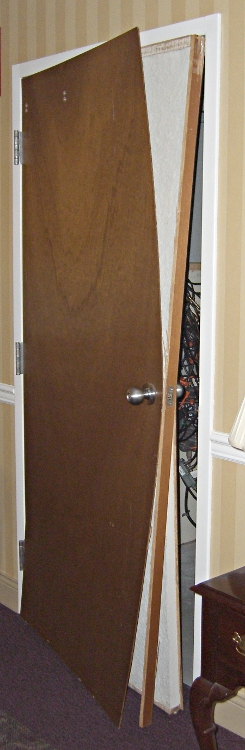
OK, this one is baffling. It’s a fireproof (well, more likely, just fire-retardant) door between a lounge and an equipment / elevator room.
It looks like they made the door by casting something like concrete inside a standard lauan hollow-core door.
What’s truly odd is that the concrete (or whatever) filling is also warped, convex side outward. The door edge strip with the latch is straight as an arrow, having separated from both of the facing panels and the concrete core at the bottom.
Did the outside of the door get wet in some way that didn’t soak the surrounding room?
When you’re aligning to an edge or scribe mark, you want the laser spot as small as it can possibly be, so you tune for best focus.
To locate the center of a hole, you first find the edge, then move toward the center by one radius… so you must know the diameter, too. It’s tricky to find an edge exactly on the X or Y axis, which means you generally resort to successive approximation. I did something like that there with good results.
If you defocus your laser aligner to produce a spot slightly larger than the hole, you can simply position the hole under the beam to produce a nice bright ring. Adjust the focus to make the spot barely larger than the hole and you can get pretty close to the center without any messy arithmetic.
Now, should you happen to own a real laser aligner, you might actually have a nice-looking defocused spot. My homebrew Orc Engineering aligner, as shown there, starts with the beam from a chip laser in a hacked carpenter’s level, so the defocused spot is rather, mmm, ragged, even after passing through the not-very-restrictive aperture behind the lens.
With the lens in the spindle, though, I can spin it at a few hundred RPM and persistence of vision blurs the beam into a nice, symmetrical disk. Jog to center the disk around the hole, twiddle the Z-axis position to adjust the focus / size / blobbiness, jog more slowly, tune for best picture, and it’s all good.
This obviously doesn’t produce jig-boring quality alignment, but, then, I’m not doing that sort of work. In the picture, I’m enlarging a 4-40 hole molded in a Pactec case to fit a 6-32 screw. Normally I’d do that by hand on the drill press, but this time I also had to enlarge the counterbore at the top and figured I’d use a quick G2 with an end mill after I had it aligned for the drill.
Maybe everybody else knows this trick, but I was delighted to find that it actually works pretty well…
Just picked up a batch of electronic-ballast shoplights from Lowe’s, motivated by a 10% off card they sent a while ago. Not a killer deal, but it evidently got plenty of folks into the store on a Sunday morning.
The new lights don’t claim much about their abilities, other than “Electronic Cold Weather Start (0° F)” and that the reflector sizing requires T8 (1″ dia) fluorescent tubes. One would expect an electronic ballast to have a decent power factor and improved efficiency.
Because I’m that sort of bear, I opened one up to see what was inside. Here’s the ballast:
Electronic Ballast Dataplate
Although the fixture is sized for T8 tubes, the ballast would be perfectly happy with T12s. Similarly, the box insists on F32 tubes, but the ballast is OK with F40s.
I thought a comparison with one of my old magnetic-ballast fixtures would be of interest, so I hitched up the Kill-A-Watt meter and ran some comparisons.
The results…
Amp
Watt
VoltAmp
PF
Old magnetic ballast
F40T12
0.64
60
76
0.79
F32T8
1.11
80
126
0.62
New electronic ballast
F40T12
0.75
47
89
0.53
F32T8
0.77
49
91
0.54
The electronic ballast has a much lower power factor and thus much higher current. The box & ballast don’t say anything about power factor correction and, wow, there sure isn’t any. The power company hates gadgets like this…
I cannot compare the brightness because the F40 tubes are several years old, but it’s interesting that the electronic ballast runs both tube sizes at essentially the same power (just as the dataplate indicates, sorta-kinda). The magnetic ballast really cooks the piss out of the smaller tubes, though… or it’s dumping a lot of energy into the ballast. Hard to say.
The T12 tubes are rated for 3000 lumens & 20 k hours. The new box of T8 tubes I got a while back are 2800 lumens and 24 k hours. Frankly, I don’t believe any of those numbers, particularly given the actual power consumption: it looks like either ballast runs them at just 75% of their rated power.
Anyhow, these were the cheapest shoplights in stock; I bought eight of ’em, because I’ve been replacing one dead fixture every month or two for the last year. I’d like to think I’d get a better ballast if I spent twice as much, but to a good first approximation the additional cost seems to have gone into black plastic trim and a burnished-chrome exterior finish; not what I need in the Basement Laboratory.
I wish the boxes were more forthcoming so you didn’t need to perform exploratory surgery.
The standard Sherline mill comes with tapered plastic knobs on the handwheels, which is exactly what you want for a manual mill and what you don’t want on a CNC machine: they rattle like crazy during computer-controlled moves.
Some folks contend the knob unbalances the handwheel, but I’m not convinced that’s a real problem. Their advice is to remove the entire knob assembly, leaving a bare shaft sticking out of the motor. Seems a bit extreme to me.
In any event, shortly after I got the mill, I unscrewed the little retaining screw from the end of each knob, put all the parts in a ziplock bag, tucked it in my tool box, and have been rattle-free ever since.
The metal shaft is entirely adequate for those rare occasions when I turn the knob manually, the graduated settings let me detect when if I’ve screwed up the acceleration (on a new installation) to the point where the motor is losing steps, and all is right with the world.
Oh, that orange-barred white tape in front of the motor? That’s a reminder to keep the usual pile of crap away from the spinning knob. That little shaft can fling small objects a fair distance and makes a nasty tangle out of a misplaced red rag…
We met this lass while walking around the high school one evening.
My first thought was that eliminating the Morse Code requirement has definitely broadened the amateur radio population, but it turns out she’s part of the Hudsonia Blanding’s Turtle study. Perhaps the new construction around the school has opened pathways for her to explore the world.
She seemed to be looking for a way up-and-over the curb to return home. We figured she was big enough to figure this out on her own and old enough to have done so many times before, so we left her to her own devices. When last seen, she was chugging along the curb at a pretty good clip.
Listen for tag 123122 (or 817) on 150.888 MHz… she’s running AM QRP with a bad antenna.
Update: It’s hard to tell with turtles, but it’s a girl! When I reported the tag number to Hudsonia, they said “817 is one of our old-timers; we’ve been tracking her for at least 10 years now.”
Gnuplot can do curve fitting (of all kinds) and parks the coefficients in variables. In general, you’d like to display those values on the final plot for later reference…
The trick is using the sprintf() function, which behaves largely like the C version, to insert the variable into a formatted string for use in the label command.
I drive Gnuplot with shell scripts, which simplifies introducing parameters & suchlike. That’s conspicuous by its absence here, but when you need it, you need it bad.
The script to generate that plot looks like this, with some key points in the highlighted lines:
#!/bin/sh
export GDFONTPATH="/usr/share/fonts/truetype/msttcorefonts/"
gnuplot << EOF
set term png font "arialbd.ttf" 18 size 950,600
set output "Calibration Curve - Full.png"
set title "Calibration Curve - Full"
set key noautotitles
unset mouse
set bmargin 4
set grid xtics ytics
set xlabel "10^5/ADC"
set format x "%3.0f"
set ylabel "Resistance - Ohm"
set format y "%3.0f"
set yrange [0:100]
set datafile separator "\t"
f(x) = m*x + c
fit f(x) "Measurements/Calibration.csv" using 3:1 via m,c
set label 1 sprintf("m = %3.4f",m) at 510,75 font "arialbd,18"
set label 2 sprintf("c = %3.4f",c) at 510,70 font "arialbd,18"
plot    \
 "Measurements/Calibration.csv" \
 using 3:1 with linespoints lt 3 lw 3 pt 3 , \
f(x) lt 4 lw 2
EOF
The dataset for that plot is tucked into the obvious file and looks like this, with tabs between the columns:
Most character-mode LCDs seem to be happy with a VEE supply of about 0 V, which produces enough contrast to get by. If you have a negative supply handy, then it’s easy to goose it with a little negative bias and improve the contrast.
What if you don’t have a negative supply and you’re using an old craptastic LCD that really wants VEE = -1 V and you didn’t realize that until you had everything wired up and it’s a one-off / low-duty-cycle instrument that you don’t want to spend much more time on?
Just whack up a quick-and-dirty charge pump inverter…
Quick and dirty LCD VEE Inverter
It turns out that the circuitry already had a 33 kHz PWM square-wave signal driving something else, so I air-wired this inverting charge pump to the PWM output. You could, of course, put an otherwise unoccupied PWM output to good use, which is a better idea if you have the option.
You can use a PWM output, but the charge pump depends on being fully charged & discharged in every cycle. Run your own numbers.
The LCD’s VEE input dumps about 1 mA to the supply, which means the charge pump must be able to pull out 1 mC/s, more or less. At 33 kHz, each cycle must haul 30 nC.
Assuming the Arduino (well, any microcontroller will do, but that’s what I’m using) has a 5 V power supply and the output pin isn’t overloaded from the rest of its function and the cap charges & discharges completely during each half-cycle, then the first cap must store that 30 nC of charge. You want a lot more than that so you have a stiff supply to work with.
Q = CV, so you need at least 30 nC/5 V = 6 nF. Nothing exceeds like excess, so I soldered a 220 nF box cap standing up from the header pin on the circuit board and air-wired the diodes in place. That will transfer lots more charge and keep the voltage nicely negative.
I have a lifetime supply of 10 µF solid tantalum caps, so that’s what I used for the filter cap. Regulation isn’t critical, but each pump cycle shouldn’t change the voltage on that cap very much. In fact, pulling 220 nF * 5 V = 1 µC from the filter cap while injecting 30 nC from the LCD leaves you with a whopping 970 nC deficit: it’ll stay around -5 V just fine.
Actually, it won’t. The negative supply will be about two diode drops above -5 V. The diodes aren’t carrying a lot of current, so they’ll be running at maybe half a volt apiece. Call it -4 V, more or less. You could use Schottky diodes if you need more negative volts.
If the LCD dumps 1 mA into the supply and -1 V produces the right contrast, then a 3 k resistor will drop the necessary voltage from the supply.
As it turned out, the LCD dumped 800 µA, -0.8 V gave the right contrast, and a 4.7 k resistor worked just fine. Maybe you want a twiddlepot in there to adjust things.
You need that little cap right at the LCD VEE pin to soak up the spikes from the LCD drive multiplexing, as this “power supply” has nearly 5 k output impedance. Yow!
If you’re worried about temperature compensation, then you’ll need something fancier. In that case, you’ll also want a Spice model to be sure all these rough-and-ready calculations cut somewhere close to the truth.
Memo to Self: maybe next time this should be on the PCB right from the start, even if it’s not really needed? Or, much better, just go with a single-chip inverter and be done with it!
Update: If you’re worried about driving a bare cap from your microcontroller pin, add a small-value series resistor. The time constant should be maybe a third of the square-wave period: 15/3 = 5 µs in this case, so the resistor should be 5 µs/220 nF = 22 Ω. That limits the peak current to no more than 5 V/22 Ω = 230 mA, not a big improvement. Mostly, the microcontroller pin will be OK if you’re using small caps.


 The Smell of Molten Projects in the Morning