The Smell of Molten Projects in the Morning

Ed Nisley's Blog: Shop notes, electronics, firmware, machinery, 3D printing, laser cuttery, and curiosities. Contents: 100% human thinking, 0% AI slop.

Author: Ed

  • More WWVB 3D Glitchiness

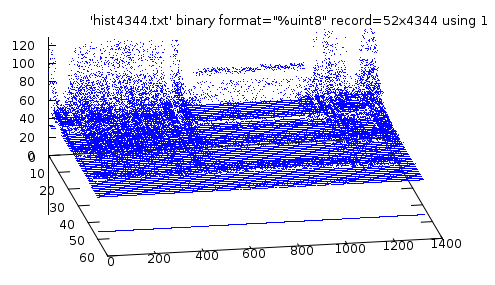
    The next day of WWVB Glitchiness, with the “!” limit characters changed to “|” to move them above the plot where they belong… which really doesn’t make that much difference.

    Gnuplot Glitchiness 2
    Gnuplot Glitchiness 2

    It’s worth mentioning that the WWVB transmitter is running in degraded mode during the day, down 3 dB, while they work on the antenna system. It probably doesn’t make much difference, given the noise around here, but you can see a definite jump as the frame marker pulses pop up off the floor.

    The clock synched with WWVB nine times during the Valley of the Shadow of Night. Each synch requires four consecutive glitch-free minutes, which obviously doesn’t happen during daylight hours.

    That’s with the antenna perched 3 cm over the top of the clock, aligned with the circuit board: the hardware seems quiet enough.

  • WWVB Glitchiness Histogram in 3D

    The character based Glitchiness histograms described there work pretty well for short time scales, but more than a screen full is too much. It turns out that Gnuplot can chew up the histograms and spit out a perfectly serviceable 3D map plot.

    The trick is to extract the histogram characters into a file, then persuade Gnuplot to regard the file as a binary array, with the ASCII character values giving the Z height of the dot for each XY cell.

    Click for bigger picture:

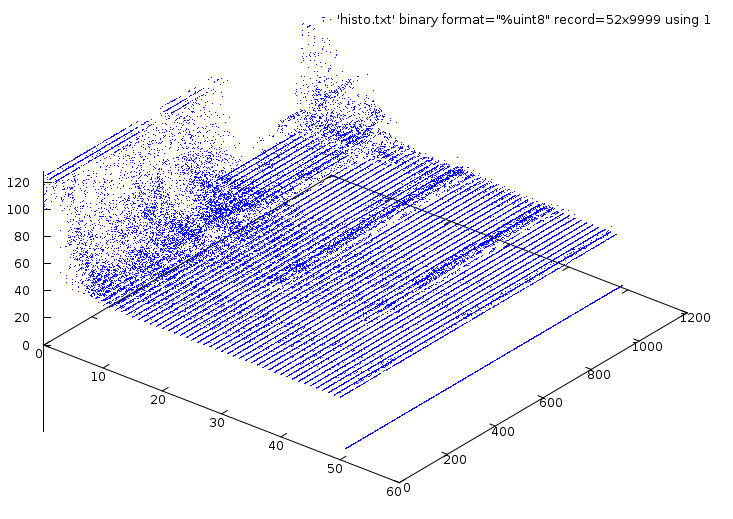
    Gnuplot Glitchiness
    Gnuplot Glitchiness

    The axes:

    • Front edge = 51 pulse durations, 0 – 1 second, 20 ms resolution
    • Right edge = 1363 histograms = 22.7 hours of WWVB reception
    • Z axis = histogram counts

    The flat plane has the vast majority of points having zero (or just a few) counts.

    The three front-to-back hillocks show the durations of the binary-zero, binary-one, and frame markers within each second; the resolution is 20 ms per sample perpendicular to those lines.

    The fuzzy mountain peaks along the left edge represent intense noise; you’re looking for the very few intervals of zero noise when the WWVB signal is readable. Those would be flat lines from the left to right edges, with just three bumps at the proper durations.

    The valley between the mountain peaks is the nighttime reception, when the noise drops to bearable intensity and RF propagation brings in enough WWVB signal to make a difference. The fact that you can see the proper pulse widths through much of the day suggests the signal is in there, but it’s so noisy you (well, I) can’t make make much use of it.

    How to get the graph…

    The clock produces three lines of output every minute that look like this:

    UTC: 10 013 16:36:00.0 Loc=11 Age=367   LY=0 LS=0 DST=0 Chg=0 UT1=1 Mon=1 DOM=13
    Glitchiness:  268 Histogram: W!ieTHG3A35412132.11...............................
    Light: 02CA Min=0005 Max=038B
    

    Extract just the lines with histograms:

    grep Histo 2010-01-12\ LR\ Window\ 80\ cm\ V\ on\ shelf\ -\ shield\ box.log > 1.txt
    

    Chop out the histogram data, which has a leading space:

    cut -d ':' -f 3 1.txt > 2.txt
    

    Discard the leading space and put the histogram text in the final file:

    cut -d ' ' -f 2 2.txt > histo.txt
    

    The last few lines of that file look like this:

    Q!njLDG896D6341...1................................
    BpgcSHD7B35531311.21..1..2....2....................
    L!jPQECA856231.221.....1.1................1........
    W!ieTHG3A35412132.11...............................
    

    You could do that all in one gargantuan Bash line, piping the results from one filter to the next, but that’s hard to explain.

    Now, fire up Gnuplot and have at it:

    gnuplot
    set xyplane at 0
    set zrange [0:128]
    splot 'histo.txt' binary format="%uint8" record=52x1363 using 1 with points lt 3 pt 0
    

    The doc suggests record=52xInf should work, but that draws a useless picture. If the record value is bigger than the number of actual records (found with wc -l histo.txt, the plot ends at the end of file; if it’s smaller, then you get only that many records. I suppose you could just use 99999; it’d work well enough.

    The 52 comes from the number of characters in the line: 51 histogram bytes per line, plus a newline character at the end. The newline produces the distinct line below everything else along the right edge of the plot. You could get rid of the newline characters and turn it into a binary file before plotting, but that’s sort of cheating, I think.

    You’ll recall the counting sequence in each histogram character:

    • “.” = 0
    • 1 through 9 = obvious
    • A through Z = 10 – 35
    • a through z = 36 – 61
    • ! = more than 61

    Unfortunately, the “!” has a lower ASCII value than the other characters, so those are the dots below the plane on the left side; they should be along the top surface. I’ll change that to “|” and make the answer come out right.

    From here on, it’s a matter of the usual Gnuplot futzing to get a decent-looking plot.

    Rotating the view may be useful. For example, set view 60,80 produces this:

    Gnuplot Glitchiness - rotated
    Gnuplot Glitchiness – rotated

    Now you’re looking more-or-less parallel to the samples for each minute. If you twiddled with the ranges, you could probably see the few valleys where it’d be possible to extract a valid time code.

    The alert reader will note that I used record=52×4344 to generate those plots. Homework: why?

  • Ubuntu Karmic 9.10: Wacom Graphire 2 HAL Configuration

    With yesterday’s background in hand, here’s the the fdi file for my Wacom Graphire 2 tablet that:

    1. Fixes the incomprehensible Wacom screwup in Ubuntu Karmic
    2. Swaps the two buttons on the side of the stylus

    This is based largely on the work found there, with the generalizations stripped out and the tablet identification changed just slightly.

    The file is stashed at:

    /usr/share/hal/fdi/policy/20thirdparty/10-linuxwacom.fdi
    
    <?xml version="1.0" encoding="ISO-8859-1"?>
    <deviceinfo version="0.2">
     <device>
     <match key="info.product" string="Wacom Graphire2 4x5">
     <merge key="input.x11_driver" type="string">wacom</merge>
     <merge key="input.x11_options.Type" type="string">stylus</merge>
     <merge key="input.x11_options.Button2" type="string">3</merge>
     <merge key="input.x11_options.Button3" type="string">2</merge>
     <append key="info.callouts.add" type="strlist">hal-setup-wacom</append>
     <append key="wacom.types" type="strlist">eraser</append>
     <append key="wacom.types" type="strlist">cursor</append>
     </match>
     </device>
     <!-- Wacom names "parser" -->
     <device>
     <match key="info.udi" contains_not="subdev_0">
     <match key="info.udi" contains_not="subdev_1">
     <match key="info.udi" contains_not="subdev_2">
     <match key="input.x11_options.Type" contains="stylus">
     <merge key="info.product" type="string">stylus</merge>
     </match>
     <match key="input.x11_options.Type" contains="eraser">
     <merge key="info.product" type="string">eraser</merge>
     </match>
     <match key="input.x11_options.Type" contains="cursor">
     <merge key="info.product" type="string">cursor</merge>
     </match>
     </match>
     </match>
     </match>
     </device>
    </deviceinfo>


    This button config works better for me:

    • front button = 3 — right mouse button
    • rear button = 2 — middle mouse button

    The tip switch remains the left button: if you try to configure the “mouse” to be left-handed, the tip switch functions as button 3, which is probably not what you really expected. The switch on the other end remains the eraser.

    Notice that the button configuration syntax is totally different from the evdev syntax that did basically the same thing yesterday: different drivers, different syntax.

  • Ubuntu 9.10 HAL FDI: Input Device Configuration – Kensington Expert Mouse FAIL

    The recent Ubuntu 9.10 release uses HAL & UDEV to permit hotplugging USB mice / trackballs / tablets without killing the X server. This is a vast improvement over the Bad Old Days, with two minor issues:

    1. You must now write an FDI file to configure your widget
    2. There is absolutely no documentation on how to do that

    Basically, you’re left to find a blog post somewhere that describes an fdi file for something similar to your widget, then puzzle out how to get from there to what you have. If you’re reading this (and you’re not one of the few dozen folks who read my posts for their pure amusement value), then you’ve probably stalled on Step 2 and arrived here via search engine.

    So, here’s how the rest of the story goes down. I assume you’ve read all the various posts scattered here & there and have a vague notion of what goes into an fdi file and why it’s needed. I am not an expert on this stuff, but I did manage to get a few things working with an afternoon of concerted heads-down effort.

    Start with the widget plugged in. Type:

    lshal | less
    

    Then rummage through that steaming pile until you find the stanzas that (seem to) have something to do with the widget. One stanza should mention a driver that sounds familiar: evdev, wacom, whatever you formerly found in /etc/X11/xorg.conf.

    For example, I want to flip the buttons on my Kensington Expert Mouse (it’s really a trackball) to make it left-handed. The userland GUI mouse configuration isn’t relevant, because I also have a tablet and another trackball that must remain right-handed.

    Here’s the appropriate stanza for the trackball, with the key lines highlighted:

    udi = '/org/freedesktop/Hal/devices/usb_device_47d_1020_noserial_if0_logicaldev_input'
     info.capabilities = {'input', 'input.mouse'} (string list)
     info.category = 'input'  (string)
     info.parent = '/org/freedesktop/Hal/devices/usb_device_47d_1020_noserial_if0'  (string)
     info.product = 'Kensington      Kensington Expert Mouse'  (string)
     info.subsystem = 'input'  (string)
     info.udi = '/org/freedesktop/Hal/devices/usb_device_47d_1020_noserial_if0_logicaldev_input'  (string)
     input.device = '/dev/input/event7'  (string)
     input.originating_device = '/org/freedesktop/Hal/devices/usb_device_47d_1020_noserial_if0'  (string)
     input.product = 'Kensington      Kensington Expert Mouse'  (string)
     input.x11_driver = 'evdev'  (string)
     linux.device_file = '/dev/input/event7'  (string)
     linux.hotplug_type = 2  (0x2)  (int)
     linux.subsystem = 'input'  (string)
     linux.sysfs_path = '/sys/devices/pci0000:00/0000:00:1d.3/usb5/5-1/5-1:1.0/input/input20/event7'  (string)
    

    I don’t know what the difference between info.product and input.product might be, but it looks like the same string for both.

    Most of the fdi files I’ve seen try to match the largest possible number of different devices. I take the other tack: I only have one of the things and if I get something similar, it’ll likely be configured entirely differently. So, my fdi files assume one widget of that type, match its name directly without thinking, and are pared to the bare minimum.

    I called the file 10-expertmouse.fdi and plunked it in /usr/share/hal/fdi/policy/20thirdparty. The proper directory seems to move around, the files get renamed, and so forth and so on. This was the correct file in the correct spot for the current Ubuntu 9.10 configuration…

    <?xml version="1.0" encoding="ISO-8859-1"?>
    <deviceinfo version="0.2">
     <device>
     <match key="input.product" string="Kensington      Kensington Expert Mouse">
     <merge key="input.x11_options.ButtonMapping" type="string">3 8 1 4 5 6 7 2</merge>
     </match>
     </device>
    </deviceinfo>
    

    You get the X button numbers using xev; write them on the trackball for future reference.

    The default Expert Mouse trackball buttons are:

    • upper-left = 2 — middle mouse button
    • upper-right = 8 — page back in browsers, mostly
    • lower-left = 1 — left mouse button
    • lower-right = 3 — right mouse button

    So the ButtonMapping line swaps (2 & 8) and (1 & 3). If you prefer not interchanging the 2 and 8 buttons, so as to keep the “page back” button on the upper-left corner, then 3 2 1 will suffice.

    The scroll ring emits buttons 4 and 5 as usual. If you don’t like the rotation-to-up/down mapping you can (presumably) swap those using ZAxisMapping as you did before.

    The syntax for, say, button mapping is whatever the driver expects and if you can find that doc, great. I used whatever I used in xorg.conf and that seems to work; it matches what the current evdev doc suggests. Leaving out all the config other than the button mapping line seems to work, but I’m sure that’s not a general rule. Maybe it only works with devices that are already automagically recognized as some sort of mouse or tablet.

    With that fdi file in place, you just unplug and replug the trackball: no need to reboot or restart X or whatever you’re thinking.

    Here’s the new stanza…

    udi = '/org/freedesktop/Hal/devices/usb_device_47d_1020_noserial_if0_logicaldev_input'
     info.capabilities = {'input', 'input.mouse'} (string list)
     info.category = 'input'  (string)
     info.parent = '/org/freedesktop/Hal/devices/usb_device_47d_1020_noserial_if0'  (string)
     info.product = 'Kensington      Kensington Expert Mouse'  (string)
     info.subsystem = 'input'  (string)
     info.udi = '/org/freedesktop/Hal/devices/usb_device_47d_1020_noserial_if0_logicaldev_input'  (string)
     input.device = '/dev/input/event7'  (string)
     input.originating_device = '/org/freedesktop/Hal/devices/usb_device_47d_1020_noserial_if0'  (string)
     input.product = 'Kensington      Kensington Expert Mouse'  (string)
     input.x11_driver = 'evdev'  (string)
     input.x11_options.ButtonMapping = '3 8 1 4 5 6 7 2'  (string)
     linux.device_file = '/dev/input/event7'  (string)
     linux.hotplug_type = 2  (0x2)  (int)
     linux.subsystem = 'input'  (string)
     linux.sysfs_path = '/sys/devices/pci0000:00/0000:00:1d.3/usb5/5-1/5-1:1.0/input/input21/event7'  (string)
    

    Shazam! Suddenly, the trackball is completely left-handed and that configuration survives hotplugging and all that happens without killing X.

    Well, at least that’s what you’d expect, based on all the doc you can find on the Web.

    As it turns out, something in the Ubuntu 9.10 udev mouse event hal X input button stack absolutely prohibits swapping buttons 1 and 3. You can verify this by looking at what the X button IDs are, using xinput:

    xinput list --short
    "Virtual core pointer"    id=0    [XPointer]
    "Virtual core keyboard"    id=1    [XKeyboard]
    "Logitech Logitech USB Headset"    id=2    [XExtensionKeyboard]
    "Microsoft Comfort Curve Keyboard 2000"    id=3    [XExtensionKeyboard]
    "stylus"    id=4    [XExtensionKeyboard]
    "stylus cursor"    id=5    [XExtensionKeyboard]
    "eraser"    id=6    [XExtensionKeyboard]
    "Microsoft Comfort Curve Keyboard 2000"    id=7    [XExtensionKeyboard]
    "Power Button"    id=8    [XExtensionKeyboard]
    "Power Button"    id=9    [XExtensionKeyboard]
    "Macintosh mouse button emulation"    id=10    [XExtensionPointer]
    "Logitech USB Receiver"    id=12    [XExtensionPointer]
    "Kensington      Kensington Expert Mouse"    id=11    [XExtensionPointer]
    
    xinput get-button-map "Kensington      Kensington Expert Mouse"
    1 8 3 4 5 6 7 2 9 10 11 12
    

    Notice that buttons 2 and 8 are swapped, so you know the fdi file is in full effect.

    You can force the button mapping using xinput like this (leaving 2 and 8 unswapped, for effect):

    xinput set-button-map "Kensington      Kensington Expert Mouse"  3 2 1 4 5 6 7 8
    xinput get-button-map "Kensington      Kensington Expert Mouse"
    3 2 1 4 5 6 7 8 9 10 11 12
    

    As you might expect by now, whenever the trackball disconnects itself, the xinput mapping Goes Away and the button handedness changes. That completely defeats the entire purpose of the whole obscene-gerund HAL fdi concept.

    You might then think you could whip up a nice udev rule that would fire off xinput when the trackball reappears, but udev scripts execute outside the entire user-terminal-X paradigm: xinput complains that it can’t talk to the X server. Of course, you can’t hear it scream, because it’s not connected to a terminal…

    Game over. Thanks for playing.

    Equally of course, there’s no documentation for the Officially Approved way to configure these devices, if, indeed, there is a way.

    Oh, and the real punch line? HAL is (about to be?) Officially Deprecated, so all this information is (or should be, shortly, we’re told) completely obsolete.

    I would love to be proved wrong. Let me know…

    Surprisingly, Xubuntu 9.10 not only enumerates all the mouse-like objects, but also allows you to set their handedness. That part works fine, but occasionally the Kensington trackball’s scroll ring stops working for a while: xev reports no “button” events happening. Then, unpredictably, it starts up again and works fine. I’d love to believe it’s a hardware problem, but I have two of the things and it happens with both of ’em.

    Tomorrow: fun with a Wacom tablet.
  • Kubuntu 9.10 Karmic: Static IP FAIL

    Once again, it seems to be impossible to set a static IP address in the Latest & Greatest version of Kubuntu… with KDE 4.whatever, the triumph of glitz over usability.

    This seems peculiar, as Unix-oid operating systems have networking built into their DNA since the beginning and every single Unix-oid system has a network connection of some sort. Evidently, all Ubuntu systems for the last couple of years have had only wireless NICs and nobody in their whole obscene-gerund testing universe has ever tried to set a static IP address.

    Maybe I’m exaggerating, but it does look that way.

    The fix is the same as in 8.10… as described there.

    This time, use KPackageKit (aka, the KDE package manager) to remove network-manager & plasma-widget-network-manager. Evidently, the Gnome version is pooched, too.

    Sheesh…

  • WWVB Receiver Shield Enclosure

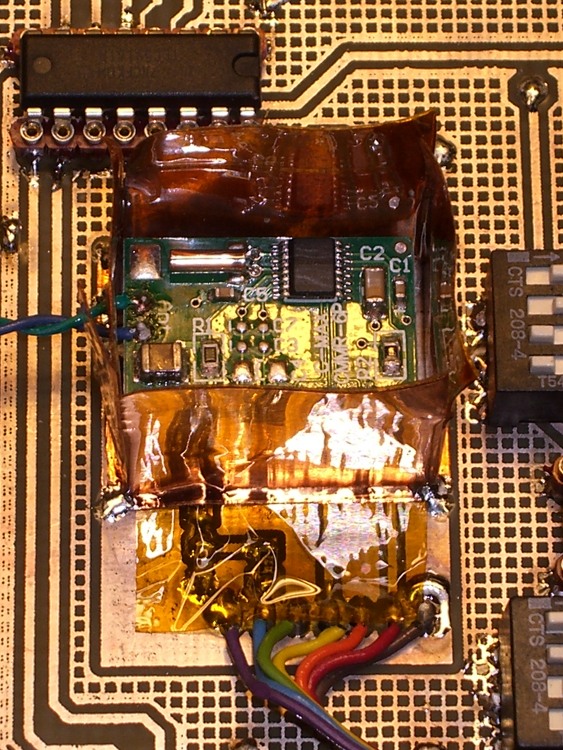
    Kapton tape over traces
    Kapton tape over traces

    The little C-Max CMMR-6P-60 WWVB receiver board is somewhat sensitive to its surroundings: putting it too close to fast-switching digital signals is a Bad Idea. Of course, when there’s an antenna connected to the thing, it’s hard to separate the effects, but I’ve been testing reception with the antenna at the end of a two-foot twisted pair: far enough away to eliminate most problems.

    Just to see what happens, I built a little shield enclosure around the receiver board. The clock board has a pair of solid planes isolated from everything else, with a header matching the receiver’s pinout, for this very purpose. The receiver has a fairly solid ground plane on the bottom, but it’s quite sensitive being snuggled up against other objects; the header holds it about 5 mm above the circuit board.

    The dark amber square is Kapton tape across the traces. If I ever do this again, I’ll put the traces on the bottom so the board is entirely shielded and the tape isn’t needed.

    Shield soldered to base
    Shield soldered to base

    Some 1-inch copper tape with adhesive on one side serves as the shield enclosure, with a layer of Kapton tape covering all but about 2 mm of the adhesive near the bottom to insulate the copper from the receiver. Bent those 2 mm strips outward, with the adhesive on the bottom, stuck it to the shield plane, and soldered it in place at the corners.

    The antenna leads poke out through one side; it’s not very elegant, but I think it’s about as good as is needed for this sort of thing.

    I cut the tape at the corners and folded it down to make a little box, stuck a square of copper tape over the top flaps, soldered the corners, and it’s cute. Admittedly, it doesn’t have perfect conduction around the joints; the next time it’s on the bench I’ll add a few solder dots at the midpoints.

    Completed shield enclosure
    Completed shield enclosure

    The immediate effect was to raise the receiver’s Glitchiness score by a factor of about four. However, that’s not entirely a bad thing; it turns out that the reciever is much less Glitchy when it’s subject to high noise levels: the receiver AGC cranks the gain down so low that only heroic pulses get through and the number of glitches drops dramatically.

    As nearly as I can tell, when there’s no WWVB signal, as during the day, a low Glitchiness count means there’s extremely high noise. Thus, a higher count means less noise and better sensitivity.

    More data collection is in order, but the receiver’s LED showing data pulses now tracks the Alpha Geek Clock‘s display almost perfectly.

  • WWVB Antenna: Location, Location, Location

    Given that the wavelength of WWVB’s 60 kHz carrier is 5 kilometers, you’d think that the position of a receiver’s ferrite bar antenna isn’t all that critical. I’ve been running a receiver hitched to a laptop atop a file cabinet, with the bar antenna a few feet away atop an adjoining bookcase.

    Putting the antenna 12 cm over the top shelf surface (in a kludged cardboard holder to keep it off the wood), located on the left side of a mechanical mantel clock, produces these samples:

    
    Glitchiness:  276 Histogram: N!qdNMKE8B8A133111..12.....1.......................
    Glitchiness:  256 Histogram: O!iSMLLCC9A52215111121...1.........................
    Glitchiness:  243 Histogram: V!RfKOF88D977213212...2.3..2...1...................
    Glitchiness:  227 Histogram: NrfaQG6595AI66.222411.1..2.....11..................
    Glitchiness:  249 Histogram: S!eXNIFB76E5432.122.1.11111........................
    Glitchiness:  258 Histogram: SulWLKIIBB68433212113.1......1.....................
    Glitchiness:  119 Histogram: DWJG78753AEB52.711.....23.1.....1.....11.1.........
    Glitchiness:  159 Histogram: McULIE7835H72..1........332............23..........


    Moving it 40 cm to the other side of the clock, the next few consecutive samples look like this:

    
    Glitchiness:    4 Histogram: .21......3RD11..........332............223.........
    Glitchiness:    4 Histogram: 11..1....3SB3.........1.63.............51..........
    Glitchiness:    3 Histogram: .2.......CJC11..........251............34..........
    Glitchiness:    5 Histogram: 121......9KC3...........18.........1...15..........
    Glitchiness:    5 Histogram: .22......8KD3...........36.........1...33..........
    Glitchiness:   11 Histogram: 131....1.3W71...........451....1.......411........4
    Glitchiness:   21 Histogram: 351......6X231..1.....1.233....2....1..23.........6
    Glitchiness:    6 Histogram: .21..1...7OD1......1....23211..........33..........


    The first position is roughly equidistant from the apex of the corner, so the antenna is on the diagonal of a corner reflector made from the metalized aluminum foil of the exterior insulation.

    I’m not sure what to make of this, other than that location is everything.

    More on the histogram format there.

    Memo to self: maybe display the Glitchiness on the clock before the first sync to help find a good position?