Ed Nisley's Blog: Shop notes, electronics, firmware, machinery, 3D printing, laser cuttery, and curiosities. Contents: 100% human thinking, 0% AI slop.
Went on a ride around the block and after about 4 miles discovered I had no rear brakes. Well, the brakes were there and doing the right mechanical things, but without much friction.
Did an expedient repair by squeezing strips of paper between the pads and the rim, then rolling the wheel. Came out black and graphite-looking, not oily, but didn’t improve the braking.
Rolled the bike into the shop after the ride; 23 miles without a rear brake gets my immediate attention. Wiped a lot of black graphite-looking schmutz off the rim using denatured alcohol, filed the well-glazed pads to a nice finish, and reinstalled.
These are Aztek pad inserts, which I’m trying out to see how they work. So far, not much; they seem less grippy than the ordinary Aztek pads (on the front and previously on the back) and certainly much more prone to glazing.
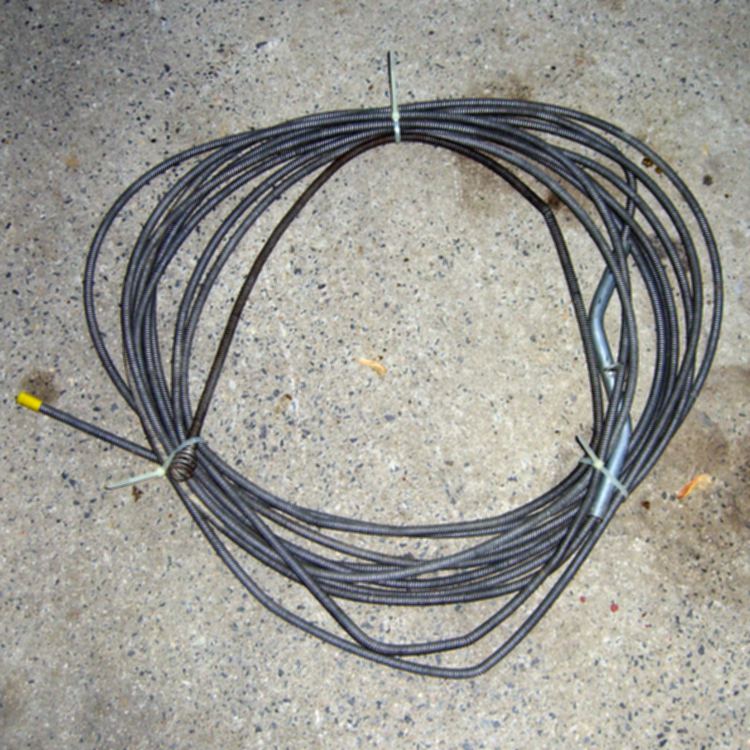
Had the occasion to run the flexy snake through a kitchen drain that turned out to be not as plugged up as I expected, which is always good news. Replaced the cleanout plug, hosed off the snake, coiled it up, and applied the usual three nylon cable ties to keep the snake together.
It took me years to figure out that last step. None of the old-school tricks work for me; I can’t tie knots in string / twine / rope while simultaneously holding those coils together and the snake resists any attempt to weave the loose ends into the bundle.
Mercifully, I don’t use the snake all that often and I don’t feel at all bad about tossing three cable ties each time.
The default OpenOffice 3.2 graphics cache is probably large enough for ordinary documents. However, I put together a 9-page illustrated biography for a birthday party last year using (most likely) OOo 3.1 and that file dragged OOo 3.2 to its knees.
The default cache settings are something like
20 MB
2 MB per object
20 objects
Crank those to
256 MB
5 MB per object
50 objects
Much better!
I’m sure that depends on what you’re doing and how much memory your PC has, but when OOo gets really pokey on a graphics-intensive document, check the cache.
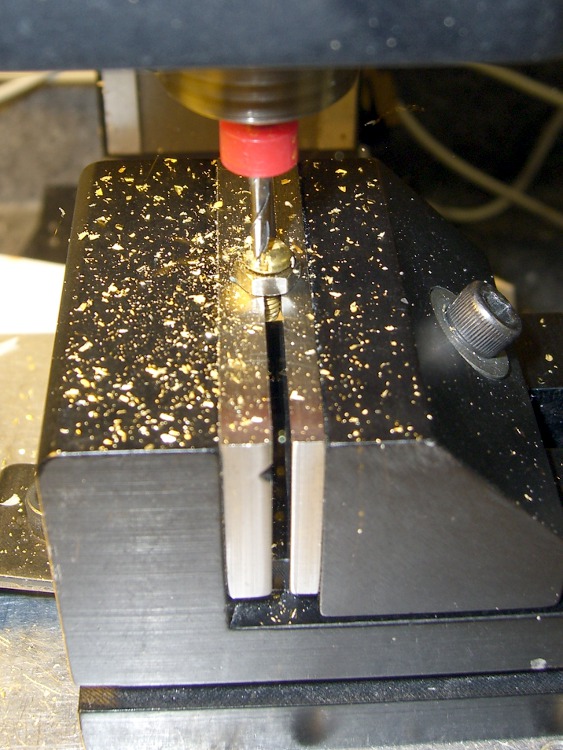
I grabbed the screw in the Sherline vise, touched off XY on the head (close enough to being concentric for this purpose), and touched off Z on the nut supporting the screw. For the next few, I’ll eyeball the Z touchoff at the bottom of the head, rather than the nut, because the heads don’t quite sit flush on the nut.
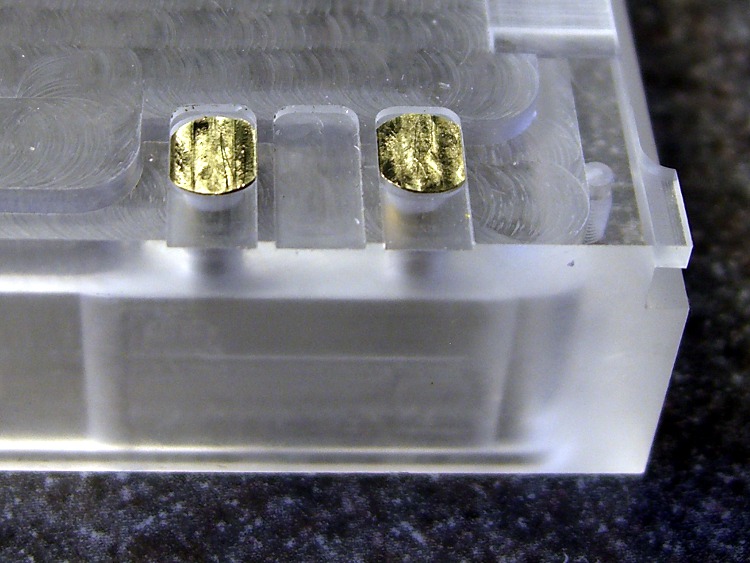
They dropped right into place, without any filing or fiddling! Well, the second one did. I had to tweak the dimensions slightly to make the answer come out right. But that’s one of the advantage of hammering out simple G-Code like this: change two lines and wham you’re done.
Contacts in place
The heads show some tool marks, but that’ll just make the silver solder stick better. Right?
Herewith, the G-Code…
(ICOM IC-Z1A battery pack shell)
(Battery pack contacts)
(Ed Nisley - KE4ZNU - June 2010)
(Vise clamping on threads, XY orgin on central axis, Z=0 at *bottom* of screw head)
(Tool table used just for Axis previews and to activate "manual" changer via M6)
(Tool change @ G30 position above length probe)

(-- Global dimensions & locations)

#<_Traverse_Z> =        5.0
#<_Cutting_Z> =            0.0

(-- Get started ...)

G40 G49 G54 G80 G90 G92.1 G94 G97 G98        (reset many things)

M5
(msg,Verify XY=0 on screw axis)
M0

(msg,Verify tool touched off at Z=0 on *bottom* of head)
M0

(debug,Verify vise clearance around head)
M0

#<Contact_Width> =        4.1            (X axis metallic contact - minus a smidge)
#<Contact_Head_Dia> =    5.5            (recess for 4-40 head)
#<Contact_Head_Radius> = [#<Contact_Head_Dia> / 2]

#<Contact_Head_Depth> =    0.7            (recess depth - plus  smidge)

#<Mill_Dia> =            1.98            (end mill diameter)
#<Tool_Num> =            20
#<Mill_Radius> =        [#<Mill_Dia> / 2]
#<Mill_RPM> =            5000
#<Mill_Feed> =             50

(debug,Verify #<Mill_Dia> mm end mill)
M0

(debug,Set spindle to #<Mill_RPM>)
M0

F#<Mill_Feed>

(--- Flatten the head)

G0 Z#<_Traverse_Z>

#<X_Step> = [0.5 * #<Mill_Dia>]
#<X_Limit> = [3 * #<Mill_Radius>]
#<Y_Limit> = [#<Contact_Head_Radius> + #<Mill_Radius>]

#<X_Coord> = [0 - #<X_Limit>]

G0 X#<X_Coord> Y[0 - #<Y_Limit>]
G0 Z#<Contact_Head_Depth>

O<Head_Trim> DO

G1 Y#<Y_Limit>
#<X_Coord> = [#<X_Coord> + #<X_Step>]
G1 X#<X_Coord>
G1 Y[0 - #<Y_Limit>]
#<X_Coord> = [#<X_Coord> + #<X_Step>]
G1 X#<X_Coord>

O<Head_Trim> WHILE [#<X_Coord> LT [3 * #<Mill_Radius>]]

G0 Z#<_Traverse_Z>

(--- Trim the sides)

#<Arc_Radius> = [#<Contact_Head_Radius>]
#<Half_Width> = [#<Contact_Width> / 2]
#<Angle> = ACOS [#<Half_Width> / #<Arc_Radius>]
#<Half_Height> = [#<Arc_Radius> * SIN [#<Angle>]]

G0 Z#<_Traverse_Z>

G0 X[0 - #<Half_Width>] Y[0 - #<Contact_Head_Radius> - 3 * #<Mill_Dia>]
G0 Z#<_Cutting_Z>

G41.1 D#<Mill_Dia>
G1 X[0 - #<Half_Width>] Y[0 - #<Half_Height>]

G1 Y#<Half_Height>
G2 X#<Half_Width> I[#<Half_Width>] J[-#<Half_Height>]
G1 Y[0 - #<Half_Height>]
G2 X[0 - #<Half_Width>] I[-#<Half_Width>] J[#<Half_Height>]
G1 Y#<Half_Height>

G0 Z#<_Traverse_Z>

G40

G30                    (back to tool change position)

(msg,Done!)
M2
Mary wanted to convert some old tomato cages into flower supports and deer protectors (until the flowers get big enough), by the simple expedient of flipping the cages over with the large end down. She figured we could chop off the wire ends that normally anchor the cages to the ground, then bend them into hooks for secure ground anchors.
I deployed the linesman’s pliers, which only showed that my wire size estimation is grossly underdeveloped. The high-carbon steel wires required bolt cutters… but a few minutes of twang effort scattered two dozen really stiff wires across the patio.
I ran a marker across the pile at the bend point, grabbed two random steel rods in the vise and, in short order, bent up a stack of ground anchors.
After the fuffing and fawing required to get the Wacom tablet up to speed, swapping the buttons on the Kensington trackball required just one stanza in /etc/X11/xorg.conf.
Father Vaughn spent many years in IBM’s semiconductor biz, where he realized that the proper shape for a silicon chip was not long and skinny.
His engineers would argue that they could lay out the logic much more easily on a rectangle. While that was true, he knew something they didn’t: high aspect ratio shapes snap much more easily during processing. An optimum layout doesn’t matter when you can’t build the chips.
His aphorism also applies to human behavior: you’re rarely as smart as you think you are. Being square, in the stodgy, conventional, risk-averse sense, may save your bacon.

 The Smell of Molten Projects in the Morning