Ed Nisley's Blog: Shop notes, electronics, firmware, machinery, 3D printing, laser cuttery, and curiosities. Contents: 100% human thinking, 0% AI slop.
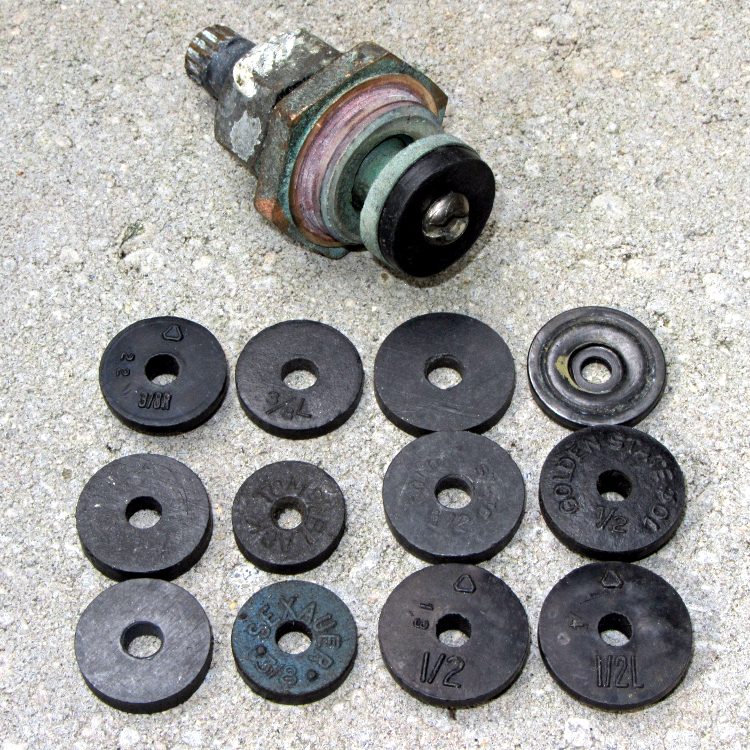
The slop sink in the rental house developed a drip and, unlike our kitchen faucet, required only a new washer. Of course, choosing the right size from that assortment posed a bit of a problem:
Slop sink valve with washers
The old washer is in the upper right; you can see the indentation from the valve seat.
There’s a variety of sizes & shapes; these represent just the closest matches. I have no idea what 3/8, 3/8R, and 3/8L might signify, but they’re all slightly different, some with conical cross-sections that may also be slightly different. Worst case, of course, you can sand down the rim of a too-large washer to make the diameter come out right.
The washer just in front of the old one has information molded right into the back: GOLDEN STATE 10¢ 1/2. Now there’s a show of confidence in price stability that you don’t see much any more!
I found one that fit snugly in the recess of the valve stem, turned the screw tight, and it’s all good.
One of the myriad cheap LED flashlights around the house & shop stopped working. This one consists of an aluminum shell with a pushbutton switch in the screw-on rear cap; somewhat to my surprise, the switch worked fine.
Poking around the PCB in the front revealed the problem: only friction held it in place against the springs contacting the three AA cell battery container. Pushing a bit harder shoved the lens and the LED / reflector / PCB assembly out:
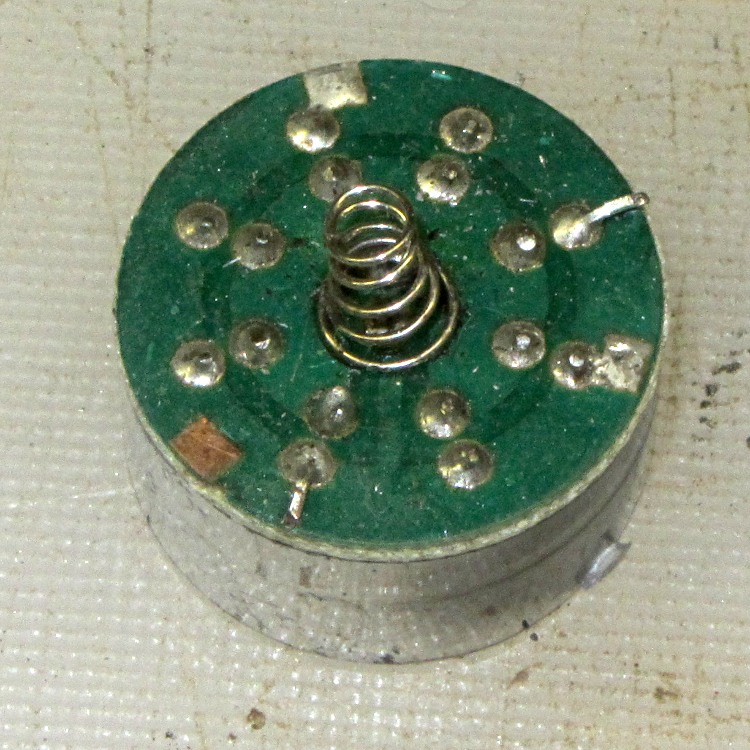
LED flashlight PCB
The spring in the middle contacts the positive battery terminal. Those three square pads pressing against a locating shoulder inside the shell, but two of the pads have a solder layer and one is bare. I don’t know if the long lead on the LED at about two o’clock is a deliberate attempt to form an additional contact.
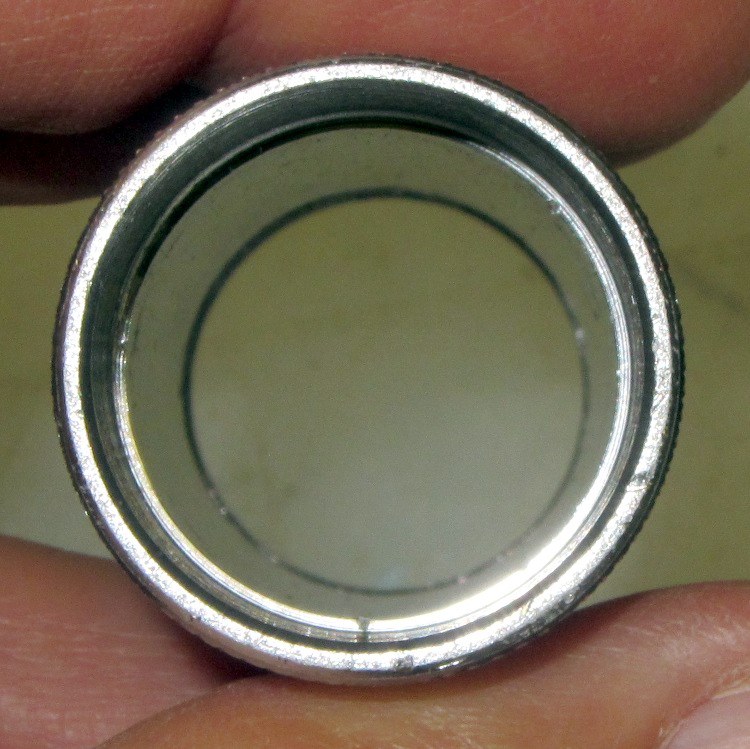
Peering inside the shell reveals three teeny nubs on the locating shoulder that could, presumably, dig into the solder pads:
LED flashlight – shell contact points
If you’re having trouble spotting them, so did I. Running a fingernail around the shoulder helps: one is at the bottom, another about 10 o’clock, and the third at about 1 o’clock. They’re not evenly spaced at 120° to match up with the pads.
With only friction holding the PCB in place, I understand why the flashlight didn’t work; given enough of an impact, the battery would push the PCB just far enough forward to make the connection at least intermittent.
I aligned the two solder-coated pads with two nubs, shoved everything together, pressed the lens firmly in place, and we’ll see how long that lasts…
Someone asked about how to convert a PNG file to a cookie cutter; she was stymied by some of the terminology and didn’t have a good overview of the process. I thought my reply might be useful to someone else.
trying to understand how to create an STL file
The key to understanding 3D printing is to realize that an STL file is just an intermediate step along the way from an idea to a plastic object. The real challenge is to create a 3D (aka “solid”) model of the object you want; after that, the rest follows more or less automatically.
The overall process goes like this:
1. Create a solid model (more on this below)
2. Export the model as an STL file, usually by a menu selection
3. Convert the STL file to G-Code using the printer control program
4. Extrude plastic!
Now, each step has many sub-steps, but that’s the Big Picture.
You really don’t care about the STL or G-Code files, because they’re generated from the 3D model.
take a png clipart image
Because a PNG image represents a 2D (flat) drawing, it can contain grayscale (or color!) information that you may not want. Let’s start with just a simple black-and-white outline drawing that shows the outline of the cutter.
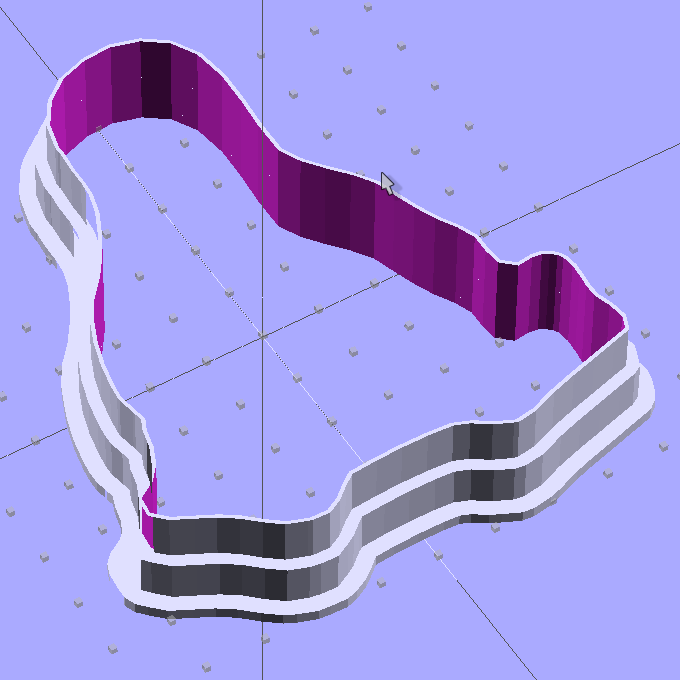
The CAD program then “extrudes” that flat image into a 3D shape with a known height; I use OpenSCAD, but any 3D program should be able to do that trick. If you started with a PNG file of a circle, the extrusion will produce a 3D ring. If you start with an outline of Tux, you end up with an oddly shaped 3D ring.
(Note that the term “extrusion” has two meanings. The CAD program extrudes the flat 2D image into a 3D model and the printer extrudes molten plastic to form the object. Gotta love the language!)
Now that you have a basic 3D shape, you can fancy it up with thicker areas and handles and whatnot, but you could just print the shape and have a simple cookie cutter.
Dr Who Cookie Cutters
If you’re making a cookie press, similar to those in the Dr Who cutters, then you start with a grayscale PNG (or JPG) and create a “height map” where the grayscale intensity determines the extrusion height: black = high and white = low (or the other way around). Again, any CAD program should be able to create a height map from a grayscale image.
In fact, a black-and-white outline is just a simple version of a height map: it’s either tall (black) or short (white), with no levels in between.
The height map becomes a 3D rectangle with one wavy side corresponding to the image. You join it with another rectangle to set the minimum thickness (you don’t want holes where the image was white), then add handles and suchlike.
That’s how the Dr Who cutters work: a height map generated the flat press part and an outline generated the hollow cutter surrounding the press. The settings I used to print my copy may be helpful.
The process had far more complexity than it should, mostly because that old version of OpenSCAD had a few bugs that prevented me from using 2D-to-3D extrusion as I described above. The overall process was similar, though: start with a 2D shape, convert it into a long 3D rod, slice off a suitable length, then punch a hole in the middle.
So, by and large, in order to make cookie cutters, you must master the “extrusion” part of 3D modeling. After you get a suitable 3D model of the cutter, then the rest will be easy! [grin]

 The Smell of Molten Projects in the Morning