Ed Nisley's Blog: Shop notes, electronics, firmware, machinery, 3D printing, laser cuttery, and curiosities. Contents: 100% human thinking, 0% AI slop.
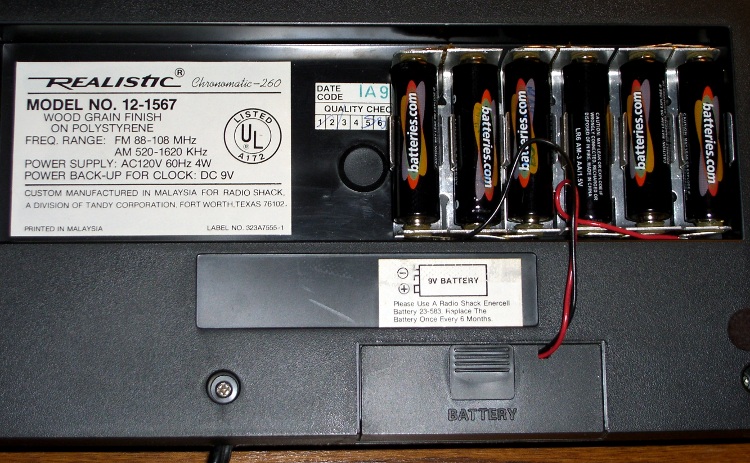
The little red Battery Sentinel LED on our old Realistic (a.k.a. Tandy a.k.a. Radio Shack) clock radio was on this morning, which means that, once again, the backup battery needs attention.
It’s supposed to use an ordinary 9V battery, but it ate two or three of those a year. Given the absurd cost of 9V batteries relative to AA cells, that stopped making sense pretty quickly.
Most devices with backup batteries draw essentially zero power from them during normal operation. This gadget draws 6 µA.
An alkaline 9V battery has a capacity of about 500 mAh, maybe more with a low-drain load like this. That should last for a few years:
500e-3 / 6e-6 = 83k hours = 500 weeks = 10 years
Alas, the clock battery monitor is really fussy and triggers the LED when the voltage drops under about 8.5 V.
[Update: the clock does a “battery test” every day, which probably accounts for the short battery life. I haven’t measured that current… or the duration of the test.]
Fortunately, the clock case has a recessed bottom that fits a standard AA cell holder like a glove. I wired up 1-1/2 4-cell holders (yes, I should have used 7 cells, but I wasn’t sure what the upper voltage limit might be) to a standard 9V battery snap connector and screwed the assembly to the case.
Now all I must put up with are the weak AA cells I got from batteries.com; the most recent order was a disappointment.
Memo to Self: That snap connector has red = negative / black = positive!
One of Mary’s first investments when she got out of college was a sewing machine and she’s been using it ever since. Of late, it’s gotten a bit sporadic and the foot control seemed to be at fault.
The symptoms were that the foot control required too much travel (equivalently: foot pressure) to get up to speed, it started abruptly (poor speed regulation), and sometimes cut out without warning.
So I took it apart to see what I could do.
Two pins in the side hold the top cover in place and serve as pivots. Loosen the two visible screws in the center of two of the bottom feet, hold the top half of the case down, and slide the pins out.
A wedge on the top half presses down on the middle of the steel bar, pressing it into the rheostat. A dab of silicone lube on the wedge greatly improved that action.
Rheostat graphite wafers and contacts
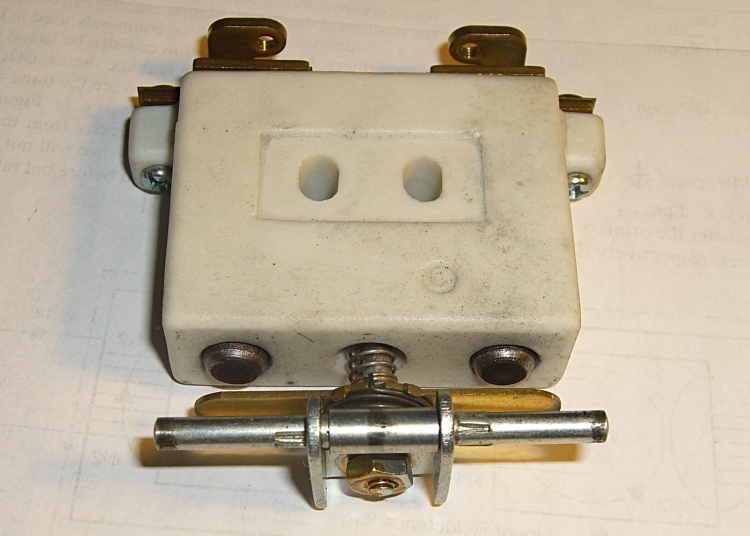
The speed control itself is brutally simple: a carbon-pile rheostat in series with the 120 VAC 1 A sewing machine motor. The ceramic case and heatsink tab tell you that things get pretty toasty inside that Bakelite case.
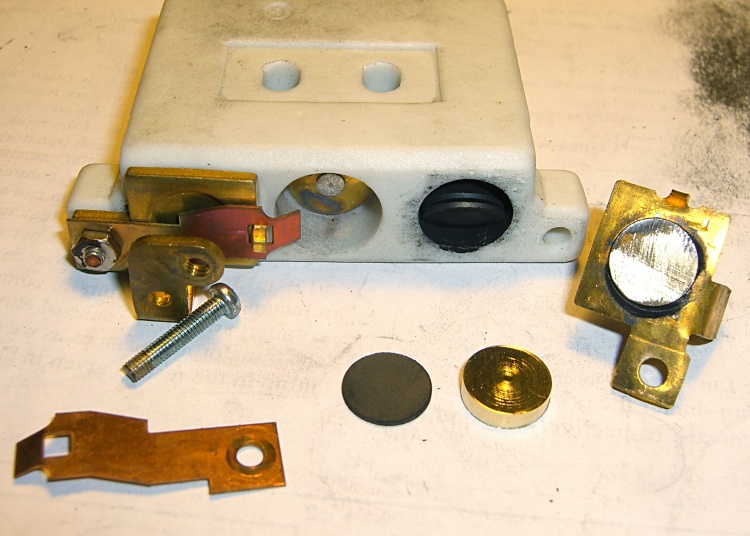
Disassembly is obvious, which is one of the nice things about old electrical gadgets: you can puzzle out how they work and how the parts fit together just by looking. A slew of graphite disks slides out from two cylindrical tunnels in the ceramic case, followed by two graphite contact buttons. The brass fittings on the front have carbon dust on their raised surfaces, but are basically just stamped & machined metal parts.
No fancy electronics, no firmware, just a high-power (and utterly non-inductive!) carbon variable resistor.
The rheostat has three modes, in increasing order of pressure:
Off — no pressure on the foot control
Resistive speed control — resistance varies with foot pressure
Full throttle — rheostat resistance shorted by front switch
Rheostat speed control contacts
With no pressure on the foot control, there’s a generous gap between the contact bar on the back surface and the two graphite buttons sticking out of the ceramic case. There’s no way for the contacts to close by shaking or accident.
A bit more foot pressure connects those two buttons through the shorting bar across the back. Light pressure on the graphite disks means a relatively high resistance, on the order of several hundred ohms, and relatively low current to the motor. Of course, that also means the motor has poor starting torque, but … a sewing machine doesn’t need a lot of torque.
Increasing foot pressure squeezes the disks together and decreases the resistance. It drops to a few tens of ohms, perhaps lower, but it’s hard to get a stable measurement. The motor averages all that out and trundles along at a reasonably steady pace.
Rheostat full-speed contacts
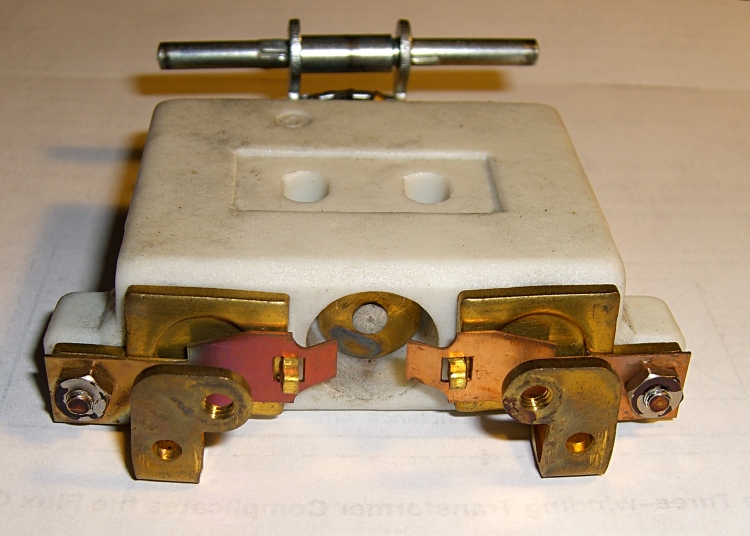
Finally, the brass disk in the central case tunnel shorts the tabs on the two brass end contacts and lets the motor run at full speed. Increasing the foot pressure beyond that point doesn’t change anything; the spring-loaded shaft can’t deform the tabs.
The steel shaft and contact disk can short one or the other of the two piles, but that just decreases the already small resistance by about half. That might give the motor a speed boost instantly before jumping to full speed.
As nearly as I can tell, the carbon disks evaporated over the decades, as the piles seems quite loose and required a lot of foot motion to reach the first contact point. I lathe-turned a pair of brass disks about three wafers thick, so that they’d take up the empty space in the piles.
I also filed the brass end fittings flat so that they contact the disks over more of their surface. The first two disks looked like they had hot spots: loose carbon collected in the areas where the contacts didn’t quite touch them. I doubt that actually improved anything, but it’s the thought that counts.
The spacers worked reasonably well, although I wound up removing one graphite disk from each pile to ensure the full-speed contacts would close properly. They’re in a small plastic bag tucked under the aluminum heatsink tab, where they can’t get lost. With any luck, the bag won’t melt around them.
Rheostat with brass spacer button
A few days later, the sewing machine stopped working entirely. The foot control itself seemed to be working correctly, but a bit of poking around showed that the cord had a broken conductor just outside the strain relief. I cut the cord off at the strain relief, hacksawed the strain relief apart, then rewired it. The cord is now four inches shorter and everything works fine again.
I think this would be a nice candidate for a PWM controller, but then I’d have to shoehorn all that circuitry into the base of the sewing machine or add another cord to the foot control. Ptui, this works well enough.
Our old house has storm doors with brass latch bolts and brass strike plates. Brass-on-brass is nicely self-lubricating, unlike the steel-on-steel contraptions available these days, but of late our back door hasn’t been closing smoothly.
I fiddled with the door closer’s tension and release point to no avail, then (re)discovered that a dab of PTFE lubricant on the latch and strike plate makes the storm door close exceedingly smoothly. The base grease is clear and doesn’t make a black mess of things.
Duh.
Maybe everybody knows that and perhaps I knew it at one time.
I wrote about rebuilding the strike pull and shaft cam of these latches as CNC projects in my Digital Machinist column. Naturally, the replacement latches available in the local hardware stores didn’t fit the door, so the simplest course of action was some quality shop time.
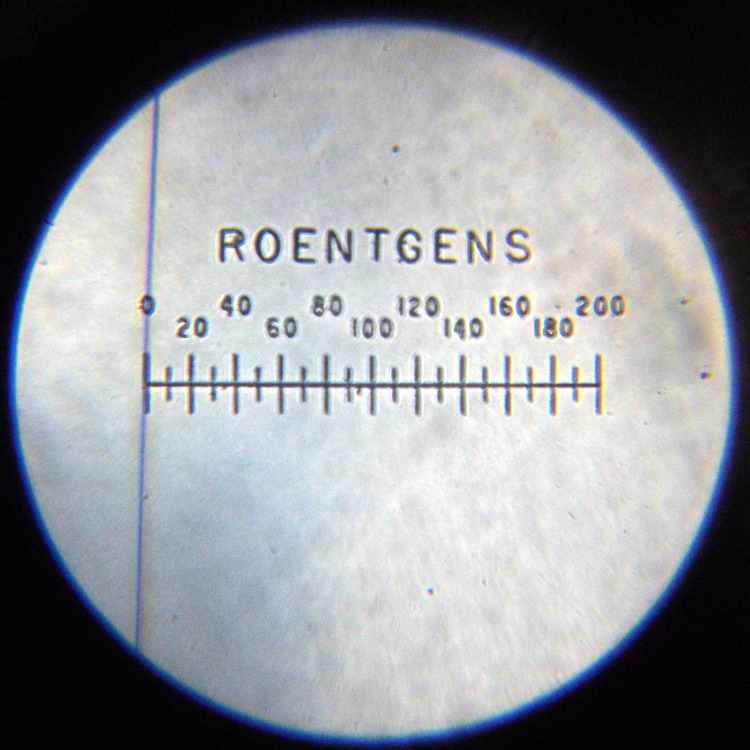
My V-750 dosimeter charger came with two (!) copies of the manual and the modification instructions (stamped JUN–1965) for adding the anti-kick capacitor.
The paperwork didn’t fare quite as well as the metal-cased charger, sporting far more mildew on the pages than I want on my shelves.
I cut the worst-looking copy right down the middle, scanned it with some attention to detail, and now there’s a nice version that looks just as bad but lacks the mildew.
If you’re really clever, you can figure out how to sequence the sheets and print them duplexed so they appear back-to-back, then bind them into a booklet just like the original. There’s a copy of a blank inside cover, too, so you can wrap your booklet in a nice Civil Defense Yellow cover.
The schematic shows what real engineers could do, back in the days when transistors came individually packaged with a ten-dollar price tag: 1.5 volts in, 200+ volts out, one transistor. Of course, they paid attention to their transformer lessons.
The charger had some corrosion on the cast aluminum (?) knobs, but seemed largely unscathed by four decades in its original box. The charging circuitry depends on a few electrical contacts and, as you might expect, those were badly intermittent.
A bit of background…
Charging contact pedestal
The charging pedestal has two parts visible from the outside: an outer sleeve that’s firmly secured to the case and an inner cylinder that slides within the sleeve, with springs inside the charger pressing it outward. Well, there’s a nut, toothed washer, and the bead-chain cap assembly, but those don’t count.
The inner cylinder has a transparent plastic insert crimped in place, with a metal rod protruding about 2 mm from the flat top of the plastic. That rod presses against the middle contact of the dosimeter and connects the charging voltage to the electrostatic fiber. The outer body of the dosimeter fits snugly over the cylinder to make the other electrical contact.
The directions tell you to press the dosimeter down gently to read it. A weak spring holds the cylinder outward with about 1.5 lb of force. After about 1 mm of travel an incandescent bulb (remember those?) turns on, transmits light through the plastic insert, and lights up the dosimeter scale and fiber.
To charge the dosimeter, you press down firmly and twiddle the adjusting knob to position the fiber. Pressing hard enough to force the dosimeter body down to the sleeve, another 3 mm of travel, compresses the dosimeter’s internal bellows (or plastic seal) enough to complete the circuit to the fiber; a sealed dry air gap normally isolates the fiber from the dosimeter’s external contact. A stout leaf spring holds the cylinder outward with (according to one instruction manual) 7.75 lb of force, so it takes more pressure than you’d expect to hold the dosimeter down.
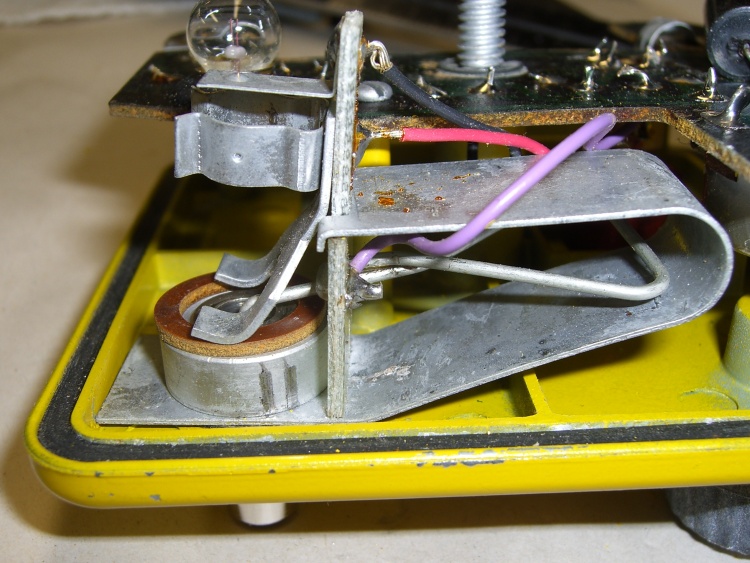
Charging contact inside view
The internal parts of the charging pedestal makes all that stuff work without any formal switch contacts. That, unfortunately, causes the intermittent operation.
The gray “wire” inside the large 7-lb leaf spring is both the 1-lb spring and the high-voltage electrical contact. The purple wire soldered to the end of the wire spring carries the HV charging potential from the circuitry.
The black and red wires connect to the incandescent bulb, which fits into the holder near the top of the circuit board sticking up vertically just to the right of the pedestal base; I removed it to reveal the other parts. For what it’s worth, the bulb holder doesn’t do a good job of securing the bulb; I have some improvements in mind for that, too.
Note the spare bulb just beyond the center bulb contact near the top of the picture. The rubber grommet securing that has turned into black Gummi-bear substance; that sucker is in there forever.
The battery’s positive terminal connects to the case; this is a positive-ground circuit!
The leaf spring hitches over two shoulders on the circuit board and presses it firmly against the other side of the spring. The curved fork fingers pressing against the brown insulating washer are firmly mounted to the circuit board and act as one side of the switch contacts.
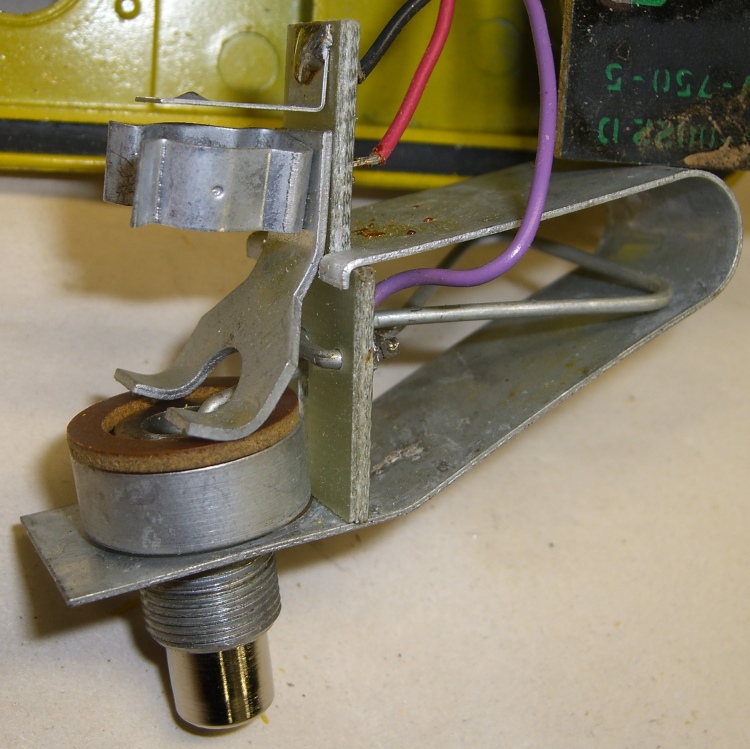
Pedestal removed from charger
When you push the dosimeter against the sleeve, the base of the cylinder slides through the ID of the fiber washer and contacts the fork fingers. Bingo, that completes the circuit, lights the lamp, and fires up the HV circuitry. The charging voltage doesn’t reach the dosimeter fiber because the leaf spring hasn’t started pressing the cylinder against the dosimeter’s innards: there’s no connection inside the dosimeter.
With that out of the way, here’s what’s needed to get the pedestal working reliably.
Get the whole pedestal assembly out of the charger, which requires a bit of wiggly jiggly action. This will be easier if you unsolder the three wires, which I didn’t do until I was sure it was absolutely necessary.
Grab the leaf spring on both sides of the bulb circuit board, pull up while pushing down on the spring’s base with some other fingers, and lift the tabs off the circuit board shoulders. This requires a surprising amount of force; don’t let the spring get you by the soft parts!
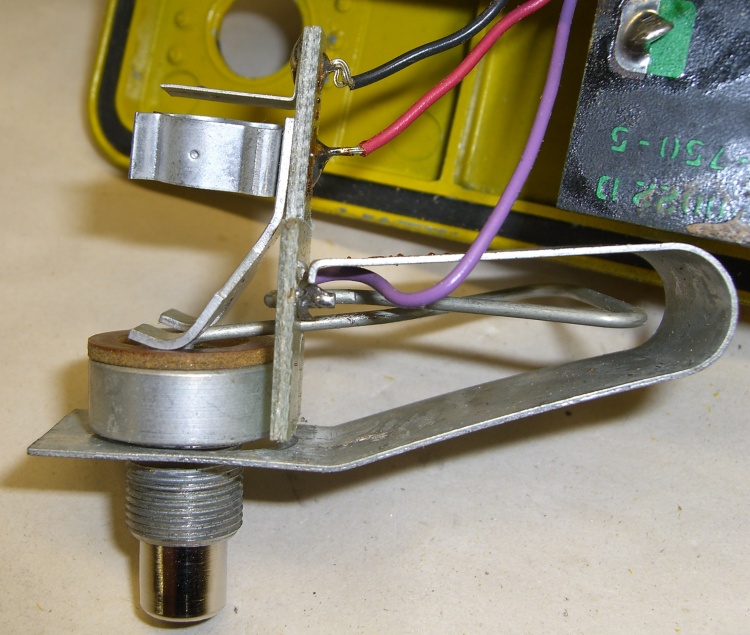
Leaf spring released
A small crimped metal connector mates the end of the wire spring to the center contact in the cylinder. Pay attention as you maneuver the pedestal out of the leaf spring: you don’t want to deform that connector too much. Or, much worse, lose it under your workbench.
There’s a rubber O-ring inside the outer sleeve that’s barely visible in the picture of the parts. The 1-lb wire spring had trouble forcing the cylinder back out through the O-ring, leaving the switch just barely closed even with the dosimeter removed. A touch of silicone gasket lube on the O-ring made it wonderfully slippery again.
The inner cylinder has wire snap ring in a groove that adds a bit of stability and maybe some contact friction inside the sleeve. You need not remove the snap ring; they’re not called Jesus clips for nothing. It’s outside the O-ring’s protection, exposed to the world.
Basically, clean everything without yielding to the Siren Call of sandpaper. What you want to do is get the oxidized metal off the base material without scarring it.
Pedestal contact components
I applied a tiny drop of Caig DeoxIT Red to the snap ring, worked it around & around, then wiped off the residue.
The actual switch “contacts” are the wide base of the inner cylinder (to the right in the picture) and the rounded end of the fork attached to the lamp base circuit board. The contact area is broad, smooth, plated-steel-on-steel, and utterly unsuited to the job. Wipe both of them clean, add DeoxIT, wipe them clean again.
I applied another minute drop of DeoxIT to the base of the cylinder after putting everything back together, rotated it against the fork, and wiped it off. Most likely that had only psychological benefit, but what the heck.
The parts go back together in the obvious way, again taking care not to let the leaf spring bite you. I routed the wires a bit differently, but I doubt it makes any difference.
Now the charger works perfectly again!
Memo to Self: replace that bulb with nice soldered-in-place LED
V-742 Dosimeter set to Zero
Update: It seems you can actually buy V-750 dosimeter chargers new from www.securityprousa.com/doch.html. However, eBay is significantly less expensive and you might get some quality shop time out of it. Your choice.
Over the last several years, more or less coincident with the switch from MTBE to ethanol, all of my small internal-combustion engines have stopped working with stored gasoline, even when it’s treated with StaBil, even for just a few months.
After plenty of putzing around, pouring in fresh gasoline has solved the problem in every engine.
For example, I’d left the snow thrower’s tank empty after tracking down the bad gas problem in 2007. I filled it with gas from about November when we did the last of the leaf shredding; I think I’d dosed it with Sta-Bil, but in any event that’s relatively young gas by my standards.
The blower didn’t even cough when I leaned on the starter button; not a single pop. I fired a dose of starting fluid up its snout and it still didn’t fire. At all. Period. As a friend puts it, starting fluid should wake the dead.
Pulled the plug, blew compressed air into the cylinder to dry it out, went out for a can of New Gas, drained the Old Gas, filled the tank, and it fired right up. Surges a bit at idle with no choke, but I can deal with that.
Lessons learned:
You cannot store ethanol-treated New Gas for more than a month or maybe two, tops, at least for use in small engines.
Sta-Bil doesn’t work on New Gas. I’d love to be proven wrong, but this whole bad running thing began with well-treated gasoline stored in a closed container.
There is no longer any way to have an emergency gasoline stash on hand so you don’t have to go out in the FFC (that’s Freezing obscene-gerund Cold) dawn for a fresh tank.
Even with fresh gas, the engines surge under light load, which is a classic symptom of an air leak around the carburetor: lean running. But in all the engines? And with no detectable leaks? Even after replacing the gaskets?
As nearly as I can tell, the problem stems from the 10% ethanol added as an oxygenate. The additional oxygen reduces pollution in modern engines, but causes small engines (at least the ones without electronic mixture control, which are all of mine) to run very very lean.
The cheap solution seems to be setting the engine at about 1/3 choke for normal running. That richens the mixture enough to make the engine happy, but without farting black smoke out the muffler.
Although I no longer keep a 5-gallon can of gas for emergencies (which I’m sure will come back to haunt me one of these days), I do keep a gallon with dose of StaBil for the yard equipment.
Update: As of late-Feb 2009, that entire Cornell website has been dead since I posted the link. If it never comes up again or the link stays broken, here’s the punchline. The link pointed you to their evaluation of Cherokee Trail Of Tears beans, with this review from someone with *cough* experience:
This is my favorite dry bean for black bean soup. It’s not called “Trail of Tears” for nothing. If you walk behind someone who’s eaten a mess of these beans, your eyes will be burning. It’s a very gassy bean.
This Internet thing isn’t ready for prime time; stuff just softly and suddenly vanishes away.
Update 2: Cornell is back online again. It seems their servers got pwned… after their desktops got infected. But, eh, they’re running Windows, what do they expect?
The right-hand trackball by my keyboard is a Logitech Cordless Optical Trackman, which I fixed a while ago with a laying-on-of-hands repair. If you do a lot of typing and want to save your wrists, a trackball might be just what you need.
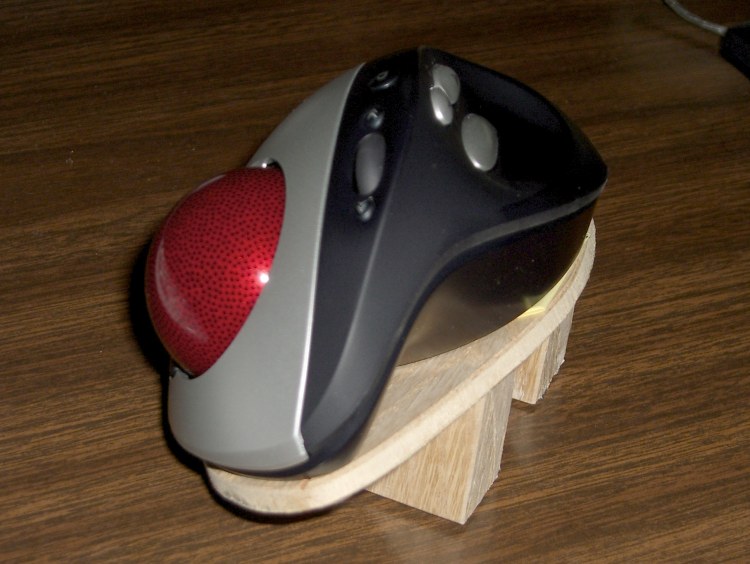
This trackball’s shape is strongly right-handed and I found that my wrist was happier when I tilted the trackball about 30 degrees to the right, making the ball almost vertical and the thumb buttons to the upper left. Evidently my wrist wants to work at a more clockwise angle, not at whatever Logitech found suitable.
I made the platform from thin oak-veneer plywood left over from a bookshelf project, with oak wedges holding it up. Polyurethane glue, my favorite wood adhesive, holds everything together. I presented the bottom to the belt sander to get a nice flat surface and bevel the down-side edge of the platform, then applied non-skid rubber stair tread tape to the wedges.
Conveniently, Logitech held the trackball’s case together with four plastic-tapping screws. I removed a screws at each end, drilled two matching holes in the platform, and used similar-size machine screws. The threads don’t quite match, but it’s close enough.
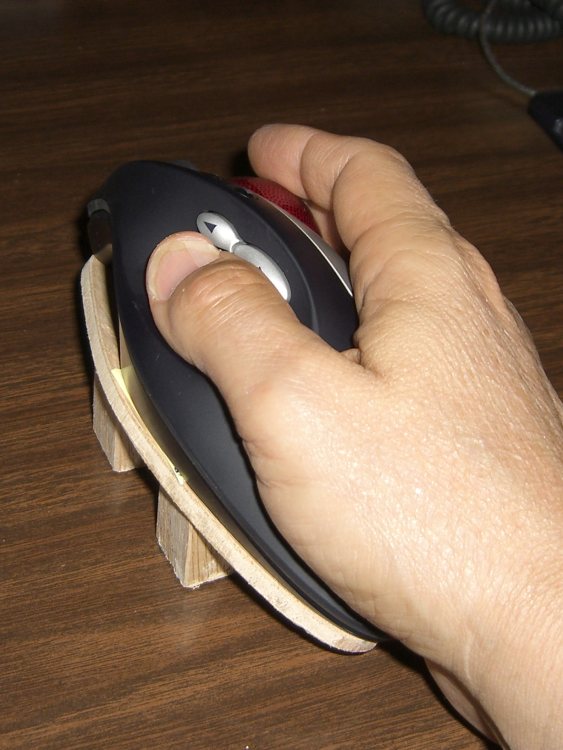
Rotated trackball in use
Here’s what it looks like in use…
The platform makes battery replacement a bit more tedious. Much to my surprise, the two AA cells run for half a year at a time, so that’s not a big issue.
However, the trackball occasionally (every few weeks) loses sync with its base receiver, requiring a poke of buttons on both units. I think that’s partly due to the Logitech wireless mouse on my esteemed wife’s desk ten feet away.
On the whole, I like it a lot. If Logitech made one for southpaws, too, I’d get a bookend set, but they don’t.
Oh, yeah, if only evdev allowed button reconfiguration, without using a bunch of batshit kludges, I’d be ecstatic. As of the last time I fiddled with it, the standard mouse xorg driver couldn’t handle the number of buttons and evdev didn’t allow button mapping. Mostly, it works, but I’d like to reassign a few of the buttons.





 The Smell of Molten Projects in the Morning