Ed Nisley's Blog: Shop notes, electronics, firmware, machinery, 3D printing, laser cuttery, and curiosities. Contents: 100% human thinking, 0% AI slop.
The black knobs on our black-front Kenmore stove have slightly raised pointer extensions. At a glance, you cannot tell whether the knob points upward to OFF or downward to 5.
Oddly, the oven temperature knob has a nice white index line engraved (well, molded) in the pointer extension. So it’s not like they didn’t know how to do index lines. I’m guessing they had to take a buck out of the build cost and omitting four index lines added up to just the right amount.
I added tape markers shortly after we got the thing. The previous tape was fluorescent orange; the adhesive lasts several years before turning gummy. These new markers are snippets of outdoor-rated retroreflective tape and should last longer.
Run the knobs through the dishwasher occasionally to get ’em nice & shiny. Surprisingly, that doesn’t seem to bother the tape.
Sat down for some tech reading in the Comfy Chair one morning and spotted a lump near the road, at the foot of the deer crossing warning sign.
While I don’t know if this deer was one of that group, it’s a fair bet.
There was no freshly smashed glass or broken plastic in the area, which indicates a relatively low-speed collision, the kind where the deer’s legs snap against the bumper and the body rolls over the hood, crushing sheet metal and deforming plastic frippery along the way.
Many cars display that kind of damage around here. They look as though somebody walloped them with a huge sandbag, which is pretty much the case.
The animal huggers seem strangely silent about such events. If they had the courage of their convictions, they’d subsidize drivers (and gardeners) affected by the deer overpopulating the area. But, no, they never offer to do that.
I did find this in the driveway across the street…
Deer Whistle
Before equipping your car with such gimcrackery, read that.
Somewhat to my surprise, the eBay vendor responsible for those curves sent three replacement NP-FS11 batteries, commenting:
We’ve sent all your comments to the factory and ask them for a total quality inspection in this batch of batteries.
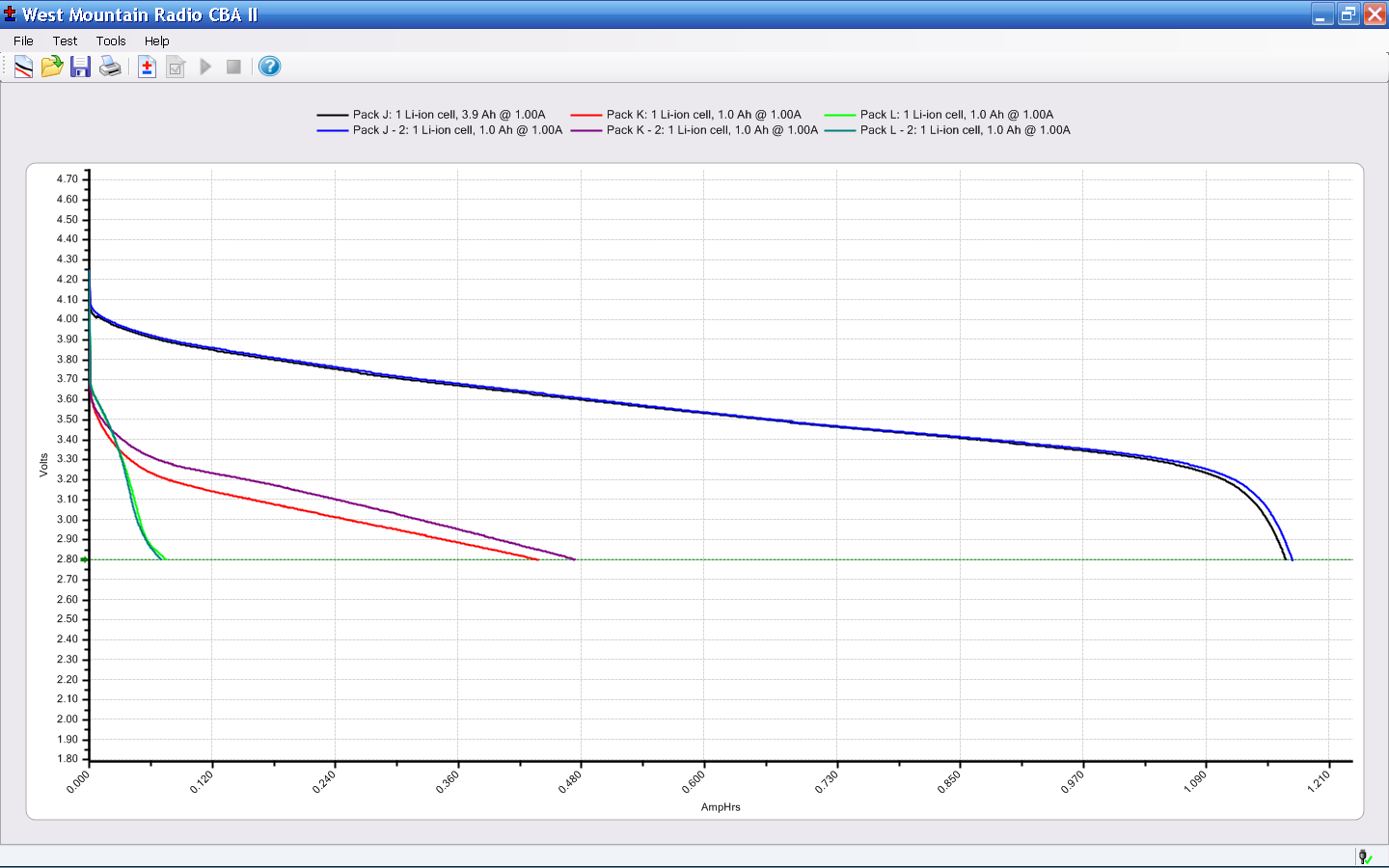
Here are the capacity curves for an initial charge, a test, recharge, and another test on each pack. The curves match up reasonably well (the top & bottom traces are nearly exact overlays), so I believe the results are accurate.
MaxPower NP-FS11 – Packs JKL
One pack is the best I’ve seen yet. The other two are junk, pure and simple.
So, to summarize:
One of three batteries DOA in first batch, others weak
Two of three batteries DOA in replacement
Overall, that’s a 50% failure rate even if you have relaxed standards…
I decided that, despite their “customer service”, this level of quality deserves the dreaded Negative Feedback checkbox.
Now, to saw the cases open and replace the cells. I cannot imagine any way to justify this on an economic basis, but we’ll certainly have enough batteries for that camera when I’m done.
If I had any confidence that spending more on the batteries would get a higher quality product, I’d do it. The question is, would another order of magnitude make any difference?
So I bought 530 bucks worth of new tires for the van; it’s ten years old with 66k on the clock. Picked the most suitable ones:
Near the top of the Consumer Reports list
Best constellation of features for our use
Available at the local tire shop
CR is essentially the only place that does actual across-the-board tests; you can disagree with their methodology, but it’s pretty much the only game in town.
I wound up at the local tire shop after bouncing off one of the online sources. In this case, tire + shipping + installation costs more online; the local shop was one of the online source’s installers.
So I went direct. They’re aboveboard: the balance + installation charge is the same no matter where the tires come from.
Had a 10:00 appointment and it took 90 minutes to get out of the shop. Not impressed.
The tire pressure monitor light came on halfway home. Well, OK, maybe it’s noticed the tires are bigger? But it’s a differential rotation counter, sooo… that’s not the problem.
Checked the pressure after letting the tires cool off for a few hours.
37 – Left rear
32 – Right rear
40 – Left front
34 – Right front
The pressure monitor was definitely doing its job!
Adjusted them all to 36 psi (hard, but we’ll see how it rides), reset the monitor, and it’s all good.
Factory trained and certified mechanics, my obscene-gerund deleted-noun.
Oh, and the lug nuts were evidently tightened by Andre the Giant… gotta break those suckers free before we do much more driving!
Sony no longer offers the NP-FS11 Li-Ion batteries required for my DSC-F505V camera, so I’ve been using “generic” replacements for quite some time. My experience has been mixed: some batteries provide a reasonable amount of run time, others provide almost none.
Feeding the appropriate keywords into Froogle gives you a range of battery suppliers, with offerings from, as of this writing, $3 to $103. Perhaps not surprisingly, the image for a $70 battery exactly matches the one on my desk that cost perhaps $15 a few years ago… although I’m certain that the actual battery you’d get wouldn’t match that picture.
I just bought three NP-FS11 batteries from the usual low-buck Hong Kong eBay supplier: six bucks apiece, shipped halfway around the world. The eBay listing claimed 1800 mAh, which seemed aggressive, and the batteries sport a 3900 mAh label, which is flat-out impossible.
Frankly, I didn’t expect much and here’s the discharge test graph to show I wasn’t disappointed. I used a 1-amp rate as a reasonable guess at the camera’s peak draw, although that might be a touch high for a continuous discharge.
Generic Sony NP-FS11 Li-Ion Batteries
The top blue curve is from a two-year-old literally no-name battery (no logo, no nothing!) that still provides decent run time; it’s the one matching that $70 battery. It provides about 1100 mAh, reasonably close to its 1300 mAh rating.
The middle curves, black and purple, are two of the new cells that provide about 900 mAh: half the as-listed-on-eBay capacity, 25% of the absurd label value. Their very low terminal voltage during most of the discharge says that these won’t provide much run time at all.
The green curve piddling off on the bottom is the third new cell, which is obviously defective. As I said, I didn’t expect much and I certainly wasn’t surprised.
The red curve is an old and completely defunct batteries.com offering that never provided good service.
Here’s another plot of three successive charge-discharge cycles for just the three new batteries. The first curves (at 1.0 A) correspond to what you see above, the remaining two sets (at 0.5 A) are the next two cycles. Batteries G and I have improved, H remains a dud.
MaxPower NP-FS11 Battery Tests
Given the varied offerings on the Web, I believe that there is no way to ensure you’re getting a known-good battery from a reputable supplier. It’s absolutely certain that price does not correlate with quality; the ones I bought simply establish that low-end offerings are crap.
The purchase was worth it for the amusement value alone; I don’t expect any action from the vendor, although I did send a copy of that graph with some explanatory text. The question is whether I should give them a five-star rating for prompt delivery…
As it happens, there’s enough room to slide a standard CR123A-size cell into the battery compartment. I think a bit of Quality Shop Time applied to a dead NP-FS11 battery case (and the vital Sony “Infolithium” DRM module) will provide a baseplate with all the proper connectors. Perhaps I can conjure up a “battery” containing a single cell of known-good quality?
Primary CR123A cells supply only 3 V, not the 3.6 V the camera really wants, so I can’t use disposable cells.
This herd, a family unit that’s been traveling around the neighborhood in recent weeks, paused for morning brunch in our neighbor’s yard. They generally cross the road at a dead run, but haven’t gotten themselves or anyone else killed. Yet.
They and their ilk are why our vegetable gardens must have ten-foot fences with robust supports. There are no understory plants left in the wooded areas and precious few young trees; the deer population is literally eating everything in sight.
Vassar College recently culled 60-odd deer on their preserve in about ten hours, much to the dismay of the local animal huggers. It wasn’t a hunt; professional sharpshooters took ’em out.
We have a proposal: if you like deer so much, adopt ’em, haul ’em home, and take care of the things. Let them eat your shrubbery, crap all over your lawn, and infect your children, but keep them off the streets and out of your neighbor’s yards. Fair enough?
And let’s not get started about deer ticks. Dutchess County is the epicenter of Lyme Disease infections, for well and good reason.
So I signed into the credit union’s online banking site, did the multi-factor authentication dance, and was confronted with this dialog box…
HVFCU Mystery DLL Download
No, as a matter of fact, I did not choose to open ibank.dll, thank you very much for asking.
Well, what would you do?
Got this response from the credit union’s email help desk:
Upon speaking to out Information Technology department, I have been advised that this is a known problem for FireFox, Mac, and Linux users.
Hmmm, well now, Internet Explorer is conspicuous by its absence on that list, isn’t it?
A bit more prodding produced this response:
HVFCU uses a third party vendor to provide the Internet Banking software used on our servers. On November 22 we installed the equivalent of their year end release (which is mandatory due to regulatory changes contained in the release). Subsequent to that upgrade we discovered that errors had been introduced for Mac and/or Linux users of Safari and FireFox (and also for a small subset of Windows Internet Explorer users). These same errors do not occur on Safari nor FireFox running on Windows. We reported these problems to our vendor within 24 hours of the installation.
My guess is that the “small subset of Windows Internet Explorer users” corresponds to the few who actually armored-up their IE security settings enough that it doesn’t automatically download and execute anything offered to it from any website.
The rest, well, those PCs are most likely part of a zombie botnet.
He assured me:
The “ibank.dll” program cannot run on a Mac nor a PC. It is solely a server side application which generates HTML pages.
Just guessing here, but if the “misconfiguration” had extended to actually serving the file, well, it probably would have run just fine (or, at least, attempted to run) on any Windows PC. They are, after all, using DLLs on the server, so it’s not like they’re a Unix-based shop.
And it’s pretty obvious that their vendor’s testing extended only far enough to verify that the code worked with security settings dialed to “Root me!” Maybe they didn’t actually do any testing at all; this was, after all, just an end-of-year update. What could possibly go wrong?
If you’re wondering why your Windows-based PC has been behaving oddly, maybe you’ve gotten a drive-by download from a trustworthy site with all the appropriate icons on their home page.
Makes you really trust the banking system, doesn’t it?
Or maybe it’s just another reason to stop using Windows…





 The Smell of Molten Projects in the Morning