Ed Nisley's Blog: Shop notes, electronics, firmware, machinery, 3D printing, laser cuttery, and curiosities. Contents: 100% human thinking, 0% AI slop.
Flash is one of those things that comes heartbreakingly close to actually working, particularly in a 64-bit Linux OS. There’s an intricate scaffolding that plugs the 32-bit Flash code into the 64-bit Firefox superstructure, but …
Worse, there’s an error in the Hardy Flash 10 repository entry that points to a nonexistent Macromedia download website, so all the usual hints & tips don’t work. That seems to have broken in December and the automatic installation fails quietly. Using sudo apt-get update flashplugin-nonfree reveals the problem.
Unfortunately, the sum total of all my fiddling was a Flash installation that sorta-kinda worked, with a significantly flaky crust.
What works slightly better: force the version to Flash 9 by pinning the flashplugin-nonfree package version in apt-get. Start by removing everything related to Flash. Then, with a clean slate, this post on the Ubuntu forums shows how to get a clean installation:
1.) Create /etc/apt/preferences with this entry:
Explanation: Flash plugin from hardy-backports was broken on 12/24/2008;
Explanation: pinning to hardy-updates for now until it is fixed
Package: flashplugin-nonfree
Pin: release a=hardy-updates
Pin-Priority: 980
2.) sudo apt-get update
3.) sudo apt-get install flashplugin-nonfree
4.) Restart Firefox
It still gives me a blank gray background where the Flash should appear, which is sometimes cured by reloading the page, but it seems more stable.
Adobe has a genuine 64-bit Flash alpha out, but (as of the 16 December 2008 version) it reliably crashes on sites I really care about. Like, for example, nytimes.com.
Memo to self: un-pin this in a few months and see what happens.
Update: It still jams up with gray screens where Flash should be, no matter what I do.
In the process of setting up a new PC for my mother, I finally figured out how to get remote desktop sharing in Kubuntu Hardy working. You’d think the bog-standard (and default) krfb would work, but it crashed every time. Come to find out, after much searching, the solution boils down to this…
Shoot krfb in the head, use vnc4server and x11vnc.
Use synaptic or apt-get to install those and all their dependencies on the remote machine (i.e., the one that will become my mother’s PC). While you’re at it, uninstall krfb: good riddance.
Run vncpasswd and feed in an appropriate password that you’ll use to authorize yourself to the vnc session.
Log out, restart X (with Ctrl-Alt-Backspace, perhaps), log back in again to get all the X11 infrastructure up to speed.
On your local machine (i.e., mine), use SSH to sign in to the remote box:
The -L creates a tunnel from your local machine’s port 5900 to the remote machine’s port 5900, through the authorized SSH session.
I use an unusual port because running SSH on port 22 on an internet-facing machine (even behind a firewall router) is just plain dumb. I doubt the unusual port provides much protection, but it should shake off a few script kiddies.
[Update: Just in case you regard shared-key authorization and a nonstandard port as evidence of clinical paranoia, read that. One of the comments notes that using a nonstandard port gets rid of all the low-speed zombies…]
Incidentally, the firewall router must forward the unusual port directly to the PC’s local IP address, which requires a bit of tweakage all by itself; that depends on which router you have. Word to the wise: do not use DHCP to get the PC’s IP address. Think about it.
That PC is also set up with my RSA keys, so that the kiddies can’t brute-force a username / password login attack. And, yes, I regenerated the keys after the Debian goof.
This is still on my LAN, so I use a dotted quad IP address (being too lazy to tweak /etc/hosts for a temporary machine), but you can use the host name maintained by DynDNS or their ilk for a truly remote box. See this post for the straight dope on making that work.
Then fire up a remote-desktop client like, for example, krdc on your local PC, with the “remote desktop” address aimed at:
localhost:5900
That’s the local end of the SSH tunnel to the remote PC. It won’t work if you aim it at the remote machine’s IP address, because it’s not watching for incoming connections (nor is the router forwarding them).
Type in the password and shazam you should see whatever’s appearing on the remote desktop. Mouse & keyboard control should work just fine, too. Word to the wise: make sure your local monitor is bigger than the remote monitor; while you can scroll around or scale what you see, that’s icky.
It should be obvious that you cannot “switch users” to a different X console on the remote box and expect it to work. I tried it, just for grins, and it doesn’t. You could probably tunnel another session in through port 5901 (or 5900 + whatever the X11 console might be), but I haven’t tried that.
Last year I set my mother up with Verizon’s cheapest DSL service: 768 kb/s down and 16 kb/s up, all for a whopping 15 bucks plus tax a month. Yes, that’s 16 kb/s: slower than old-school dial-up modems. Sheesh & similar remarks. So all this fancy remote-desktop GUI stuff won’t work for diddly with the PC in her apartment.
I have a somewhat antique Palm Zire 71 that has, periodically, synced perfectly with various flavors of GNU/Linux. On the other hand, sometimes a new release / kernel / version prevents it from syncing at all.
My life is simple enough that I really don’t need to actively sync it with an online calendar, which is a damn good thing. Back when I needed to do hotsyncing, it always came heartbreakingly close to working; apparently that’s still the case. Having to comb out a complete set of duplicate addressbook entries pretty much soured me on futher experimentation.
Currently, the Zire on the outs with Ubuntu / Kubuntu Hardy. The hack that makes it work goes a little something like this:
The file /etc/modprobe.d/libpisock9 blacklists the visor module, which allegedly lets all the pilot-* programs connect using libusb, but that flat-out doesn’t work for me.
Replace this stanza inside /etc/udev/rules.d/60-symlinks.rules:
#KERNEL=="ttyUSB*", ATTRS{product}=="Palm Handheld*|Handspring *|palmOne Handheld", \
#                                       SYMLINK+="pilot"

With this one:
Make sure you’re in the dialout group. If you’re not, add yourself, log out, then log back in again.
I back the Zire up once a month, which is rarely enough that I just load the visor module by hand:
sudo modprobe visor
Create a directory for backing up into:
cd ~/Zire71
mkdir 2009-01-03
And then backing up the Zire is easy enough. Pop the thing in the cradle, poke the hotsync button, and quick like a bunny whack Enter on this:
pilot-xfer -p /dev/ttyUSB1 -b 2009-21-03/
The ttyUSB1 device will, of course, vary depending on whether you have any other USB-serial gizmos plugged in at the time.
Frankly, the utter unreliability and instability of this whole USB PDA mess is one of the reasons why, IMHO, GNU/Linux really isn’t “ready for the desktop” despite the fact that all our boxen here run it. I don’t particularly want a phone / camera / PDA / ebook reader / pocketwarmer, but I can see I’ll wind up with one some day just to get a USB interface that actually works.
Memo to self: remember to modprobe visor
Update: Xubuntu 8.10 fixed all that, so USB hotplugging seems to work right out of the box. Install pilot-link, then just:
pilot-xfer -p usb: -b /path/to/backups
Now, whether syncing to contacts & calendars works correctly, I cannot say.
Being that sort of bear, I took a picture of the back yard from our patio every day at 7 am wall-clock time. DST/EST changeovers threw their usual monkey wrenches into the mix, not to mention my lack of attention to the camera’s internal clock settings, but I eventually got 321 pictures of the same scene at more or less the same time of day.
That’s all well and good, but this is the movie age…
The plan: use ffmpeg or maybe mencoder to convert the still images into a movie.
Zero: copy the files to a unique subdirectory to protect the originals!
One: sort & rename by date
Two: resize images
Three: convert to a movie
Four: . . . profit!
10 November 2008
I’d uploaded the files whenever I used the camera for something else, so the actual file dates were fairly well scrambled and didn’t correspond to the EXIF data inside the image file. Digikam‘s batch file rename operation can sort out the files in ascending order of EXIF date and rename them into something a bit more uniform & boring like 0001.jpg, which is vital for ffmpeg.
I used the camera’s full resolution, which is much too large for video, so I created Yet Another Subdirectory called Smaller to hold the reduced-size images. Imagemagick‘s convert program then squishes them down:
for f in *jpg ; do convert -verbose -resize 640x480 $f Smaller/$f; done
You can smash them even further to get a teeny postage-stamp movie for your media player.
Make the movie:
ffmpeg -r 3 -i %04d.jpg daily-3.mp4
The file specifier %04d must exactly match the filename sequence and a missing file will stop ffmpeg dead in its tracks. The file names coming out of your camera won’t work if they’re not exactly sequential, which is highly unlikely over the course of the year.
Then it’s showtime! I’d upload it, but you don’t have a need to know for our backyard activiites.
There, now, wasn’t that easy?
I didn’t actually figure all this out from first principles, of course. The basics are out there if you rummage around for a while with the obvious keywords.
Memo to self: affix a stable camera platform to the side of the house!
For some unknown reason, Kubuntu 8.04 doesn’t create a /dev/scanner link while it’s figuring out all the SCSI devices. I wanted to make the link sort of generic for any scanner that I might plug in, but I had to settle for a unique udev match.
The scanner popped out of udev as /dev/sg5 this time and
Memo to self: there’s got to be a way to make this generic, perhaps by piggybacking on whatever udev stanza assigns the scanner group to that /dev/sg? device.
Of course I do remote admin for my mother’s PC, which means I must know its IP address, which means it’s running ddclient and updating an entry at dyndns.
The setup seems straightforward. In /etc/ddclient.conf you find:
[Update: Something about checkip changed enough that the old line didn’t work. The web-skip made it work again. ]
But, as the comment in that file shows, that’s not where you configure ddclient in (K)Ubuntu. You actually tweak the entries in /etc/default/ddclient so the right answer pops out when ddclient gets reconfigured by something or another.
It’s not clear to me how ddclient figures out when to update the DNS entry (when an update is “necessary”), so I also force an update by putting this in /etc/rc.local:
ddclient -force
Actually, I added that tweak when I was setting up another, slightly newer, PC for her and managed to fire off ddclient from my network. That aimed the DNS entry at my IP address and, had I not already been signed into her system, would have locked me until her ddclient grabbed it back.
I hate it when that happens.
Memo to self: make sure the defaults match the current configuration.
While writing a column for Circuit Cellar, I managed to utterly botch the choice of a boost converter inductor. The inductor (the rightmost one in the lineup) was a common-mode choke from a power supply, so I figured it had enough meat for 300 mA of boost current.
Salvaged Inductors
Bzzzzt! Wrong choice!
So it’s time to document how to measure this stuff. The intent is to plot a BH curve: core flux density B versus magnetizing force H.
Quick inductor tutorial using (ptooie) Imperial units and avoiding Greek letters for simplicity:
Magnetomotive force mmf = 0.4 * pi * (N = turns) * (I = current)
induced voltage e = – N * (d phi / d t) * (10^-8) where phi = flux linking the N turns
Magnetizing force H = mmf / (MPL = mean path length around core)
Flux density B = phi / (Ac = effective core area)
also B = (mu = permeability) * H
You might think that B & H are lashed linearly together, but mu is most savagely nonlinear. It depends on H, temperature, core material, and a bunch of other stuff you don’t want to know about. So, by and large, plotting B against H shows you how mu varies: it’s the slope of the curve at any point. Vertical slope = high mu (good), horizontal slope = zero mu (bad).
Stirring all that together, you get the Fundamental Transformer Equation:
E in RMS volts = 4 * F * f * N * Ac * B * (10^-8)
F = form factor = rms / average
sine = 1.11
bipolar square = 1.00
unipolar square = 1.41
So…
H is proportional to mmf and thus to primary current
B is proportional to phi and thus the integral of secondary voltage
Sounds scary, but primary current & secondary voltage are easy to measure.
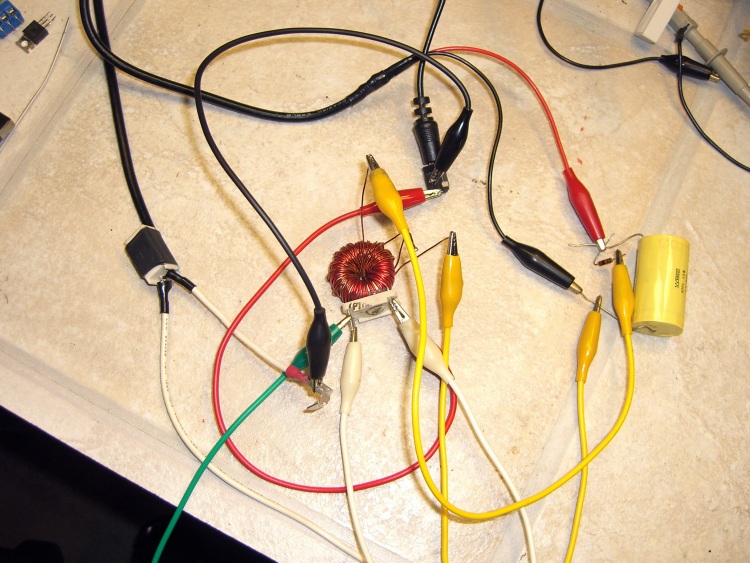
Inductor measurement test setup
The basic lashup goes a little something like this: stick a sampling resistor in the primary, run the secondary through an RC integrator, feed both into an oscilloscope that can do XY plotting, drive the primary from a Variac, turn the knob, and watch at the results. You might want a bit more finesse than this, but, eh, it works.
The primary voltage will be relatively low, so plug a 12 VAC wall wart into the Variac. This gives you galvanic isolation from the power line, finer control over the primary voltage (more of a full turn on the Variac), and will prevent you from killing yourself or burning out your basement laboratory. You want a fairly husky wart if you’re measuring husky inductors. Remember: this is an AC measurement, so you want an AC wall wart, not one with a nice filtered DC output.
The resistance of the sampling resistor should be much less than the inductive reactance of the coil. We’ll measure it at 60 Hz because that’s easy, so for a coil of inductance L, the reactance at 60 Hz is 2 * pi * 60 * L. That simplifies to 377 * L, so a 1 mH coil has about 400 m-ohm reactance. I have a nearly infinite stash of 100 m-ohm sandbox power resistors, so that’s what we’ll use; you’d want less, but this is quick & easy.
If the inductor doesn’t have a secondary, poke some magnet wire through the core. Use some simple number of turns and remember that number, just in case you want to calibrate the results.
The time constant of the RC integrator must be a lot bigger than the frequency you’re integrating. For a 60 Hz signal, you want maybe a 6 Hz integrator: 60 Hz -> 17 ms, so pick 200 ms. Having a nice 1 uF film cap in my heap, the resistor works out to (200×10^-3) / (1×10^-6) = 200 k. Anything in that range will work fine. A larger cap gives you a smaller resistor and more signal to the scope.
Wired it up about like that and here’s what happens for the inductor I picked
BH curve for Bel 0571-0033-02 choke (rightmost)
The calibration of H is 100 mV / amp (from the 100 m-ohm resistor) and the scope display is thus 2 A/div. The calibration for B is whatever the secondary winding provides, scaled by 1/RC from the integrator.
For this coil, the value of mu is essentially infinite (B rises vertically for changes in H), but the core saturates at very small values of H (and thus primary current). It was a common-mode choke for a power supply, so that’s exactly what you want: high inductance for very small currents and no need for much in the way of core flux because the opposing line currents in the windings cancel.
I harvested some inductors from a bunch of dead power supplies in my heap and measured them similarly, using an existing winding as the secondary wherever possible. The results look like this:
BH curve for for coil with blue dot (3rd left)BH curve for 40580-R01 coil (2nd left)BH curve for LC0263-A coil (leftmost)
The area inside the loop is proportional to the core power loss, so it’s obvious that some inductors are better than others.
If you’re going to do this for real, you’ll want actual calibrations for both axes. You can work the numbers out from the equations and read real values for both B and H directly from the ‘scope graticule. Pretty slick, mmm?
The primary current can get surprisingly high, so turn the Variac knob up, make your measurement, and turn it back down again. The sampling resistor and the core can get scary hot if you let ’em cook while pondering the ‘scope display. A storage scope is most helpful, which comes pretty much for free with digital scopes these days.
I wrote about all this in more detail in the context of a resistance soldering unit in my February 08 Circuit Cellar column, so I should have known better.
Memo to self: measure first, write later.
And remember to turn off the WordPress Smiley option (Dashboard → Settings → Writing) so equations don’t get cutsy artwork instead of numbers. Feh!







 The Smell of Molten Projects in the Morning