Ed Nisley's Blog: Shop notes, electronics, firmware, machinery, 3D printing, laser cuttery, and curiosities. Contents: 100% human thinking, 0% AI slop.
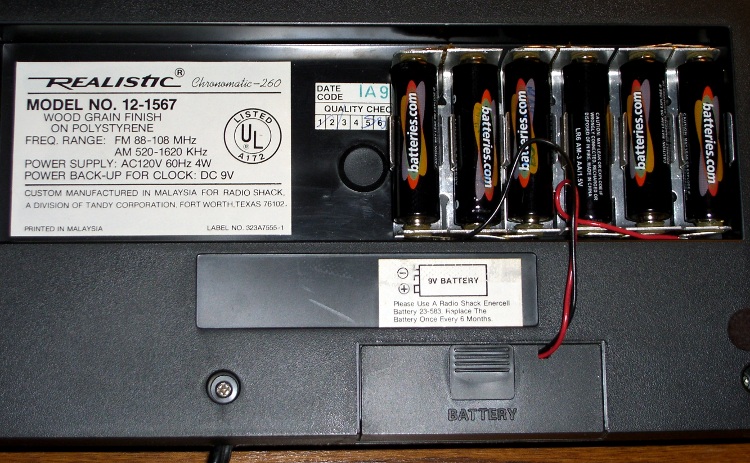
The little red Battery Sentinel LED on our old Realistic (a.k.a. Tandy a.k.a. Radio Shack) clock radio was on this morning, which means that, once again, the backup battery needs attention.
It’s supposed to use an ordinary 9V battery, but it ate two or three of those a year. Given the absurd cost of 9V batteries relative to AA cells, that stopped making sense pretty quickly.
Most devices with backup batteries draw essentially zero power from them during normal operation. This gadget draws 6 µA.
An alkaline 9V battery has a capacity of about 500 mAh, maybe more with a low-drain load like this. That should last for a few years:
500e-3 / 6e-6 = 83k hours = 500 weeks = 10 years
Alas, the clock battery monitor is really fussy and triggers the LED when the voltage drops under about 8.5 V.
[Update: the clock does a “battery test” every day, which probably accounts for the short battery life. I haven’t measured that current… or the duration of the test.]
Fortunately, the clock case has a recessed bottom that fits a standard AA cell holder like a glove. I wired up 1-1/2 4-cell holders (yes, I should have used 7 cells, but I wasn’t sure what the upper voltage limit might be) to a standard 9V battery snap connector and screwed the assembly to the case.
Now all I must put up with are the weak AA cells I got from batteries.com; the most recent order was a disappointment.
Memo to Self: That snap connector has red = negative / black = positive!
One of Mary’s first investments when she got out of college was a sewing machine and she’s been using it ever since. Of late, it’s gotten a bit sporadic and the foot control seemed to be at fault.
The symptoms were that the foot control required too much travel (equivalently: foot pressure) to get up to speed, it started abruptly (poor speed regulation), and sometimes cut out without warning.
So I took it apart to see what I could do.
Two pins in the side hold the top cover in place and serve as pivots. Loosen the two visible screws in the center of two of the bottom feet, hold the top half of the case down, and slide the pins out.
A wedge on the top half presses down on the middle of the steel bar, pressing it into the rheostat. A dab of silicone lube on the wedge greatly improved that action.
Rheostat graphite wafers and contacts
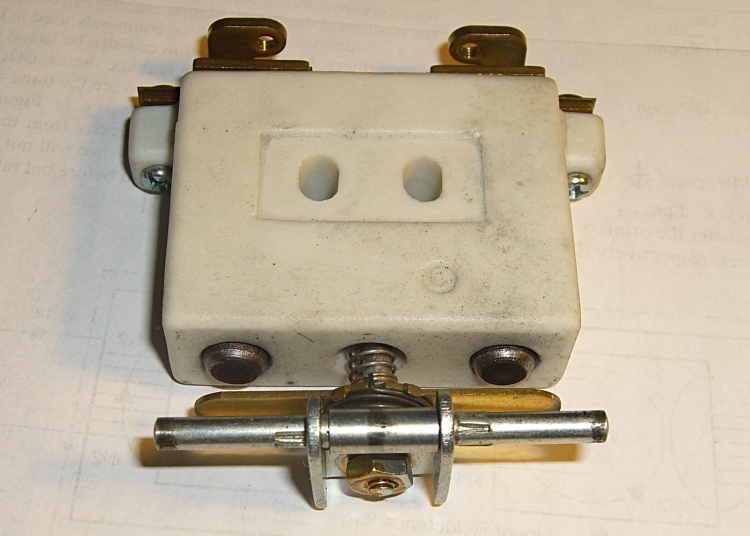
The speed control itself is brutally simple: a carbon-pile rheostat in series with the 120 VAC 1 A sewing machine motor. The ceramic case and heatsink tab tell you that things get pretty toasty inside that Bakelite case.
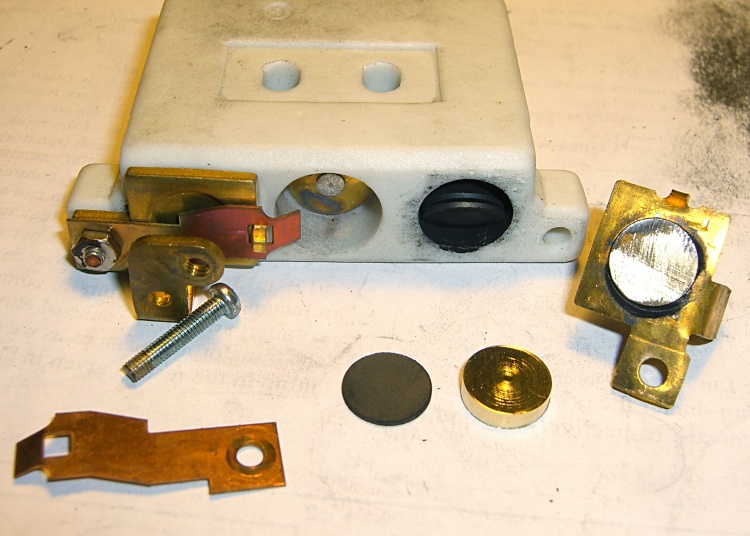
Disassembly is obvious, which is one of the nice things about old electrical gadgets: you can puzzle out how they work and how the parts fit together just by looking. A slew of graphite disks slides out from two cylindrical tunnels in the ceramic case, followed by two graphite contact buttons. The brass fittings on the front have carbon dust on their raised surfaces, but are basically just stamped & machined metal parts.
No fancy electronics, no firmware, just a high-power (and utterly non-inductive!) carbon variable resistor.
The rheostat has three modes, in increasing order of pressure:
Off — no pressure on the foot control
Resistive speed control — resistance varies with foot pressure
Full throttle — rheostat resistance shorted by front switch
Rheostat speed control contacts
With no pressure on the foot control, there’s a generous gap between the contact bar on the back surface and the two graphite buttons sticking out of the ceramic case. There’s no way for the contacts to close by shaking or accident.
A bit more foot pressure connects those two buttons through the shorting bar across the back. Light pressure on the graphite disks means a relatively high resistance, on the order of several hundred ohms, and relatively low current to the motor. Of course, that also means the motor has poor starting torque, but … a sewing machine doesn’t need a lot of torque.
Increasing foot pressure squeezes the disks together and decreases the resistance. It drops to a few tens of ohms, perhaps lower, but it’s hard to get a stable measurement. The motor averages all that out and trundles along at a reasonably steady pace.
Rheostat full-speed contacts
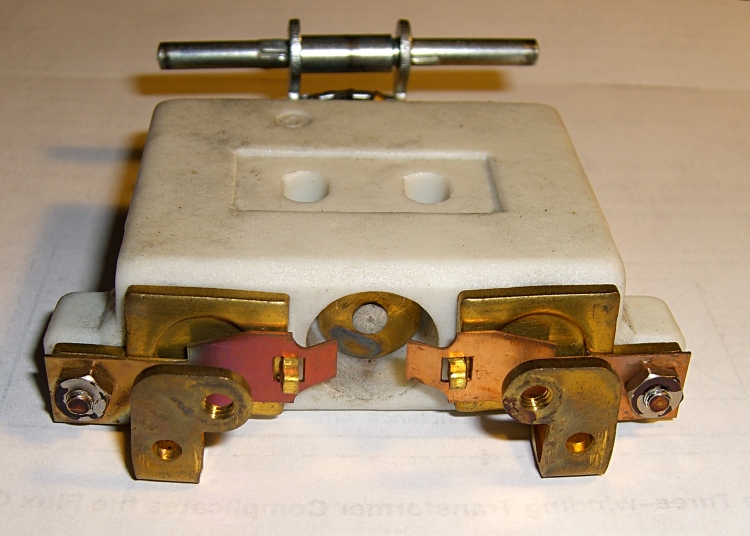
Finally, the brass disk in the central case tunnel shorts the tabs on the two brass end contacts and lets the motor run at full speed. Increasing the foot pressure beyond that point doesn’t change anything; the spring-loaded shaft can’t deform the tabs.
The steel shaft and contact disk can short one or the other of the two piles, but that just decreases the already small resistance by about half. That might give the motor a speed boost instantly before jumping to full speed.
As nearly as I can tell, the carbon disks evaporated over the decades, as the piles seems quite loose and required a lot of foot motion to reach the first contact point. I lathe-turned a pair of brass disks about three wafers thick, so that they’d take up the empty space in the piles.
I also filed the brass end fittings flat so that they contact the disks over more of their surface. The first two disks looked like they had hot spots: loose carbon collected in the areas where the contacts didn’t quite touch them. I doubt that actually improved anything, but it’s the thought that counts.
The spacers worked reasonably well, although I wound up removing one graphite disk from each pile to ensure the full-speed contacts would close properly. They’re in a small plastic bag tucked under the aluminum heatsink tab, where they can’t get lost. With any luck, the bag won’t melt around them.
Rheostat with brass spacer button
A few days later, the sewing machine stopped working entirely. The foot control itself seemed to be working correctly, but a bit of poking around showed that the cord had a broken conductor just outside the strain relief. I cut the cord off at the strain relief, hacksawed the strain relief apart, then rewired it. The cord is now four inches shorter and everything works fine again.
I think this would be a nice candidate for a PWM controller, but then I’d have to shoehorn all that circuitry into the base of the sewing machine or add another cord to the foot control. Ptui, this works well enough.
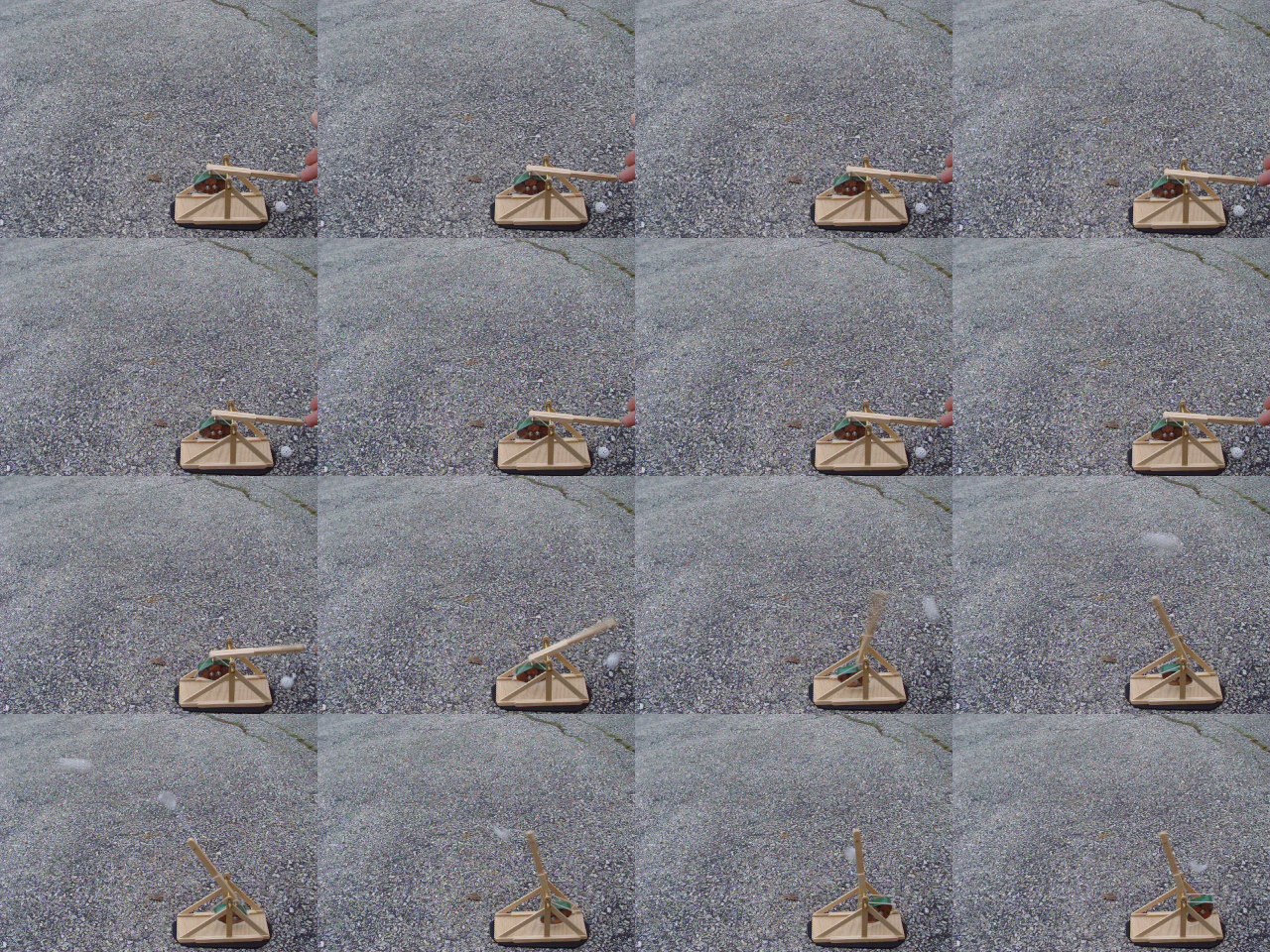
Digital camera, at least the ones I have, include a “multi-burst” (Sony DSC-H5 and DSC-F717) or “multi-continuous” (Casio EX-Z850) shutter mode that takes a bunch of pictures in quick succession, then combines them into a single JPG image file.
The Sony cameras create a 4×4 array. This image of a small trebuchet comes from the F717 and is 1280×960, so each sub-image is 320×240. The time between images is 1/30 second and the shutter speed is 1/125 second.
Extracting the sub-images is trivially easy with the ImageMagickconvert function:
convert -crop 320x240 dsc02594.jpg shot-%02d.jpg
Sub-image shot-11.jpg from the sequence
You must specify the size of the sub-images to extract, which you can determine by RTFM or simple division, and convert extracts all the tiles into files named, in this case, shot-00.jpg through shot-15.jpg. The files appear in left-to-right, top-to-bottom order, which is most likely the sensible way for cameras to store them.
The C printf-style format string %02d forces two-digit sequence numbers. You can omit that and the sequence will start with shot-0.jpg, but you must then contend with the usual hassles of shot-1.jpg and shot-10.jpg.
Can you tell the designers were computer geeks?
With 16 separate images in hand, you can have your way with them, using all your usual image-manipulation tools.
ImageMagick can convert the images into an animated GIF:
convert -delay 50 shot-*jpg shot-ani.gif
Animated GIF from separate images
That’s nigh onto 7 MB of image, which seems excessive for what it is, but there you have it. Obviously, you can de-res the images to fit the space available.
The -delay 50 option should set the frame delay to 50 ticks at the default 100 ticks per second, but some display software ignores the frame rate within the file. Assuming, that is, that the usual spam filters don’t swat animated GIFs right out of the bitstream.
You can also convert the images into a movie, as I discussed in more detail there. The ffmpeg program does a fine job of it:
ffmpeg -r 3 -i shot-%02d.jpg shot.mp4
Actually, convert can do that all by itself if you install mpeg2encode.
One cannot upload movies to one’s free WordPress blog without buying a space expansion, so you’ll have to take my word that it works.
The Sony cameras provide control over the interval between the images, allowing 1/30, 1/15, and 1/7.5 second intervals, but the Casio evidently just does the best it can. If you know the interval, you can determine interesting things like velocity and acceleration, so that’s something to look for when you’re buying a camera.
Perhaps you can calibrate your camera using a pendulum?
A friend gave me an old Aptiva, upon which I was going to install Puppy Linux.
But, first I let it start up Win ME just for old time’s sake. What the heck, it’s a classic.
The first thing up is a prompt asking permission to install Compuserve, which I really don’t need. As is usually the case with shovelware, that program doesn’t show up in the Start Menu, so I did some rummaging around.
Firing up msconfig and looking at the auto-started stuff revealed, among the usual stuff, this interesting file:
c:\windows\nav.exe .vbs
That pretty much pushes the Compuserve popup to the back of the queue.
Note the long string of blanks in the middle. That, in combination with Windows Explorer’s default “Hide known file extensions” setting, is an old trick, but, then, this is an old box.
Sooo, at one time there was a virus on that box masquerading as good ol’ Norton AntiVirus. The offending file seems to be missing now, so something killed it without removing its auto-start setting.
Either my friend removed NAV, too, or the virus shot it in the head. There’s all manner of NAV config files and clutter lying around, but no executables.
In goes the Puppy CD, reboot, and I install its slightly backlevel ClamAV package. No problem with that; it’ll use the most recent virus signatures and, heck, any problems on this box are half a decade old.
After mulling over the Windows ME partition for a while, ClamAV reported:
/mnt/sda1/Program Files/Netscape/Users/Default/Mail/Trash: W95.Matrix.SCR FOUND
/mnt/sda1/Program Files/Netscape/Users/Default/Mail/Inbox: W32.Magistr.B FOUND
/mnt/sda1/_RESTORE/ARCHIVE/FS346.CAB: Worm.Kido-18 FOUND
----------- SCAN SUMMARY -----------
Known viruses: 513471
Engine version: 0.91.2
Scanned directories: 1821
Scanned files: 44557
Infected files: 3
Data scanned: 10721.32 MB
Time: 73200.595 sec (1220 m 0 s)
Feeding the obvious keywords into Google produces the comforting result that these are all old news:
However, Kido is a Conficker / Downadup variant, which is disturbing. The hit is almost certainly a false positive, as it’s in a CAB file, we don’t run any Windows machines, and they’re behind a hardware firewall that’s in full effect.
Handing the offending file to VirusTotal shows that ClamAV is the outlier and all the others are perfectly happy: Current status: finished Result: 1/39 (2.57%)
The used Optiplex GX270 that will eventually become my mother’s “new” PC has been booting absolutely reliably in the basement, so whatever was troubling it a few months ago seems to have Gotten Better By Itself. I don’t have to like that, but so far, so good.
This morning I ssh-ed into it, as I do every few days, then fired up krdc on my desktop, which immediately complained that there wasn’t anything there to connect with. Uh-oh…
But the ssh worked, so at least there’s a Linux system at the end of that network cable.
A changing cast of PCs has gone through the basement lab in that time and I’ve been swapping the desktop monitor among them. Most recently, a friend gave me an ancient Aptiva that might turn into a dedicated controller and I’d left the monitor connected to it.
After I figured out that the monitor wasn’t hitched to the Optiplex, traced the cable, and fixed that oversight, I was confronted with a command-line prompt. A bit of rummaging in /var/log/Xorg.0.log turned up some useful information:
(II) intel(0): Output VGA disconnected
(EE) intel(0): No valid modes.
... <snippage> ...
(EE) Screen(s) found, but none have a usable configuration.
Fatal server error:
no screens found
In the Bad Old Days, you told X exactly what output to produce by providing modelines that specified the exact video timings. That was fraught with peril, as you could do the Digibomber thing to a fussy fixed-frequency monitor by specifying timings beyond its abilities.
Nowadays, the X server feels around, detects the video card, asks it what it can produce, detects the monitor, asks it what it can display, figures out the best match from the ensuing matrix of possibilities, and shazam slaps up a GUI. Might not be exactly what you want, but more likely than not it’ll be pretty close and you can apply some tweakage to get it right.
If there’s no monitor connected, then the X server doesn’t know quite what to do. I’m sure it’s possible to specify a default fallback configuration, but maybe it’s better to just ensure the monitor is always connected. Those cute little screws on the connector might be a clue, eh?
The command line continues to work, of course, so you can figure this stuff out either locally or through ssh. Alas, it’s really hard to reconnect a monitor cable through ssh.
Although you can change the Arduino runtime’s default PWM clock prescaler, as seen there, the default Phase-correct PWM might not produce the right type of output for the rest of your project’s circuitry.
I needed a fixed-width pulse to drive current into a transformer primary winding, with a variable duty cycle (hence, period) to set the power supply’s output voltage. The simplest solution is Fast PWM mode: the output goes high when the timer resets to zero, goes low when the timer reaches the value setting the pulse width, and remains low until the timer reaches the value determining the PWM period.
The best fit for those requirements is Fast PWM Mode 14, which stores the PWM period in ICRx and the PWM pulse width in OCRxA. See page 133 of the Fine Manual for details on the WGMx3:0 Waveform Generation Mode bits.
I needed a 50 μs pulse width, which sets the upper limit on the timer clock period. Given the Diecimila’s 16 MHz clock, the timer prescaler can produce these ticks:
1/1 = 62.5 ns
1/8 = 500 ns
1/64 = 4 μs
1/256 = 16 μs
1/1024 = 64 μs
So anything smaller than 1/1024 would work. For example, three ticks at 1/256 works out to 48 μs, which is close enough for my purposes. A 1/8 prescaler produces an exact match at 100 ticks and gives a nice half-microsecond resolution for pulse width adjustments.
The overall PWM period can vary from 200 μs to 10 ms, which sets the lower limit on the tick rate. The timer is 16 bits wide: 65535 counts must take more than 10 ms. The 1/1 prescaler is too fast at 4 ms, but the 1/8 prescaler runs for 32 ms.
So I selected the 1/8 prescaler. The table on page 134 gives the CSx2:0 Clock-Select mode bits.
Define the relevant values at the top of the program (uh, sketch)
The microsecondsToClockCycles() conversion comes from the Arduino headers; just use it in your code and it works. It’ll give you the right answer for 8 MHz units, too, but you must manually adjust the timer prescaler setting; that could be automated with some extra effort.
Then, in the setup() routine, bash the timer into its new mode
analogWrite(PIN_BOOSTER,1);	// let Arduino setup do its thing
TCCR1B = 0x00;			// stop Timer1 clock for register updates

TCCR1A = 0x82;			// Clear OC1A on match, Fast PWM Mode: lower WGM1x = 14
ICR1 = BOOST_PERIOD_DEFAULT;	// drive PWM period
OCR1A = BOOST_ON_DEFAULT;	// ON duration = drive pulse width
TCNT1 = BOOST_ON_DEFAULT - 1;	// force immediate OCR1A compare on next tick
TCCR1B = 0x18 | TCCR1B_CS20;	// upper WGM1x = 14, Clock Sel = prescaler, start running
The Arduino analogWrite() function does all the heavy lifting to set the PWM machinery for normal use, followed by the tweakage for my purposes. All this happens so fast that the first normal PWM pulse would still be in progress, but turning the PWM timer clock off is a nice gesture anyway. Forcing a compare on the first timer tick means the first pulse may be a runt, but that’s OK: the rest will be just fine.
What you don’t want is a booster transistor drive output stuck-at-HIGH for very long, as that will saturate the transformer core and put a dead short across the power supply: not a good state to be in. Fortunately, the ATmega168 wakes up with all its pins set as inputs until the firmware reconfigures them, so the booster transistor stays off.
The PWM machinery is now producing an output set to the default values. In the loop() routine, you can adjust the timer period as needed
noInterrupts();			// no distractions for a moment
TCCR1B &= 0xf8;			// stop the timer - OC1A = booster may be active now

TCNT1 = BOOST_ON_DEFAULT - 1;	// force immediate OCR1A compare on next tick
ICR1 = BasePeriod;		// set new PWM period

TCCR1B |= TCCR1B_CS20;		// start the timer with proper prescaler value
interrupts();			// allow distractions again
The ATmega168 hardware automagically handles the process of updating a 16-bit register from two 8-bit halves (see page 111 in the Manual), but you must ensure nobody else messes with the step-by-step process. I don’t know if the compiler turns off interrupts around the loads & stores, but this makes sure it works.
Once again, setting the TCNTx register to force a compare on the next timer tick will cause a runt output pulse, but that’s better than a stuck-HIGH output lasting an entire PWM period. You can get fancier, but in my application this was just fine.
You can update the PWM pulse width, too, using much the same hocus-pocus.
And that’s all there is to it!
Memo to Self: always let the Arduino runtime do its standard setup!
The charger had some corrosion on the cast aluminum (?) knobs, but seemed largely unscathed by four decades in its original box. The charging circuitry depends on a few electrical contacts and, as you might expect, those were badly intermittent.
A bit of background…
Charging contact pedestal
The charging pedestal has two parts visible from the outside: an outer sleeve that’s firmly secured to the case and an inner cylinder that slides within the sleeve, with springs inside the charger pressing it outward. Well, there’s a nut, toothed washer, and the bead-chain cap assembly, but those don’t count.
The inner cylinder has a transparent plastic insert crimped in place, with a metal rod protruding about 2 mm from the flat top of the plastic. That rod presses against the middle contact of the dosimeter and connects the charging voltage to the electrostatic fiber. The outer body of the dosimeter fits snugly over the cylinder to make the other electrical contact.
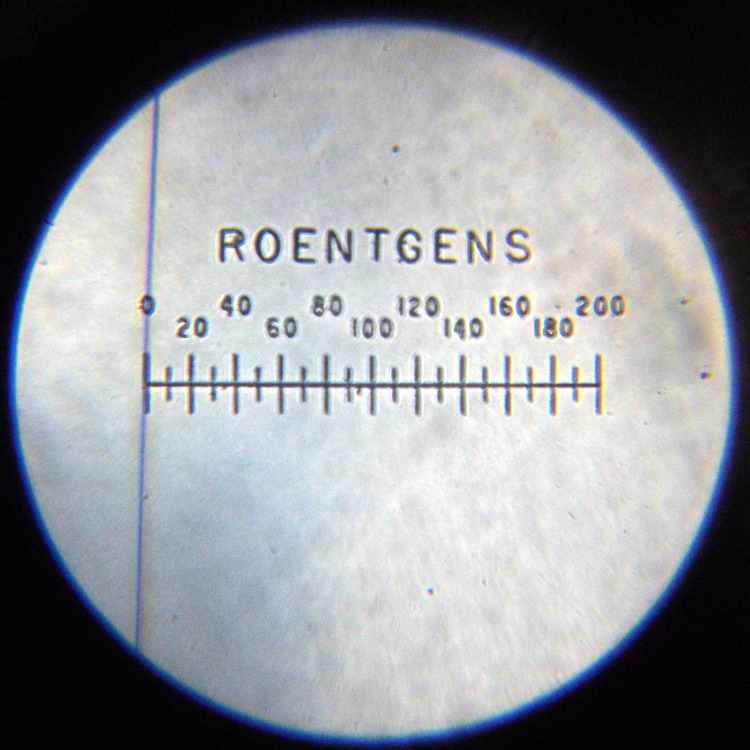
The directions tell you to press the dosimeter down gently to read it. A weak spring holds the cylinder outward with about 1.5 lb of force. After about 1 mm of travel an incandescent bulb (remember those?) turns on, transmits light through the plastic insert, and lights up the dosimeter scale and fiber.
To charge the dosimeter, you press down firmly and twiddle the adjusting knob to position the fiber. Pressing hard enough to force the dosimeter body down to the sleeve, another 3 mm of travel, compresses the dosimeter’s internal bellows (or plastic seal) enough to complete the circuit to the fiber; a sealed dry air gap normally isolates the fiber from the dosimeter’s external contact. A stout leaf spring holds the cylinder outward with (according to one instruction manual) 7.75 lb of force, so it takes more pressure than you’d expect to hold the dosimeter down.
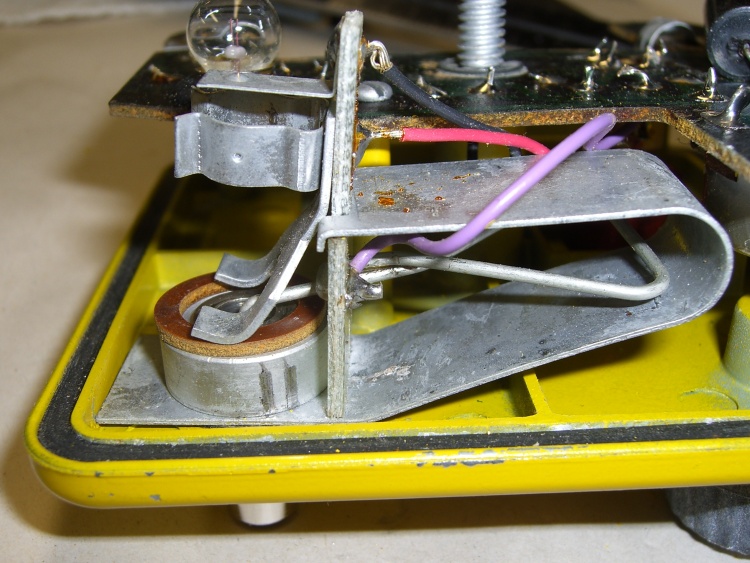
Charging contact inside view
The internal parts of the charging pedestal makes all that stuff work without any formal switch contacts. That, unfortunately, causes the intermittent operation.
The gray “wire” inside the large 7-lb leaf spring is both the 1-lb spring and the high-voltage electrical contact. The purple wire soldered to the end of the wire spring carries the HV charging potential from the circuitry.
The black and red wires connect to the incandescent bulb, which fits into the holder near the top of the circuit board sticking up vertically just to the right of the pedestal base; I removed it to reveal the other parts. For what it’s worth, the bulb holder doesn’t do a good job of securing the bulb; I have some improvements in mind for that, too.
Note the spare bulb just beyond the center bulb contact near the top of the picture. The rubber grommet securing that has turned into black Gummi-bear substance; that sucker is in there forever.
The battery’s positive terminal connects to the case; this is a positive-ground circuit!
The leaf spring hitches over two shoulders on the circuit board and presses it firmly against the other side of the spring. The curved fork fingers pressing against the brown insulating washer are firmly mounted to the circuit board and act as one side of the switch contacts.
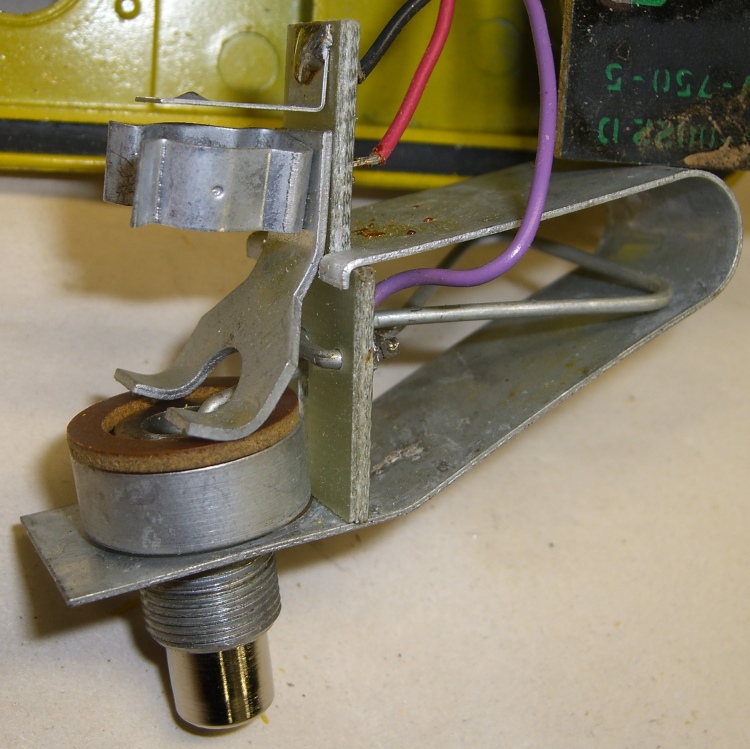
Pedestal removed from charger
When you push the dosimeter against the sleeve, the base of the cylinder slides through the ID of the fiber washer and contacts the fork fingers. Bingo, that completes the circuit, lights the lamp, and fires up the HV circuitry. The charging voltage doesn’t reach the dosimeter fiber because the leaf spring hasn’t started pressing the cylinder against the dosimeter’s innards: there’s no connection inside the dosimeter.
With that out of the way, here’s what’s needed to get the pedestal working reliably.
Get the whole pedestal assembly out of the charger, which requires a bit of wiggly jiggly action. This will be easier if you unsolder the three wires, which I didn’t do until I was sure it was absolutely necessary.
Grab the leaf spring on both sides of the bulb circuit board, pull up while pushing down on the spring’s base with some other fingers, and lift the tabs off the circuit board shoulders. This requires a surprising amount of force; don’t let the spring get you by the soft parts!
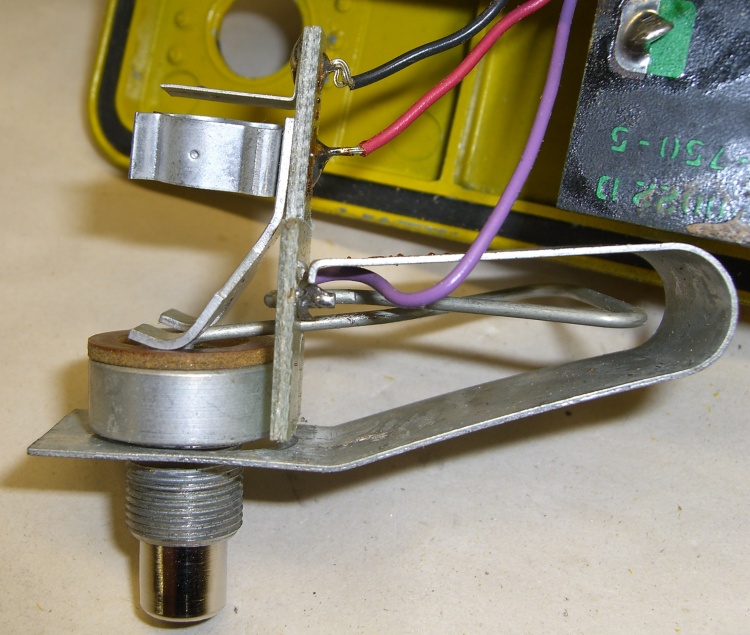
Leaf spring released
A small crimped metal connector mates the end of the wire spring to the center contact in the cylinder. Pay attention as you maneuver the pedestal out of the leaf spring: you don’t want to deform that connector too much. Or, much worse, lose it under your workbench.
There’s a rubber O-ring inside the outer sleeve that’s barely visible in the picture of the parts. The 1-lb wire spring had trouble forcing the cylinder back out through the O-ring, leaving the switch just barely closed even with the dosimeter removed. A touch of silicone gasket lube on the O-ring made it wonderfully slippery again.
The inner cylinder has wire snap ring in a groove that adds a bit of stability and maybe some contact friction inside the sleeve. You need not remove the snap ring; they’re not called Jesus clips for nothing. It’s outside the O-ring’s protection, exposed to the world.
Basically, clean everything without yielding to the Siren Call of sandpaper. What you want to do is get the oxidized metal off the base material without scarring it.
Pedestal contact components
I applied a tiny drop of Caig DeoxIT Red to the snap ring, worked it around & around, then wiped off the residue.
The actual switch “contacts” are the wide base of the inner cylinder (to the right in the picture) and the rounded end of the fork attached to the lamp base circuit board. The contact area is broad, smooth, plated-steel-on-steel, and utterly unsuited to the job. Wipe both of them clean, add DeoxIT, wipe them clean again.
I applied another minute drop of DeoxIT to the base of the cylinder after putting everything back together, rotated it against the fork, and wiped it off. Most likely that had only psychological benefit, but what the heck.
The parts go back together in the obvious way, again taking care not to let the leaf spring bite you. I routed the wires a bit differently, but I doubt it makes any difference.
Now the charger works perfectly again!
Memo to Self: replace that bulb with nice soldered-in-place LED
V-742 Dosimeter set to Zero
Update: It seems you can actually buy V-750 dosimeter chargers new from www.securityprousa.com/doch.html. However, eBay is significantly less expensive and you might get some quality shop time out of it. Your choice.






 The Smell of Molten Projects in the Morning