Ed Nisley's Blog: Shop notes, electronics, firmware, machinery, 3D printing, laser cuttery, and curiosities. Contents: 100% human thinking, 0% AI slop.
Everybody seems to forget that those wonderfully precise GPS coordinates have an underlying error on the order of 20 meters, more or less, kinda sorta.
A friend took a bicycling vacation, riding about 50 miles a day, and camped overnight. Evidently his GPS tracker developed a nasty case of insomnia and wandered all over the campsite: the first two points might be actual motion, but the rest were in the wee hours of the morn when he says he was sound asleep.
It became painfully obvious over the course of his journey that you cannot depend on continuous satellite uplink coverage. Even though he was riding on rail trails and open roads, the every-ten-minute position uplink to low earth orbit would vanish for hours at a time. The GPS tracker has a 911 button, but it might be a long time before they could figure out where he was.
Memo to Self: get those GPS-to-APRS gadgets built for our bike trips…
I fire up the Token Windows Laptop more or less monthly, to download data from our gaggle of Onset Computer Hobo dataloggers. As a result, the laptop gets broadsided with Windows updates from the Mother Ship and, although I look at ’em before installation to see wassup, I don’t really remember any particular update from month to month.
It seems that, in order to solve the really-disable-Autorun-dammit problem, the patch described in KB967715 must update a registry entry that’s nailed down by some other program. As a result, the patch either doesn’t install, installs-but-fails-quietly, or installs-but-fails-loudly.
It eventually percolated to the front of my dim consciousness that I’d seen all of those outcomes over the last few months…
A bit of trawling turned up the usual collection of uninformed blather, plus what seems to be the Definitive Answer direct from the Mother Ship. Go there for the details.
Update 967715 may be reoffered if the HonorAutorunSetting registry setting that is described in this article is not added to the registry hive. This issue may occur if some other program that is installed on the computer blocks the update from writing the registry entry. Such software may block the update during the installation of the update or may remove the registry entry after the computer is restarted.
(“Registry hive”? WTF?)
Basically, you download the patch as an executable file, save it somewhere convenient, reboot in Safe Mode (hold F8 down as Windows starts up, then pick Safe Mode from the menu), clickety-click on the patch program, and give it permission to have its way with your PC.
So far, it’s all good. Maybe I won’t have to remember this for another month…
Memo to Self: if all else fails, MS doesn’t charge for security-related patch assistance phone support.
Gnuplot can do curve fitting (of all kinds) and parks the coefficients in variables. In general, you’d like to display those values on the final plot for later reference…
The trick is using the sprintf() function, which behaves largely like the C version, to insert the variable into a formatted string for use in the label command.
I drive Gnuplot with shell scripts, which simplifies introducing parameters & suchlike. That’s conspicuous by its absence here, but when you need it, you need it bad.
The script to generate that plot looks like this, with some key points in the highlighted lines:
#!/bin/sh
export GDFONTPATH="/usr/share/fonts/truetype/msttcorefonts/"
gnuplot << EOF
set term png font "arialbd.ttf" 18 size 950,600
set output "Calibration Curve - Full.png"
set title "Calibration Curve - Full"
set key noautotitles
unset mouse
set bmargin 4
set grid xtics ytics
set xlabel "10^5/ADC"
set format x "%3.0f"
set ylabel "Resistance - Ohm"
set format y "%3.0f"
set yrange [0:100]
set datafile separator "\t"
f(x) = m*x + c
fit f(x) "Measurements/Calibration.csv" using 3:1 via m,c
set label 1 sprintf("m = %3.4f",m) at 510,75 font "arialbd,18"
set label 2 sprintf("c = %3.4f",c) at 510,70 font "arialbd,18"
plot    \
 "Measurements/Calibration.csv" \
 using 3:1 with linespoints lt 3 lw 3 pt 3 , \
f(x) lt 4 lw 2
EOF
The dataset for that plot is tucked into the obvious file and looks like this, with tabs between the columns:
Most character-mode LCDs seem to be happy with a VEE supply of about 0 V, which produces enough contrast to get by. If you have a negative supply handy, then it’s easy to goose it with a little negative bias and improve the contrast.
What if you don’t have a negative supply and you’re using an old craptastic LCD that really wants VEE = -1 V and you didn’t realize that until you had everything wired up and it’s a one-off / low-duty-cycle instrument that you don’t want to spend much more time on?
Just whack up a quick-and-dirty charge pump inverter…
Quick and dirty LCD VEE Inverter
It turns out that the circuitry already had a 33 kHz PWM square-wave signal driving something else, so I air-wired this inverting charge pump to the PWM output. You could, of course, put an otherwise unoccupied PWM output to good use, which is a better idea if you have the option.
You can use a PWM output, but the charge pump depends on being fully charged & discharged in every cycle. Run your own numbers.
The LCD’s VEE input dumps about 1 mA to the supply, which means the charge pump must be able to pull out 1 mC/s, more or less. At 33 kHz, each cycle must haul 30 nC.
Assuming the Arduino (well, any microcontroller will do, but that’s what I’m using) has a 5 V power supply and the output pin isn’t overloaded from the rest of its function and the cap charges & discharges completely during each half-cycle, then the first cap must store that 30 nC of charge. You want a lot more than that so you have a stiff supply to work with.
Q = CV, so you need at least 30 nC/5 V = 6 nF. Nothing exceeds like excess, so I soldered a 220 nF box cap standing up from the header pin on the circuit board and air-wired the diodes in place. That will transfer lots more charge and keep the voltage nicely negative.
I have a lifetime supply of 10 µF solid tantalum caps, so that’s what I used for the filter cap. Regulation isn’t critical, but each pump cycle shouldn’t change the voltage on that cap very much. In fact, pulling 220 nF * 5 V = 1 µC from the filter cap while injecting 30 nC from the LCD leaves you with a whopping 970 nC deficit: it’ll stay around -5 V just fine.
Actually, it won’t. The negative supply will be about two diode drops above -5 V. The diodes aren’t carrying a lot of current, so they’ll be running at maybe half a volt apiece. Call it -4 V, more or less. You could use Schottky diodes if you need more negative volts.
If the LCD dumps 1 mA into the supply and -1 V produces the right contrast, then a 3 k resistor will drop the necessary voltage from the supply.
As it turned out, the LCD dumped 800 µA, -0.8 V gave the right contrast, and a 4.7 k resistor worked just fine. Maybe you want a twiddlepot in there to adjust things.
You need that little cap right at the LCD VEE pin to soak up the spikes from the LCD drive multiplexing, as this “power supply” has nearly 5 k output impedance. Yow!
If you’re worried about temperature compensation, then you’ll need something fancier. In that case, you’ll also want a Spice model to be sure all these rough-and-ready calculations cut somewhere close to the truth.
Memo to Self: maybe next time this should be on the PCB right from the start, even if it’s not really needed? Or, much better, just go with a single-chip inverter and be done with it!
Update: If you’re worried about driving a bare cap from your microcontroller pin, add a small-value series resistor. The time constant should be maybe a third of the square-wave period: 15/3 = 5 µs in this case, so the resistor should be 5 µs/220 nF = 22 Ω. That limits the peak current to no more than 5 V/22 Ω = 230 mA, not a big improvement. Mostly, the microcontroller pin will be OK if you’re using small caps.
The thumb roller fell off my digital caliper in the heat of a project, forcing me to deploy a hot backup from the upstairs desk.
This looks like a clear-cut case of underdesign, because it broke exactly where you’d expect: at the midpoint of the arch. Having my thumb right over the spot marked X, though, meant that I had all the pieces and could, at least in principle, glue everything back together.
Glued and clamped
As with all repairs involving adhesives, the real problem is clamping the parts together while the glue cures. I clamped a stack of random plastic sheets to the back of the case to establish a plane surface behind the mount, with a small steel shim to prevent the top sheet from becoming one with the repair.
The roller shaft was about the same size as a #33 drill and the opening was about 110 mils. Some 3/32″ (actually about 96 mils) rectangular telescoping brass tubing was about the right size & shape to hold the opening in alignment. Another length of tubing kept the broken part from sliding to the left.
A dab of solvent glue (I still use Plastruct, but it’s not like it used to be before it became less toxic) on both pieces, line ’em up, apply a clamp to hold it in place, and let it cure overnight.
I have no confidence that this will stay together for very long, so I’ll probably be forced to mill a little replacement mounting doodad.
Ought to be good for a few hours of quality shop time…
Memo to Self: Don’t run the slide off the end of the body, because that rubber boot is an absolute mumble to put back in place.
Having determined that the existing Arduino LiquidCrystal library routine wouldn’t work for the Optrex DMC-16117 character LCD in my parts heap, I decided to modify it to meet the data and timing requirements mentioned in the datasheet. This is sufficiently slow and old that it should work for contemporary displays built around the Hitachi HD44780 and its ilk, but I certainly haven’t tested it!
The straight dope on building an Arduino library from scratch is there, but there’s no need to work from First Principles here.
Start by copying the library files (this FLOSS stuff is wonderful that way), renaming them, and changing all the LiquidCrystal strings to LCD_Optrex:
cd /opt/arduino/hardware/libraries/
cp -a LiquidCrystal LCD_Optrex
cd LCD_Optrex
rm LiquidCrystal.o
rename 's/LiquidCrystal/LCD_Optrex/' LiquidCrystal.*
for f in LCD* k*; do sed -i 's/LiquidCrystal/LCD_Optrex/g' $f; done
cd examples
for f in * ; do sed -i 's/LiquidCrystal/LCD_Optrex/g' $f/$f.pde
cd -
You could do that by hand with an editor if you prefer.
Depending on how you’ve installed the Arduino files, you may need a sudo to make that work. Better, perhaps, to tweak the permissions for (at least) the LCD_Optrex directory & files therein to grant yourself write access.
I created a sendraw4() function to send a single 4-bit nibble during the startup sequence, so add that to the private section of LCD_Optrex.h:
The new code is in LCD_Optrex is shamelessly adapted from the existing send() function, minus the mode selection and 8-bit stuff:
void LCD_Optrex::sendraw4(uint8_t value) {
  digitalWrite(_rs_pin, LOW);
  digitalWrite(_rw_pin, LOW);

  for (int i = 0; i < 4; i++) {
    digitalWrite(_data_pins[i], (value >> (i + 4)) & 0x01);
  }

  digitalWrite(_enable_pin, HIGH);
  digitalWrite(_enable_pin, LOW);
}
If I were doing this from scratch, I’d use d7 through d4 rather than d3 through d0 to match the datasheet, but that’s a stylin’ thing.
Replace the existing LCD panel setup code with an exact mapping of the datasheet’s procedure. For the 4-bit setup, it goes a little something like this:
delayMicroseconds(16000);       // mandatory delay for Vcc stabilization
sendraw4(0x30);                 // set 8-bit mode (yes, it's true!)
delayMicroseconds(5000);        // mandatory delay
sendraw4(0x30);
delayMicroseconds(200);
sendraw4(0x30);
delayMicroseconds(40);          // command delay
sendraw4(0x20);                 // finally set 4-bit mode
delayMicroseconds(40);          // command delay

command(0x28);            // 4-bit, 2-line, 5x7 char set
command(0x08);            // display off
command(0x01);            // clear display
delayMicroseconds(16000);
command(0x06);            // increment, no shift
command(0x0c);            // display on, no cursor, no blink
It seems you cannot use the delay() function in the constructor, as interrupts and suchlike aren’t active. The delayMicroseconds() function disables & enables interrupts; I don’t know if that is a Bad Thing or not.
The 8-bit initialization code, which I haven’t tested, doesn’t need the sendraw4() function, but does need the same alterations. Apart from enabling 4-bit mode, of course.
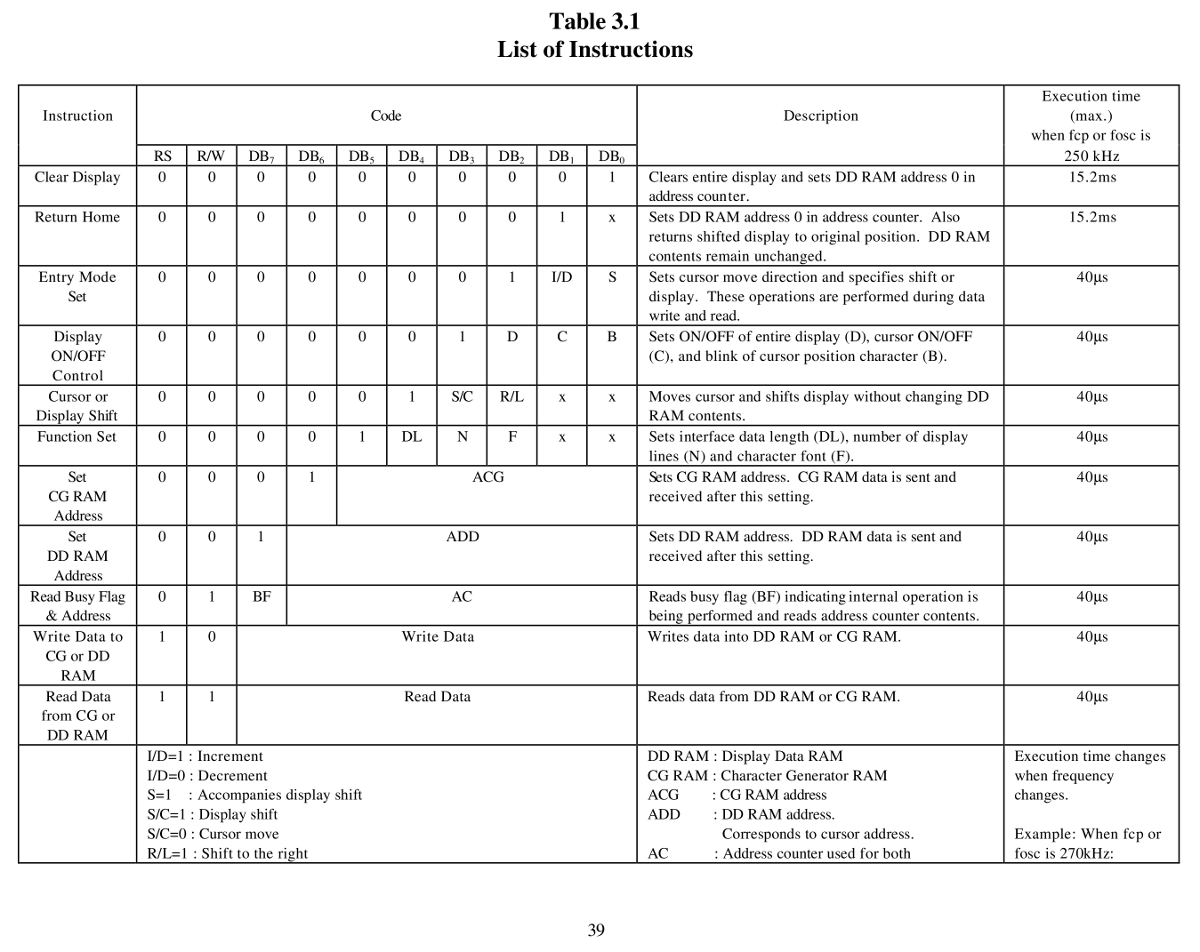
Various commands have different timing requirements, as shown on page 39 of the DMC16117 datasheet. Add a delayMicroseconds(16000); to the clear() and home() functions, then add delayMicroseconds(40); to the send() function, like this:
void LCD_Optrex::clear()
{
  command(0x01);  // clear display, set cursor position to zero
  delayMicroseconds(16000);
}
Optrex DMC16117 Instruction Timing
With all that in place, fire up the Arduino IDE and compile one of the example programs. That will build the LCD_Optrex.o file, too. If you have such a display, either wire it up as indicated or change the example code to match your connections.
What should happen is that the LCD should initialize correctly under all conditions… how’s that for anticlimactic?
Here’s an OpenOffice document with LCD_Optrex.h, LCD_Optrex.cpp, and examples.txt all in one lump: LCD_Optrex Library Files.odt. Save each section as a separate flat-ASCII text file with the appropriate name in the right spot and you’re in business. I’d present a ZIP file, but WordPress isn’t up to that.
Memo to Self: A function to write a 16-character string to the stupid 16-character DMC16117 which has a single row that’s addressed as two 8-character lines would be nice. That requires keeping track of the current cursor position, which could be tricky. Maybe I should just scrap those suckers out?
I recently attached an ancient Optrex DM16117 LCD to an Arduino and discovered that the standard LiquidCrystal library routine wouldn’t initialize it properly. After turning on the power, the display would be blank. Hitting the Reset button did the trick, but that’s obviously not the right outcome.
It turns out that initializing one of these widgets is trivially easy after you realize that the data sheet is required reading. If you do everything exactly right, then it works; get one step wrong, then the display might work most of the time, sorta-kinda, but most likely it won’t work, period.
The catch is that there’s no such thing as a generic datasheet: what you must do depends on which version of the HD44780 controller lives on the specific LCD board in your hands and what oscillator frequency it’s using. The LiquidCrystal library seems to be written for a much newer and much faster version of the HD44780 than the one on my board, but, even so, the code may not be following all the rules.
Optrex DMC16117 Initialization Sequence
To begin…
Fetch the Optrex DMC16117 datasheet, which includes the HD44780 timings for that family of LCD modules. There’s also a datasheet for just the Optrex LCD module itself, which isn’t quite what you want. You could get a bare Hitachi HD44780 datasheet, too, but it won’t have the timings you need.
Pages 32 and 33 of the DMC16117 datasheet present the 8-bit and 4-bit initialization sequences. Given that no sane engineer uses the 8-bit interface, here’s the details of the 4-bit lashup.
Two key points:
The first four transfers are not standard command sequences
The delays between transfers are not negotiable
The starting assumption is that the LCD has not gone through the usual power-up initialization, perhaps because the supply voltage hasn’t risen at the proper rate. You could drive the LCD power directly from a microcontroller pin for a nice clean edge, but most designs really don’t have any pins to spare for that sort of nonsense: code is always cheaper than hardware (if you ignore non-recurring costs, that is, as many beancounters do).
The Arduino LiquidCrystal library routine initialization sequence (in /opt/arduino/hardware/libraries/LiquidCrystal/LiquidCrystal.cpp) looks like this:
command(0x28);  // function set: 4 bits, 1 line, 5x8 dots
command(0x0C);  // display control: turn display on, cursor off, no blinking
command(0x06);  // entry mode set: increment automatically, display shift, right shift
clear();
The four-bit version of the command() function sends both nibbles of its parameter, high followed by low, which simply isn’t correct for the first few values the DMC16117 expects. Worse, the timing doesn’t follow the guidelines; there’s no delay at all between any of the outgoing values. Again, this is most likely due to the fact that LiquidCrystal was written for a newer version of the HD44780 chip.
After a bit of fiddling around, I decided that the only solution was to create a new library routine based on LiquidCrystal with the proper delays and commands: LCD_Optrex. It might not work for newer LCDs, but at least it’ll play with what I have in my parts heap.



 The Smell of Molten Projects in the Morning