Ed Nisley's Blog: Shop notes, electronics, firmware, machinery, 3D printing, laser cuttery, and curiosities. Contents: 100% human thinking, 0% AI slop.
You’ve probably seen this exchange on whatever DIY 3D printing forum you monitor:
My stepper motors get scorching hot, what should I do?
Turn down the current!
That worked great, but …
… now all my objects have a shift in the middle.
Your motor is losing steps: turn up the current!
Uh, right.
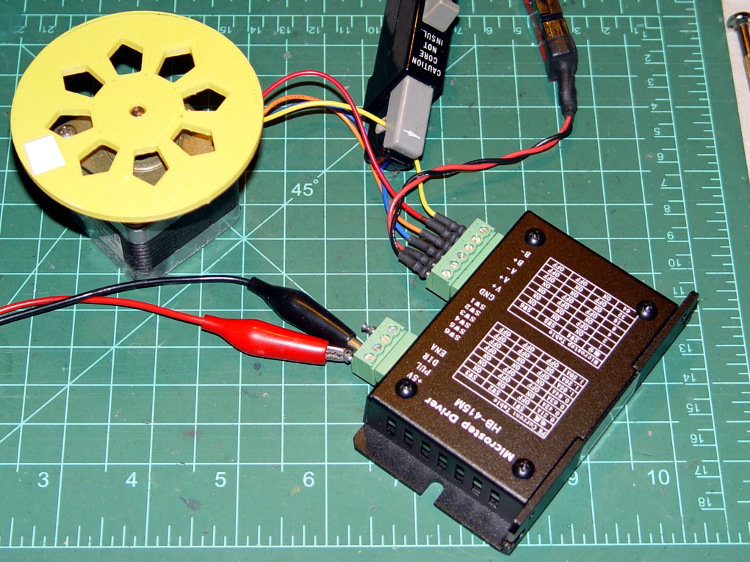
NEMA 17 Stepper on cloth
So, with that setup on the bench, I ran a simple experiment with current, temperature, and heat transfer. Most DIY 3D printers have stepper motors attached to a plywood chassis or plastic holder, so the first data point comes from a motor with no mechanical thermal path to the outside world (which is the Basement Laboratory at 14 °C ambient).
Running at about 1200 step/s with a winding current of 1 A peak from a 24 A supply, the motor stabilized at 52 °C = 125 °F after half an hour.
Both windings have a 2 Ω resistance and carry 1 A peak = 0.7 A rms, so the total power dissipation is:
2 × [(1 A / √2)2 × 2 Ω] = 2 W
That’s the same power produced with the motor stopped at a full step position, where the peak current flows in a single winding and the other winding carries zero current:
(1 A)2 × 2 Ω = 2 W
The temperature rise suggests a thermal coefficient of about 19 °C/W = (52 °C – 14 °C) / 2 W.
The next current setting on the driver is 1.46 A, which doubles the power dissipation to 4.3 W. Assuming a large number of linearities, that would cook the motor at 82 °C = 180 °F above ambient. Even though the motor could probably withstand that temperature, for what should be obvious reasons I didn’t go there.
Instead, I parked the motor atop a big CPU heatsink harvested from an obsolete PC, sans thermal compound, mechanical fitting, and anything more secure than gravity holding it in place:
NEMA 17 Stepper on Heatsink
The results:
Ambient
14
°C
Winding
2
ohm
A pk
A rms
Power W
Case °C
°C/W amb
°C/W incr
1.00
0.71
2.0
28
7.0
7.0
1.46
1.03
4.3
42
6.6
6.2
1.91
1.35
7.3
63
6.7
6.9
The thermal coefficients represent the combination of all interfaces from motor case to ambient, but the case and heatsink stabilized to about the same temperature, so the main limit (as always) will be heat transfer to ambient air. Obviously, the heatsink sits in the wrong orientation with little-to-no air flow, not to mention that the butt end of a stepper motor isn’t precisely machined and has plenty of air between the two surfaces. Improving all that would be in the nature of fine tuning and should substantially lower the coefficient.
What’s of interest: just perching the motor on a big chunk of aluminum dropped the case temperature 24 °C without no further effort.
Blowing air over the case (probably) won’t be nearly as effective. Epoxy-ing a liquid-cooled cold plate to the end cap would improve the situation beyond all reasonable bounds, plus confer extreme geek cred.
Hmmm, the Warehouse Wing does have some copper tubing…
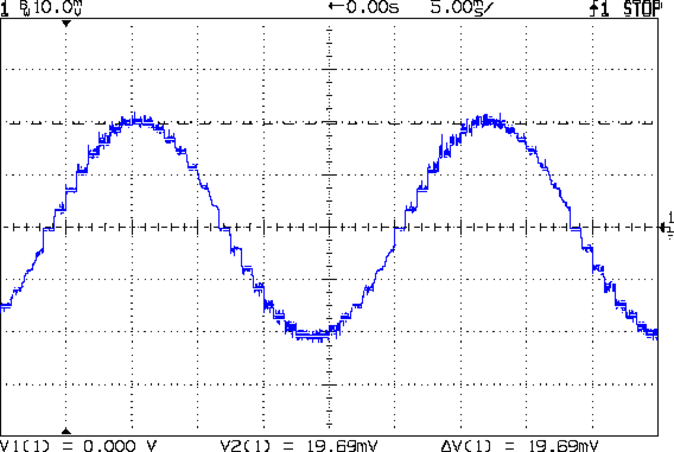
As you saw earlier the low-speed waveform looked reasonably good, although the HB-415M driver produces only 71% of its rated current (so it’s actually 1 A peak, not the 1.5 A in the caption):
HB-415M 8-step 1.5A 20V
The driver runs in 1/8 microstep mode, which means 1 revolution = 8 × 200 step = 1600 steps. Each cycle of that stepped sine wave has 32 microsteps = 4 full steps/cycle × 8 microsteps. One cycle is about 27 ms, so 1 step = 840 µs → 1200 step/s → 0.74 rev/s → 44 rpm. The Thing-O-Matic runs at 47 step/mm → 34 mm/rev, so this speed corresponds to travel at 25 mm/s, roughly the usual printing pace.
Admittedly, that hairball on the bench isn’t a realistic arrangement, because the motor runs with no load. On the other paw, assuming you’ve done a good job eliminating mechanical binding, then it’s probably pretty close to what you’d see during constant-speed travel.
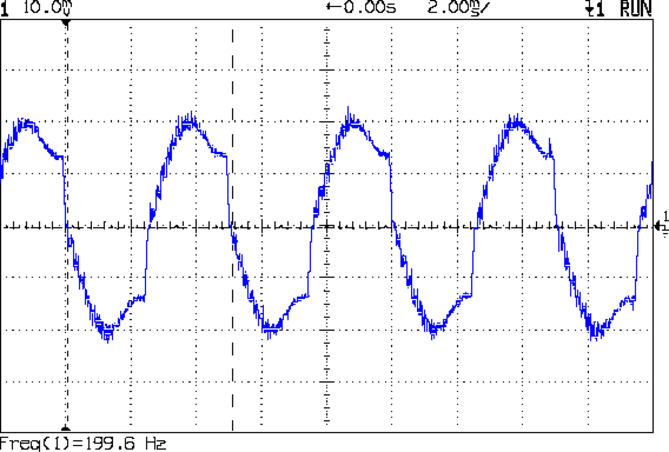
Cranking the pulse generator to 6400 step/s = 133 mm/s produces this waveform:
HB-415M 1A 8step 24V
The power supply was 24 V, but there was no visible difference at 20 V. The driver evidently can’t control the winding current on the downward side of the waveform. Adding some frictional torque by grabbing the yellow interrupter wheel improved the situation, but not by much.
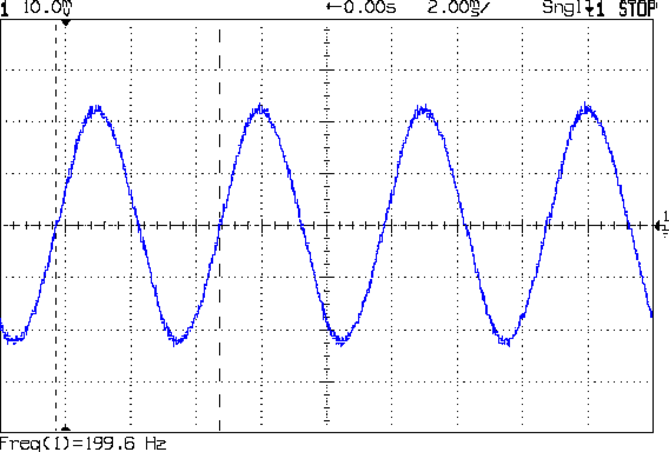
A box of 2M542 drivers just arrived from a nominally reputable supplier, although they were actually labeled M542ES. Under the same conditions, they produce this waveform:
M542ES 1A 8step 24V
So there’s something to be said for larger drivers; the HB-415M drivers were operating at their upper limit and the M542ES at their lower limit, both producing close to 1 A peak.
I’ve always wondered what the LinuxCNC HAL pin names would be for an ordinary mouse, particularly nowadays when an Arduino Leonardo can become a USB HID gadget without much effort at all. If one had a Leonardo and l337 programming skillz, one might receive far more interesting data than just fast-twitch muscle movement…
Bus 005 Device 001: ID 1d6b:0001 Linux Foundation 1.1 root hub
Bus 004 Device 006: ID 06f2:0011 Emine Technology Co. KVM Switch Keyboard
Bus 004 Device 005: ID 046d:c401 Logitech, Inc. TrackMan Marble Wheel
Bus 004 Device 004: ID 04d9:1203 Holtek Semiconductor, Inc. MC Industries Keyboard
Bus 004 Device 003: ID 046d:c216 Logitech, Inc. Dual Action Gamepad
Bus 004 Device 002: ID 0451:2046 Texas Instruments, Inc. TUSB2046 Hub
Bus 004 Device 001: ID 1d6b:0001 Linux Foundation 1.1 root hub
Bus 003 Device 001: ID 1d6b:0001 Linux Foundation 1.1 root hub
Bus 002 Device 002: ID 046d:c077 Logitech, Inc.
Bus 002 Device 001: ID 1d6b:0001 Linux Foundation 1.1 root hub
Bus 001 Device 001: ID 1d6b:0002 Linux Foundation 2.0 root hub
Fire up halrun, load hal_input, and dump the pins:
halrun
halcmd: loadusr -W hal_input -KRAL Optical
halcmd: show all
Loaded HAL Components:
ID      Type  Name                                      PID   State
     5  User  hal_input                                  1693 ready
     3  User  halcmd1692                                 1692 ready

Component Pins:
Owner   Type  Dir         Value  Name
     5  bit   OUT         FALSE  input.0.btn-back
     5  bit   OUT          TRUE  input.0.btn-back-not
     5  bit   OUT         FALSE  input.0.btn-extra
     5  bit   OUT          TRUE  input.0.btn-extra-not
     5  bit   OUT         FALSE  input.0.btn-forward
     5  bit   OUT          TRUE  input.0.btn-forward-not
     5  bit   OUT         FALSE  input.0.btn-middle
     5  bit   OUT          TRUE  input.0.btn-middle-not
     5  bit   OUT         FALSE  input.0.btn-mouse
     5  bit   OUT          TRUE  input.0.btn-mouse-not
     5  bit   OUT         FALSE  input.0.btn-right
     5  bit   OUT          TRUE  input.0.btn-right-not
     5  bit   OUT         FALSE  input.0.btn-side
     5  bit   OUT          TRUE  input.0.btn-side-not
     5  bit   OUT         FALSE  input.0.btn-task
     5  bit   OUT          TRUE  input.0.btn-task-not
     5  s32   OUT             0  input.0.rel-hwheel-counts
     5  float OUT             0  input.0.rel-hwheel-position
     5  bit   IN          FALSE  input.0.rel-hwheel-reset
     5  float IN              1  input.0.rel-hwheel-scale
     5  s32   OUT             0  input.0.rel-wheel-counts
     5  float OUT             0  input.0.rel-wheel-position
     5  bit   IN          FALSE  input.0.rel-wheel-reset
     5  float IN              1  input.0.rel-wheel-scale
     5  s32   OUT             0  input.0.rel-x-counts
     5  float OUT             0  input.0.rel-x-position
     5  bit   IN          FALSE  input.0.rel-x-reset
     5  float IN              1  input.0.rel-x-scale
     5  s32   OUT             0  input.0.rel-y-counts
     5  float OUT             0  input.0.rel-y-position
     5  bit   IN          FALSE  input.0.rel-y-reset
     5  float IN              1  input.0.rel-y-scale
... snippage ...
More hal-config.lbr tweakage produced enough HAL blocks to completely define the Sherline CNC mill’s HAL connections, all wired up in a multi-page schematic (Eagle-LinuxCNC-Sherline.zip.odt) that completely replaces all the disparate *.hal files I’d been using, plus a new iteration of the hal-write-2.5.ulp Eagle-to-HAL conversion script.
The first sheet (clicky for more dots) defines the manually configured userspace and realtime modules:
Sherline Schematic – 1
That sheet has three types of Eagle devices:
Generalized LoadRT – devices like trivkins that require only a loadrt line
Dedicated LoadRT – devices like motion that require functions connected to a realtime thread
Generalized LoadUsr – devices like hal_input with a HAL device, but no function pins
The device’s NAME field contains either the module name (for the specialized devices with functions) or a generic MODULE for everything else, preceded by an optional index that imposes an ordering on the output lines. The device’s VALUE field contains the text that will become the loadrt or loadusr line in the HAL file. Trailing underscores act as separators, but are discarded by the conversion script.
The immensely long line is the VALUE field that plugs a bunch of variables from the Sherline.ini file into the motion controller.
The conversion script doesn’t do anything special for those devices, other than transfer the VALUE field to the HAL file. Ordinary HAL devices, the ones with functions that don’t require any special setup, must appear in the conversion script’s list of device names, so that it can recognize them and deal with their connections.
Next, the parallel port configuration, which uses the D525’s system board hardware:
Sherline Schematic – 2
The stepconf configuration utility buries the parallel port configuration values in the default HAL file as magic numbers. I moved them to a new stanza in the INI file, although the syntax may not be robust enough to support multiple cards, ports, and configurations. This, however, works for now:
That LOGIC block is new and serves as an AND gate that produces a combined enable signal for the parallel port. The stepconf utility uses the X axis enable signal, but, seeing as how the Sherline controller doesn’t use the result, none of that matters on my system.
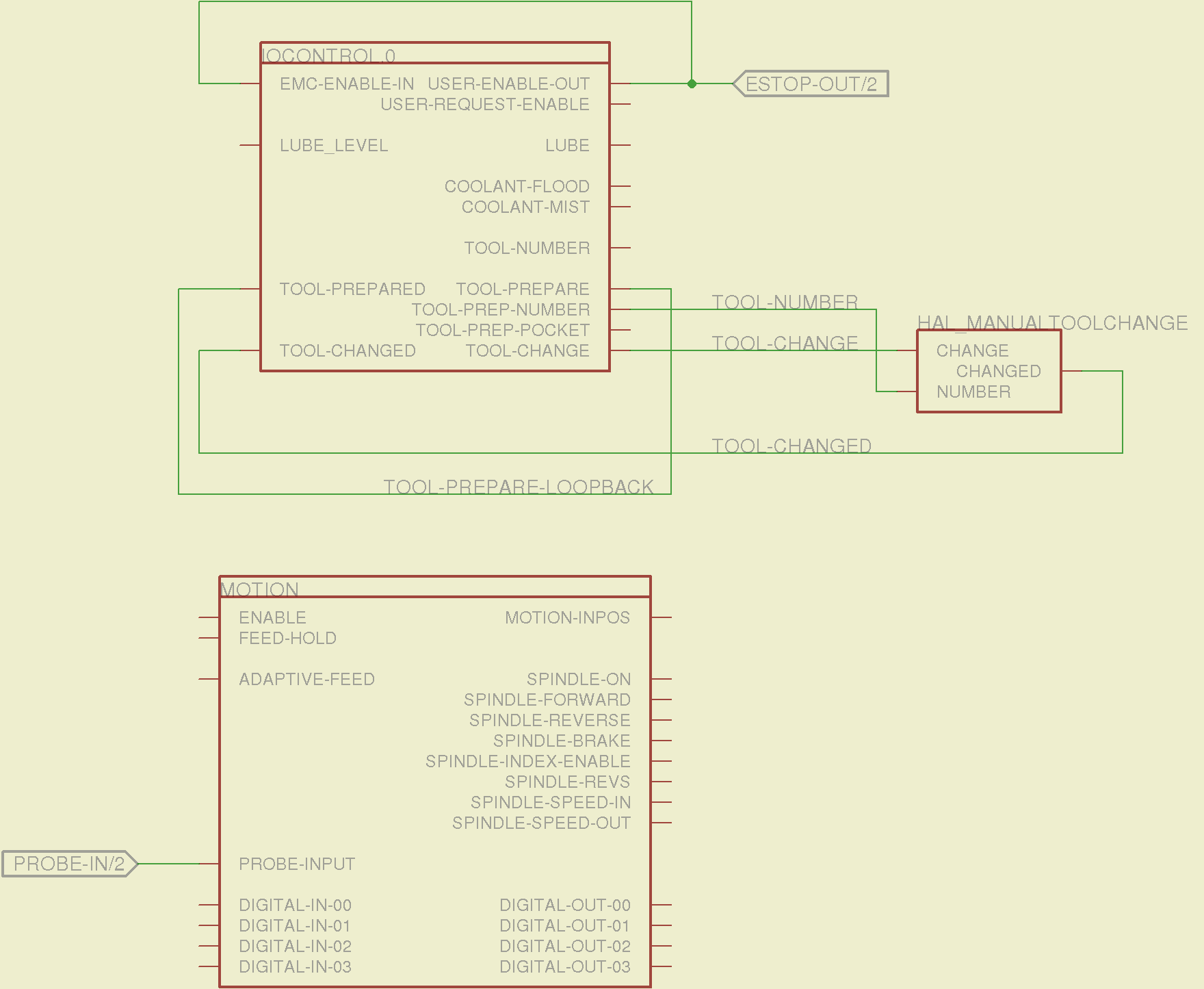
The tool height probe and manual tool change wiring:
Sherline Schematic – 3
I’m not convinced the Emergency Stop polarity is correct, but it matches what was in the original HAL file. As before, the Sherline driver box ignores that output, so none of that matters right now.
Four very similar pages define the XYZA step-and-direction generators. This is the X axis driver:
Sherline Schematic – 4
You can imagine what the next three pages for the YZA logic look like, right? There are also a few blank pages in the schematic, so the numbers jump abruptly.
The magic part of this is having Eagle manage all the tedious renumbering and counting. If you remember to adjust the name of the first module from, say, AXIS.1 to AXIS.0, then the rest get the proper numbers as you go along.
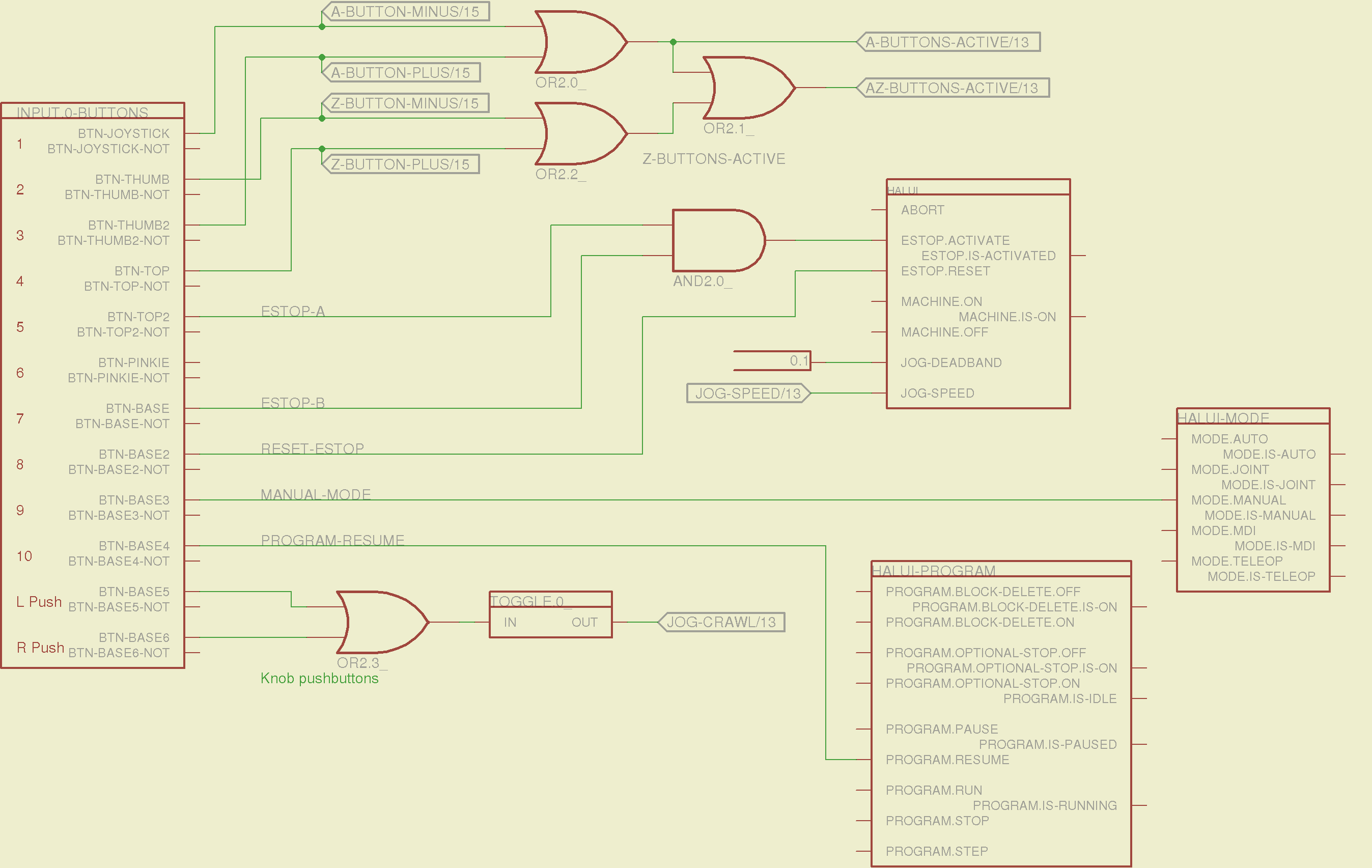
The remainder of the schematic implements the Joggy Thing’s logic, much as described there. I discovered, quite the hard way, that copy-and-pasting an entire schematic from elsewhere does horrible things to the device numbering, but I’m not sure how to combine two schematics to limit the damage. In any event, manually adjusting a few pages wasn’t the worst thing I’ve ever had to do; starting with a unified schematic should eliminate that task in the future.
The miscellaneous buttons:
Sherline Schematic – 11
The joystick and hat values:
Sherline Schematic – 12
The joystick deadband logic now uses the (new with HAL 2.5, I think) input.n.abs-x-flat pins, which eliminated a tangle of window comparator logic.
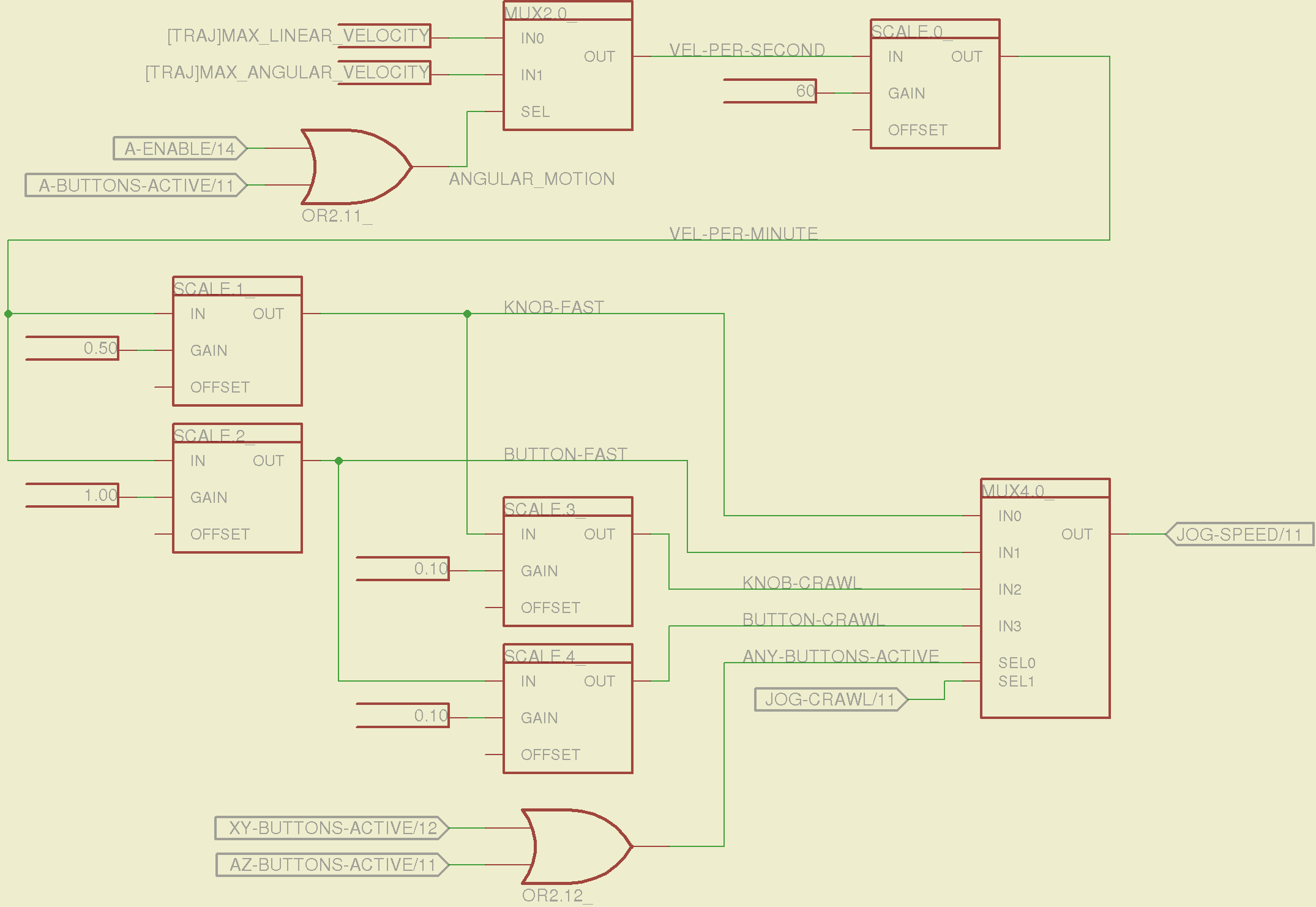
The jog speed adjustment logic that sets the fast and crawl speeds:
Sherline Schematic – 13
I should probably put the speed ratios in the INI file, but that’s in the nature of fine tuning.
The lockout logic that remembers which axis started moving first on a given joystick and locks out the other axis, which greatly simplifies jogging up to an edge without bashing into something else:
Sherline Schematic – 14
Combine all those signals into values that actually tell HAL to jog the axes:
Sherline Schematic – 15
The last page connects all the realtime function pins to the appropriate threads:
Sherline Schematic – 16
The LinuxCNC documentation diverges slightly from the implementation, but a few iterations resolved all the conflicts and had the additional benefit that I had to carefully think through what was actually going on.
A deep and sincere tip o’ the cycling helmet to the folks making LinuxCNC happen!
Although the Sherline mill doesn’t have more than a few minutes of power-on time with the new HAL file, the Joggy Thing behaves as it used to and the axes move correctly, so I think the schematic came out pretty close to the original HAL file.
The next step: draw a new schematic to bring up and exercise a different set of steppers…
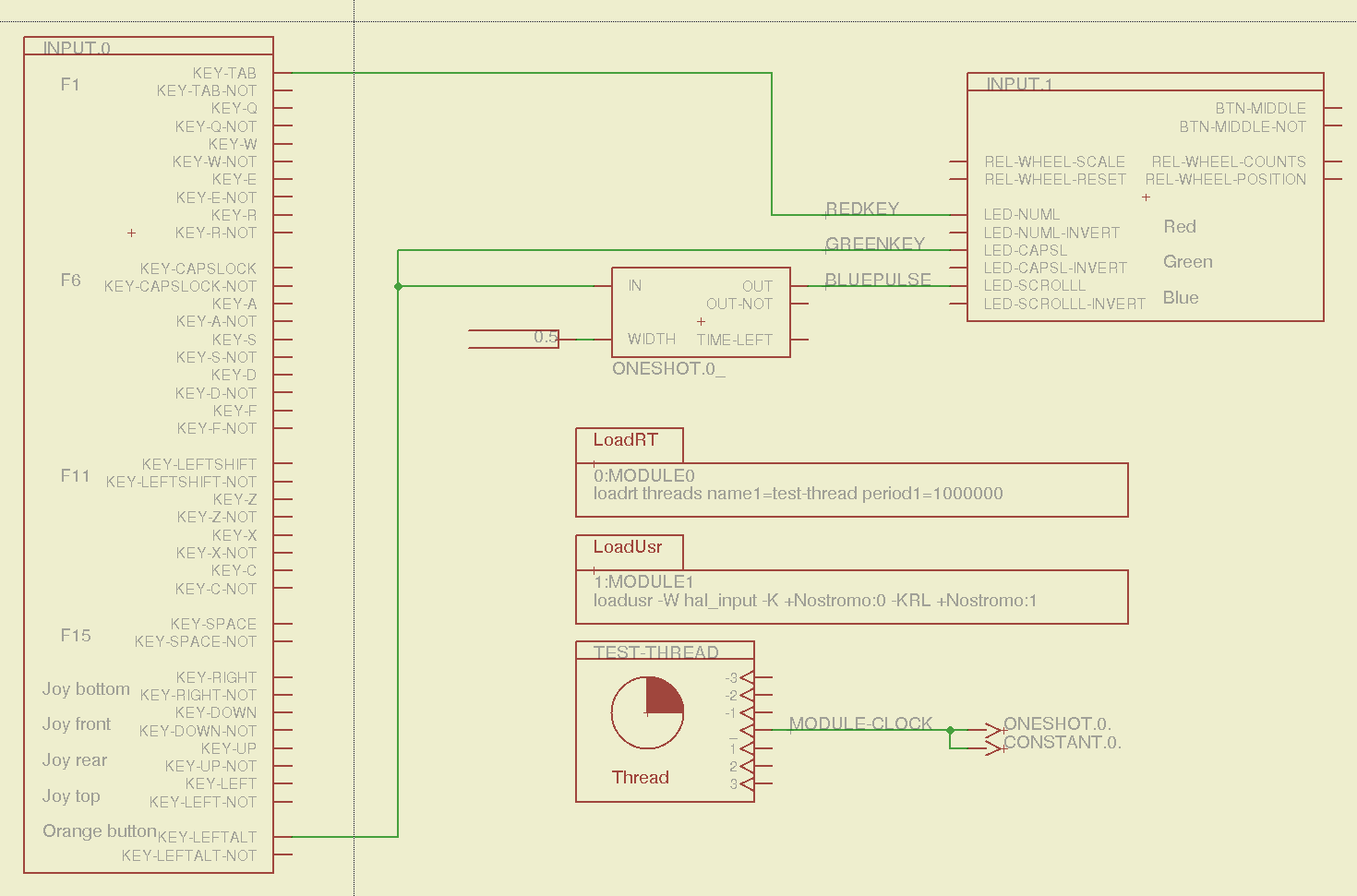
Combining some of the pin names generated by hal_input with the recipe for creating HAL devices, here’s a test configuration that hitches an old Nostromo N52 controller to a LinuxCNC system (clicky for more dots):
Nostromo N52 Controller – HAL config
The F01 key lights the red LED, the Orange Button lights the green LED, and a oneshot timer pulses the blue LED for half a second after the Button closes. The Thread block defines the connections from the functions to the main timing routine, and the loadrt block defines the thread timing. The hal_input module takes care of its own input sampling in userspace.
Now, for the classic embedded system “Hello, world!” test:
Nostromo N52 Controller – F01 test
It’s amazing how good an LED can make you feel…
A halscope shot shows the timing relation between the Orange Button (confusingly hitched to the greenkey signal) and the oneshot pulse:
HalScope – oneshot triggering
That schematic produces this HAL configuration file:
# HAL config file automatically generated by Eagle-CAD ULP:
# [/mnt/bulkdata/Project Files/eagle/ulp/hal-write-2.5.ulp]
# (C) Martin Schoeneck.de 2008
# Charalampos Alexopoulos 2011
# Mods Ed Nisley KE4ZNU 2010 2013
# Path        [/mnt/bulkdata/Project Files/eagle/projects/LinuxCNC HAL Configuration/]
# ProjectName [Nostromo]
# File name   [/mnt/bulkdata/Project Files/eagle/projects/LinuxCNC HAL Configuration/Nostromo.hal]
# Created     [12:28:04 14-Feb-2013]

####################################################
# Load realtime and userspace modules
loadrt threads name1=test-thread period1=1000000
loadusr -W hal_input -K +Nostromo:0 -KRL +Nostromo:1
loadrt constant		count=1
loadrt oneshot		count=1

####################################################
# Hook functions into threads
addf oneshot.0		test-thread
addf constant.0		test-thread

####################################################
# Set parameters

####################################################
# Set constants
setp constant.0.value	0.5

####################################################
# Connect Modules with nets
net bluepulse input.1.led-scrolll oneshot.0.out
net duration constant.0.out oneshot.0.width
net greenkey input.0.key-leftalt oneshot.0.in input.1.led-capsl
net redkey input.0.key-tab input.1.led-numl
A snapshot of the Nostromo.sch, Nostromo.hal, hal_config.lbr, and hal-write-2.5.ulp files is in Nostromo-N52.zip.odt. Rename it to get rid of the ODT suffix, unzip it, and there you go.
While pondering whether I should use the carcass of an old Dell PC to house the stepper drivers and control logic for the LinuxCNC M2 project, I bandsawed a scrap of aluminum sheet to about the right size. It had some truly nasty gouges and bonded-on crud, so I chucked up a wire brush cup in the drill press and had at it:
Machine jeweled baseplate
It’s obvious I haven’t done jeweling in a long time, isn’t it? Even a crude engine jeweling job spiffs things right up, though, even if a cough showcase job like this deserves straighter lines and more precise spacing. The aluminum sheet is far too large for the Sherline, which put CNC right out of consideration, and I’m not up for sufficient crank spinning on the big manual mill.
I match-marked mounting holes directly from the harvested motherboard and drilled them, whereupon I discovered that the aluminum is a dead-soft gummy alloy that doesn’t machine cleanly: it won’t become the final baseplate.
Memo to Self: Use the shop vacuum with the nozzle spinward of the brush, fool.
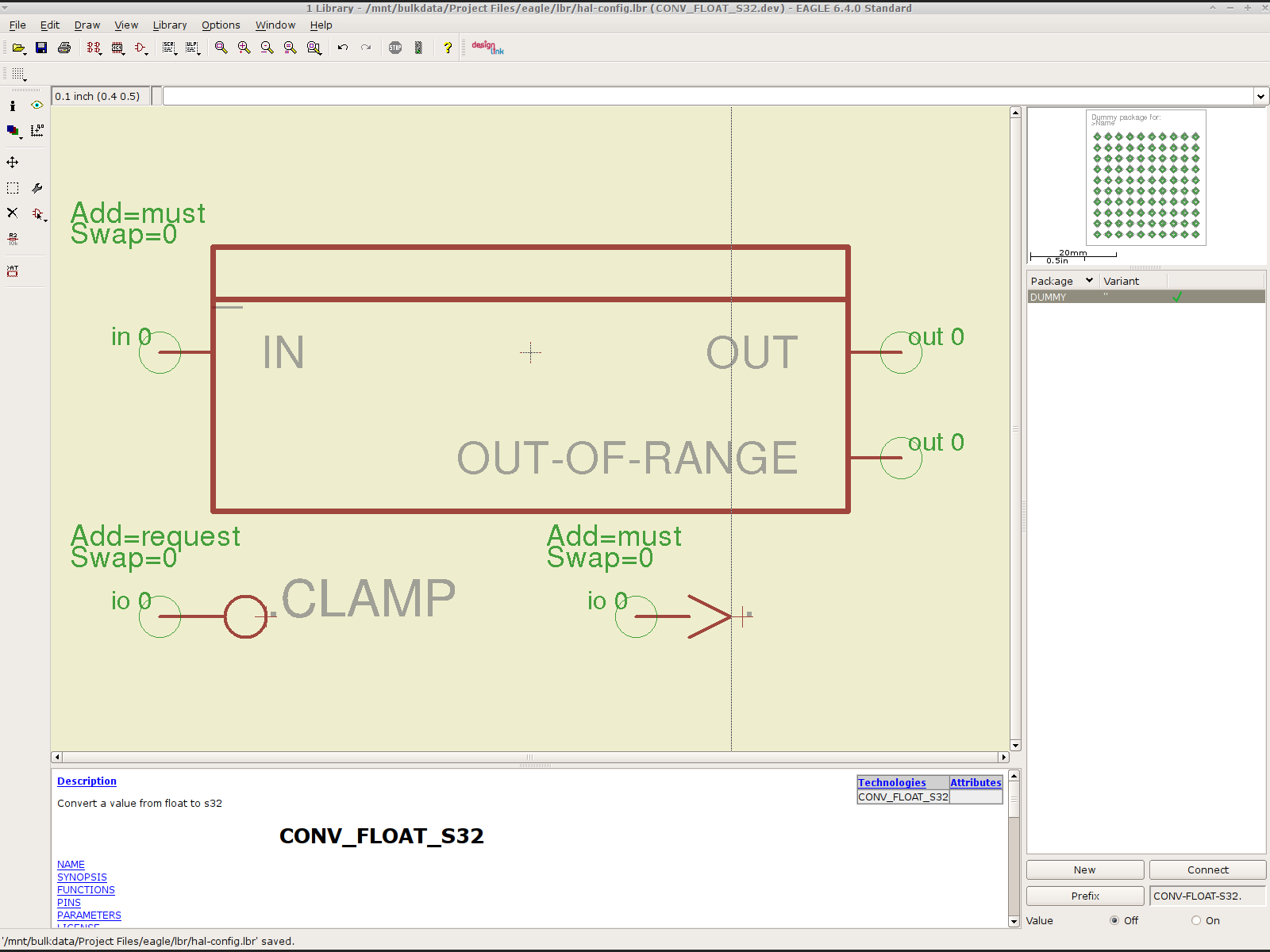
To that end, here’s a checklist for creating a new Eagle device corresponding to a HAL module.
Remember: although this process has a tremendous number of moving parts, you do it exactly once when you need a device that doesn’t already exist. After that, you just click to add an existing device to your schematic, wire it up, then the tedious write-only HAL overhead happens automagically.
Cross-check the documentation with the actual component code!
The man page lists the names, pins, parameters, and suchlike, but may have typos. This isn’t a criticism, it’s a fact of life.
Before investing a ton o’ time creating an Eagle device, load the module and find out what’s really there:
halrun
halcmd: loadrt conv_float_s32
halcmd: show all
Loaded HAL Components:
ID      Type  Name                                      PID   State
     4  RT    conv_float_s32                                  ready
     3  User  halcmd2395                                 2395 ready

Component Pins:
Owner   Type  Dir         Value  Name
     4  float IN              0  conv-float-s32.0.in
     4  s32   OUT             0  conv-float-s32.0.out
     4  bit   OUT         FALSE  conv-float-s32.0.out-of-range

... snippage ...

Parameters:
Owner   Type  Dir         Value  Name
     4  bit   RW          FALSE  conv-float-s32.0.clamp
     4  s32   RO              0  conv-float-s32.0.time
     4  s32   RW              0  conv-float-s32.0.tmax

... snippage ...

Exported Functions:
Owner   CodeAddr  Arg       FP   Users  Name
 00004  fc0a9000  fc0630b8  YES      0   conv-float-s32.0
... snippage ...
Achtung!
The module name uses underscores as separators: loadrt conv_float_s32
The function name uses h-y-p-h-e-n-s as separators: conv-float-s32.0
Unlike in the Linux kernel, the two characters are not equivalent
Add the HAL Module to the Conversion Script
The hal-write.ulp script contains a table of all the module names, so you must update the script in parallel with the hal-config.lbr Eagle library.
However, you can create an Eagle device that is not a HAL module by omitting it from the script. In that case, the Eagle device name will become part of the net names that define and interconnect the pins, but the script will not create a statement to load a module. For example, the hal_input userspace program creates a set of pins for each input device that start with input.n, but there’s no corresponding HAL module. I’ll put up an example of all this in a bit.
Create a Schematic Symbol
The name of the symbol is not critical: CONVERT.sym
use either dashes or hyphens as you prefer
The >NAME string must be on layer 95-Names
No need for a >VALUE string, but put it on layer 96-Values if present
HAL pins become symbol pins
Use the HAL pin name, with hyphens
Set Visibility to Pin
Set Direction to in / out / io to match the HAL description
Set Function to None to indicate an ordinary net connection
Verify the pins against the HAL device!
Create a HAL Schematic Device
The new device name must match the HAL module name, with underscores, as entered in the conversion script table
CONV_FLOAT_S32.dev
Set the Prefix to the HAL function name, plus a trailing period, with hyphens
CONV-FLOAT-S32.
Create the Description using copy-and-paste from the HTML source: use the man page in the LinuxCNC doc
Ctrl-U in Firefox reveals the HTML source, Ctrl-A and Ctrl-C, flip windows, then Ctrl-V
Delete all the boilerplate at the top, leave the centered Title, ditch the reference links
Add the symbol you created earlier or reuse an existing symbol
Set the symbol NAME to a single underscore: _
Change the Add level to must
Add a PIN_FUNCTION symbol to the device
Change the symbol name from G$1 (or whatever) to a single period: .
Change the Add Level to must
Add PIN_PARAMETER symbols as needed
Change the symbol name from G$1 (or whatever) to the parameter name preceded by a single period: .CLAMP
Change the Add Level to request
Change the Direction as needed
Add the DUMMY physical package, then connect all the pins to pads
Create a non-HAL Schematic Device
The new device name may be anything that’s not in the conversion script table
The Prefix must match the desired pin names, plus a trailing period. For hal_input pins:
INPUT.
Create the Description as above
Add the symbol you created earlier
Set the symbol NAME to a single underscore: _
Change the Add level to must
Do not add a PIN_FUNCTION symbol, because it has no corresponding module
Add PIN_PARAMETER symbols as needed
Change the symbol name from G$1 (or whatever) to the parameter name preceded by a single period: .CLAMP
Change the Add Level to request
Change the Direction as needed
Add the DUMMY physical package, then connect all the pins to pads
Devices may have multiple Symbols, with different Add Level options; can seems appropriate. As nearly as I can tell, you must name each Symbol as a suffix to the full name to differentiate them within the Device; I use a hyphen before the suffix, so that -KEYS generates INPUT.0-KEYS. Those suffixes don’t appear elsewhere in the generated HAL configuration file.
Save the library, update it in the schematic editor (Library → Update ...), and you’re set.
Although it’s tempting, do not include a version number in the library file name, because Eagle stores the file name inside the schematic file along with the devices from that file. As a result, when you bump the library version number and use devices from the new library file, the schematic depends on both library files and there’s no way within Eagle to migrate devices from one library to the other; you must delete the existing devices from the schematic and re-place them from the new library. Or you can do like I did: hand-edit the XML fields inside the library file.
Eagle HAL Device
You’ll almost certainly drive this procedure off the rails, so let me know what I’ve screwed up. It does, in fact, work wonderfully well and, as far as I’m concerned, makes HAL usable, if only because HAL is a write-only language to start with and now you need not read it to modify it.