The Smell of Molten Projects in the Morning

Ed Nisley's Blog: Shop notes, electronics, firmware, machinery, 3D printing, laser cuttery, and curiosities. Contents: 100% human thinking, 0% AI slop.

Tag: Arduino

All things Arduino

  • Ceramic Resonator Frequency Compensation

    Although this isn’t a real long-term experiment, here’s a week of continuous WWVB clock operation, sitting by the window in our living room, with the circuit board open to ambient conditions.

    The firmware checks the local oscillator drift against the WWVB time signal if more than 3 hours (10800 seconds) has elapsed since the last synch, so you’re not seeing every WWVB synch event.

    Drift: TS   5281890 UTC 10015.113059 Elapsed 15900 Offset 0 Corr +0 ICR1 39841
    Drift: TS   5283109 UTC 10016.074959 Elapsed 55680 Offset 2 Corr +1 ICR1 39842
    Drift: TS   5283486 UTC 10016.140659 Elapsed 15600 Offset -1 Corr -2 ICR1 39840
    Drift: TS   5284662 UTC 10017.094259 Elapsed 15720 Offset 0 Corr +0 ICR1 39841
    Drift: TS   5285324 UTC 10017.204459 Elapsed 31680 Offset 1 Corr +1 ICR1 39842
    Drift: TS   5285606 UTC 10018.012659 Elapsed 16920 Offset 0 Corr +0 ICR1 39842
    Drift: TS   5286030 UTC 10018.083059 Elapsed 16860 Offset 0 Corr +0 ICR1 39842
    Drift: TS   5286490 UTC 10018.161059 Elapsed 14220 Offset 0 Corr +0 ICR1 39842
    Drift: TS   5287312 UTC 10019.055259 Elapsed 49320 Offset 0 Corr +0 ICR1 39842
    Drift: TS   5288722 UTC 10020.052259 Elapsed 55980 Offset 0 Corr +0 ICR1 39842
    Drift: TS   5290304 UTC 10021.074459 Elapsed 75480 Offset 0 Corr +0 ICR1 39842
    Drift: TS   5291588 UTC 10022.050859 Elapsed 77040 Offset 1 Corr +0 ICR1 39842
    

    The frequency offset is on the order of 1 in 75000 seconds: 13 parts per million or about 0.0013%.

    The last line shows that the clock went 21.4 hours between synchs while drifting less than two seconds. If the clock didn’t synch for an entire week, it’d be within 15 seconds of the correct time. That’s not wonderful for a clock, but it’s good enough for this application: the display shows just hours and minutes.

    Not bad for a cheap ceramic resonator on an Arduino Pro…

  • Arduino Pro: Ceramic Resonator Frequency Compensation

    The Arduino Pro gets its 16-MHz CPU clock from a ceramic resonator, rather than a quartz crystal, which means the frequency accuracy is ±0.5% rather than pretty much spot on. I’m building one into a WWVB-based clock, so it knows the exact elapsed time between synch events.

    My clock uses a 20-ms timebase: 16 MHz prescaled by 8, then divided by (nominally) 40000 using Timer1.

    Knowing the exact time between WWVB updates, the firmware compares that with the local time interval to find the offset, finds the fractional error, and then tweaks the Timer1 period to make the answer come out right the next time.

    Here’s what three days in the life of that algorithm look like:

    Drift: TS   5268489 UTC 10006.040959 Elapsed 13920 Offset 0 Corr +0 ICR1 39840
    Drift: TS   5268805 UTC 10006.092559 Elapsed 18960 Offset 1 Corr +2 ICR1 39842
    Drift: TS   5269711 UTC 10007.003159 Elapsed 54360 Offset 0 Corr +0 ICR1 39842
    Drift: TS   5269966 UTC 10007.044659 Elapsed 15300 Offset 0 Corr +0 ICR1 39842
    Drift: TS   5270079 UTC 10007.063959 Elapsed  4920 Offset -1 Corr -8 ICR1 39834
    Drift: TS   5271157 UTC 10008.003759 Elapsed 61440 Offset 12 Corr +7 ICR1 39841
    Drift: TS   5271833 UTC 10008.115359 Elapsed 39780 Offset 1 Corr +1 ICR1 39842
    

    The UTC field is YYDDD.HHMMSS. The TS value is a simple monotonic timestamp: UTC brutally converted to minutes assuming a year is 365.25 days.

    I set ICR1 to 39840 when the program starts, having already determined the actual oscillator frequency for this particular Arduino Pro. That’s not necessary, because the firmware will adjust it automatically, but it does eliminate the first big step that would compensate the resonator’s -0.4% initial frequency error.

    As nearly as I can tell, the corrections are tracking room temperature changes, as it’s been really cold around here lately and the clock is atop a bookcase in an outside corner of the room.

    After the first +2 change, it ran for 19 hours with less than one second of error: 14 ppm. The -8 change was probably an overcorrection, as the synch interval was just over an hour, but so it goes. That caused 195 ppm error over the next 17 hours, then it’s back on track.

    There’s an obvious conflict between getting quick updates as conditions change and minimizing long-term free-run drift. The firmware currently insists on a minimum of 60 minutes between synchs, but (given an initial preset) I think I can dramatically increase that without losing anything.

    This code does the Timer1 setup:

    #define TIMER1COUNTS            39841l
    
    TCCR1B    = B00011000;            // Timer1: CTC mode = 12 high bits, TOP=ICR1, stopped with no clock source
    TCNT1 = 0;            // force count to start from scratch, CTC mode low bits
    TCCR1A = 0;            // no compare outputs to OC1A OC1B, WGM1 1:0 = 00
    TCCR1C = 0;            // no forced compares
    TIMSK1 = 1 << ICIE1;            // allow interrupt on capture event (TCNT == ICF)
    SetICR1(TIMER1COUNTS - 1);            // total counts - 1, start running
    

    The SetICR1 function makes sure the new ICR1 isn’t below the current TCNT1 value, which would cause a horrible timekeeping blip. As it is, there’s a microsecond (more or less) glitch during the update.

    
    void SetICR1(word NewICR1) {
    TCCR1B &= ~B00000111;     // turn off Timer1 by removing the clock source
    ICR1 = NewICR1;
     if (TCNT1 > NewICR1) {     // force counter below new TOP value
     TCNT1 = NewICR1 - 1;
     }
    TCCR1B |= B00000010;     // turn on clock with prescaler
    }
    

    When the firmware does a WWVB synch, it then checks to see if enough time has passed since the last synch and, if so, tweaks ICR1. The variables hold what you’d expect and are all long ints to hold the expected values…

    if ((UTCRightNow.SyncAge != SYNC_UNSYNC) && (UTCRightNow.SyncAge > SYNC_MINDRIFT)) {
     WWVB_Elapsed = 60l * (WWVBToMinutes(&WWVB_Time_Predicted) - WWVBToMinutes(&WWVB_Time_Sync));
     TimeOffset = (60l * (long int)(UTCRightNow.SyncAge - 1)) + (long int)UTCRightNow.Second - WWVB_Elapsed;
     DriftTicks = (int)((FetchICR1() * TimeOffset) / WWVB_Elapsed);
     if (DriftTicks) {
      SetICR1(FetchICR1() + DriftTicks);
     }
    }
    

    The FetchICR1 function reads ICR1 without disabling interrupts, doing it twice to be sure nothing’s whacked the magic hardware that allows atomic two-byte register reads.

    One failure mode: if something goes badly wrong, ICR1 can become so far off the correct value that the clock will never synch again. I must add a bit of defensive code to SetICR1 that ensures the new value is never more than, say, 1% off the nominal value.

    All in all, this works a whole lot better than I expected…

    The catch is that most Arduino applications don’t know the exact time interval and, without that, there’s no way to tweak the oscillator on an ongoing basis. However, for any particular Arduino Pro, I think you could very accurately compensate the initial frequency error by measuring the actual oscillator frequency and then hardcoding the adjustment value.
  • Character-string Histogram

    I’m in the midst of counting glitches on a WWVB receiver, a glitch being any pulse with a duration that isn’t close to 200, 500, or 800 ms. It’s useful to know the pulse width distribution, which is what a histogram does for a living.

    Rather than a graphic histogram, though, I’ve been using a character array (a string!) with one character for each possible pulse duration, measured in units of 20 ms. The value of each character indicates the number of pulses having that duration during the previous minute.

    The counting sequence goes like this:

    • No counts: . (a period)
    • 1 to 9 counts: 1 .. 9
    • 10 to 35 counts: A .. Z
    • 36 to 61 counts: a .. z
    • More than 61 counts: !

    So a minute with no glitches (and a valid WWVB time code frame) looks like this:

    .........4S9............462............322.........
    

    The three clusters show the three valid pulse widths. The pulse widths from the receiver have an inherent jitter, plus the usual ±1 jitter you get for free when you digitize something, plus (this being RF from half a continent away) whatever the Lords of Cosmic Jest do to the signal. So each width usually occupies two or three cells.

    • The 200 ms binary zero pulses form the cluster on the left: that “S” is equivalent to 10 + 18 = 28 counts. Add in the 4 and 9 on either side and you get 41 binary zero pulses.
    • The middle cluster has the 500 ms binary 1 pulses: 4 + 6 + 2 = 12.
    • Each WWVB time code frame has exactly seven 800 ms frame markers, which form the cluster on the right end: 3+2+2 = 7.

    Add them up: 41 + 12 + 7 = 60. That’s exactly the right number of pulses in a minute. What a pleasant surprise!

    A minute with three out-of-spec glitches looks like this:

    1...1....6NC2............82.......1.....51.........
    

    And a minute with very high noise that pretty much obliterates the WWVB signal:

    f!!jHC6AB746312.2121..2.1..........................
    

    Here’s how all that works…

    The histogram counters form a character array that’s also a string. There are 50 20-ms Jiffies in each second (given by the obvious constant), so the histogram has 52 entries: 50 valid counts (0-49), 1 for “more than that”, and 1 for the null byte at the end of the string.

    char    Durations[JIFFIES_PER_SECOND + 2];
    

    Initialize each counter (character) with the starting value and jam a binary zero at the end:

    memset(Durations,'.',sizeof(Durations)-1);
    Durations[sizeof(Durations) - 1] = 0;
    

    And then tick the appropriate counter as each pulse arrives:

    Index = min(PWM_Width,sizeof(Durations)-2);
    
    switch (Durations[Index]) {
     case '.' :
     Durations[Index] = '1';
     break;
     case '9' :
     Durations[Index] = 'A';
     break;
     case 'Z' :
     Durations[Index] = 'a';
     break;
     case 'z' :
     Durations[Index] = '!';
     break;
     case '!' :
     break;
     default :
     Durations[Index]++;
    }
    

    The switch statement maneuvers the counting sequence through the digits, uppercase and lowercase alphabet, then enforces a stall at the maximum count value of “!”. You can’t just increment each element without some checking, because you do not want unprintable control characters in the string.

    Then you print the histogram as you would any ordinary string. If you’re using an Arduino, as I am, this will suffice:

    Serial.println(Durations);
    

    All this depends on the ASCII character set’s numerical sequence. Ponder the charts there and all should become clear.

    Here are the histograms from an hour of WWVB reception during the late afternoon of New Year’s Day: watch the noise floor rise up and eat the WWVB signal…

    
    .........7OD............36............133..........
     .........BID1...........37.............6.1.........
     .1.......9O91..........262.............43..........
     ........27V2............272............421.........
     .........4Y41...........46............124.........2
     .........AP71...........2811..........123.........2
     .........AN9............731...........1.6..........
     12.111..28IB11.........1623.......2..1.42.....2....
     1412...125Q911..........461.....1......41..........
     1........8Q81..........137...1.........15..........
     .12....119N912.........116..........1.132..........
     1521..1.17O931...1......27...........1..5..........
     .12....12BKB2...........332....1......132.......2..
     25211.1.3AHB5......1...1143........1...14.........3
     45412...4BDA4..12.......25111..1.....1..22.........
     6A44322.26CI53.2.1...1..343...1.......1.11.........
     5D75531113FG511...12..212313.1........1.2..1.......
     1432.1.119GB41..........262.1...11.....14..........
     .5211..115MB4...........441............14.2........
     .4.1....25JB6...........442.........1..231.........
     6B443...27I772..........2322.....1.....1221......2.
     4555411.27HA321........3232......1....114..........
     3232.1.129GI1...1.......4321...1.1.1...111.........
     ...1..1.19O8..1....11...262............24..........
     11......2AN62...........622...........124..........
     111.....2BJ551..1......1522........3..141........21
     1421....29N611.......1.136............1231........2
     1.12.....AIB3........1..38...1........312..........
     7F42..1.28FE341.1.1.....351........1...12...1.....2
     .23......8GG2....11....2423............33..........
     112..13.1AK931.....2....142....2.11.1..3.1........2
     423111..44JD4.2..1.....1433........11111...........
     1413..1.3CL812..11......242..1....11...21.........2
     474112.34AI84.2...3.1...16.2.....1...1.11..........
     8LHC734657D857411..11...131......1..1.1...........2
     JuSFDCCDDCD662412...1..............................
     VmG376788AC8671.21.1..3.......1....................
     IlCB4576CFE532131.11.1..1.1........................
     KxN798EB98A7422...2.1...1..........................
     AYL96853CF7742121311.13..21....1...................
     8TDEB6649A7952..32.41..124.....1.....1............2
     DeO78638C9GA6142.15111..........1........2.....2...
     AcPC83426BD4823.122..11132.1.......................
     7SF31121AHFB73..2.111...321..1.1...................
     7F3221414GG5411.111121.133...1.1.1.................
     6RD9669647F7361.31.2..1212...1.....................
     6L71.2444ALB21...221.212321..2...1...1.............
     4LHFD7638C9B12.31341.22113...2..........1..........
     264321112EFA5.112.22.2.14111..1.....1...1.........2
     235511445BEC3.12..1131.131..1.1........11..........
     7UC741635AAC442.1..112.1..11311.......1.1.........2
     EVLCAB3598E752252133.111.1.1..........1...........2
     JnTE9913A59A452331.13..1222.............1..........
     f!!jHC6AB746312.2121..2.1..........................
     !!!iMB772.4532..1.1.1.1..1.........................
    
  • Arduino Serial Optical Isolator

    Optical Isolator - oops
    Optical Isolator – oops

    It turns out that attaching some, but not all, of the PCs around here to the Arduino Pro board controlling the Totally Featureless Clock cause the WWVB receiver to drown in a sea of noise. In fact, just touching the USB cable’s shield to the FTDI Basic USB-to-serial adapter would bring the noise.

    So this is a quick-and-dirty circuit to see if optical isolation will reduce the problem enough to be bearable.

    The schematic is pretty simple: two bits in, two bits out.

    Optical Isolate Schematic
    Optical Isolate Schematic

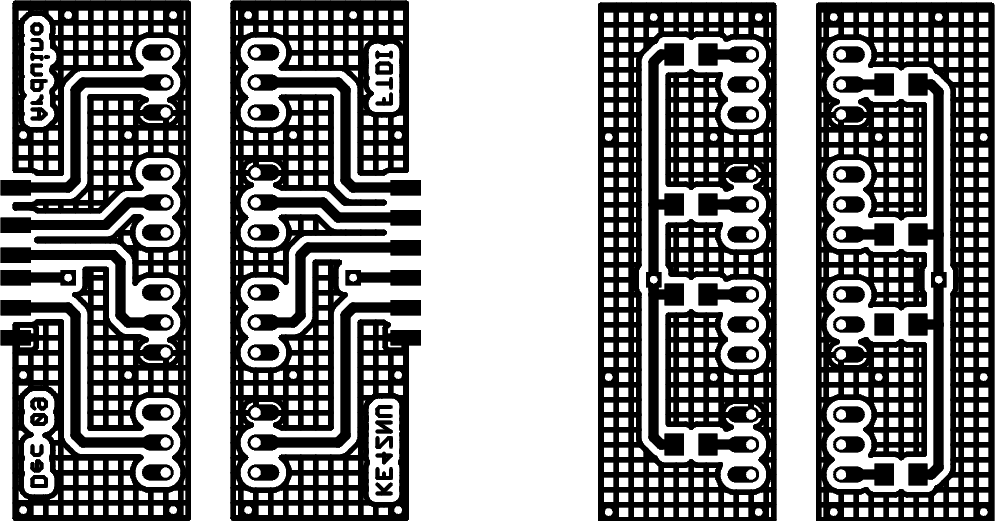
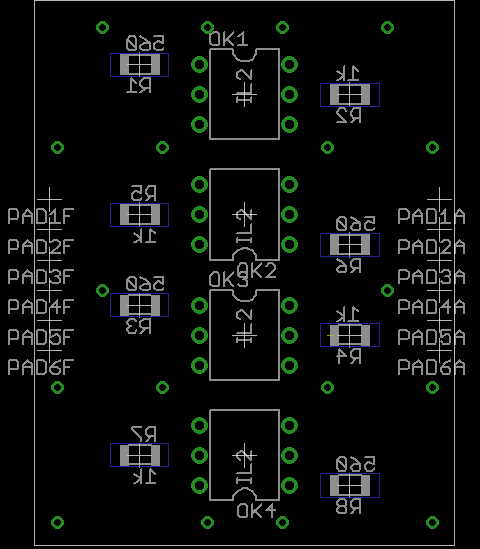
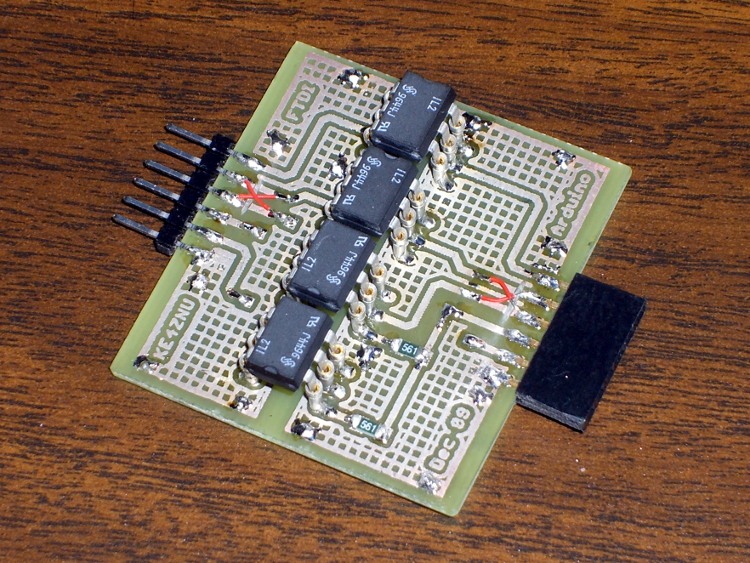
    The layout puts the DIP isolators on the top and the SMD resistors on the bottom. I used fancy screw-machine IC socket pins, just because I had some, but you could solder the isolators directly to the board. The FTDI Basic connects through header pins and the Arduino connects through female header sockets, both soldered sideways to the top of the board. I’ll eventually reinforce them with some epoxy, never fear.

    Double-size PCB layout:

    PCB Layout
    PCB Layout

    Actual-size copper images. Remember that the top copper is flipped left-to-right here so it comes out properly after toner-transfer imaging.

    Copper
    Copper

    And the placement info showing where the parts wind up. This is sort of the silkscreen for the top and bottom, both together: the backwards stuff goes on the bottom side.

    Top and Bottom Silkscreen
    Top and Bottom Silkscreen

    The alert reader will note that the photo doesn’t match the rest of the images. Nay, verily, eagle-eyed readers will have picked out a few resistors on the top and two embarrassing little red-wire Xes at the connectors. Somehow, I managed to swap the RxD and TxD pins, even with an FTDI board on the desk next to me. I hate it when that happens… so I fixed the schematic & layout for the next time around.

    The resistors push a lot of current through the LEDs and phototransistors, which is what you need to get decent 19200 b/s serial data pulses. Here’s what the data stream out of the TxD isolator looks like:

    Optoisolator - TXD
    Optoisolator – TXD

    I have the Eagle files and the CNC drill file for my Sherline mill if you must have them, but you can go from those images above directly to the hardware. It’s an evening’s work, more or less.

    You might want to kludge a jumper into the Reset line so it’s impossible to accidentally reset the Arduino. Sometimes you don’t want a reset, like after a few days of data collection…

    Now, does it actually do what I expected? The early reports are good, but I’m at the mercy of the atmosphere and must collect a few days (actually, nights) worth of data to find just how far down the noise went.

  • Arduino Pro: Securing the Serial Connecor

    Epoxy backfill on Arduino Pro serial connector
    Epoxy backfill on Arduino Pro serial connector

    The surface-mount serial connector on an Arduino Pro board isn’t the most robust of devices; the FTDI USB interface and USB cable can apply far too much torque to those little pins. Even before the situation described yesterday, the pins were getting wobbly.

    The connector shell is a big part of the problem, as it doesn’t mechanically lock the pins in place. Installing and removing the FTDI USB board pushes and pulls the pins against their pads, which means the adhesive bonding the pads must handle all that stress.

    Eventually, the Reset and TX pin pads tore loose from the circuit board. At that point, they have no mechanical stability at all; you can bridge a solder blob from the pin to its trace, but the adhesive holding the copper pad in place has lost all strength.

    The fix is straightforward, if ugly.

    • Repair the pin-to-pad/trace connections with something better than a solder blob. I used small snippets of component leads.
    • Apply denatured alcohol and scrub away all the solder flux around the pads.
    • Apply enough epoxy to the back of the connector to bond it, the pins, and the circuit board into one mechanically stable unit. I worked the epoxy between the pins and slightly under the connector shell with a small screwdriver and toothpick.

    Even with this repair in place, the connector is not particularly robust. It’s much better than it was, so we’ll count it as a win.

    This Arduino Pro has survived several projects, hence the hideous solder blobs here & there. I suppose I should just throw the poor thing away, but … that’s not my nature.

  • Arduino Pro: Power Adaptation for FTDI Basic USB

    Arduino FTDI Basic on modified Arduino Pro
    Arduino FTDI Basic on modified Arduino Pro

    Some time ago, I bought a 5 V Arduino Pro board (about which you read earlier there) and a nominally compatible FTDI Basic USB-to-serial adapter. Turns out that they’re not quite a perfect match, although they do play nicely together in normal use.

    The FTDI Basic board produces a 3.3 V regulated output voltage that’s connected directly to the output of the Pro’s 5 V regulator. This doesn’t cause any particular problem, but one side effect is that you can’t shut the board’s power off: the USB power will keep the CPU alive, more or less.

    You should, of course, use a 3.3 V FTDI Basic board with a 3.3 V Pro, which would at least put two similar voltage sources head-to-head.

    The Pro is using a backup power supply that, for reasons that make perfectly good sense, backfeeds the Pro’s 5 V regulator: when the +12 V main supply Goes Away, the backup power supports VCC directly, rather than through the regulator. The regulator can take a joke like that, as witness the FTDI vs Pro situation; in my case, a diode isolates the two supplies in normal operation.

    For reasons that I don’t completely understand, some combination of voltage to the Pro regulator and the (diode isolated!) backup support voltage caused the FTDI chip to lock up with both TX and RX LEDs on solid.

    I suspect the FTDI chip’s internal 3.3 V regulator, in combination with the USB +5 V supply, in combination with the Pro board power, drove something outside its normal operation range. So I simply removed the 3.3 V pin from the connector, disconnecting that supply from the Pro’s overvoltage, and the thing now works fine.

    Side effects:

    • The FTDI board remains powered when the Pro board gets turned off, thus preventing Linux from changing the serial port device when the power comes back up again
    • I can actually turn the Pro power off, without having the FTDI supply keep it alive. Handy for soldering!

    The Pro pin labeled GND connects to the FTDI CTS line, an input that floats high when not connected. I yanked that pin and shorted CTS to GND on the FTDI board: one less pin to worry about, for reasons that you’ll see tomorrow.

    There are many different versions of the boards and USB adapters, so current production probably doesn’t match what I have. Pay attention to what you have, though…

  • Arduino: Slave Select Pin MUST Be An Output in Master Mode

    I’m using hardware-assisted SPI for a project, copied in my own boilerplate code, assigned the bits, and… it didn’t work.

    Jammed hard with mysterious symptoms. Looked like a stack crash, looked like the hardware was broken, looked like a lot of things.

    The final hint, found by stuffing Serial.print() statements in all the usual spots, was that the SPCR register mysteriously changed from the desired 0x71 to 0x61, without any of my code doing the writing.

    Turns out that the Fine Manual has this to say:

    Bit 4 – MSTR: Master/Slave Select

    [snippage] If -SS is configured as an input and is driven low while MSTR is set, MSTR will be cleared, and SPIF in SPSR will become set. The user will then have to set MSTR to re-enable SPI Master mode.

    I planned to use Arduino Pin 10 (PWM10) as the signal to latch the output shift registers, but because I’m developing the code on an Arduino Pro before making the circuit board, I hadn’t gotten around to initializing that pin… which, as you might expect, is also the -SS pin.

    With the pin not set up as an output, it defaults to an input. My cut-n-paste code blipped the pin high and left it low to simulate latching the ‘595 shift registers… but, for input pins, writing a value simulates what would happen when an external signal drives the pin.

    Soooo, I had inadvertently set -SS low, which turned off Master mode, which meant the hardware wasn’t going to send the next byte, which means SPIF wasn’t going to automatically go high when I dropped a byte in SPDR. The code, of course, waited until SPIF was clear before loading SPDR, then hung waiting for it to go high again.

    As always, stupid errors are easy to fix after figuring things out, but ouch did it take a while…

    Moral of the story: always initialize all the I/O pins! (But you knew that, right?)