The Smell of Molten Projects in the Morning

Ed Nisley's Blog: Shop notes, electronics, firmware, machinery, 3D printing, laser cuttery, and curiosities. Contents: 100% human thinking, 0% AI slop.

Category: Machine Shop

Mechanical widgetry

  • EMC2 Gamepad Pendant: Joystick Axis Lockout

    Nothing like sleeping on a problem. It turns out that a chunk of HAL code can do a nice job of locking out an inactive joystick axis.

    The general idea:

    • A priority encoder selects one axis when both go active simultaneously
    • The prioritized outputs set flipflops that remember the active axis
    • The active axis locks out the other one until they’re both inactive

    That way, you can start to jog either axis on a knob without worrying about accidentally jogging the other axis by moving the knob at a slight diagonal. I hate it when that happens.

    The other tweak is that the quartet of buttons on the right act as a “hat” for the Z and A axes, jogging them at the current maximum speed.

    Because it’s tough to accidentally push two buttons at once, there’s no need to lock them out. So you can jog diagonally by deliberately pushing adjoining buttons, but you must want to do that.

    Rather than dumping the whole program again, here are the key parts…

    Figuring out if a joystick axis is active uses the window comparators. It seems the idle counts value varies slightly around 127, so I relaxed the window limits. Should the window comparator go active with the knob centered, the buttons for that axis won’t produce any motion.

    net		x-jog-count-int	input.0.abs-x-counts	conv-s32-float.0.in
    net		x-jog-count-raw	conv-s32-float.0.out	wcomp.0.in
    setp	wcomp.0.min		125
    setp	wcomp.0.max		130
    net		X-inactive		wcomp.0.out				not.0.in
    net		X-active		not.0.out
    

    The priority encoder is just a gate that prevents Y (or A) from being selected if X (or Z) is simultaneously active. Here’s a sketch for the ZA knob:

    Axis priority encoder
    Axis priority encoder

    The active and inactive signals come from the window detectors. The sketch gives the K-map layout, although there’s not a whole lot of optimization required.

    The corresponding code:

    net		Z-inactive		and2.5.in0
    net		A-active		and2.5.in1
    net		A-select		and2.5.out				# select A only when Z inactive
    
    net		Z-inactive		and2.6.in0
    net		A-inactive		and2.6.in1
    net		ZA-Deselect		and2.6.out				# reset flipflops when both inactive
    
    net		Z-active		and2.7.in0				# set Z gate when knob is active
    net		A-gate-not		and2.7.in1				# and A is not already gated
    net		Z-set			and2.7.out					flipflop.2.set
    
    net		ZA-Deselect		flipflop.2.reset		# reset when neither is active
    net		Z-gate			flipflop.2.out				not.6.in
    net		Z-gate-not		not.6.out
    
    net		A-select		and2.8.in0				# set A gate when knob is active
    net		Z-gate-not		and2.8.in1				# and Z is not already gated
    net		A-set			and2.8.out					flipflop.3.set
    
    net		ZA-Deselect		flipflop.3.reset		# reset flipflop when both inactive
    net		A-gate			flipflop.3.out				not.7.in
    net		A-gate-not		not.7.out
    

    The flipflops remember which axis went active first and lock out the other one. When both axes on a knob return to center, the flipflops reset.

    The quartet of buttons produce binary outputs, rather than the floats from the Hat, so a pair of multiplexers emit -1.0, 0.0, or +1.0, depending on the state of the buttons, for each axis.

    setp	mux2.6.in0	0.0
    setp	mux2.6.in1	-1.0
    net		A-btn-neg		input.0.btn-trigger		mux2.6.sel
    net		A-btn-neg-value	mux2.6.out				sum2.1.in0
    
    setp	mux2.7.in0	0.0
    setp	mux2.7.in1	1.0
    net		A-btn-pos		input.0.btn-thumb2		mux2.7.sel
    net		A-btn-pos-value	mux2.7.out				sum2.1.in1
    
    net		A-jog-button	sum2.1.out
    
    net		A-btn-neg		or2.1.in0
    net		A-btn-pos		or2.1.in1
    
    net		A-btn-any		or2.1.out				or2.2.in0
    net		A-gate			or2.2.in1
    net		A-motion		or2.2.out
    

    The A-motion signal is true when either of the A jog buttons or the A joystick axis is active. That gates the MAX_ANGULAR_VELOCITY value to halui.jog-speed, rather than the default MAX_LINEAR_VELOCITY. Or, depending on the state of the toggle from the two joystick push switches, 5% of that maximum. A mere 5% may be too slow for the A axis, but it’ll take some experience to determine that.

    With that in hand, the final step is gating either the knob or the button values to halui.jog.*.analog.

    net		Z-jog-button	mux2.8.in0
    net		Z-jog-knob-inv	mux2.8.in1
    net		Z-gate			mux2.8.sel
    net		Z-jog			mux2.8.out				halui.jog.2.analog
    
    net		A-jog-button	mux2.9.in0
    net		A-jog-knob		input.0.abs-z-position	mux2.9.in1
    net		A-gate			mux2.9.sel
    net		A-jog			mux2.9.out				halui.jog.3.analog
    

    The complete source file (Logitech Dual Action Gamepad – joystick axis lockout – custom_postgui-hal.odt) is over on the G-code and Suchlike page, so you can download it as one lump. It’s an OpenOffice document because WordPress doesn’t allow plain text files.

    I loves me my new joggy thing!

  • Logitech Dual Action Gamepad as EMC2 Pendant

    Gamepad Pendant
    Gamepad Pendant

    Just got this working and it’s downright slick!

    The general idea:

    The Hat jogs X and Y at the current maximum speed.

    The Left Knob jogs X and Y proportionally to the Knob displacement.

    The Right Knob jogs Z (Up-Down) and A (Left-Right) proportionally to the Knob displacement.

    Press either Knob downward to toggle the maximum jog speed between MAX_LINEAR_VELOCITY (as defined in the Sherline.ini file) and 5% of that value. The slow speed is useful for creeping up on alignment points: the first active level of the joysticks runs at a nose-pickin’ pace.

    The left little button (labeled 9) switches to Manual mode, although the AXIS display does not update to indicate this. Same as “F3” on keyboard, minus the GUI update.

    The right little button (labeled 10) continues a G-Code program by activating the Resume function. Same as “S” on the keyboard.

    The Mode button switches the functions of the Hat and Left Knob. That button does not generate an output and the Mode cannot be controlled programmatically. Swapping those functions doesn’t seem particularly useful in this application, so the LED should never be ON.

    Buttons 1-4 are not used for anything yet.

    On the back:

    • Pressing the left-hand pair of buttons (labeled 5 and 7) activates E-stop. Yes, I know all about why you shouldn’t have E-stop run through software. This is a Sherline mill. Work with me here.
    • The right-hand buttons (labeled 6 and 8) do nothing yet.

    The code…

    In Sherline.ini:

    [HAL]
    HALUI=halui
    

    In custom.hal:

    loadusr -W hal_input -KA Dual
    

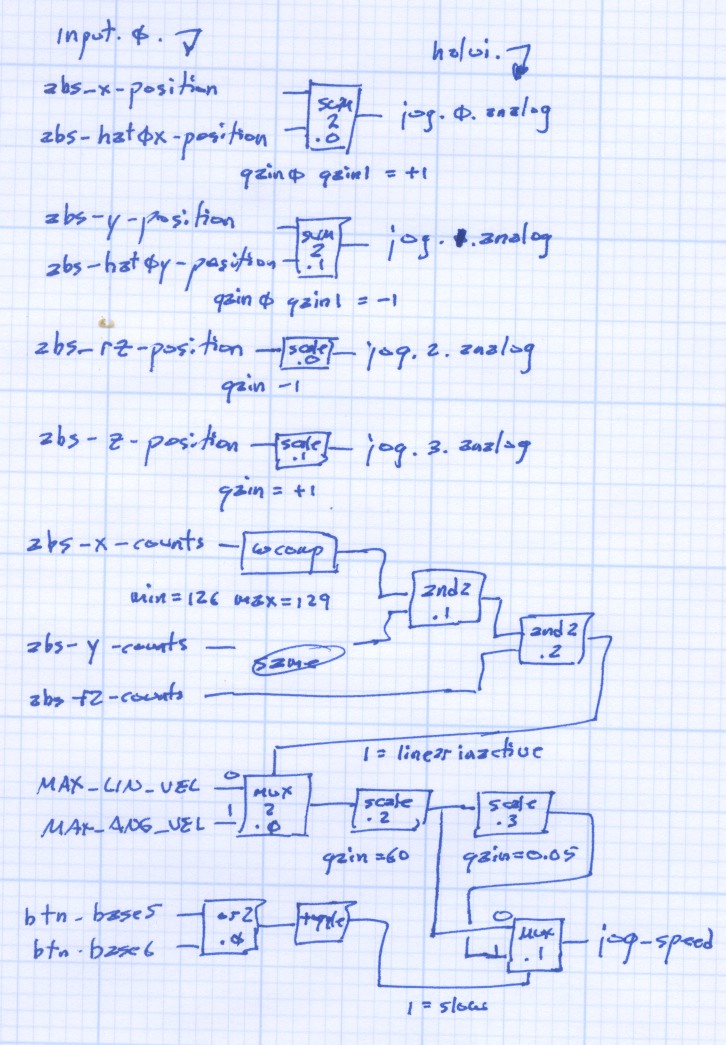
    All the heavy lifting happens in custom_postgui.hal. As nearly as I can tell, HAL is basically a write-only language, so there’s block diagram of the major chunks of “circuitry” down at the bottom.

    First, some setup and the simple buttons:

    #--------------
    # Logitech Dual Action joypad
    
    loadrt	and2 count=3
    loadrt	conv_s32_float count=3
    loadrt	mux2 count=2
    loadrt	or2 count=1
    loadrt	scale count=4
    loadrt	sum2 count=2
    loadrt	toggle count=1
    loadrt	wcomp count=3
    
    #-- central buttons activate manual mode and restart the program
    
    net 	mode-manual		input.0.btn-base3		halui.mode.manual
    
    net		pgm-resume		input.0.btn-base4		halui.program.resume
    
    #-- left-hand rear buttons active estop
    
    addf	and2.0 servo-thread
    
    net		pgm-estop-0		input.0.btn-base		and2.0.in0
    net		pgm-estop-1		input.0.btn-top2		and2.0.in1
    net		pgm-estop		and2.0.out				halui.estop.activate
    

    Because the Left Knob and Hat will never be active at the same time, a sum2 block combines the two controls into single value (separate for X and Y, of course). Each sum2 input has a separate gain setting, which is a convenient place to adjust the Y axis sign.

    #-- left knob runs XY at variable rate
    #   hat runs XY at full throttle
    
    addf	sum2.0 servo-thread
    
    net		x-jog-knob		input.0.abs-x-position		sum2.0.in0
    setp	sum2.0.gain0	+1.0
    net		x-jog-hat		input.0.abs-hat0x-position	sum2.0.in1
    setp	sum2.0.gain1	+1.0
    net		x-jog-total		sum2.0.out				halui.jog.0.analog
    
    addf	sum2.1 servo-thread
    
    net		y-jog-knob		input.0.abs-y-position		sum2.1.in0
    setp	sum2.1.gain0	-1.0
    net		y-jog-hat		input.0.abs-hat0y-position	sum2.1.in1
    setp	sum2.1.gain1	-1.0
    net		y-jog-total		sum2.1.out				halui.jog.1.analog
    

    The Right Knob values go through scale blocks to adjust the polarity. Note that the Gamepad’s rz axis controls the EMC2 Z axis and Gamepad z controls the EMC2 A axis. Basically, it made more sense to have up-down control Z and left-right control A.

    #-- right knob runs Z at variable rate (front-back)
    #                   A                 (left-right)
    
    addf	scale.0 servo-thread
    
    net		z-jog-knob		input.0.abs-rz-position		scale.0.in
    setp	scale.0.gain	-1
    
    net		z-jog-total		scale.0.out				halui.jog.2.analog
    
    addf	scale.1 servo-thread
    
    net		a-jog-knob		input.0.abs-z-position		scale.1.in
    setp	scale.1.gain	+1
    
    net		a-jog-total		scale.1.out				halui.jog.3.analog
    

    There’s only a single halui.jog-speed setting, but the jog speeds for the linear axes and the angular axes differ by so much that Something Had To Be Done. As above, I assumed that only one of the axes would be jogging at any one time, so I could set halui.jog-speed to match the active axis.

    A window comparator on each linear axis detects when the joystick is off-center; the output is 1 when the axis is centered and 0 when it’s pushed. Combining those three signals with and2 gates gives a combined linear-inactive signal.

    A mux2 block selects the MAX_ANGULAR_VELOCITY from the ini file when linear-inactive = 1 (linear not active) and MAX_LINEAR_VELOCITY when it is 0 (any linear axis off-center).

    Done that way, rather than detecting when the angular axis is off-center, means that inadvertently activating the angular axis during a linear jog doesn’t suddenly boost the linear speed. Given that the max linear is about 28 inch/minute and the max angular is 2700 degree/min, it’s a pretty abrupt change.

    I’m thinking about adding + shaped gates to at least the Right Knob so I can’t inadvertently activate both Z and A. I’m sure there’s a HAL lashup to do the same thing, though.

    #-- set jog speed by toggle from either knob button
    #   press any knob button to toggle
    
    addf	and2.1 servo-thread
    addf	and2.2 servo-thread
    addf	conv-s32-float.0 servo-thread
    addf	conv-s32-float.1 servo-thread
    addf	conv-s32-float.2 servo-thread
    addf	mux2.0 servo-thread
    addf	mux2.1 servo-thread
    addf	or2.0 servo-thread
    addf	scale.2 servo-thread
    addf	scale.3 servo-thread
    addf	toggle.0 servo-thread
    addf	wcomp.0 servo-thread
    addf	wcomp.1 servo-thread
    addf	wcomp.2 servo-thread
    
    #-- determine if any linear knob axis is active
    
    net		x-jog-count-int	input.0.abs-x-counts	conv-s32-float.0.in
    net		x-jog-count-raw	conv-s32-float.0.out	wcomp.0.in
    setp	wcomp.0.min		126
    setp	wcomp.0.max		128
    net		x-jog-inactive	wcomp.0.out				and2.1.in0
    
    net		y-jog-count-int	input.0.abs-y-counts	conv-s32-float.1.in
    net		y-jog-count-raw	conv-s32-float.1.out	wcomp.1.in
    setp	wcomp.1.min		126
    setp	wcomp.1.max		128
    net		y-jog-inactive	wcomp.1.out				and2.1.in1
    
    net		xy-active		and2.1.out				and2.2.in0
    
    net		rz-jog-count-int	input.0.abs-rz-counts	conv-s32-float.2.in
    net		rz-jog-count-raw	conv-s32-float.2.out	wcomp.2.in
    setp	wcomp.2.min		126
    setp	wcomp.2.max		128
    net		z-jog-inactive	wcomp.2.out				and2.2.in1
    
    #-- convert ini file unit/sec to unit/min and scale for slow jog
    
    setp	mux2.0.in0 [TRAJ]MAX_LINEAR_VELOCITY
    setp	mux2.0.in1 [TRAJ]MAX_ANGULAR_VELOCITY
    net		linear-inactive	and2.2.out				mux2.0.sel
    

    The ini file velocities are in units/second, so a scale block multiplies by 60 to get units/minute.

    Another scale block multiplies by 0.05 to get slow-speed jogging. Obviously, that value is a matter of taste: tune for best picture.

    Those two values go into a mux2 driven by the output of a toggle triggered by the or2 of the two buttons under the Knobs. Pushing either Knob down flips the toggle.

    setp	scale.2.gain	60
    net		jog-per-sec		mux2.0.out				scale.2.in
    net		jog-per-min		scale.2.out				mux2.1.in0
    net		jog-per-min		scale.3.in
    
    setp	scale.3.gain	0.05
    net		jog-per-min-slow scale.3.out			mux2.1.in1
    
    net		xy-button		input.0.btn-base5		or2.0.in0
    net		za-button		input.0.btn-base6		or2.0.in1
    net		xyza-button		or2.0.out				toggle.0.in
    
    net		xyza-slowmode	toggle.0.out			mux2.1.sel
    
    net		axis-jog-speed	mux2.1.out				halui.jog-speed
    

    When the jog speed is at the maximum allowed, it still gets trimmed by the per-axis limits, so you can’t over-rev the motors no matter how hard you try. Even better, changing the values in the ini file automagically affect the gamepad jog speeds.

    Now, to make some chips!

    The block diagram; click for a bigger image.

    HAL Gamepad Block Diagram
    HAL Gamepad Block Diagram
  • EMC2 HAL Pin Names: Logitech Dual Action Gamepad

    Here are the pin names for a Logitech Dual Action USB (wired) gamepad, according to EMC2 2.3.4. You’ll need these to wire it up as a control pendant for your EMC2 CNC milling machine…

    Front View
    Front View

    From /proc/bus/input/devices we find:

    I: Bus=0003 Vendor=046d Product=c216 Version=0110
    N: Name="Logitech Logitech Dual Action"
    P: Phys=usb-0000:00:1d.1-2/input0
    S: Sysfs=/devices/pci0000:00/0000:00:1d.1/usb2/2-2/2-2:1.0/input/input2
    U: Uniq=
    H: Handlers=event2 js0
    B: EV=1b
    B: KEY=fff 0 0 0 0 0 0 0 0 0
    B: ABS=30027
    B: MSC=10
    

    That tells us to use:

    halrun
    loadusr -W hal_input -KRA Dual
    loadusr halmeter
    

    There’s no need for -KRAL because it has no programmable LEDs.

    Prefix all these with input.0. to get the complete name.

    Hat Left-Right abs-hat0x-counts
    abs-hat0x-position
    Hat Up-Down abs-hat0y-counts
    abs-hat0y-position
    Hat Push none
    Left Knob Left-Right abs-x-counts
    abs-x-position
    Left Knob Up-Down abs-y-counts
    abs-y-position
    Left Knob Push btn-base5
    Right Knob Left-Right abs-z-counts
    abs-z-position
    Right Knob Up-Down abs-rz-counts
    abs-rz-position
    Right Knob Push btn-base6
    Button 1 btn-trigger
    Button 2 btn-thumb
    Button 3 btn-thumb2
    Button 4 btn-top
    Button 5 btn-top2
    Button 6 btn-pinkie
    Button 7 btn-base
    Button 8 btn-base2
    Button 9 btn-base3
    Button 10 btn-base4
    Mode button swap Hat & Left Knob
    lights red LED

    All of the buttons have -not output pins.

    The Knob position values run from -1.0 to +1.0 (float) and rest (almost) at 0.0 when centered. Their counts (s32) run from 0 to 255 and rest at 127 when centered.

    The Hat button position values are only -1.0 and +1.0, centered at 0.0. The counts are only -1 and +1, with 0 when un-pushed. Although they take on only integer values, the position values are floats.

    Both Knobs and the Hat have -Y position values at the top and +Y values at the bottom, exactly backwards from what you want. Expect to reverse the Y axis sign when you write the HAL code.

    The -X position values are to the left, where you want them.

    Although there’s a tactile click when pushing the Hat straight down, there is no corresponding button output. I don’t know if this is an oversight in the HAL interface or if there’s no actual switch in there.

    The Mode button swaps the Hat and Left Knob functions. With the red LED on, both the Hat and Knob axes produce only -1 and +1 position and counts values.

    A guide to figuring this stuff out is there, with useful pointers elsewhere on the main doc page.

    Tomorrow: turning it into an EMC2 pendant.

  • Beveling Some Edges

    Clock case test fit
    Clock case test fit

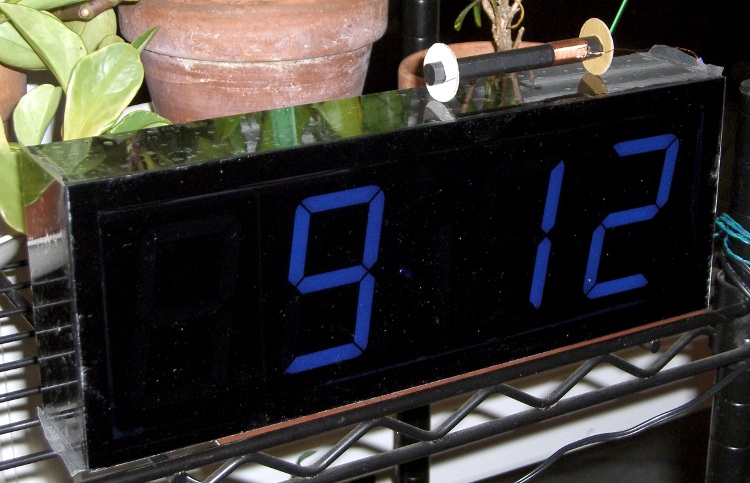
    The case for the Totally Featureless Clock is exactly what you’d expect: a solid black acrylic block with a Lexan Graylite faceplate. All you see are digits… no buttons, no knobs. Just the time, all the time.

    I’d hoped to just epoxy the faceplate on and be done with it, but the edges really didn’t look right. A bit of rummaging turned up a Dremel 125 “High Speed Cutter” that looked to be exactly the right hammer for the job.

    Dremel conical cutter in drill chuck
    Dremel conical cutter in drill chuck

    The Sherline CNC mill just doesn’t have the reach for a foot-long cut, so I clamped the case to the manual mill and grabbed the cutter in an ordinary drill chuck. This is absurd, but ya gotta run with what ya got…

    According to the Dremel specs, the cutter should run at 20-30 k RPM, but, trust me on this, the mill doesn’t go that fast. I set it for 2000 RPM, the fastest it’s run in years, and hoped for the best.

    The runout was breathtaking.

    I aligned the case against against a parallel in one of the T-slots, which got it surprisingly close.  A trial cut showed it was off by a bit, but two slight realignments (loosen clamps, slide gently, reclamp) and trial cuts put it spot on. That worked fine for three sides.

    The cutter is about 6.3 mm dia and just over 9 mm long, so the cutting edge is inclined at almost exactly 1:3. That means a horizontal misalignment of 10 mils causes a vertical misalignment of 30 mils. Conversely, you can measure the vertical error and then tweak the horizontal to make the answer come out right.

    Tweaking the alignment
    Tweaking the alignment

    The fourth side was off enough to make the final joint to the first side pretty ugly. I measured the vertical offset at about 80 mils, set the front magnetic block as a pivot and stuck a 25-mil feeler gauge between the rear block and the case. Remove the feeler, loosen the clamps, rotate the case, reclamp, and the cut was just about perfect. Certainly within my tolerances for such a thing… you can’t see it unless you’re looking for it.

    The bottom picture shows the final bevel, hot off the mill table, minus the protective plastic wrap and plus a bunch of dust and adhesive smudges from the wrap. The end plate gives the vertical line down the right side and a slight discontinuity where it’s a few mils shy of the side. There’s a hairline around the whole case where the faceplate joins the black acrylic; I used transparent epoxy and a light weight to clamp the faceplate down, so the joint is uniformly thin all around.

    A few passes on a sanding block ought to get rid of the tool marks and spiff the bevel up just fine all around.

    I love happy endings.

    Final corner bevel
    Final corner bevel
  • “Clear Seal” Sealant Removal

    I attempted to assemble the Totally Featureless Clock’s case using Liquid Nails Clear Seal, figuring that it’d be easier to fixture than runny epoxy. I hoped that the joints would have enough surface area to allow curing, but was dead wrong.

    Hope is not a strategy and proper fixturing is your friend.

    Anyhow, I was left with eight surfaces on four dislocated panels covered with more-or-less cured sealant. I left ’em sit for a few days, then had to choose between:

    • Remove enough of the sealant to make the joints fit or
    • Machine new panels

    Turns out that xylene (from my can of Goof-Off) removes cured Liquid Nails Clear Seal just fine, without affecting the surface of the acrylic panel. Soak the corner of a rag, rub vigorously, and the gunk comes right off.

    Note, however, that Goof-Off comes in many different formulations. The one I have is mostly xylene, but the California “VOC Compliant” version is mostly acetone… which, I think, eats acrylic plastic for lunch.

    All of that stuff eats your liver for lunch, too.

    Don’t do like I did and use your bare finger in the rag. Alas, any solvent that actually works also eats any protective glove in my inventory for lunch.

  • Acrylic Sheet Thickness Variations

    Milling plate thickness
    Milling plate thickness

    So I measured the thickness of the black acrylic sheet I’m using for the Totally Featureless clock and machined the rabbets to match. Went to assemble everything and the rabbets are too shallow!

    Come to find out that the sheet varies in thickness from about 0.437 to 0.475 across the four pieces I’d cut and, of course, I’d measured the thinnest end of the thinnest piece. Makes no sense to me, as I’d expect the thickness to be pretty well controlled over a few feet of sheet, but that’s not how things went down.

    The simplest solution was to mill a flat on the inside of the case to match the rabbet, so all four panel ends were the same thickness. The sketch below has the straight dope.

    Acrylic sheet thickness fix
    Acrylic sheet thickness fix

    Milling with a 3/8-inch end mill at 2500 rpm, 10 ipm, in one pass with no cooling was OK.

    I’ll insert some brass shimstock into the rabbets to make the outside edges wind up flush.

  • Sherline: Milling a Too-long Rabbet

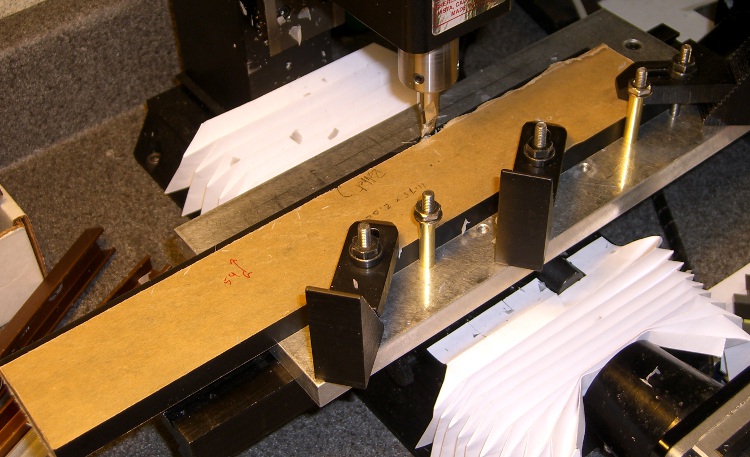
    This is pretty much the same general idea and setup as the one I described there, but with the panel flat against the tooling plate.

    Milling rabbet on top panel
    Milling rabbet on top panel

    The cutter sits at the far right end of its maximum travel. I made the rabbet in three manual CNC passes.

    To set up for the rest of the cut:

    • G0 X-4.25 to clear the left end of the panel
    • Loosen the three clamps, slide the panel leftward
    • Push the panel against the brass tubes
    • Tighten the clamps

    And away we go…

    Complete rabbet
    Complete rabbet

    One disadvantage: you can’t do a final finishing pass along the entire length of the cut. There are tool marks at the stopping point, but nothing really objectionable on the back of a clock where a panel will cover the rather ugly guts.

    The brass tube “locating pins” work surprisingly well.

    About 2000 rpm with 3/8 inch end mill. Cut 1/8 inch wide and 0.25 inch deep @ 10 ipm in three passes. Finish pass 15 ipm at 0.257 deep to make it pretty.