Ed Nisley's Blog: Shop notes, electronics, firmware, machinery, 3D printing, laser cuttery, and curiosities. Contents: 100% human thinking, 0% AI slop.
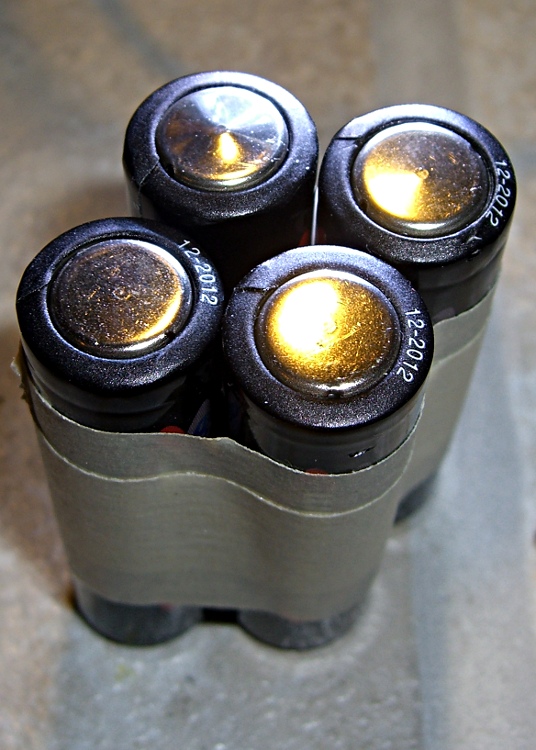
I’ve bought plenty of batteries from batteries.com over the years, but the alkaline AA cells I picked up last year have been a real disappointment: some had very short service lives. It took quite a while to figure this out, as I mentioned there, and when I finally got around to checking the rest of the package, most of them were dead… in Spring 2009 with a 12-2012 date code.
One characteristic of the weak / dead cells is that the negative terminal is swollen, even on the deaders direct from the package. This picture shows four cells removed from service: the front two are used with some remaining charge, the rear two are dead.
When I checked the package, most of the dead-on-delivery cells had swollen bottoms, so I suspect they had a manufacturing problem with at least one batch of cells.
A query to batteries.com asking about this got no reply. Perhaps they were busy dealing with the aftermath of their security breach?
A 48-pack of alkaline cells from the late Circuit City, bought about the same time, seems just fine.
Many interesting projects require more digital output bits than the Arduino hardware can support. You then use 74HC595 serial-in/parallel-out chips and that tutorial pretty well explains how it works. The shiftOut() library function squirts a byte out through an arbitrary pin, leading with either the high or low bit.
Software SPI: Clock and Data
Just drop one byte into shiftOut() for each ‘595 lined up on your board. Remember to latch the bits (LOW-to-HIGH on RCK @ pin 12 of the ‘595) and enable the output drivers (LOW on -G @ pin 13, similarly) when you’re done sending everything. You can have separate latches-and-enables for each ‘595 if that suits your needs, although then you once again run out of Arduino bits pretty quickly. It’s entirely possible to devote a ‘595 to latches-and-enables for the rest of the chain, but that gets weird in short order.
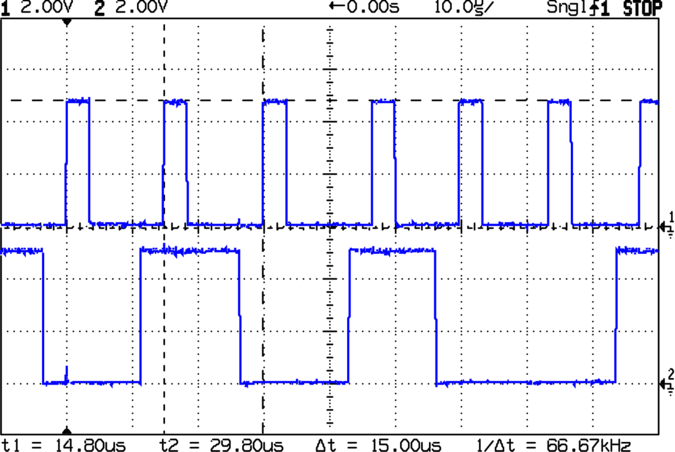
The scope shot shows that shiftOut() ticks along at 15 µs per bit (clock in the upper trace, data in the lower trace). For back-of-the-envelope purposes, call it 8 kB/s, which is probably less than you expected. If you have a string of 5 external bytes, as I did on a recent project, that’s only 1600 updates / second. It was part of a memory board reader & EPROM programmer: reading an 8 kB ROM chip requires two shift-register runs (one to set the address & data, one to read in the chip output), so the overall rate was on the order of 10 seconds per pass and much worse for programming. You can optimize the number of bits by not shifting out all the bytes, but that’s the general idea.
Because ‘595 chips are output-only, in order to get 8 bits of data into the Arduino board, add a 74HC166 parallel-in/serial-out chip to the string. Alas, shiftOut() doesn’t know about input bits, so you’re on your own.
Hardware SPI: Clock and Data
If you’re going to have to write some code to get input bits anyway, you may as well use the ATmega168 (and its ilk) hardware SPI as it was intended to be used: for high-speed synchronous serial I/O. This scope shot shows the SPI clock (in the top trace again) ticking along at 1 µs per bit, which is 1/16 the Diecimila’s oscillator frequency. You can pick any power of two between 1/2 and 1/128; I used 1/16 because it’s fast enough to make the rest of the software the limiting factor, while slow enough to not require much attention to layout & so forth.
Start by Reading The Fine Manual section about the ATmega168’s SPI hardware, starting at page 162.
The pin definitions, being lashed to internal hardware, are not optional. Note that SCK is also the standard Arduino LED, which won’t be a problem unless you need a tremendous amount of drive for a zillion ‘595s. I stuck an additional LED on Arduino digital pin 2.
#define PIN_HEARTBEAT     2             // added LED
#define PIN_SCK          13             // SPI clock (also Arduino LED!)
#define PIN_MISO         12             // SPI data input
#define PIN_MOSI         11             // SPI data output
Initial hardware setup goes in the usual setup() function:
pinMode(PIN_SCK,OUTPUT);       // set up for "manual" SPI directions
digitalWrite(PIN_SCK,LOW);
pinMode(PIN_MOSI,OUTPUT);
digitalWrite(PIN_MOSI,LOW);

pinMode(PIN_MISO,INPUT);       // configure inputs
digitalWrite(PIN_MISO,HIGH);

SPCR = B01110001;              // Auto SPI: no int, enable, LSB first, master, + edge, leading, f/16
SPSR = B00000000;              // not double data rate
Basically, the “manual” setup allows you to wiggle the bits by hand with the hardware SPI control disabled.
Arduino Hardware SPI Schematic
Here’s a chunk of the schematic so you can see how the bits rattle around. You’ll surely want to click it to get the details…
I put the data in a structure that matches the shift register layout, with the first byte (Controls) connected to the ATmega’s MOSI pin and the last byte (DataIn) connected to MISO. The SCK pin drives all of the serial clock pins on the ‘595 and ‘166 chips in parallel. Your structure will certainly be different; this was intended to suck data from a Tek 492 Spectrum Analyzer memory board.
typedef struct {      // external hardware shift register layout
 byte Controls;       // assorted control bits
 word Address;        // address value
 byte DataOut;        // output to external devices
 byte DataIn;         // input from external devices
} SHIFTREG;

SHIFTREG Outbound;    // bits to be shifted out
SHIFTREG Inbound;     // bits as shifted back in
The functions that make it happen are straightforward:
void TogglePin(char bitpin) {
 digitalWrite(bitpin,!digitalRead(bitpin));
}
void PulsePin(char bitpin) {
 TogglePin(bitpin);
 TogglePin(bitpin);
}

void EnableSPI(void) {
 SPCR |= 1 << SPE;
}

void DisableSPI(void) {
 SPCR &= ~(1 << SPE);
}

void WaitSPIF(void) {
 while (! (SPSR & (1 << SPIF))) {
//        TogglePin(PIN_HEARTBEAT);       // use these for debugging!
//        TogglePin(PIN_HEARTBEAT);
 continue;
 }
}

byte SendRecSPI(byte Dbyte) {             // send one byte, get another in exchange
 SPDR = Dbyte;
 WaitSPIF();
 return SPDR;                             // SPIF will be cleared
}

void CaptureDataIn(void) {                // does not run the shift register!
 digitalWrite(PIN_ENABLE_SHIFT_DI,LOW);   // allow DI bit capture
 PulsePin(PIN_SCK);                       // latch parallel DI inputs
 digitalWrite(PIN_ENABLE_SHIFT_DI,HIGH);  // allow DI bit shifting
}

void RunShiftRegister(void) {
 EnableSPI();                             // turn on the SPI hardware

 Inbound.DataIn  = SendRecSPI(Outbound.DataIn);
 Inbound.DataOut = SendRecSPI(Outbound.DataOut);

 Inbound.Address  =         SendRecSPI(lowByte(Outbound.Address));
 Inbound.Address |= ((word) SendRecSPI(highByte(Outbound.Address))) << 8;

 Inbound.Controls = SendRecSPI(Outbound.Controls);

 PulsePin(PIN_LATCH_DO);                   // make new shift reg contents visible
 PulsePin(PIN_LATCH_ADDRESS);
 PulsePin(PIN_LATCH_CONTROLS);

 DisableSPI();                             // return to manual control
}
Actually using the thing is also straightforward. Basically, you put the data-to-be-sent in the Outbound variables and call RunShiftRegister(), which drops output bytes into SPDR and yanks incoming bytes out, then stuffing them in the Inbound variables. I have separate latch controls for the Controls, Address, and Data chips, although I don’t use them separately here.
You must wiggle the parallel latch enable line on the 74HC166 chip before shifting to capture the data, as shown in CaptureDataIn(). That chip also requires a separate pulse on its serial clock line to latch the data, which you do manually with the hardware SPI disabled. If you’re paying attention, you’ll wonder if that clock pulse also screws up the data in the rest of the chips: yes, it does. If this is a problem, you must add some external clock-gating circuitry, disable the ‘595s, or pick a different input shift register chip; it wasn’t a problem for what I was doing.
Here’s a function that reads data from a RAM chip on the Tek memory board, so it must write the address and read the RAM chip’s output. The PIN_DISABLE_DO bit controls the output buffers on the ‘595 that drives the RAM’s data pins; they must be disabled to read data back from the RAM. Don’t worry about the other undefined bits & suchlike; just assume everything does what the comments would have you believe.
byte ReadRAM(word Address) {
 digitalWrite(PIN_DISABLE_DO,HIGH);            // turn off data latch output
 digitalWrite(PIN_BUS_READ,HIGH);              // allow RAM read access

 Outbound.Controls |=  CB_BUS_CLKPH2_MASK;     // set up RAM -CS gate
 Outbound.Address = Address;
 Outbound.DataOut = 0x55;                      // should not be visible
 RunShiftRegister();

 digitalWrite(PIN_BUS_N_SYSRAM,LOW);           // activate RAM -CS
 CaptureDataIn();                              // latch RAM data
 digitalWrite(PIN_BUS_N_SYSRAM,HIGH);          //  ... and turn -CS off

 Outbound.Controls &= ~CB_BUS_CLKPH2_MASK;     // disable -CS gate
 RunShiftRegister();                           // tell the board and get data

 return Inbound.DataIn;
}
Hardware SPI – Detail of clock and data timing
Here’s a detailed shot of the outbound bit timing. Notice that the upward clock transitions shift bits into the ‘595 and ‘166 chips, while the SPI output data changes on the downward transitions. You can tweak that to match your hardware if you’re using different shift register chips, by messing with the SPCR settings.
Bottom line: using the ATmega168 hardware SPI provided a factor-of-15 speedup and serial digital input, too.
My buddy Eks recently acquired a “guaranteed broke” Tektronix 492 spectrum analyzer that turned out to have a defunct memory board: the ROM holding the initial boot firmware has a bad checksum. He verified that by swapping in a memory board from another 492 and found it worked perfectly.
The original board used Mostek MK36400 8Kx8 masked ROMs, but they can be replaced by either 27HC641 or (in a pinch) a quartet of 2716 EPROMs. Being a stickler for authenticity, Eks picked up some 27HC641 chips. That means we need a device programmer, as none of the burners we have know anything about 27HC641s. There are other ways of getting the job done, but this has the advantage of getting me some face time with my role model for being a Renaissance Man.
Tek EPROM Power Supply Breadboard
To make a long story somewhat shorter, the 27HC641 is a 8Kx8 EPROM in a 24-pin package with the usual 12 address lines, 8 data lines, power, ground, and a single chip-select / output-enable / programming-voltage pin. Normal EPROMs in 28-pin packages have separate pins for all those functions to make life easier.
Anyhow, the CE/VPP supply must provide 30 mA at 12.5 V as well as the usual minuscule FET logic currents at 5 V and 0 V. The VCC supply must cough up a staggering 90 mA during normal operation at 5 V and 30 mA at 6 V during programming. Both supply voltages must switch between three levels: unnaturally high during programming, 5 V for normal operation, and 0 V for output-enable and during chip removal / installation in the programming socket.
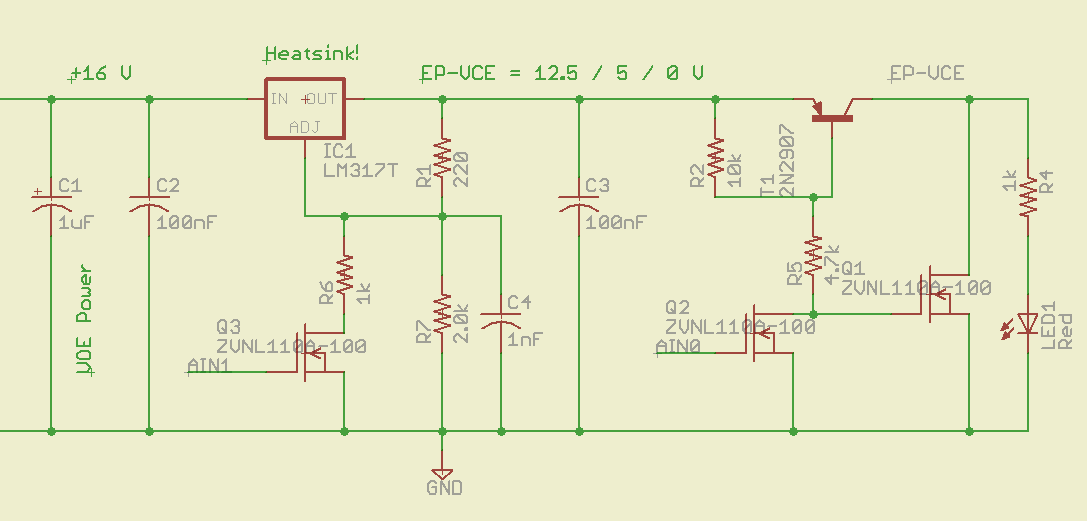
This being an entirely one-off project, I used good old LM317T regulators with a handful of transistor switches to vary the voltage and clamp the output to ground. The CE/VPP supply looks like this:
Schematic of VPP-VCE pin supply
An Arduino will drive the gates of Q2 & Q3, with all the programming logic and timing handled by software. The shortest VPP pulse is a millisecond long, so that’s not a real restriction, and the verification can happen at nose-pickin’ speed. That simplifies a lot of other things about the project, too.
Switch: 12.5 to 5 V
Q3 selects the output voltage: gate high = 5 V, gate low = 12.5 V. The scope shot shows the gate driven with a 500-Hz square wave, which is about the right width for the programming pulse.
I prototyped this on a solderless breadboard (ptooie) as shown above with 5% resistors, so the actual voltages aren’t quite nominal. The readout says 13.28 and 5.3 V, which will need some trimming to get inside the EPROM’s 5% spec.
The 1 nF cap at the LM317 Adjust terminal encourages stablity by knocking off the high-frequency stuff and slowing down the transitions just a smidge. The datasheet suggests up to 10 µF, which turns the transitions into triangles.
The LM317 can only supply current to its load, so reducing the output voltage requires the load to draw current from C3. Because this is essentially a DC application, C3 can be quite small: there won’t be any other switching going on during the programming pulse. The datasheet recommends 1 – 10 µF, but definitely more than 5 nF.
The LED is actually a key part of the circuit, as it draws current to pull the output voltage downward: more LED current = faster transition time. However, higher C3 = slower transitions.
Fall time: 12.5 to 5 V
Seen at a higher magnification, the falling edge of the output waveform shows a decay that lasts 50 µs or so. The LED draws maybe 12 mA at 13 V, so the voltage across C3 should drop at
(1/100 nF) x (12 mA) = 120 V/ms
Applying a straightedge to the early part of that curve looks like 25 V in 100 µs; call it 250 V/ms, maybe a bit less.
What’s a factor of two among friends, particularly given the tolerances on ceramic caps?
T1 and Q1 (I don’t know why Eagle’s models use both T and Q as transistor prefixes, it’s probably an international thing) switch the output line between the LM317 and ground; I suspect just turning T1 off would work as well, but this way the chip pin is firmly held to 0 V, where it should be, regardless of leakage and other oddities.
Switch: 5 to 0 V
Because Q1 crops both sides of the transistion, the rise and fall happen in nanoseconds rather than microseconds.
So, now that I know this will actually work, I can build a PCB and write some firmware…
Memo to Self: make sure the code waits for the output transitions. Methinks delayMicroseconds() will be a constant companion.
A friend brought over a broken toy (well, an Argent GPS tracker) with a peculiar problem: everything worked, but after a few minutes the front-panel LEDs would get intermittent. The LEDs are hand-soldered to the board with leads that extend maybe 7 mm from the surface.
After a bit of poking around, I stuck the gadget under the microscope, at which point the problems became obvious.
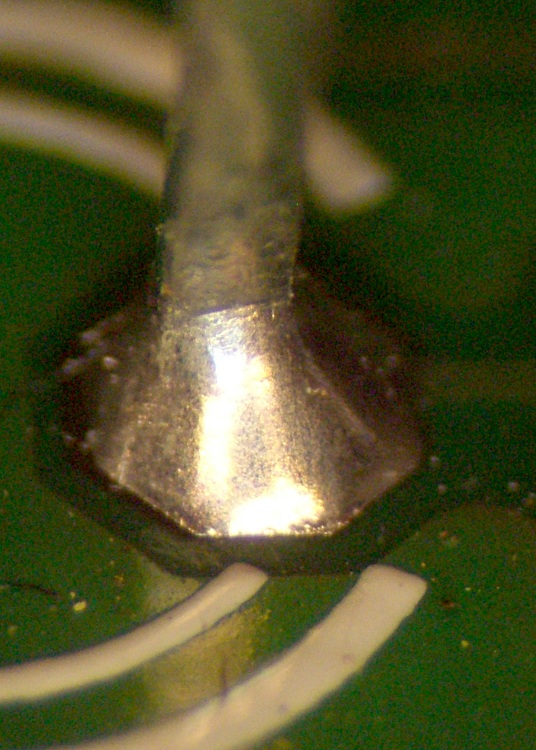
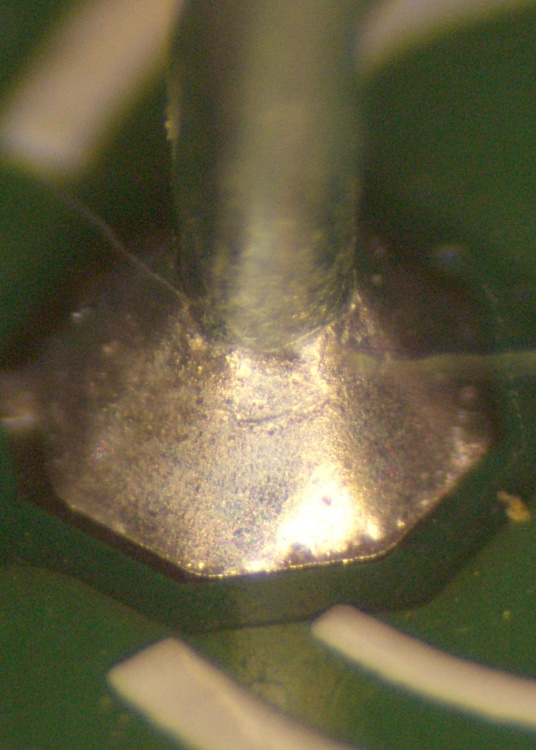
See that distinct line where the solder meniscus ends at the lead? Yup, that’s the teltale sign of a cold solder joint. The lead never got hot enough to bond properly with the solder, so the failure extends all the way down through the board. The only electrical contact is at a random point where the flux layer is thin enough to pass current; as the joint heats up, that point Goes Away.
Worse, do you see (click on the pix for bigger images) the small discontinuity about 1/3 of the way down the solder cone? My buddy Eks alerted me to that failure: that’s where the solder joint fractures from repeated heat stress.
Solder Thermal Stress
Here’s the quick sketch he drew on the canonical back-of-the-envelope. I added the red oval as a replacement for his emphatic gestures; with any luck, you’ll never forget it, either.
In this case the LED is anchored in a front-panel hole and the lead is mechanically locked to the board. As the lead heats & cools, it expands & contracts (duh) at a slightly different rate than the solder. After a while, the solder cracks; it’s much less ductile than copper.
Joint 2 – clear fracture
I’m not convinced that’s what happened here, as the LED leads have a bend in the middle that should relieve the stress, but it’s at exactly the spot where he sketched the failure he’s found in many, many gadgets. Power transistors standing above boards with their backs screwed to heatsinks seem particularly prone to this failure, as they have short leads stressed by the differential expansion between copper and aluminum.
Here’s another LED lead from the same gadget. A random out-of-focus fiber enters from the right and exits around to the left rear, but you can clearly see the bad joint at the top of the solder cone and the fracture line just below the fiber.
A touch of the soldering iron generally solves the problem, although you might want to suck the old solder out so the new solder can re-flux the joint.
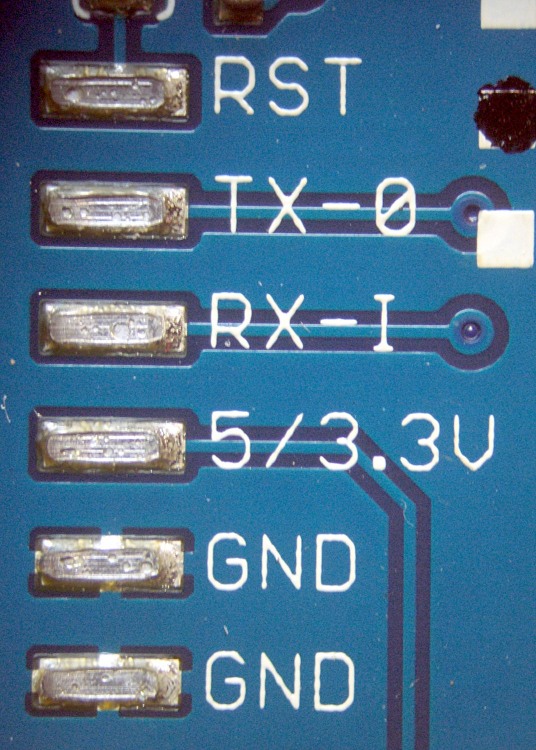
Arduino Pro USB (cold) Solder Pads
This doesn’t happen only to hand-soldered joints. The USB header fell right off an Arduino Pro board while I was debugging something else. I had to re-heat the joints and the header separately, add flux, and then solder ’em together. Notice the bubbles in the solder layer? That header just never got up to the proper temperature. The current version of that board uses a through-hole header, which is more rugged than this surface-mount equivalent.
TinyTrak3 cold-solder joints
And a TinyTrak3+ board had few cold joints, too, where the leads just didn’t bond at all.
In both of those cases, the vendors did a quick check and didn’t find similar problems with their stock, so the boards I got seem like random failures on the soldering line.
Now, if I’d never made a cold solder joint in my life, I’d be in a position to get all snooty. That’s just not the case: it happens to everybody, once in a while, and you just learn to live with it.
As I mentioned there, I originally connected my bicycle-mobile amateur radio gadget to the ICOM IC-Z1A radio using separate mic and speaker plugs. That seemed like a good idea, but bicycles vibrate a lot and the plugs apply enough leverage to the jacks inside the radio to pry them right off the PCB. That requires a protracted repair session that I never wanted to do again.
The solution is to mount both plugs rigidly on the radio so that they simply can’t move. I dithered for a while and finally decided that function trumps good looks on this project, particularly given that our radios spend their entire lives inside a bag behind the bike seats.
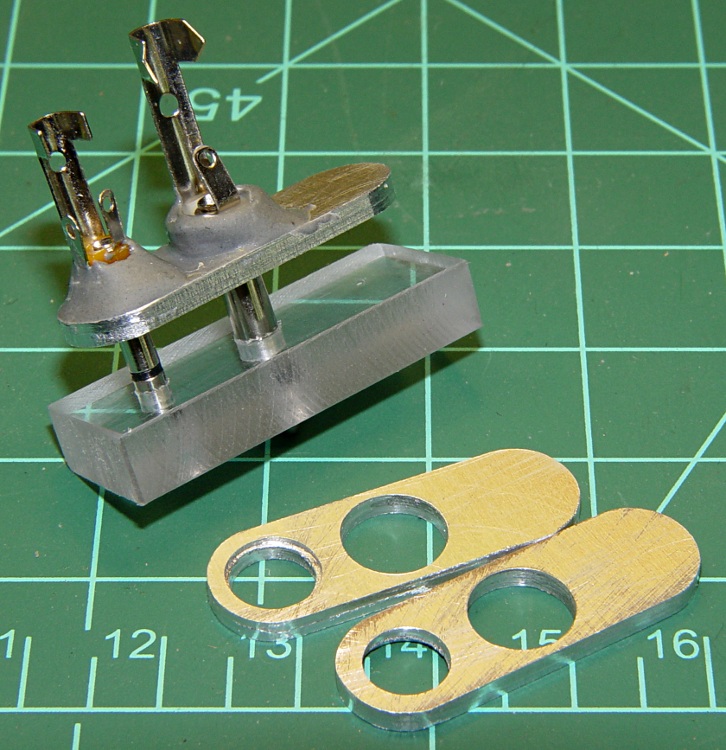
The top picture shows the small aluminum plates I made to align the plugs to the HT jacks, along with a plastic gluing fixture to hold the plugs parallel while the epoxy cures. If you just jam the plugs into the radio without an alignment fixture, you will glue the plugs together in such a way that they cannot be removed: the radio does not hold the shafts exactly parallel!
Plug stabilization – What Not To Do
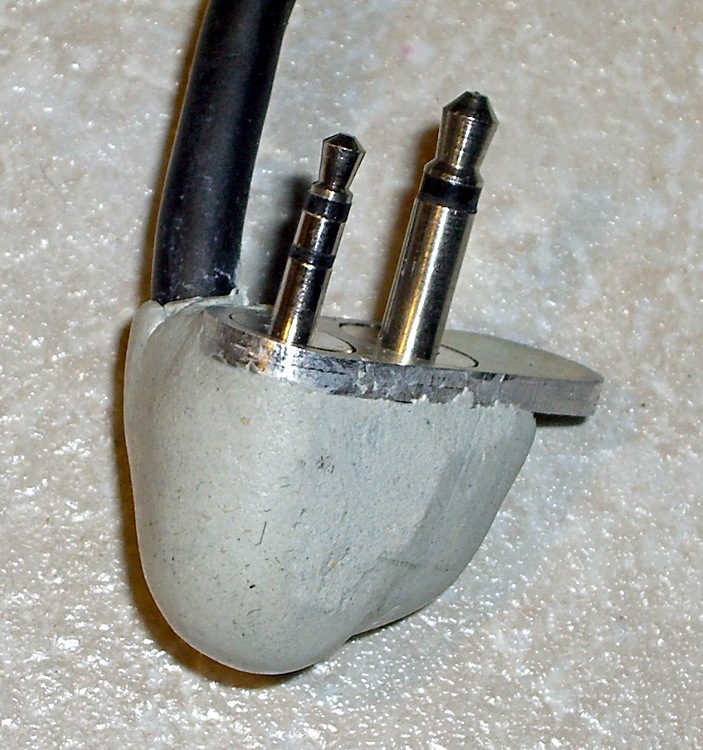
How do I know? Well, I tried doing exactly that by simply epoxying the existing plugs into place, applying enough epoxy putty to stabilize the plugs against the radio. Looks reasonable, but when it came time to take them out (and you will want to take them out, trust me) they are firmly and permanently embedded. I had to carve them apart to get them out.
The mic, speaker, and coaxial power jacks are 10 mm on center. The 2.5 mm mic plug has a small shoulder that required a matching recess in the plate, while the 3.5 mm speaker plug is basically a cylinder. I don’t use the coaxial power jack, having hacked an alkaline battery pack with Anderson Powerpoles. The plate’s external contour matches the flat area atop the radio around the jacks.
You could lay out and drill close-enough holes by hand, use a step drill to make the shoulder recess, and then let the epoxy do the final alignment. However, you want the center-to-center distance exactly spot-on correct, as the plugs won’t mate properly otherwise. I turned it into a CNC project for my Sherline mill, of course, but that’s just because I have one.
HT Plugs in gluing fixture
This picture shows two plugs epoxied into the plate. While the epoxy cures, the plate rests atop the fixture with the two plugs vertical and their shell flanges flush against it. I applied the epoxy with a toothpick and worked it into the gap between the threads and the plate.
The end result will be a pair of plugs that exactly match the radio’s jacks in a plate that sits firmly atop the radio’s case. You should find that the plugs snap firmly into place and the entire assembly is absolutely rigid.
Caveat: don’t use an aluminum plate if your radio depends on separate electrical connections for the mic and speaker plug shells. The IC-Z1A has isolated shells, but remains happy when they’re connected. My Kenwood TH-F6A HT uses the shells for entirely different functions and will not work with them shorted together.
With the epoxy cured, wire the connections as usual. I had a small cable with enough tiny wires to put the mic conductors in their own shielded pair, but that’s likely overkill.
Finished plugs with epoxy blob
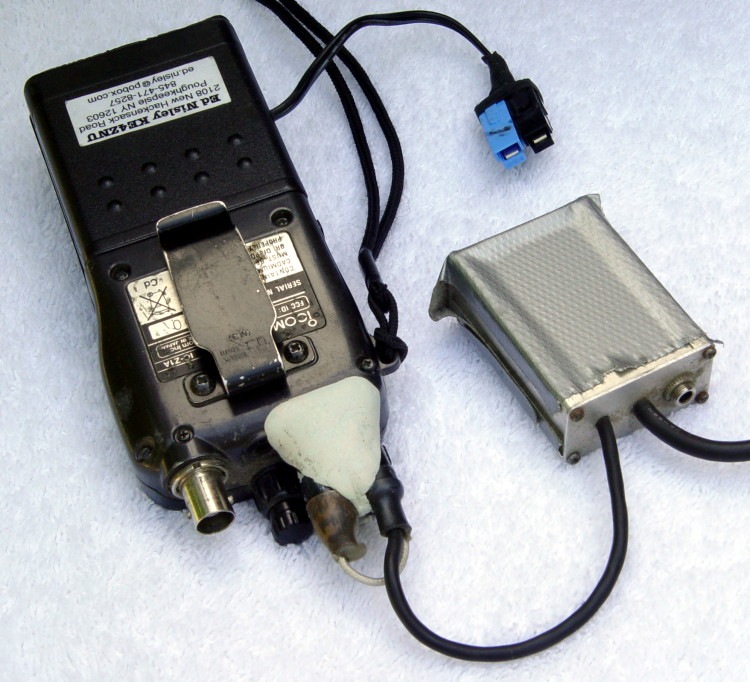
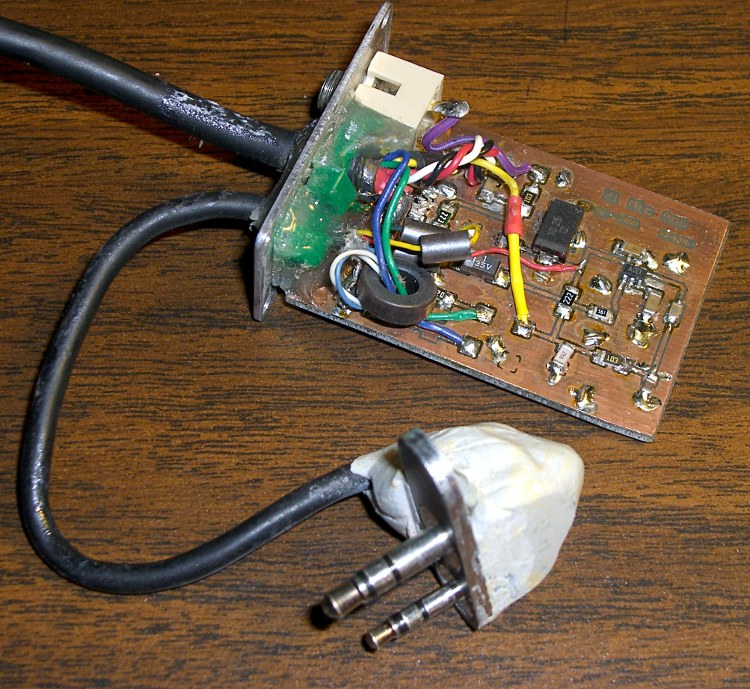
You could machine a nice enclosure, but I simply molded an epoxy putty turd around the connections, shells, and cable. The trick is to wait until it’s nearly cured, plug it into the radio, then shave off whatever gets in the way of the knobs, antenna plug, and other appurtenances.
The radio on Mary’s bike has been misbehaving over the last few months: the PTT button on the handlebars occasionally had no effect. Debugging this sort of intermittent problem is quite difficult, as it would sometimes fail and repair itself before we could get stopped in a safe place where I could poke around in the wiring.
After months of this nonsense, I narrowed the failure down to the short cable from the HT’s mic jack to the interface board: by positioning the cable just so, the radio would work fine for days or weeks at a time. I taped the thing in position and all was well, at least for a few days or weeks at a time.
These two pictures show what the interface looked like back in 2001 when I put it together (modified from another version I did in 1997!) and what it looks like today. The most significant change is in the plugs connecting the whole affair to the HT: a CNC-machined plate holds them perfectly parallel at the proper spacing and an epoxy-putty turd fuses them into a rigid mass. More on that sub-project tomorrow…
Loose plugs, it turns out, vibrate the HT’s jacks right off the circuit board in short order and those jacks are a major pain to replace. Ask me how I know…
The wire break seemed to be precisely where the mic cable exits the epoxy turd. You’d expect a fatigue fracture to occur at that spot, so I wasn’t particularly surprised, although I was amazed that the thing hadn’t failed completely over the months I spend fiddling with it. I finally resolved to fix this once and for all, which meant either flaying the cable and patching the wire in situ or rebuilding the whole connector assembly. Either choice requires enough fiddly work to discourage even me.
Sooo, disconnect everything & haul it to the Basement Laboratory, Electronics Workbench Division…
Before cutting into the cable, I measured the mic voltage on the PCB and tried to make the thing fail on the bench. The HT (an ancient ICOM IC-Z1A) normally presents 3.5 V DC on the mic wire and the external PTT switch pulls it to ground through a 22 kΩ (or 33 kΩ or thereabouts) resistor. The mic audio is a small AC signal riding a volt or so of DC bias with the PTT active.
The wire measured maybe 0.25 volts and the PTT dragged it flat dead to ground. Yup, through that honkin’ big resistor. Well, maybe the last conductor in that mic wire had finally broken, right there on the bench?
Measured from the 2.5 mm plug tip conductor (tip = mic, ring = 3.5 V DC, sleeve = mic common) to the PCB pad on the PC, the mic wire stubbornly read 0.0 Ω, regardless of any wiggling & jiggling I applied to the cable. But no voltage got through from the radio to the board…
Sticking a bare 2.5 mm plug into the HT mic jack produced a steady 3.5 V on the tip lug. Reinstalling my epoxy-turd plug assembly produced either 0.25 or 3.5 V, depending on whether I twisted the thing this way or that way.
Ah-ha! Gotcha!
Pulled out my lifetime supply of Caig DeoxIT Red, applied a minute drop to the end of the mic plug, rammed it home & yanked it out several times, wiped off the residue, and the PTT now works perfectly. Did the same thing to the adjacent speaker plug, just on general principles, and I suspect that’ll be all good, too.
Diagnosis: oxidation or accumulated crud on the mic jack inside the radio.
Now, to try it out on the bike and see how long this fix lasts. Anything will work fine on the bench, but very few things survive for long on a bicycle.
Memo to Self: It’s always the connectors. Unless it’s the wires.
Here’s the schematic, just in case you’re wondering. I wouldn’t do it this way today, but that’s because I’ve learned a bit over the last decade or so…
I have a Virgin Mobile Kyocera Marbl phone, for reasons discussed there. It’s sufficiently nonstandard that the “fits most phones” headsets and chargers don’t. In particular, I have yet to see a charger with the proper adapter dingus for this phone.
Fortunately, the charger is rated at 5 V @ 350 mA… that’s easy enough.
Phone charger with Powerpoles
Cut the charger’s cable in the middle, more or less, and install Anderson Powerpole connectors. The standard color code for 5 V is white / black; don’t use red / black for fear you’ll eventually plug it into a 12 V source and toast the phone.
The charger wires are most likely a far smaller gauge than the 15 A (!) connector pins prefer, so strip the conductors twice as long, double the ’em over and perhaps add a short length of multistrand hookup wire to fill out the barrel before you crimp it.
Check the polarity before you poke the pins in the housings: you want the +5 V pin in the white housing!
I aligned the housings to match the ARES / RACES standard, as described there, as that’s what I’ve done with all my other Powerpole connectors. If your phone expects some weird-ass voltage, maybe you want to make certain it can’t possibly mate with anything that’ll kill it stone cold dead. Oh, and in that case pick a suitably different color. Blue seems to be the standard for 9 V, at least in the ham radio arena, for whatever that’s worth.
Add heatshrink tubing for strain relief (it might slip over the finished pins if you forget), wrap cold-vulcanizing rubber tape around the whole connector for more strain relief, and you’re done. It’ll make your charger cable resemble an anaconda eating a pig, but that’s OK with me.
USB charger to phone cable
Now the phone can commune with a bench power supply, a bulk 5 V supply, or nearly anything that you’ve hacked into using Powerpoles. It’s your job to make sure the voltage matches up!
Now, if you haven’t already, make a USB-to-Powerpole adapter. Alas, even though the phone uses 5 V, it draws too much current to charge directly from a standard USB port. However, I have a Black & Decker Pocket Power battery pack with a regulated USB outlet that can allegedly supply 250 mA and seems to handle the phone just fine.
So: cut a spare USB cable, verify that the red conductor is 5 V and the black is common (hell hath no fury like that of an unjustified assumption and we’re dealing with bottom-dollar suppliers here), crimp, align housings, add strain relief, and try it out.
This should work for any phone with a dumb, bulk-power charger. If you cut the cable and find three conductors, solder that devil back together again; there’s no telling what’s passing along that third rail!











 The Smell of Molten Projects in the Morning