Ed Nisley's Blog: Shop notes, electronics, firmware, machinery, 3D printing, laser cuttery, and curiosities. Contents: 100% human thinking, 0% AI slop.
We got a boom box so Mom could have background music; the Olde Family Tube Radio was far beyond its Best Used By date.
Prompted by recent events around here, I checked it on a recent visit and, yup, more corrosion. In all fairness, the cells suggest “Best If Installed By Jan 99”, so they’re well past their date, too.
This used to be a whole lot less of a problem when flashlights and radios (without clocks!) were the only things using “dry cells”: when the battery went dead, the thing didn’t work and you replaced the cells.
Nowadays, we expect alkaline cells to supply keep-alive trickle current for memory backup; even after the cell corrodes, it still supplies that tiny current and we never notice what’s happening inside.
I’m beginning to loathe alkaline cells just like I loathe the small internal combustion engines in yard equipment.
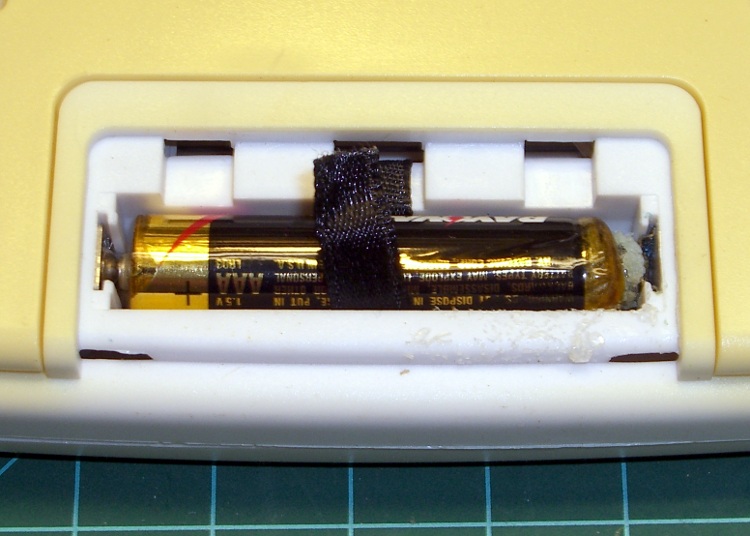
The outdoor thermometer over my desk (which also displays UTC so I don’t have to reset the mumble clock twice a year) started blinking. That’s the usual sign of a dead battery and, yup, when I opened it up, that “leakproof” Eveready was pretty far gone.
Surprisingly, at least to me, the cell hovered around 1.1 V open-circuit and 800 mV under the meter’s “battery test” load. Given the amount of corrosion, I thought it would be flat dead.
The corrosion had crawled out of the compartment along the negative terminal and coated the entire metal tab with bluish-green crystals. Some protracted dabbing with vinegar, rinsing with wet cotton swabs, and drying put things pretty much back in order.
I usually scrawl the date on each cell when I install it, but either I didn’t do that here or the corrosion ate the ink. All I know is that it’s been up there for quite a few years; look at the discoloration where it faces the sun through the window!
The thing was a surplus freebie to begin with and has long since been fully depreciated…
While I’m thinking about instrument screen shots, this is the script for my Hewlett-Packard 8591E Spectrum Analyzer.
You’ll need C-Kermit, ImageMagick, and hp2xx for this one, too.
The cable must cross-connect RTS/CTS for hardware flow control.
Set the spectrum analyzer to
print-to-plotter
19200 b/s (limited by USB-to-RS-232 converter)
One plot per page
Turning menus off doesn’t seem to have any effect on screen captures from the serial port, so the script crops off that part of the image.
Copy-n-paste the following text into a file (gethp8591), make it executable (chmod u+x gethp8591), and run it with a file name (./gethp8591 test).
Unlike the (well, my) 54602 ‘scope, the 8591 responds to serial commands just like the Fine Manual says. So before you run this script, make sure the screen shows what you want.
#!/usr/bin/kermit +
# Fetches screen shot from HP8591E spectrum analyzer
# Presumes it's set up for plotter output...
# Converts HPGL to PNG image

set modem none
set line /dev/ttyUSB0
set speed 19200
set flow rts/cts
set carrier-watch off

# Make sure we have a param
if not defined \%1 ask \%1 {File name? }

set input echo off
set input buffer-length 200000

# Tell it what size to plot
echo Triggering plot output...
output plot 0,0,60000,40000;

log session "\%1.hgl"

# Wait for end of data stream
input 400 SP;

echo ... HPGL data captured

close session
close

echo Converting HPGL in
echo --\%1.hgl
echo to PNG in
echo --\%1.png

run hp2xx -m png -c 143 "\%1.hgl"

echo Cropping and resizing
run mogrify -crop "515x395+0+0!" "\%1.png"
run mogrify -density 300 -resize 200% "\%1.png"

echo Finished!

exit 0
Here’s a picture of the FM broadcast band, as seen from the Basement Laboratory. The marker looks a bit off from 104.7 MHz, but that’s a combination of broad span and skinny peaks.
Back in the early 90s I bought a Hewlett Packard 54602B digital oscilloscope: 150 MHz bandwidth, 4 channels. By and large, a fine piece of gear that’s been worth every penny.
Over the objections of the HP sales force, I got the HP 54651A RS-232 interface rather than the HP 54650A HPIB (aka GPIB, aka IEEE-488) interface. Reasoning: I’d need a matching interface on the PC side and PC architecture is anything but stable. Turns out that was a good decision, as you’ll realize if you count up the number of different buses since those days and factor in the cost of an IEEE-488 interface for each iteration. RS-232 is slow and not well-suited for complex arrays of test gear, but mostly I needed the scope for screen shots to go with my Circuit Cellar columns.
Here’s how that works…
Configure the scope by poking the RS-232 softkey in Print/Utility:
Connect to: HP Plot
Factors: On (this is absolutely vital)
Resolution: High
Baud Rate: 19200 (yes, “baud rate” is an oxymoron)
Handshake: DTR
Now the scope will dump HPGL to what it thinks is a plotter, so the trick is to make the PC look like a plotter. Turns out that’s not particularly difficult.
Despite the name, DTR handshaking does not use the scope’s DTR pin. The relevant manual section looks like this (click the thumbnail for full-size image):
HP54602B Oscilloscope Serial Port Pin Functions
So DTR remains high and the flow-control signaling actually uses the RTS/CTS pins. The cable I’ve been is basically a null modem connection with the appropriate gender on each end:
PC RS-232
HP 54602B Oscilloscope
9-pin F
Signal
25-pin M
Signal
1
DCD
20
DTR
2
RxD
2
TxD
3
TxD
3
RxD
4
DTR
6
DSR
also->
8
DCD
5
Gnd
7
GND
6
DSR
20
DTR
7
RTS
5
CTS
8
CTS
4
RTS
9
RI
n/c
Note:
PC 1 and 6 <- scope 20
PC 4 -> scope 6 and 8
I wired the cable like that mostly because I have a lifetime supply of nice 9-conductor shielded cable lying around. You could connect the scope’s DTR to its own DSR and DCD pins, apply similar trickery on the PC end, and everybody would be perfectly happy with 5-conductor cable, maybe even 4-conductor if you ran the ground through the shield.
Using XON/XOFF flow control seems to not work well, although I admit to not trying too hard to figure it out.
These days, I use a USB-to-RS-232 converter with the now-standard 9-pin connector. The port identifier may be nearly anything after udev/hotplug has its way with the hardware, but it usually works out to /dev/ttyUSB0.
The script requires C-Kermit (likely the ckermit package), ImageMagick, sed, and hp2xx (yes, spelled exactly like that), all of which should be packages in your favorite Linux distro. Haven’t a clue how this might work with Windows.
With all that in hand, copy-n-paste the following text into a file (I used gethp54602, for lack of anything more original), make it executable (chmod u+x gethp54602) and run it with a file name (./gethp54602 test). Poke the Print Screen softkey on the scope and settle back for a bit. The scope can’t keep up a steady flow of data at 19200 b/s, so the whole affair takes a minute or three for the 50-ish kB of text in a dual-trace image.
You’ll end up with three files:
test.hgl — raw HPGL text from the ‘scope
test.eps — raster conversion from HPGL
test.png — bitmapped screen-capture image
The magic script…
#!/usr/bin/kermit +
# Fetches screen shot from HP54602B oscilloscope
# Presumes it's set up for plotter output...
# Converts HPGL to PNG image

set modem none
set line /dev/ttyUSB0
set speed 19200
set flow rts/cts
set carrier-watch off

# Make sure we have a param
if not defined \%1 ask \%1 {File name? }

set input echo off
set input buffer-length 200000

# Wait for PRINT button to send the plot
echo Set HP54602B for HP Plotter, FACTORS OFF, 19200, DTR
echo Press PRINT SCREEN button on HP54602B...

log session "\%1.hgl"

# Wait for final character
input 480 \x03

close session
close

echo Converting HPGL in
echo --\%1.hgl
echo to PNG in
echo --\%1.png

# Without factors
#run hp2xx -m png -a 1.762 -h 91 -c 14 "\%1.hgl"
#run mogrify -density 300 -resize 200% "\%1.png"

# With factors
run sed '/lb/!d' "\%1.hgl" > "\%1-1.hgl"
run hp2xx -q -m eps -r 270 -a 0.447 -d 300 -w 130 -c 14 -p 34 -f "\%1.eps" "\%1-1.hgl"
run rm "\%1-1.hgl"
run convert -density 300 -resize 675x452+2+2 "\%1.eps" "\%1.png"

echo Finished!
exit 0
[Update: WordPress unpredictably and ruthlessly mangles source code by incorrectly escaping some symbols. The line with sed should have a greater-than symbol to pipe the result into the .hgl file. A more recent version (albeit using my SENA PS410 serial server) hosted as a GitHub gist may help.]
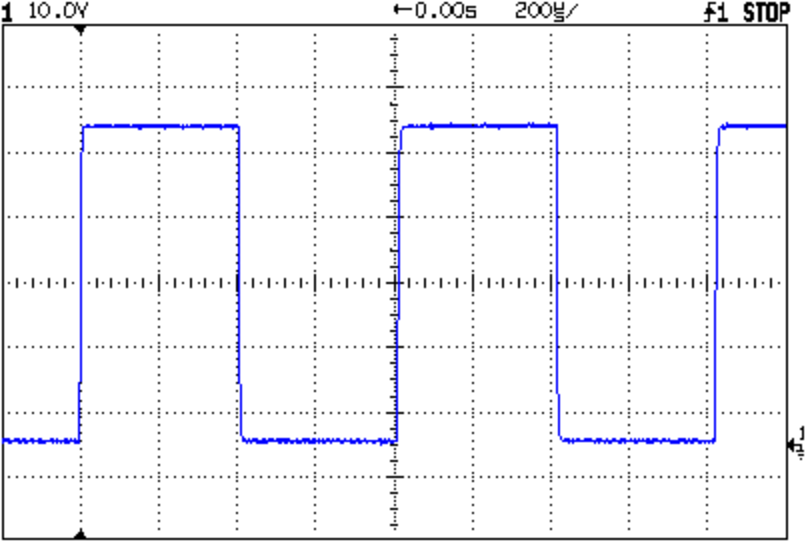
Here’s a sample of what pops out; it’s the scope’s own calibrator waveform, nothing exciting, but you get the general idea.
Screen Capture of Calibrator Signal
The commented-out section labeled “Without Factors” converts the format you get with Factors Off. Turns out that there’s no unique ending string without factors, which puts a real crimp in getting the data. The advantage is that the HPGL converts directly to PNG and looks good. The only way I’ve found to capture the scope data is to just time out after a while.
With Factors On, however, the image data has a unique ending character (ASCII ETX, 0x03) after the label text, but the layout is rotated to plot in landscape mode. A direct conversion to PNG looks awful, perhaps because hp2xx must do software character generation, and I eventually figured out that making a bank shot off EPS vector format produced much better results.
However, hp2xx dutifully renders the text into the EPS image, but it doesn’t inject a carriage return after each linefeed: the text dribbles off to the far right of the actual screen image. To fix that, the sed editor hacks off the label text following the lb command. Mercifully, hp2xx doesn’t choke on the incomplete command.
And then convert does its usual magic. The image size is just right to drop into my Circuit Cellar columns; you may want something different for your purposes.
[Update: The PNG has an alpha channel that selects only the traces, so the background color depends on where you put it. A small tweak is there.]
For reasons that I absolutely do not understand, I cannot control the oscilloscope through the serial interface. The scope sends data to the PC just fine and I can get the scope to complain about the character format if I send truly bogus junk (like, mismatching the baud settings), but it simply will not respond to commands. Maybe the interface is broken or, more likely, I’m screwing something up. Hasn’t been a problem, though, for my simple needs.
Memo to Self: One of these days, eBay will have a 54652B serial/parallel interface that might work better.
Here’s an example of the dimensional accuracy you can get from toner-transfer PCBs in real life.
I drill the holes with a CNC-ed Sherline mill, so they’re pretty much spot on. Drilling the holes by hand simply isn’t practical: there’s no way to get both global alignment and local accuracy.
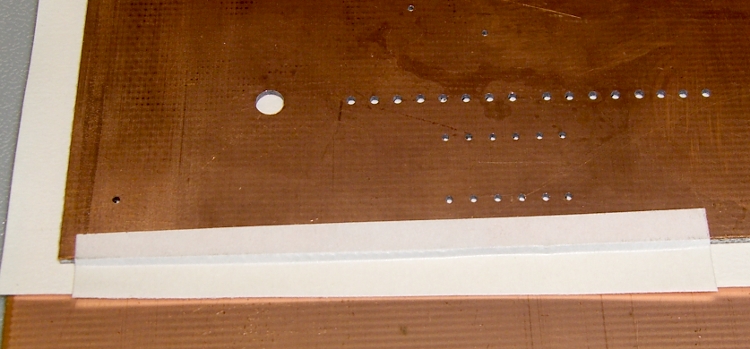
The toner transfer sheet, printed on a laser printer, gets aligned to the existing holes atop a light table. The paper stretches & shrinks and moves around while printing, but I can generally average out the errors so that the 24-mil holes (the smallest I generally use) across the board have no more than a few mils of error: the pads don’t show more than that inside the drilled holes. In the picture below, you can see a dark rim around the corner alignment hole that looks worse than it really is due to the perspective.
I put the toner transfer sheet on the light table, toner-side up, lay the PCB atop the paper, and adjust for best overall alignment. I then tape them together along one edge with strips of laser-printer address labels: guaranteed to hold up to high temperatures, which is more than you can say for most tapes.
PCB alignment and taping
Here’s the board after etching both sides, with the black toner and green sealant film still in place. The toner & film are slightly smeared from the solvent I used to clean off the other side before etching it. The brownish dabs on the green areas come from a brown Sharpie that works fine as a touch-up etching resist.
WWVB Simulator – Top surface toner mask
The narrowest traces are 16 mils, most of the others are 32 mils, and the fat ones down the middle of the chip are 40 mils. Click on the images for bigger versions; you’ll get some JPG compression artifacts, but the resolution is good enough to see what’s going on.
Here’s the same area with the toner removed and a touch of silver plating applied to make it pretty and more easily solderable. The colors aren’t particularly reliable; in real life, it’s a lot more silvery.
Top surface copper
Fairly obviously, the alignment isn’t nearly as good as you’d expect from the initial taping. In round numbers, the pads to the left side seem offset by about the diameter of the holes; call it 25 mils. The holes in the DIP pads are off by perhaps 10 mils.
The bottom surface looks pretty much the same, with similar alignment issues.
Bottom surface copper
The misalignments are not uniform, as you’d expect if the toner transfer sheet moved across the board during fusing. The sheet deforms during the fusing process in a completely unpredictable way, despite my trying all of the usual tricks:
Pre-shrinking the transfer paper by running it through the printer with a pure-white image (so no toner gets applied)
Fusing quickly after printing to prevent moisture absorption (there’s a limit to how fast I can work)
Taping more than one edge to lock the paper in place
It’s fair to say you (well, I) can get within 25 mils of a board hole for sure, less than that most of the time, and be spot on over much of the board. I use large pads and vias for anything I have control over, as witness the pads surrounding the DIP, and avoid very fine features near holes.
Anyhow, it’s good enough for what I do, but you shouldn’t get your hopes up that toner-transfer circuit boards come anywhere close to commercial quality. If you’re doing a lot of pure surface-mount work, it’ll probably be good enough because there’s no need for global alignment to holes in the underlying board. Obviously, the smaller the board, the better off you’ll be.
I etched this board by rubbing ferric chloride on it with a sponge (wearing forearm-length rubber gloves and a shop apron!), renewing the solution as it turned black and gooey. Works like a charm, gives good control of the process, doesn’t erode the Sharpie masking, doesn’t over-etch the traces (much, anyway), and uses less etchant than soaking the board in a bath.
I have other posts describing the process in more detail. Search for PCB, toner-transfer, and other keywords to unearth those entries.
I needed the conversions for a WWVB simulator, so it knows when to twiddle the leap-year and leap-second bits.
The general notion is a table with the Day-of-Year values for the last day of each month. The most expedient way of doing this is with two columns: one for normal years and the other for leap years, thusly…
Month
EOM
EOM-LY
DOY
DOY-LY
0
0
0
0
0
1
31
31
31
31
2
28
29
59
60
3
31
31
90
91
4
30
30
120
121
5
31
31
151
152
6
30
30
181
182
7
31
31
212
213
8
31
31
243
244
9
30
30
273
274
10
31
31
304
305
11
30
30
334
335
12
31
31
365
366
Hint: even if you can recite the “Thirty days hath November …” jingle, it’s much better to build a spreadsheet so the additions all work out. It’s even better if you don’t attempt any of this with a late-summer head cold. You might want to check all my work, because I’m still stuffy.
With table in hand, the code is straightforward.
Define a structure with all the various bits & pieces of the current time, much of which isn’t used here. It’s all needed in the WWVB simulator:
enum EVENTSTATE {EVENT_INACTIVE,EVENT_PENDING,EVENT_ACTIVE};

struct timecode_ {			// The current moment in time...
  byte Year;				// 0 - 99
  word DayOfYear;			// 1 - 366
  byte Hour;				// 0 - 23
  byte Minute;				// 0 - 59
  byte Second;				// 0 - 60 (yes!)
  byte Tenth;				// 0 - 9
  enum EVENTSTATE LeapYear;		// 0 = no, 1 = pending, 2 = active
  enum EVENTSTATE LeapSecond;		// 0 = no, 1 = pending, 2 = active in this minute
  enum EVENTSTATE DaylightSavingTime;	// 0 = no, 1 = pending, 2 = active
  char UT1Correction;			// 100 ms units, -10 to +10 range (+/- 1 second)
  byte MinuteLength;			// 60 or 61
  byte Month;				// 1 - 12 (not sent in frame)
  byte DayOfMonth;			// 1 - 28..31	(not sent in frame)
};
That’s obviously overspecified, because DayOfYear with LeapYear uniquely determines Month and DayOfMonth. It’s handy to have both forms around, sooo there they are.
Then set up the table, glossing over the quick matrix transposition that turns the entries for each year into rows rather than columns:
Conversion from DayOfYear to Month and DayOfMonth requires searching backwards through the appropriate table row until you find the entry that’s smaller than the DayOfYear value, at which point you’ve found the right month.
void ConvertDOYtoDOM(struct timecode_ *pTime) {
byte Index,LY;
word EndOfMonth;
  LY = (EVENT_INACTIVE != pTime->LeapYear) ? 1 : 0;
  Index = 12;
  while ((EndOfMonth = pgm_read_word(&MonthEnds[LY][Index])) >= pTime->DayOfYear) {
	--Index;
  };
  pTime->Month = Index + 1;									// months start with 1, not 0
  pTime->DayOfMonth = (byte)(pTime->DayOfYear - EndOfMonth);
}
Converting from Month and DayOfMonth to DayOfYear is much easier, as it’s pretty much just a table lookup:
This code might actually work, but if I were you, I’d test it pretty thoroughly before lashing it into your project…
The PROGMEM and pgm_read_word() stuff is the Arduino mechanism that puts the lookup table into Flash program memory rather than the ATMega168’s exceedingly limited RAM space. The definitive word about that process resides there.
Memo to Self: Using const simply makes the variable kinda-sorta read-only, but still initializes RAM from Flash. The PROGMEM routines delete the RAM copy entirely.
A friend asked for a Totally Featureless Clock (it’s a long story) and in order to build that, I must concoct a WWVB simulator. Not needing really precise atomic time, I can use ordinary bench-grade crystals and suchlike; microsecond-level jitter isn’t a big problem.
Anyhow, I must divide down an external 60 kHz signal to produce a 10-Hz interrupt to drive the modulator. The 60 kHz comes from a 12 MHz crystal, through a divide-by-200 counter, and feeds the ATmega T1 input (aka Arduino pin 5, normally the PWM5 output).
The key is setting up Timer1 to divide T1 inputs by 6000 (count 0 through 5999), then have it produce an interrupt when the maximum count occurs. You’ll want to read Chapter 15 of The Fine Manual to learn how the hardware works.
I used CTC Mode 12, so that the counts occur on the falling edge of the signal on T1 with the maximum value stored in ICR1. That causes the Input Capture Interrupt to occur when ICR1 == TCNT1.
Review the avr-lib interrupt doc to get the proper interrupt vector names. You want the ICF interrupt, enabled with ICIE1.
Note that Table 15-4 is misleading. The TOV1 Flag may be set when TCNT == MAX, but unless ICR1 == MAX it’ll never get there. You (well, I) can spend a distressing amount of time figuring out why TOV1 doesn’t happen.
With that in mind, Timer1 setup is straightforward:
TCCR1B = 0;                // stop Timer 1 by shutting off the clock
TCNT1 = 0;                 // force count to start from scratch
TCCR1A = 0;                // no compare outputs to OC1A OC1B, WGM1 1:0 = 00
TCCR1C = 0;                // no forced compares
ICR1 = 5999;               // count 0 through 5999 = divide by 6000
TIMSK1 = 1 << ICIE1; // allow interrupt on capture event (TCNT == ICF)
TCCR1B = B00011110;        // start Timer 1: CTC mode = 12, TOP=ICR1, ext clock on T1, falling edge
The interrupt handler can do whatever you want. This one just flips an output bit (ultimately connected to the modulator) to show it’s arrived:
ISR(TIMER1_CAPT_vect) {
   PINB |= _BV(1);
}
That weird-looking line takes advantage of an Arduino hardware feature: if you write a 1 to a bit in the PIN register, the corresponding PORT value toggles. It’s documented in The Fine Manual on page 74, section 13.2.2 and mentioned there.
Then the rest of the simulator is just a simple matter of software…





 The Smell of Molten Projects in the Morning