Ed Nisley's Blog: Shop notes, electronics, firmware, machinery, 3D printing, laser cuttery, and curiosities. Contents: 100% human thinking, 0% AI slop.
When you’re buying test equipment, buy all the options.
Mad Phil taught me, long ago, to buy everything available in one package, rather than try to figure out what you’ll eventually need and go through the justification process for each piece you forgot.
That applied in a corporate setting, but it’s worth pondering even for your own gear: you’re likely to own it longer than the company producing it will offer parts.
Or, these days, it’s more likely you’ll outlive the company…
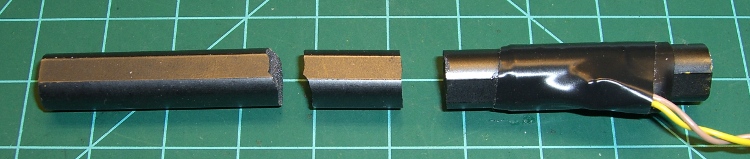
Ferrite inductor cores are notoriously fragile: they do not withstand much abuse at all. Given the amount of fiddling I’ve been doing with the Totally Featureless Clock, it was inevitable that I’d manage to drop the antenna…
Broken ferrite bar antenna
Gluing it back together with cyanoacrylate demonstrated that some things just never work the same. The antenna depends on a continuous flux path through the winding and even the minute gap introduced by the adhesive is enough to ruin the antenna.
What they say about hearts and wheels is also true of ferrite bar antennas:
The next day of WWVB Glitchiness, with the “!” limit characters changed to “|” to move them above the plot where they belong… which really doesn’t make that much difference.
Gnuplot Glitchiness 2
It’s worth mentioning that the WWVB transmitter is running in degraded mode during the day, down 3 dB, while they work on the antenna system. It probably doesn’t make much difference, given the noise around here, but you can see a definite jump as the frame marker pulses pop up off the floor.
The clock synched with WWVB nine times during the Valley of the Shadow of Night. Each synch requires four consecutive glitch-free minutes, which obviously doesn’t happen during daylight hours.
That’s with the antenna perched 3 cm over the top of the clock, aligned with the circuit board: the hardware seems quiet enough.
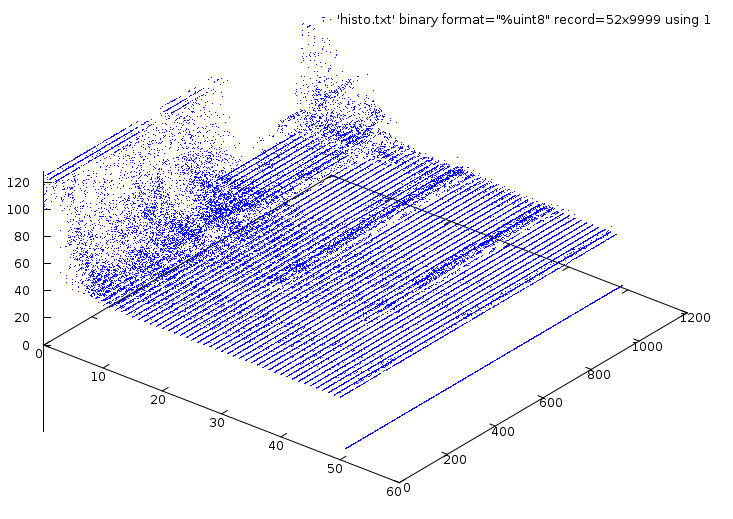
The character based Glitchiness histograms described there work pretty well for short time scales, but more than a screen full is too much. It turns out that Gnuplot can chew up the histograms and spit out a perfectly serviceable 3D map plot.
The trick is to extract the histogram characters into a file, then persuade Gnuplot to regard the file as a binary array, with the ASCII character values giving the Z height of the dot for each XY cell.
Click for bigger picture:
Gnuplot Glitchiness
The axes:
Front edge = 51 pulse durations, 0 – 1 second, 20 ms resolution
Right edge = 1363 histograms = 22.7 hours of WWVB reception
Z axis = histogram counts
The flat plane has the vast majority of points having zero (or just a few) counts.
The three front-to-back hillocks show the durations of the binary-zero, binary-one, and frame markers within each second; the resolution is 20 ms per sample perpendicular to those lines.
The fuzzy mountain peaks along the left edge represent intense noise; you’re looking for the very few intervals of zero noise when the WWVB signal is readable. Those would be flat lines from the left to right edges, with just three bumps at the proper durations.
The valley between the mountain peaks is the nighttime reception, when the noise drops to bearable intensity and RF propagation brings in enough WWVB signal to make a difference. The fact that you can see the proper pulse widths through much of the day suggests the signal is in there, but it’s so noisy you (well, I) can’t make make much use of it.
How to get the graph…
The clock produces three lines of output every minute that look like this:
You could do that all in one gargantuan Bash line, piping the results from one filter to the next, but that’s hard to explain.
Now, fire up Gnuplot and have at it:
gnuplot
set xyplane at 0
set zrange [0:128]
splot 'histo.txt' binary format="%uint8" record=52x1363 using 1 with points lt 3 pt 0
The doc suggests record=52xInf should work, but that draws a useless picture. If the record value is bigger than the number of actual records (found with wc -l histo.txt, the plot ends at the end of file; if it’s smaller, then you get only that many records. I suppose you could just use 99999; it’d work well enough.
The 52 comes from the number of characters in the line: 51 histogram bytes per line, plus a newline character at the end. The newline produces the distinct line below everything else along the right edge of the plot. You could get rid of the newline characters and turn it into a binary file before plotting, but that’s sort of cheating, I think.
You’ll recall the counting sequence in each histogram character:
“.” = 0
1 through 9 = obvious
A through Z = 10 – 35
a through z = 36 – 61
! = more than 61
Unfortunately, the “!” has a lower ASCII value than the other characters, so those are the dots below the plane on the left side; they should be along the top surface. I’ll change that to “|” and make the answer come out right.
From here on, it’s a matter of the usual Gnuplot futzing to get a decent-looking plot.
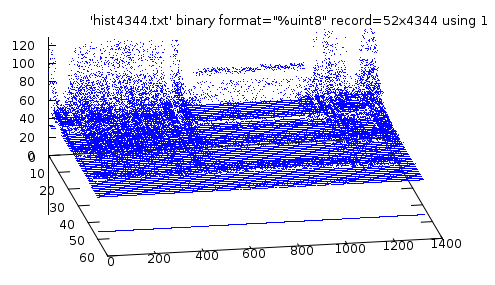
Rotating the view may be useful. For example, set view 60,80 produces this:
Gnuplot Glitchiness – rotated
Now you’re looking more-or-less parallel to the samples for each minute. If you twiddled with the ranges, you could probably see the few valleys where it’d be possible to extract a valid time code.
The alert reader will note that I used record=52×4344 to generate those plots. Homework: why?
The little C-Max CMMR-6P-60 WWVB receiver board is somewhat sensitive to its surroundings: putting it too close to fast-switching digital signals is a Bad Idea. Of course, when there’s an antenna connected to the thing, it’s hard to separate the effects, but I’ve been testing reception with the antenna at the end of a two-foot twisted pair: far enough away to eliminate most problems.
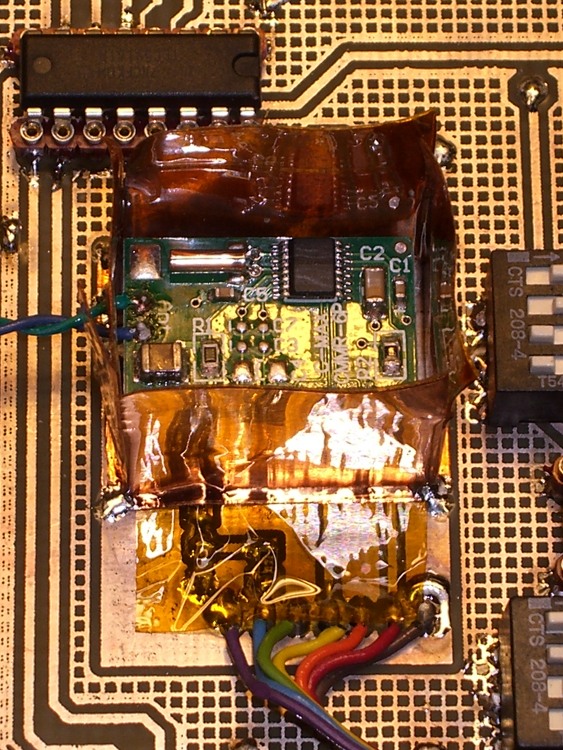
Just to see what happens, I built a little shield enclosure around the receiver board. The clock board has a pair of solid planes isolated from everything else, with a header matching the receiver’s pinout, for this very purpose. The receiver has a fairly solid ground plane on the bottom, but it’s quite sensitive being snuggled up against other objects; the header holds it about 5 mm above the circuit board.
The dark amber square is Kapton tape across the traces. If I ever do this again, I’ll put the traces on the bottom so the board is entirely shielded and the tape isn’t needed.
Shield soldered to base
Some 1-inch copper tape with adhesive on one side serves as the shield enclosure, with a layer of Kapton tape covering all but about 2 mm of the adhesive near the bottom to insulate the copper from the receiver. Bent those 2 mm strips outward, with the adhesive on the bottom, stuck it to the shield plane, and soldered it in place at the corners.
The antenna leads poke out through one side; it’s not very elegant, but I think it’s about as good as is needed for this sort of thing.
I cut the tape at the corners and folded it down to make a little box, stuck a square of copper tape over the top flaps, soldered the corners, and it’s cute. Admittedly, it doesn’t have perfect conduction around the joints; the next time it’s on the bench I’ll add a few solder dots at the midpoints.
Completed shield enclosure
The immediate effect was to raise the receiver’s Glitchiness score by a factor of about four. However, that’s not entirely a bad thing; it turns out that the reciever is much less Glitchy when it’s subject to high noise levels: the receiver AGC cranks the gain down so low that only heroic pulses get through and the number of glitches drops dramatically.
As nearly as I can tell, when there’s no WWVB signal, as during the day, a low Glitchiness count means there’s extremely high noise. Thus, a higher count means less noise and better sensitivity.
More data collection is in order, but the receiver’s LED showing data pulses now tracks the Alpha Geek Clock‘s display almost perfectly.
Given that the wavelength of WWVB’s 60 kHz carrier is 5 kilometers, you’d think that the position of a receiver’s ferrite bar antenna isn’t all that critical. I’ve been running a receiver hitched to a laptop atop a file cabinet, with the bar antenna a few feet away atop an adjoining bookcase.
Putting the antenna 12 cm over the top shelf surface (in a kludged cardboard holder to keep it off the wood), located on the left side of a mechanical mantel clock, produces these samples:
The first position is roughly equidistant from the apex of the corner, so the antenna is on the diagonal of a corner reflector made from the metalized aluminum foil of the exterior insulation.
I’m not sure what to make of this, other than that location is everything.
The Arduino Pro gets its 16-MHz CPU clock from a ceramic resonator, rather than a quartz crystal, which means the frequency accuracy is ±0.5% rather than pretty much spot on. I’m building one into a WWVB-based clock, so it knows the exact elapsed time between synch events.
My clock uses a 20-ms timebase: 16 MHz prescaled by 8, then divided by (nominally) 40000 using Timer1.
Knowing the exact time between WWVB updates, the firmware compares that with the local time interval to find the offset, finds the fractional error, and then tweaks the Timer1 period to make the answer come out right the next time.
Here’s what three days in the life of that algorithm look like:
The UTC field is YYDDD.HHMMSS. The TS value is a simple monotonic timestamp: UTC brutally converted to minutes assuming a year is 365.25 days.
I set ICR1 to 39840 when the program starts, having already determined the actual oscillator frequency for this particular Arduino Pro. That’s not necessary, because the firmware will adjust it automatically, but it does eliminate the first big step that would compensate the resonator’s -0.4% initial frequency error.
As nearly as I can tell, the corrections are tracking room temperature changes, as it’s been really cold around here lately and the clock is atop a bookcase in an outside corner of the room.
After the first +2 change, it ran for 19 hours with less than one second of error: 14 ppm. The -8 change was probably an overcorrection, as the synch interval was just over an hour, but so it goes. That caused 195 ppm error over the next 17 hours, then it’s back on track.
There’s an obvious conflict between getting quick updates as conditions change and minimizing long-term free-run drift. The firmware currently insists on a minimum of 60 minutes between synchs, but (given an initial preset) I think I can dramatically increase that without losing anything.
This code does the Timer1 setup:
#define TIMER1COUNTS            39841l

TCCR1B    = B00011000;            // Timer1: CTC mode = 12 high bits, TOP=ICR1, stopped with no clock source
TCNT1 = 0;            // force count to start from scratch, CTC mode low bits
TCCR1A = 0;            // no compare outputs to OC1A OC1B, WGM1 1:0 = 00
TCCR1C = 0;            // no forced compares
TIMSK1 = 1 << ICIE1;            // allow interrupt on capture event (TCNT == ICF)
SetICR1(TIMER1COUNTS - 1);            // total counts - 1, start running
The SetICR1 function makes sure the new ICR1 isn’t below the current TCNT1 value, which would cause a horrible timekeeping blip. As it is, there’s a microsecond (more or less) glitch during the update.
void SetICR1(word NewICR1) {
TCCR1B &= ~B00000111;     // turn off Timer1 by removing the clock source
ICR1 = NewICR1;
 if (TCNT1 > NewICR1) {     // force counter below new TOP value
 TCNT1 = NewICR1 - 1;
 }
TCCR1B |= B00000010;     // turn on clock with prescaler
}
When the firmware does a WWVB synch, it then checks to see if enough time has passed since the last synch and, if so, tweaks ICR1. The variables hold what you’d expect and are all long ints to hold the expected values…
The FetchICR1 function reads ICR1 without disabling interrupts, doing it twice to be sure nothing’s whacked the magic hardware that allows atomic two-byte register reads.
One failure mode: if something goes badly wrong, ICR1 can become so far off the correct value that the clock will never synch again. I must add a bit of defensive code to SetICR1 that ensures the new value is never more than, say, 1% off the nominal value.
All in all, this works a whole lot better than I expected…
The catch is that most Arduino applications don’t know the exact time interval and, without that, there’s no way to tweak the oscillator on an ongoing basis. However, for any particular Arduino Pro, I think you could very accurately compensate the initial frequency error by measuring the actual oscillator frequency and then hardcoding the adjustment value.



 The Smell of Molten Projects in the Morning