The Smell of Molten Projects in the Morning

Ed Nisley's Blog: Shop notes, electronics, firmware, machinery, 3D printing, laser cuttery, and curiosities. Contents: 100% human thinking, 0% AI slop.

Category: Administrivia

Overhead

  • Dell GX270 Auto-On Power Setting

    I bought an off-lease Dell Optiplex GX270 from Dell Financial Services (via the highly useful techbargains.com) to update my mother’s PC.

    For the last month I’ve been twiddling it every now & again in preparation for my next visit, plus just letting it run to get some power-on hours under my supervision. You’ll find some of the info on that process earlier in the PC Tweakage category.

    So it’s been booting up automagically at 6:15 am every morning, which is easier for Mom, but every now & again it wakes up dead. This is why I’m doing a month or two of burn-in here!

    The diagnostic LEDs (the ABCD lights on the back panel) are GYGG, which isn’t listed in their hard-to-find LED reference[Update: maybe now at Optiplex Diagnostic Indicators]

    Dell Optiplex GX270 Auto-On Boot Failure LEDs
    Dell Optiplex GX270 Auto-On Boot Failure LEDs

    I did the usual diagnostic stuff. All the Dell diagnostic tests work fine, replugging the memory doesn’t help, and so forth & so on. Running many passes of memtest86+ (from the invaluable System Rescue CD) shows no problems at all.

    Called up 800-891-8595, the DFS warranty service number (which is different from the usual Dell route), told my story, and got a call back (!) from the tech. I related the situation, mentioned that I’d set it for auto-on, and he said “Oh, they never got that BIOS code working, it’s never been released, and I’m surprised it works at all.”

    Riiiight

    This is a biz machine, the sort acquired in semitrailer loads by big companies with actual IT departments, the ones that automagically wake up their flock of machines for overnight updates. Maybe they trigger auto-on through the LAN port (that’s another BIOS option) these days, but the BIOS wake-up alarm clock function has been available in pretty nearly every Dell I’ve ever owned… and works fine.

    This is not rocket science.

    Indeed, if anyone’s ever had the slightest problem with Dell’s auto-on, Google shows no sign of it. There’s nothing on the normally loquacious Dell forums. Nay, verily, the GX270 manual itself touts the “advanced feature” of having it turn on at a preset time and day.

    Anyhow, he says the LED code shows the problem has something to do with the memory or video chip not starting up in time. That information is in his “internal” debugging info, which is not available to mere customers. He’s unwilling to swap memory (I tried another stick to no avail), let alone the system board.

    Conclusion: his assignment is to make me Go Away without spending any money on warranty repairs.

    Seeing as how the GX270 was a whopping 100 bucks delivered, I can sympathize with his marching orders, even if I disagree with their outcome.

    So maybe Mom’s going to have to get used to turning the box on in the morning; it seems to work perfectly that way. A straightforward crontab entry turns it off in the evening… at least that part still works.

    I’ve bought other off-lease & Dell Outlet boxes; they’ve worked fine. This one is a bit more battered than usual, but it’s otherwise in fine shape. It’s even been re-capped; the larger electrolytic caps aren’t the dreaded Nichicon popcorn caps.

    Update: It seems to be booting OK with this burn-in regimen.
  • Where to find Presentations & Handouts

    There’s now a link over in the Useful Stuff section that’ll take you to my presentation files & handouts.

  • Inkjet Refilling: Economics of the Empire

    A year ago I bought an Epson R380 printer along with a $10 piece-of-crap digital camera for 90 bucks, then got a $75 rebate. I figure the printer cost 15 bucks and the camera was free.

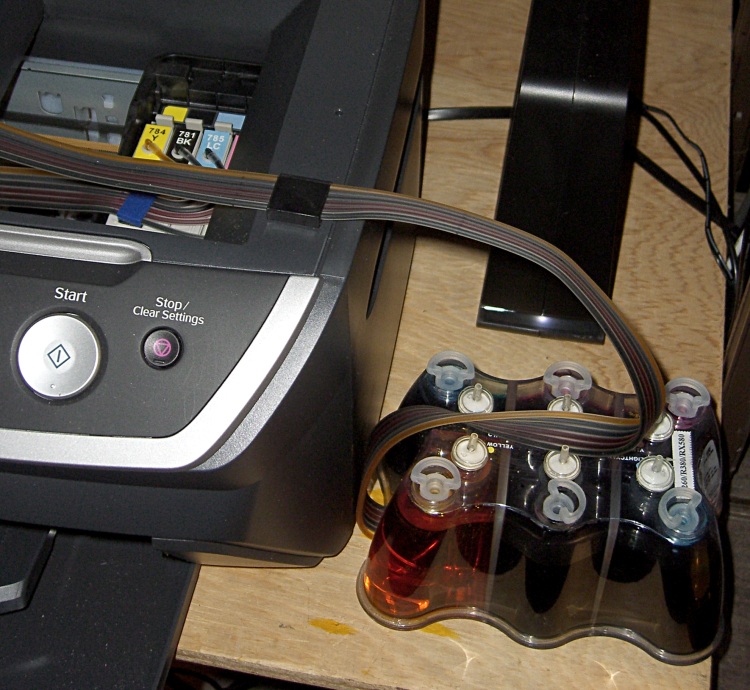
    cimg2863-continuous-ink-for-epson-r380
    Continuous inking system for Epson R380 printer

    I also bought a $55 continuous flow ink system from a place that no longer sells them. Turns out that Epson won a patent lawsuit that forced most of those vendors out of the reinking business and made the remaining systems staggeringly expensive.

    Well, maybe not.

    I print a bunch of text (I hate reading long documents on the screen), plenty of schematics & diagrams, low-quality pictures (webbish junk), relatively few photo-quality pictures, and the Annual Christmas Letter. The printer spends an inordinate amount of time blowing its nose and clearing its throat at the start of each session, so I suspect most of the ink goes directly into the diaper inside the printer.

    Genuine Epson 78-series cartridges contain 11 ml of ink and cost $20: $1.80 / ml or, in US terms, $2k per quart. In the last year, I’ve used about 200 ml of black and 110 ml of each of the five colors: $360 + 5 * $200 = $1360, if I were stupid enough to pay full price for 68 cartridges.

    That makes the $150-ish I actually paid for seven 8-ounce (250 ml) bottles of ink a downright bargain: $0.09 / ml.

    No, the color isn’t the same as the Epson inks and I’m certain it won’t last as long on the page, but that’s not what I’m using this printer for. When I need long-lasting, high-quality prints, I send ’em to an online service… which right now is running a sale on 4×6″ prints at $0.09 each. What’s not to like?

    When I hear printer companies boast about how ecological their printers are, I say bad things. If they wanted to be green, they’d make it trivially easy to connect bulk-ink tanks to their printers.

    I’ll put up with a few colorful spots on my fingers and the occasional sploosh on the table to save that much coin o’ the realm…

  • Geek Scratch Paper

    Grid scratch paper pad
    Grid scratch paper pad

    Everybody needs doodle paper, but geeks need graph paper. What to do?

    Go to http://incompetech.com/graphpaper/ and set up a half-page grid with 5×8 1-inch divisions, 0.5-inch mid divisions, and 0.1-inch minor divisions (I think 1 / 0.6 / 0.3 pt line widths look nice). The obvious metric divisions are a bit too fine for my taste, but 2 cm – 1 cm – 2 mm might work.

    Fetch the PDF, load it into The GIMP at 300 dpi, expand the canvas to a full-page sheet (8.5×11 inches), duplicate the grid so you have two on one sheet, save it as a PNG for later use.

    If you don’t have a full-bleed printer, pick a full-page size that’ll print within whatever margins your printer enforces. You really want those one-inch grids to remain one inch, right?

    Print a few dozen copies, whack ’em in half, and bind ’em on the long edge. Add a thin cardboard backing sheet (Mr Breakfast Cereal Box, meet Mr Paper Cutter) so the bottom sheet stays neat.

    I have an old IBICO (since absorbed by GBC) plastic comb binding machine, but it’s easy enough to line the sheets up and coat the edge with white paper glue, rubber cement, or, for the true geek, liquid electrical tape.

    Pre-position pads wherever you’re ordinarily at a loss for scratch paper: neat doodles!

    PS: Put some money in his tip jar when you use his graph paper. It’s a nice gesture.

    [Update: Inexplicably, I didn’t have a picture of a pad. Here you go… low res, but you get the general idea. Great for off-the-cuff graphing, too.]

  • Pocket Stationery

    Being that sort of bear, I must carry paper for notes, sketches, and suchlike. Years ago the Levenger catalog tempted me with the notion of 3×5-inch stationery, but the notion of paying 5 cents per piece of scratch paper just didn’t titilate my inner cheapskate.

    Part of my chandelier o’ gear (props to Neal Stevenson) is an ancient Zire 71 PDA that’s about the right size to sit atop a 3×5-inch sheet of paper. Some experimentation showed that five cuts could produce six sheets of pocket stationery from a single letter-size page. I used QCAD to lay down a nice 200-mil grid with my contact info on the top, duplicated it six times, and added cut lines.

    Part of the trick is figuring out how to get the cut lines at the right spot so the paper divides neatly into thirds and halves. Trial and error is your friend.

    Print it on heavy card stock, whack the paper cutter along the lines, and it’s all good.

    After a while, you’ll realize you can print it to a PostScript file, then just print that without firing up QCAD every time.

    QCAD screen with stationery
    QCAD screen with stationery

    Better than scribbling on the back of a biz card, as there’s plenty of room, and my contact info is right on the front where it won’t get lost.

    Actually, the real reason my Zire 71 case fits that paper is because Mary made it years ago for my HP-15C calculator. The stationery fit that case, so when the Zire came out, well, why change anything else?