The Smell of Molten Projects in the Morning

Ed Nisley's Blog: Shop notes, electronics, firmware, machinery, 3D printing, laser cuttery, and curiosities. Contents: 100% human thinking, 0% AI slop.

Month: February 2010

  • Adobe Reader Default Toolbar: FAIL

    Maybe I’m misusing Adobe Reader, but I’ve always thought of it as a program that displays PDF files. In my case, that means data sheets for various & sundry electronic parts: I carefully squirrel both PDFs and parts away, having learned that physical parts can outlast both datasheets and company websites.

    So I open quite a few PDFs that reside on my file server in the basement.

    With that in mind, what’s missing from this row of toolbar icons?

    Adobe Reader Default Toolbar
    Adobe Reader Default Toolbar

    Go ahead, take your time…

    Hint: the only active button lets you “start an Acrobat Connect meeting and share documents”.

    This has been true for the last few versions; the Official Ubuntu Linux Version seems to be stuck at 8.1-ish. Let’s jump ahead a bit, fetch 9.3 directly from the Adobe download page, and install it:

    Adobe Reader 9.3 Toolbar
    Adobe Reader 9.3 Toolbar

    Now I can not only “Share documents and collaborate live within PDF documents”, but also “Click to create PDF using Acrobat.com”.

    What I can’t do is open a PDF file from disk by just clicking a button. That rarely used function is relegated to the File pulldown menu and, for those of us who can touch-type fairly well, hidden behind the arcane Ctrl-O keyboard chord.

    Reconfiguring the toolbar is a few minutes of clickety-click action, but it seems odd to me that none of the focus group participants suggested putting an Open File button on the toolbar.

    Although I never ascribe to malice what can be explained by stupidity, this continuing design decision does seem to require forethought.

  • Xubuntu 9.10: Quasi-functional Kensington Trackball Configuration

    As mentioned there, Ubuntu prohibits having two mice with different handedness. Xubuntu enumerates the various mice and allows you to set their handedness separately.

    This file swaps the upper two buttons.

    The scroll ring operates intermittently. I no longer believe it’s a hardware problem, as I have two Kensington trackballs and both behave the same way. I’m guessing the evdev driver has trouble with button pushes from two devices, but that’s just a guess. Sometimes it works perfectly for hours on end, other times it jams up first thing in the morning. Restarting X helps, which indicates the hole isn’t in the trackball’s end of the boat.

    Here’s my /usr/share/hal/fdi/policy/20thirdparty/10-expertmouse.fdi file:

    
    <?xml version="1.0" encoding="ISO-8859-1"?>
    <deviceinfo version="0.2">
     <device>
     <match key="input.product" string="Kensington      Kensington Expert Mouse">
     <append key="input.x11_options.ButtonMapping" type="string">3 8 1 4 5 6 7 2</merge>
     </match>
     </device>
    </deviceinfo>


    [Update: made the code block cut-and-paste-able. Sorry ’bout that…]

  • Xubuntu 9.10: Barely Functional Wacom Tablet Configuration

    For some background on a single-monitor box, read that first. This file is for my dual-monitor setup, which introduces horrible problems: basically, this setup doesn’t really work.

    The MMonitor and ScreenNo values restrict the tablet to the left-hand X screen. Without those settings, things get really weird.

    But, with the X screen nailed down, the fundamental problem is that the tablet stylus cursor starts out restricted to just the upper-left part of the left-hand (landscape) monitor. The fraction of the screen seems somehow related to the aggregate total of the two monitors, but not in any numeric sense I can figure out.

    The fix for that is tweaking the BottomX and BottomY values so that the cursor can cover the entire screen. I used the wacomcpl utility to cut-and-try various numbers until I got something close. They are quite different than the tablet’s default values: 16700 and 12064.

    The values suggest that the driver expects the tablet to cover the entire range of coordinates for both monitors, but whether that’s with the right monitor rotated or not isn’t obvious. The numbers do not work out either way. Maybe it’s taking the outermost bounding box?

    It is not clear why this hocus-pocus works at all, as I thought those values were supposed to restrict the stylus cursor to specific locations of the tablet’s surface. Evidently they’re scaling factors.

    Note that this fdi file adds the names required by wacomcpl, without which nothing works.

    The GIMP is markedly unhappy with this arrangement. Mostly, the stylus works and provides pressure information, but none of the trackballs or the tablet can select fields within some (but not all) of the dialog boxes (like, for example, File->Save…). Only the keyboard Tab key can move between fields in that situation.

    The wacdump utility segfaults. This seems to be a known problem with Ubuntu 9.10, for reasons that aren’t clear.

    Sometimes, but not always, the stylus cursor has an offset: the visible cursor on the screen is a few inches up-and-right of the actual tool location that’s affecting the drawing. When this happens, tweaking the BottomX and BottomY values with wacomcpl sometimes restores proper operation; the ensuing values have no relation with anything I can understand.

    Much to my surprise, button remapping works perfectly: the front switch on the stylus is Button 3, the rear is Button 2. That means context menus pop up on the more easily reached switch. At least I think so.

    Basically, something that worked absolutely dependably and without much manual intervention in 8.10 has become completely, totally, and utterly dysfunctional in 9.10. I do not count this as progress.

    With all that in mind, here’s the /usr/share/hal/fdi/policy/20thirdparty/10-linuxwacom.fdi file…

    
    <?xml version="1.0" encoding="ISO-8859-1"?>
    <deviceinfo version="0.2">
     <device>
     <match key="info.product" string="Wacom Graphire3 6x8">
     <merge key="input.x11_driver" type="string">wacom</merge>
     <merge key="input.x11_options.Type" type="string">stylus</merge>
     <merge key="input.x11_options.Button2" type="string">3</merge>
     <merge key="input.x11_options.Button3" type="string">2</merge>
     <merge key="input.x11_options.MMonitor" type="string">off</merge>
     <merge key="input.x11_options.ScreenNo" type="string">0</merge>
     <merge key="input.x11_options.BottomX" type="string">8146</merge>
     <merge key="input.x11_options.BottomY" type="string">11893</merge>
     <append key="info.callouts.add" type="strlist">hal-setup-wacom</append>
     <append key="wacom.types" type="strlist">eraser</append>
     <append key="wacom.types" type="strlist">cursor</append>
     </match>
     </device>
     <!-- Wacom names "parser" -->
     <device>
     <match key="info.udi" contains_not="subdev_0">
     <match key="info.udi" contains_not="subdev_1">
     <match key="info.udi" contains_not="subdev_2">
     <match key="input.x11_options.Type" contains="stylus">
     <merge key="info.product" type="string">stylus</merge>
     </match>
     <match key="input.x11_options.Type" contains="eraser">
     <merge key="info.product" type="string">eraser</merge>
     <merge key="input.x11_options.MMonitor" type="string">off</merge>
     <merge key="input.x11_options.ScreenNo" type="string">0</merge>
     <merge key="input.x11_options.BottomX" type="string">8146</merge>
     <merge key="input.x11_options.BottomY" type="string">11893</merge>
     </match>
     <match key="input.x11_options.Type" contains="cursor">
     <merge key="info.product" type="string">cursor</merge>
     </match>
     </match>
     </match>
     </match>
     </device>
    </deviceinfo>

    
  • Xubuntu 9.10: Functional xorg.conf

    After considerable thrashing, this hand-tweaked version of /etc/X11/xorg.conf seems to do what’s needed for Xubuntu 9.10. It includes only display setup stuff; all the input device configuration is now tucked away in HAL FDI files.

    I used the nvidia-settings control panel to create a basic xorg.conf file that used separate X sessions, saved it in my home directory, then tweaked it in small increments until everything worked. Or, more precisely, until things stopped failing…

    Some observations:

    • Obviously, this uses the proprietary nVidia driver
    • The option Rotate CCW line must be commented out (or omitted) to avoid killing xrandr, because many utilities expect xrandr
    • Use the Xubuntu display setup applet to apply the xrandr rotation; just specify Screen 2 as rotated left
    • X locks up occasionally when Wacom tablet cursor falls into the seam between the displays. Make sure you can ssh into the box to restart X: an X crash kills the keyboard, too!
    • Metamodes must specify the exact monitor resolution
    • The nVidia logo doesn’t appear on either monitor during boot, even with NoLogo turned off. I like the logo, because it gives an early heads-up when something goes wrong.

    The xorg.conf file:

    
    Section "ServerLayout"
     Identifier     "RotatedPortrait"
     Screen      0  "Landscape" 0 0
     Screen      1  "Portrait" RightOf "Landscape"
    EndSection
    
    Section "Module"
     Load           "dbe"
     Load           "extmod"
    #   Load           "type1"
    #   Load           "freetype"
     Load           "glx"
    EndSection
    
    Section "ServerFlags"
     Option         "Xinerama" "0"
    EndSection
    
    Section "Monitor"
     # HorizSync source: edid, VertRefresh source: edid
     Identifier     "Dell2001FP"
     VendorName     "Dell"
     ModelName      "DELL 2001FP"
     HorizSync       31.0 - 80.0
     VertRefresh     56.0 - 76.0
     Option         "DPMS"
    EndSection
    
    Section "Monitor"
     # HorizSync source: edid, VertRefresh source: edid
     Identifier     "Dell2005FP"
     VendorName     "Dell"
     ModelName      "DELL 2005FPW"
     HorizSync       30.0 - 83.0
     VertRefresh     56.0 - 75.0
     Option         "DPMS"
    EndSection
    
    Section "Device"
     Identifier     "GF9400_0"
     Driver         "nvidia"
     VendorName     "NVIDIA Corporation"
     BoardName      "GeForce 9400 GT"
     BusID          "PCI:1:0:0"
     Screen          0
    EndSection
    
    Section "Device"
     Identifier     "GF9400_1"
     Driver         "nvidia"
     VendorName     "NVIDIA Corporation"
     BoardName      "GeForce 9400 GT"
     BusID          "PCI:1:0:0"
     Screen          1
    EndSection
    
    Section "Screen"
     Identifier     "Landscape"
     Device         "GF9400_0"
     Monitor        "Dell2001FP"
     DefaultDepth    24
     Option         "TwinView" "0"
     Option         "metamodes" "DFP-0: 1600x1200 +0+0"
     Option         "NoLogo" "Off"
     SubSection     "Display"
     Depth       24
     EndSubSection
    EndSection
    
    Section "Screen"
     Identifier     "Portrait"
     Device         "GF9400_1"
     Monitor        "Dell2005FP"
     DefaultDepth    24
     Option         "TwinView" "0"
     Option         "metamodes" "DFP-1: 1680x1050 +0+0"
     Option         "NoLogo" "Off"
     Option         "RandRRotation" "On"
    #    Option         "Rotate" "CCW"
     SubSection     "Display"
     Depth       24
     EndSubSection
    EndSection
    
    
  • Pupa from Thailand

    Banana stand pupal case
    Banana stand pupal case

    As part of the Great Kitchen Cleaning, I was charged with replacing a missing foot on the banana gallows we received as a gift many years ago. I found a tiny hole in the bottom that we’d never noticed before, most likely because we mistook it for an ink dot or an imperfection in the wood.

    The spot seemed to have something inside and a pass under the microscope showed the remains of a pupal case. I pried it out, destroying it in the process. The insect was, of course, long gone.

    Those are millimeter ticks on the scale along the top edge, so the hole is the better part of 1.5 mm in diameter. Perfectly round, of course, as only an insect programmed to drill holes can produce.

    The hole was 8 mm deep (likely deeper before the wood was planed), so the bug was qualified for gun drilling!

    The stand is marked “Made in Thailand”, but who knows where the wood came from or where it’s been? We’ve had the stand for many years now, but I’m pretty sure the critter was in there when we got it.

  • Our Old Studebaker

    1957 Studebaker in Police Livery
    1957 Studebaker in Police Livery

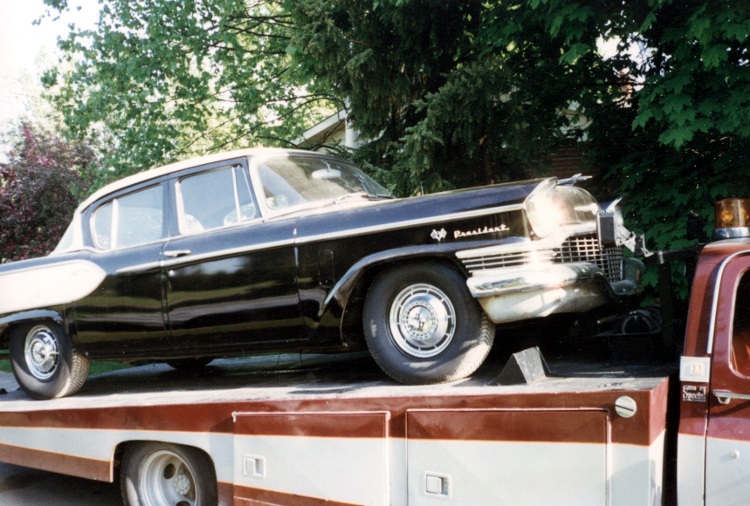
    Thinking of my parents’ 1957 Studebaker President (in the context of our mixer leaking oil) prompted me to do a search on the obvious keywords, which produced this link. Search for “police unit” and you’ll find a nice picture of a black-and-white President with a gumball machine on the top. Here’s that picture, just in case link rot sets in.

    That’s my parents’ car, right there!

    Turns out that Mom sold it to a Canadian firm (probably Fawcett Movie Cars and a deep link there) that supplies cars to moviemakers; she’d put an ad in the Hershey Antique Auto Show flyer and it worked. A guy showed up with a trailer, money changed hands, and he hauled the poor thing away.

    They transplanted a functional engine from a donor hulk, restored the dual exhaust system that my grandfather had the garage strip out (“Two mufflers cost too much!”), and did a perfect restoration of the rusted eyebrows over the headlights where road mud and salt always collected. While they had the hood up, they installed power steering; that thing always turned like a truck, what with a big iron V8 over the front wheels.

    On the way to Rebound
    On the way to Rebound

    The car appeared in Moonshine Highway in police livery and HBO’s Angel of Harlem (a.k.a. Rebound) in civilian dress. Here’s what it looked like on the way to the Rebound set.

    A private collector in Ontario bought it from the movie folks and found a registration card in my father’s name stuffed behind the glove box. A bit of searching turned up me and now I know what happened to it.

    So, if you just bought a nice black-and-white 1957 Studebaker President from a guy in Canada, there’s a bit of its history. I can tell you more, but nobody else really cares, I suspect…

  • KitchenAid KSM90WW Mixer Oil Leakage


    Oil in end cap
    Oil in end cap


    Our KitchenAid mixer gets plenty of use turning out bread dough, but it tends not to get moved around a lot, because it’s an awkward and top-heavy bit of gear. Mary moved it recently and discovered oil puddles underneath. The scene put me in mind of my parent’s 1957 Studebaker President: it had a bad rear main seal and the oil leaked out just slightly slower than we could pour it in.

    Anyhow, it seems our mixer isn’t the only one to have a slight incontinence problem, as a casual search on the obvious keywords will reveal.


    Rear housing view
    Rear housing view


    I usually leave the mixer angled up, which caused the oil to drain to the rear of the housing, where it followed the main support strut downward into the stand. From there, it spread out and dripped off several local minima, forming perhaps four puddles. Most folks leave it horizontal, whereupon the oil evidently drips out of the lower cover into the bowl.

    The rear view of the guts shows the oil oozing out both sides along the bottom of the joint between the housing and the end bell.

    A rag and some denatured alcohol cleaned things up pretty well, but I do wonder what’s going on with KitchenAid… I’m not looking forward to replacing the piece-of-crap plastic bevel gear that evidently strips out after a while.