The Smell of Molten Projects in the Morning

Ed Nisley's Blog: Shop notes, electronics, firmware, machinery, 3D printing, laser cuttery, and curiosities. Contents: 100% human thinking, 0% AI slop.

Tag: Arduino

All things Arduino

  • Arduino Library for (Old?) Optrex DMC-family LCDs

    Having determined that the existing Arduino LiquidCrystal library routine wouldn’t work for the Optrex DMC-16117 character LCD in my parts heap, I decided to modify it to meet the data and timing requirements mentioned in the datasheet. This is sufficiently slow and old that it should work for contemporary displays built around the Hitachi HD44780 and its ilk, but I certainly haven’t tested it!

    The straight dope on building an Arduino library from scratch is there, but there’s no need to work from First Principles here.

    Start by copying the library files (this FLOSS stuff is wonderful that way), renaming them, and changing all the LiquidCrystal strings to LCD_Optrex:

    cd /opt/arduino/hardware/libraries/
    cp -a LiquidCrystal LCD_Optrex
    cd LCD_Optrex
    rm LiquidCrystal.o
    rename 's/LiquidCrystal/LCD_Optrex/' LiquidCrystal.*
    for f in LCD* k*; do sed -i 's/LiquidCrystal/LCD_Optrex/g' $f; done
    cd examples
    for f in * ; do sed -i 's/LiquidCrystal/LCD_Optrex/g' $f/$f.pde
    cd -
    

    You could do that by hand with an editor if you prefer.

    Depending on how you’ve installed the Arduino files, you may need a sudo to make that work. Better, perhaps, to tweak the permissions for (at least) the LCD_Optrex directory & files therein to grant yourself write access.

    I created a sendraw4() function to send a single 4-bit nibble during the startup sequence, so add that to the private section of LCD_Optrex.h:

    private:
    void send(uint8_t, uint8_t);
    void sendraw4(uint8_t);
    

    The new code is in LCD_Optrex is shamelessly adapted from the existing send() function, minus the mode selection and 8-bit stuff:

    void LCD_Optrex::sendraw4(uint8_t value) {
      digitalWrite(_rs_pin, LOW);
      digitalWrite(_rw_pin, LOW);
    
      for (int i = 0; i < 4; i++) {
        digitalWrite(_data_pins[i], (value >> (i + 4)) & 0x01);
      }
    
      digitalWrite(_enable_pin, HIGH);
      digitalWrite(_enable_pin, LOW);
    }
    

    If I were doing this from scratch, I’d use d7 through d4 rather than d3 through d0 to match the datasheet, but that’s a stylin’ thing.

    Replace the existing LCD panel setup code with an exact mapping of the datasheet’s procedure. For the 4-bit setup, it goes a little something like this:

    delayMicroseconds(16000);       // mandatory delay for Vcc stabilization
    sendraw4(0x30);                 // set 8-bit mode (yes, it's true!)
    delayMicroseconds(5000);        // mandatory delay
    sendraw4(0x30);
    delayMicroseconds(200);
    sendraw4(0x30);
    delayMicroseconds(40);          // command delay
    sendraw4(0x20);                 // finally set 4-bit mode
    delayMicroseconds(40);          // command delay
    
    command(0x28);            // 4-bit, 2-line, 5x7 char set
    command(0x08);            // display off
    command(0x01);            // clear display
    delayMicroseconds(16000);
    command(0x06);            // increment, no shift
    command(0x0c);            // display on, no cursor, no blink
    

    It seems you cannot use the delay() function in the constructor, as interrupts and suchlike aren’t active. The delayMicroseconds() function disables & enables interrupts; I don’t know if that is a Bad Thing or not.

    The 8-bit initialization code, which I haven’t tested, doesn’t need the sendraw4() function, but does need the same alterations. Apart from enabling 4-bit mode, of course.

    Various commands have different timing requirements, as shown on page 39 of the DMC16117 datasheet. Add a delayMicroseconds(16000); to the clear() and home() functions, then add delayMicroseconds(40); to the send() function, like this:

    void LCD_Optrex::clear()
    {
      command(0x01);  // clear display, set cursor position to zero
      delayMicroseconds(16000);
    }
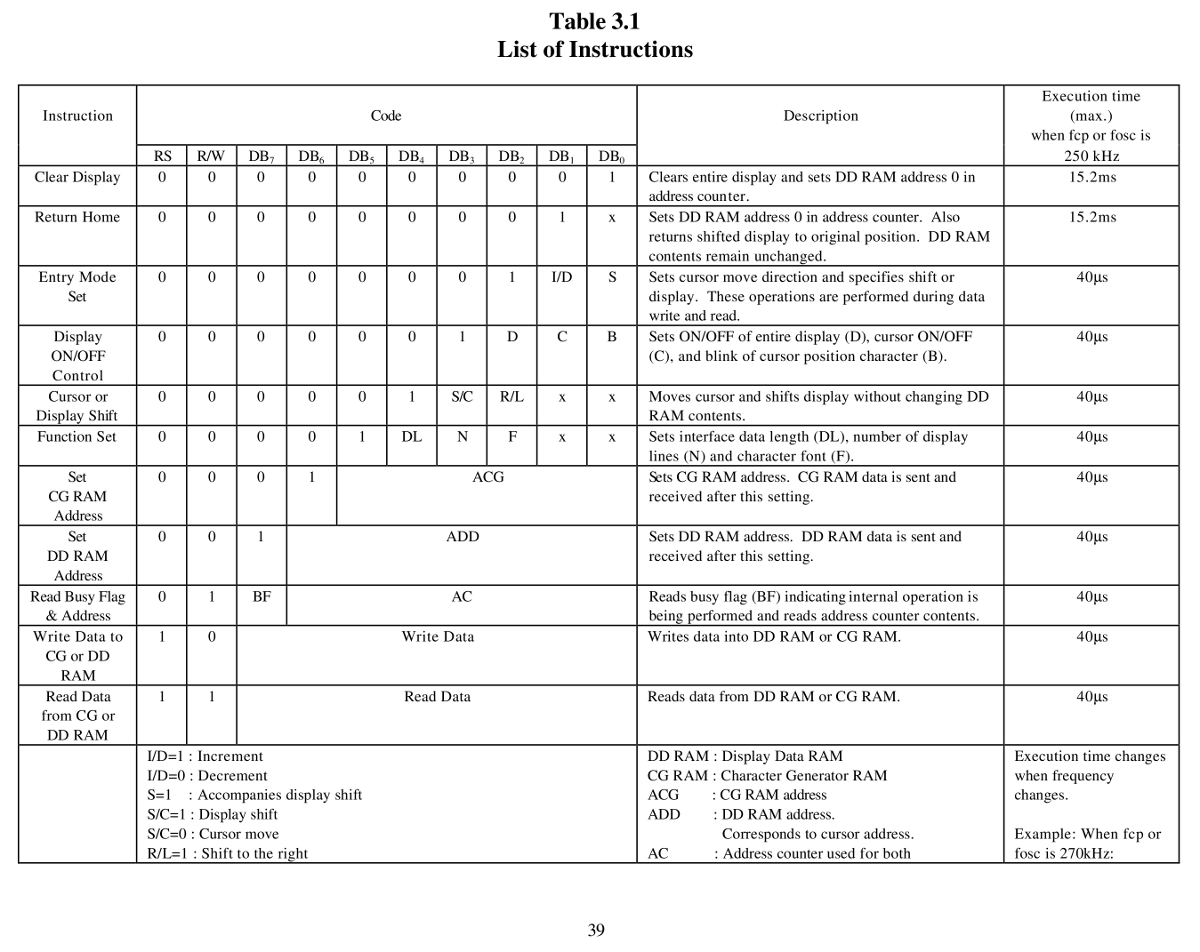
    
    Optrex DMC16117 Instruction Timing
    Optrex DMC16117 Instruction Timing

    With all that in place, fire up the Arduino IDE and compile one of the example programs. That will build the LCD_Optrex.o file, too. If you have such a display, either wire it up as indicated or change the example code to match your connections.

    What should happen is that the LCD should initialize correctly under all conditions… how’s that for anticlimactic?

    Here’s an OpenOffice document with LCD_Optrex.h, LCD_Optrex.cpp, and examples.txt all in one lump: LCD_Optrex Library Files.odt. Save each section as a separate flat-ASCII text file with the appropriate name in the right spot and you’re in business. I’d present a ZIP file, but WordPress isn’t up to that.

    Memo to Self: A function to write a 16-character string to the stupid 16-character DMC16117 which has a single row that’s addressed as two 8-character lines would be nice. That requires keeping track of the current cursor position, which could be tricky. Maybe I should just scrap those suckers out?

  • Arduino LiquidCrystal Library vs Old HD44780 LCD Controller

    I recently attached an ancient Optrex DM16117 LCD to an Arduino and discovered that the standard LiquidCrystal library routine wouldn’t initialize it properly. After turning on the power, the display would be blank. Hitting the Reset button did the trick, but that’s obviously not the right outcome.

    It turns out that initializing one of these widgets is trivially easy after you realize that the data sheet is required reading. If you do everything exactly right, then it works; get one step wrong, then the display might work most of the time, sorta-kinda, but most likely it won’t work, period.

    The catch is that there’s no such thing as a generic datasheet: what you must do depends on which version of the HD44780 controller lives on the specific LCD board in your hands and what oscillator frequency it’s using. The LiquidCrystal library seems to be written for a much newer and much faster version of the HD44780 than the one on my board, but, even so, the code may not be following all the rules.

    Optrex DMC16117 Initialization Sequence
    Optrex DMC16117 Initialization Sequence

    To begin…

    Fetch the Optrex DMC16117 datasheet, which includes the HD44780 timings for that family of LCD modules. There’s also a datasheet for just the Optrex LCD module itself, which isn’t quite what you want. You could get a bare Hitachi HD44780 datasheet, too, but it won’t have the timings you need.

    Pages 32 and 33 of the DMC16117 datasheet present the 8-bit and 4-bit initialization sequences. Given that no sane engineer uses the 8-bit interface, here’s the details of the 4-bit lashup.

    Two key points:

    • The first four transfers are not standard command sequences
    • The delays between transfers are not negotiable

    The starting assumption is that the LCD has not gone through the usual power-up initialization, perhaps because the supply voltage hasn’t risen at the proper rate. You could drive the LCD power directly from a microcontroller pin for a nice clean edge, but most designs really don’t have any pins to spare for that sort of nonsense: code is always cheaper than hardware (if you ignore non-recurring costs, that is, as many beancounters do).

    The Arduino LiquidCrystal library routine initialization sequence (in /opt/arduino/hardware/libraries/LiquidCrystal/LiquidCrystal.cpp) looks like this:

    command(0x28);  // function set: 4 bits, 1 line, 5x8 dots
    command(0x0C);  // display control: turn display on, cursor off, no blinking
    command(0x06);  // entry mode set: increment automatically, display shift, right shift
    clear();
    

    The four-bit version of the command() function sends both nibbles of its parameter, high followed by low, which simply isn’t correct for the first few values the DMC16117 expects. Worse, the timing doesn’t follow the guidelines; there’s no delay at all between any of the outgoing values. Again, this is most likely due to the fact that LiquidCrystal was written for a newer version of the HD44780 chip.

    After a bit of fiddling around, I decided that the only solution was to create a new library routine based on LiquidCrystal with the proper delays and commands: LCD_Optrex. It might not work for newer LCDs, but at least it’ll play with what I have in my parts heap.

    Next, the gory details…

    Memo to Self: The protracted delay after the first Clear is absolutely vital!

  • Arduino IDE Race Condition

    Every now and again the Arduino IDE spits out an error message along the lines of “couldn’t determine program size” or simply fails to compile with no error message at all. The former is evidently harmless, but the latter can be truly annoying.

    The cause is described for Macs there as a race condition in the IDE on multi-core processors, with a patch that either partially fixes the problem or pushes it to a less-likely part of the code. That’s true on my system, as the error still occurs occasionally.

    How you apply it to Xubuntu 8.10: unzip the file to get Sizer.class, then copy that file to /usr/lib/jvm/java-6-sun-1.6.0.10/jre/lib/. That won’t be the right place for a different Xubuntu or different Java, so use locate rt.jar and plunk it into that directory.

    A less dramatic change seems to be setting build.verbose=true and upload.verbose=true in ~/.arduino/preferences.txt.

    In my case, both of those changes did bupkis.

    This is evidently an error of long standing, as it’s been discussed since about Arduino 11. I’m currently at 15 and it seems that patch will be in the next version of the IDE.

  • Arduino Push-Pull PWM

    Push-Pull Drive: OC1A top, OC1B bottom
    Push-Pull PWM Drive: OC1A top, OC1B bottom

    Most of the time you need just a single PWM output, but when you’re driving a transformer (or some such) and need twice the primary voltage, you can use a pair of PWM outputs in push-pull mode to get twice the output voltage.

    A single PWM output varies between 0 and +5 V (well, Vcc: adjust as needed), so the peak-to-peak value is 5 V. Drive a transformer from two out-of-phase PWM outputs, such that one is high while the other is low, and the transformer sees a voltage of 5 V one way and 5 V the other, for a net 10 V peak-to-peak excursion.

    A 50% duty cycle will keep DC out of the primary winding, but a blocking capacitor is always a good idea with software-controlled hardware. A primary winding with one PWM output stuck high and the other stuck low is a short circuit that won’t do your output drivers or power supply any good at all.

    An Arduino (ATMega168 and relatives) can do this without any additional circuitry if you meddle with the default PWM firmware setup. You must use a related pair of PWM outputs that share an internal timer; I used PWM 9 and 10.

    #define PIN_PRI_A   9    // OCR1A - high-active primary drive
    #define PIN_PRI_B   10   // OCR1B - low-active primary drive
    

    I set push-pull mode as a compile-time option, but you can change it on the fly.

    #define PUSH_PULL   true // false = OCR1A only, true = OCR1A + OCR1B
    

    The timer tick rate depends on what you’re trying accomplish. I needed something between 10 & 50 kHz, so I set the prescaler to 1 to get decent resolution: 62.5 ns.

    // Times in microseconds, converted to timer ticks
    //  ticks depend on 16 MHz clock, so ticks = 62.5 ns
    //  prescaler can divide that, but we're running fast enough to not need it
    
    #define TIMER1_PRESCALE   1     // clock prescaler value
    #define TCCR1B_CS20       0x01  // CS2:0 bits = prescaler selection
    

    Phase-Frequency Correct mode (WGM1 = 8) runs at half-speed (it counts both up and down in each cycle), so the number of ticks is half what you’d expect. You could use Fast PWM mode or anything else, as long as you get the counts right; see page 133 of the Fine Manual.

    // Phase-freq Correct timer mode -> runs at half the usual rate
    
    #define PERIOD_US   60
    #define PERIOD_TICK (microsecondsToClockCycles(PERIOD_US / 2) / TIMER1_PRESCALE)
    

    The phase of the PWM outputs comes from the Compare Output Mode register settings. Normally the output pin goes high when the PWM count resets to zero and goes low when it passes the duty cycle setting, but you can flip that around. The key bits are COM1A and COM1B in TCCR1A, as documented on page 131.

    As always, it’s easiest to let the Arduino firmware do its usual setup, then mercilessly bash the timer configuration registers…

    // Configure Timer 1 for Freq-Phase Correct PWM
    //   Timer 1 + output on OC1A, chip pin 15, Arduino PWM9
    //   Timer 1 - output on OC1B, chip pin 16, Arduino PWM10
    
     analogWrite(PIN_PRI_A,128);    // let Arduino setup do its thing
     analogWrite(PIN_PRI_B,128);
    
     TCCR1B = 0x00;                 // stop Timer1 clock for register updates
    
    // Clear OC1A on match, P-F Corr PWM Mode: lower WGM1x = 00
     TCCR1A = 0x80 | 0x00;
    
    // If push-pull drive, set OC1B on match
    #if PUSH_PULL
     TCCR1A |= 0x30;
    #endif
    
     ICR1 = PERIOD_TICKS;           // PWM period
     OCR1A = PERIOD_TICKS / 2;      // ON duration = drive pulse width = 50% duty cycle
     OCR1B = PERIOD_TICKS / 2;      //  ditto - use separate load due to temp buffer reg
     TCNT1 = OCR1A - 1;             // force immediate OCR1x compare on next tick
    
    // upper WGM1x = 10, Clock Sel = prescaler, start Timer 1 running
     TCCR1B = 0x10 | TCCR1B_CS20;
    

    And now you’ll see PWM9 and PWM10 running in opposition!

    Memo to Self: remember that “true” does not equal “TRUE” in the Arduino realm.

  • Arduino Connector & Hole Coordinates

    Arduino Diecimila
    Arduino Diecimila

    If you’re building an Arduino shield, you must align the connectors & holes with the Arduino board underneath. That seems to be easy enough, assuming you start with the Eagle CAD layout found there, but when you’re starting with your own layout, then things get messy.

    Here’s how to verify that you have everything in the right spot, at least for Diecimilla-class boards. Start by holding the Arduino board with the component side facing you, USB connector on the upper left. Rotate your own PCB layout appropriately or stand on your head / shoulders as needed.

    With the exception of J3, the center points of the connectors & holes seem to be on a hard 25-mil grid with the origin at the lower-left corner of the board (below the coaxial power jack):

    • J3 (AREF) @ (1.290,2.000)
    • J1 (RX) @ (2.150,2.000)
    • POWER @ (1.550,0.100)
    • J2 (AIN) @ (2.250,0.100)
    • Upper-left hole = 0.125 dia @ (0.600,2.000)
    • Upper-right hole = 0.087 dia @ (2.600,1.400)
    • Lower-right hole = 0.125 dia @ (2.600,0.300)
    • Reset button = (2.175,1.065)

    Offsets between points of interest:

    • connector rows Y = 1.900
    • right holes Y = 1.100
    • UL hole to UR hole = (2.000,-0.600)
    • UL hole to J3 X = 0.690
    • J3 to J1 X = 0.860
    • J3 to POWER X = 0.260
    • POWER to J2 X = 0.700
    • J1 to UR hole = (0.450,-0.600)
    • J2 to LR hole = (0.350,200)

    Note that the three etched fiducial targets are not on the 25-mil grid. They’re not on a hard metric grid, either, so I don’t know quite what’s going on. Fortunately, they’re not holes, so it doesn’t matter.

    Memo to self: perhaps I’ve measured & calculated & transcribed those values correctly. Double-check before drilling, perhaps by superimposing double-size PCB layouts on a light table or window. Finding it then is much less annoying than after drilling the board… ask me how I know.

  • Arduino Fast PWM: Faster

    Although you can change the Arduino runtime’s default PWM clock prescaler, as seen there, the default Phase-correct PWM might not produce the right type of output for the rest of your project’s circuitry.

    I needed a fixed-width pulse to drive current into a transformer primary winding, with a variable duty cycle (hence, period) to set the power supply’s output voltage. The simplest solution is Fast PWM mode: the output goes high when the timer resets to zero, goes low when the timer reaches the value setting the pulse width, and remains low until the timer reaches the value determining the PWM period.

    The best fit for those requirements is Fast PWM Mode 14, which stores the PWM period in ICRx and the PWM pulse width in OCRxA. See page 133 of the Fine Manual for details on the WGMx3:0 Waveform Generation Mode bits.

    I needed a 50 μs pulse width, which sets the upper limit on the timer clock period. Given the Diecimila’s 16 MHz clock, the timer prescaler can produce these ticks:

    • 1/1 = 62.5 ns
    • 1/8 = 500 ns
    • 1/64 = 4 μs
    • 1/256 = 16 μs
    • 1/1024 = 64 μs

    So anything smaller than 1/1024 would work. For example, three ticks at 1/256 works out to 48 μs, which is close enough for my purposes. A 1/8 prescaler produces an exact match at 100 ticks and gives a nice half-microsecond resolution for pulse width adjustments.

    The overall PWM period can vary from 200 μs to 10 ms, which sets the lower limit on the tick rate. The timer is 16 bits wide: 65535 counts must take more than 10 ms. The 1/1 prescaler is too fast at 4 ms, but the 1/8 prescaler runs for 32 ms.

    So I selected the 1/8 prescaler. The table on page 134 gives the CSx2:0 Clock-Select mode bits.

    Define the relevant values at the top of the program (uh, sketch)

    #define TIMER1_PRESCALE 8	// clock prescaler value
    #define TCCR1B_CS20 0x02	// CS2:0 bits = prescaler selection
    
    #define BOOST_PERIOD_DEFAULT	(microsecondsToClockCycles(2500) / TIMER1_PRESCALE)
    #define BOOST_ON_DEFAULT	(microsecondsToClockCycles(50) / TIMER1_PRESCALE)
    
    #define BOOST_PERIOD_MIN	(microsecondsToClockCycles(200) / TIMER1_PRESCALE)
    #define BOOST_PERIOD_MAX	(microsecondsToClockCycles(10000) / TIMER1_PRESCALE)
    

    The microsecondsToClockCycles() conversion comes from the Arduino headers; just use it in your code and it works. It’ll give you the right answer for 8 MHz units, too, but you must manually adjust the timer prescaler setting; that could be automated with some extra effort.

    Then, in the setup() routine, bash the timer into its new mode

    analogWrite(PIN_BOOSTER,1);	// let Arduino setup do its thing
    TCCR1B = 0x00;			// stop Timer1 clock for register updates
    
    TCCR1A = 0x82;			// Clear OC1A on match, Fast PWM Mode: lower WGM1x = 14
    ICR1 = BOOST_PERIOD_DEFAULT;	// drive PWM period
    OCR1A = BOOST_ON_DEFAULT;	// ON duration = drive pulse width
    TCNT1 = BOOST_ON_DEFAULT - 1;	// force immediate OCR1A compare on next tick
    TCCR1B = 0x18 | TCCR1B_CS20;	// upper WGM1x = 14, Clock Sel = prescaler, start running
    

    The Arduino analogWrite() function does all the heavy lifting to set the PWM machinery for normal use, followed by the tweakage for my purposes. All this happens so fast that the first normal PWM pulse would still be in progress, but turning the PWM timer clock off is a nice gesture anyway. Forcing a compare on the first timer tick means the first pulse may be a runt, but that’s OK: the rest will be just fine.

    What you don’t want is a booster transistor drive output stuck-at-HIGH for very long, as that will saturate the transformer core and put a dead short across the power supply: not a good state to be in. Fortunately, the ATmega168 wakes up with all its pins set as inputs until the firmware reconfigures them, so the booster transistor stays off.

    The PWM machinery is now producing an output set to the default values. In the loop() routine, you can adjust the timer period as needed

    noInterrupts();			// no distractions for a moment
    TCCR1B &= 0xf8;			// stop the timer - OC1A = booster may be active now
    
    TCNT1 = BOOST_ON_DEFAULT - 1;	// force immediate OCR1A compare on next tick
    ICR1 = BasePeriod;		// set new PWM period
    
    TCCR1B |= TCCR1B_CS20;		// start the timer with proper prescaler value
    interrupts();			// allow distractions again
    

    The ATmega168 hardware automagically handles the process of updating a 16-bit register from two 8-bit halves (see page 111 in the Manual), but you must ensure nobody else messes with the step-by-step process. I don’t know if the compiler turns off interrupts around the loads & stores, but this makes sure it works.

    Once again, setting the TCNTx register to force a compare on the next timer tick will cause a runt output pulse, but that’s better than a stuck-HIGH output lasting an entire PWM period. You can get fancier, but in my application this was just fine.

    You can update the PWM pulse width, too, using much the same hocus-pocus.

    And that’s all there is to it!

    Memo to Self: always let the Arduino runtime do its standard setup!

  • Reading a Quadrature Encoded Knob in Double-Quick Time

    The simple technique of reading a quadrature knob I described there works fine, except for the knob I picked for a recent project. That’s what I get for using surplus knobs, right?

    I picked this knob because it has a momentary push-on switch that I’ll be using for power; the gizmo should operate only when the knob is pressed. The rotary encoder part of the knob has 30 detents, but successive “clicks” correspond to rising and falling clock edges: the encoder has only 15 pulses in a full turn.

    So, while advancing the knob counter on, say, the falling edges of the A input worked, it meant that the count advanced only one step for every other click: half the clicks did nothing at all. Disconcerting, indeed, when you’re controlling a voltage in teeny little steps.

    Worse, the encoder contacts are painfully glitchy; the A input (and the B, for that matter) occasionally generated several pulses that turned into multiple counts for a single click.

    Fortunately, the fix for both those problems is a simple matter of software…

    The Arduino interrupt setup function can take advantage of the ATmega168’s ability to generate an interrupt on a pin change, at least for the two external interrupts that the Arduino runtime code supports. So it’s an easy matter to get control on both rising & falling edges of the A input, then make something happen on every click of the knob as you’d expect.

    The hardware is straightforward: connect the knob’s A output to INT0, the B  output to D7, and the common contact to circuit ground. Although you can use the internal pullups, they’re pretty high-value, so I added a 4.7 kΩ resistor to Vcc on each input. The code defining that setup:

    #define PIN_KNOB_A	2			// LSB - digital input for knob clock (must be 2 or 3!))
    #define IRQ_KNOB_A	(PIN_KNOB_A - 2)	//  set IRQ from pin
    #define PIN_KNOB_B	7			// MSB - digital input for knob quadrature
    

    Because we’ll get an interrupt for each click in either direction, we can’t simply look at the B input to tell which way the knob is turning. The classy way to do this is to remember where we were, then look at the new inputs and figure out where we are. This buys two things:

    • Action on each edge of the A input, thus each detent
    • Automatic deglitching of crappy input transitions

    So we need a state machine. Two states corresponding to the value of the A input will suffice:

    enum KNOB_STATES {KNOB_CLICK_0,KNOB_CLICK_1};

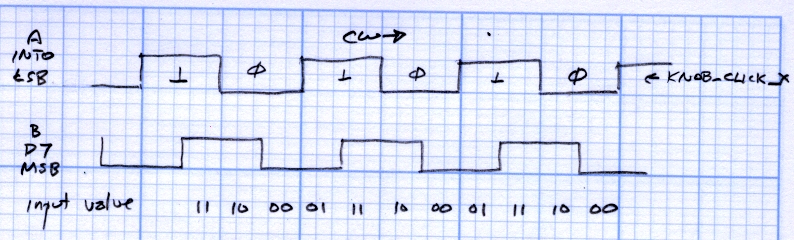
    A sketch (from one of these scratch pads) shows the states in relation to the knob inputs. Think of the knob as being between the detents for each state; the “click” happens when the state changes.

    Knob encoder states and inputs
    Knob encoder states and inputs

    In order to mechanize that, put it in table format. The knob state on the left shows where the knob was and the inputs along the top determine what we do.

    Knob state table
    Knob state table

    So, for example, if the knob was resting with input A = 0 (state KNOB_CLICK_0), then one detent clockwise means the inputs are 01. The second entry in the top row has a right-pointing arrow (→) showing that the knob turned clockwise and the next state is KNOB_CLICK_1. In that condition, the code can increment the knob’s position variable.

    The entries marked with X show glitches: an interrupt happened, but the inputs didn’t change out of that state. It could be due to noise or a glitchy transition, but we don’t care: if the inputs don’t change, the state doesn’t change, and the code won’t produce an output. Eventually the glitch will either vanish or turn into a stable input in one direction or the other, at which time it’s appropriate to generate an output.

    Two variables hold all the information we need:

    volatile char KnobCounter = 0;
    volatile char KnobState;
    

    KnobCounter holds the number of clicks the knob has made since the last time the mainline code read the value.

    KnobState holds the current (soon to be previous) state of the A input.

    Now we can start up the knob hardware interface:

    pinMode(PIN_KNOB_B,INPUT);
    digitalWrite(PIN_KNOB_B,HIGH);
    pinMode(PIN_KNOB_A,INPUT);
    digitalWrite(PIN_KNOB_A,HIGH);
    KnobState = digitalRead(PIN_KNOB_A);
    attachInterrupt(IRQ_KNOB_A,KnobHandler,CHANGE);
    

    An easy way to handle all the logic in the state table, at least for small values of state table, is to combine the state and input bits into a single value for a switch statement. With only eight possible combinations, here’s what it the interrupt handler looks like:

    void KnobHandler(void)
    {
    byte Inputs;
    	Inputs = digitalRead(PIN_KNOB_B) << 1 | digitalRead(PIN_KNOB_A);	// align raw inputs
    	Inputs ^= 0x02;								// fix direction
    
    	switch (KnobState << 2 | Inputs)
    	{
    	case 0x00 : // 0 00 - glitch
    		break;
    	case 0x01 : // 0 01 - UP to 1
    		KnobCounter++;
    		KnobState = KNOB_CLICK_1;
    		break;
    	case 0x03 :	// 0 11 - DOWN to 1
    		KnobCounter--;
    		KnobState = KNOB_CLICK_1;
    		break;
    	case 0x02 : // 0 10 - glitch
    		break;
    	case 0x04 : // 1 00 - DOWN to 0
    		KnobCounter--;
    		KnobState = KNOB_CLICK_0;
    		break;
    	case 0x05 : // 1 01 - glitch
    		break;
    	case 0x07 : // 1 11 - glitch
    		break;
    	case 0x06 :	// 1 10 - UP to 0
    		KnobCounter++;
    		KnobState = KNOB_CLICK_0;
    		break;
    	default :	// something is broken!
    		KnobCounter = 0;
    		KnobState = KNOB_CLICK_0;
    	}
    }
    

    Reading the knob counter in the main loop is the same as before:

    noInterrupts();
    KnobCountIs = KnobCounter;	// fetch the knob value
    KnobCounter = 0;		//  and indicate that we have it
    interrupts();
    

    And that’s all there is to it!