The Smell of Molten Projects in the Morning

Ed Nisley's Blog: Shop notes, electronics, firmware, machinery, 3D printing, laser cuttery, and curiosities. Contents: 100% human thinking, 0% AI slop.

Tag: Arduino

All things Arduino

  • Arduino: Be Careful With the Preprocessor

    This trips me up every damn time…

    Although the Arduino language looks like C and parses like C and runs like C, it’s not really C. It’s a specialized language gnawed on by a vast conversion monster and eventually shat out as executable ATmega-style instructions.

    Here’s a (rather contrived) trivial working program…

    #define PIN_ARDUINOLED    13     // standard LED
    
    typedef struct {
     int initial;
     int on;
     int off;
     int reps;
    } timeout_ ;
    
    timeout_ Trial = {2000,100,1000,5};
    
    void setup() {
     pinMode(PIN_ARDUINOLED,OUTPUT);
    }
    
    void loop() {
    
    int counter;
    
     digitalWrite(PIN_ARDUINOLED,LOW);
     delay(Trial.initial);
    
     for (counter = 0; counter < Trial.reps; ++counter) {
     digitalWrite(PIN_ARDUINOLED,HIGH);
     delay(Trial.on);
     digitalWrite(PIN_ARDUINOLED,LOW);
     delay(Trial.off);
     }
    
    }

    That compiles and runs just like you’d expect: a long delay, followed by five blinks, repeating endlessly.

    Now, use some preprocessor conditionals to gut-and-replace the code, with a bit of garish colorization to make things more obvious. This is Bad Programming Practice, but work with me…

    #define PIN_ARDUINOLED    13        // standard LED
    
    #if 0
    typedef struct {
     int initial;
     int on;
     int off;
     int reps;
    } timeout_ ;
    #endif
    
    #if 0
    timeout_ Trial = {2000,100,1000,5};
    #else
    int LoopCount = 50;
    #endif
    
    void setup() {
     pinMode(PIN_ARDUINOLED,OUTPUT);
    }
    
    void loop() {
    
    int counter;
    
    #if 0
     digitalWrite(PIN_ARDUINOLED,LOW);
     delay(Trial.initial);
    
     for (counter = 0; counter < Trial.reps; ++counter) {
     digitalWrite(PIN_ARDUINOLED,HIGH);
     delay(Trial.on);
     digitalWrite(PIN_ARDUINOLED,LOW);
     delay(Trial.off);
     }
    #else
     digitalWrite(PIN_ARDUINOLED,LOW);
     for (counter = 0; counter < LoopCount; ++counter) {
     digitalWrite(PIN_ARDUINOLED,HIGH);
     delay(250);
     digitalWrite(PIN_ARDUINOLED,LOW);
     delay(500);
     }
    
    #endif
    
    }

    The error message lump resulting from compiling that looks like:

    In function ‘void setup()’:
    error: ‘OUTPUT’ was not declared in this scope In function ‘void loop()’:
     In function ‘int main()’:

    Really?

    Delete the lines already removed by the preprocessor, the lines that shouldn’t be there when the code reaches the compiler, and you have:

    #define PIN_ARDUINOLED        13              // standard LED
    
    int LoopCount = 50;
    
    void setup() {
     pinMode(PIN_ARDUINOLED,OUTPUT);
    }
    
    void loop() {
    
    int counter;
    
     digitalWrite(PIN_ARDUINOLED,LOW);
     for (counter = 0; counter < LoopCount; ++counter) {
     digitalWrite(PIN_ARDUINOLED,HIGH);
     delay(250);
     digitalWrite(PIN_ARDUINOLED,LOW);
     delay(500);
     }
    
    }

    Which compiles and runs like a champ, of course. It blinks merrily away, more off than on, forever. The LoopCount variable doesn’t do much for us, but it’s the thought that counts.

    Put the original lines back, comment out the new stuff, and you get:

    #define PIN_ARDUINOLED        13              // standard LED
    
    typedef struct {
     int initial;
     int on;
     int off;
     int reps;
    } timeout_ ;
    
    timeout_ Trial = {2000,100,1000,5};
    
    #if 0
    int LoopCount = 50;
    #endif
    
    void setup() {
     pinMode(PIN_ARDUINOLED,OUTPUT);
    }
    
    void loop() {
    
    int counter;
    
     digitalWrite(PIN_ARDUINOLED,LOW);
     delay(Trial.initial);
    
     for (counter = 0; counter < Trial.reps; ++counter) {
     digitalWrite(PIN_ARDUINOLED,HIGH);
     delay(Trial.on);
     digitalWrite(PIN_ARDUINOLED,LOW);
     delay(Trial.off);
     }
    
    #if 0
     digitalWrite(PIN_ARDUINOLED,LOW);
     for (counter = 0; counter < LoopCount; ++counter) {
     digitalWrite(PIN_ARDUINOLED,HIGH);
     delay(250);
     digitalWrite(PIN_ARDUINOLED,LOW);
     delay(500);
     }
    
    #endif
    
    }

    And that compiles and runs perfectly, just like you’d expect. Uh-huh. Right.

    Basically, there’s a complex interaction between ordinary C preprocessor directives, ordinary C language elements, and the inscrutable innards of the Arduino IDE & compiler chain.

    As nearly as I can tell, you can wrap #if whatever around simple declarations and most executable code with impunity, but putting anything more elaborate than that, like a simple typedef struct, inside the conditionals causes bizarre problems.

    In fact, just typedef can cause problems, particularly if you attempt to use the ensuing tag in a function declaration. Don’t even think about anything along these lines:

    typedef struct {whatever} taggit_;
    ... snippage ...
    void SomeFunction(taggit_ *pThing) {
    ... snippage ...
    }

    However, this seems to work fine:

    struct taggit_ {whatever};
    ... snippage ...
    void SomeFunction(struct taggit_ *pThing) {
    ... snippage ...
    }

    Trying to make sense of this will drive you mad (well, it drives me mad), but when you get bizarre error messages that can’t be explained by the usual operator screwups, well, most likely you’re being too clever with the preprocessor.

    Or you’ve (also) made a trivial typo that cannot be discovered by inspection.

    It seems the right (only?) way to handle typedef definitions is to put ’em in a separate header file, as described there, then add the header file to your sketch in a separate tab. That seems to insert the definitions in the proper order within the *.cpp file that actually goes into the compiler.

    However, some limited fiddling reveals that I don’t understand the nuances or I’m screwing it up. Probably both.

    Memo to Self: define the structs & variables without typedefs, then prepare for some protracted tweakage…

  • Programming Algorithm for 27HC641 EPROMs

    General idea: replacing a failing Mostek MK36000-series masked ROM in a Tektronix 492 Spectrum Analyzer memory board with an equally obsolete 27HC641 EPROM, using the bits found there.

    The various datasheets give contradictory advice concerning device programming:

    EPROM Burn - Microchip algorithm
    EPROM Burn – Microchip algorithm

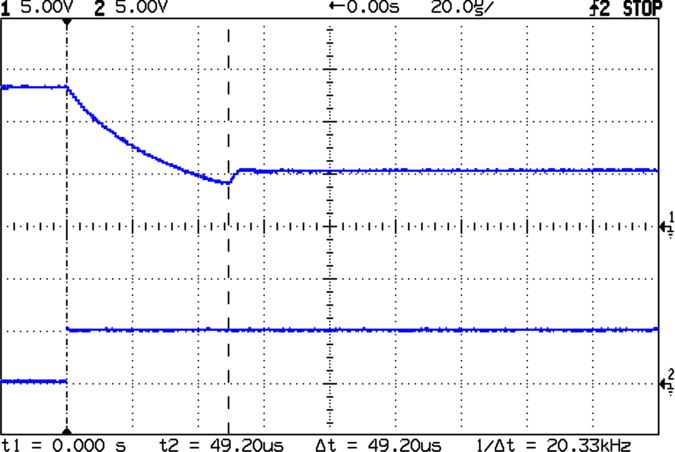
    Assuming you have appropriate power supplies, then the waveform on VCE looks like this. The upper trace is the -OE signal for the data latch supplying the byte-to-be-burned, the lower trace is VCE on EPROM pin 21. Set VCC = 6 V on pin 24 while all this is going on. The currents range into the hundreds of mA; this is not a low-power device!

    The squirts on the -OE latch signal before each programming cycle are eight quick writes to those antique DL-1414 displays that share the data bus with the EPROM. They show the current address and data byte during programming, plus other status & error messages.

    The Microchip and GI datasheets both claim that the EPROM cells erase to all 1 bits, like every other EPROM I’ve ever used. The Philips datasheet says:

    … after each erasure, all bits of the 27HC641 are in an undefined state. […] which is neither a logical “1” or a logical “0”

    27HC641 EPROM in programming socket
    27HC641 EPROM in programming socket

    The chip markings suggest they were made by Signetics, which got Borged by Philips some years ago. Lo and behold, the chip erases to a bizarre pattern that may be “undefined” but is perfectly consistent from erasure to erasure.

    Therefore, you cannot blank-check a 27HC641 EPROM before programming it!

    The Philips / Signetics datasheet doesn’t have a programming algorithm and the GI datasheet says you’re supposed to hold VCE at +12.5 V except when you’re asserting the programming data. So I used the Microchip algorithm on a Signetics chip and it seems to program properly.

    The only quirk is that the Arduino Diecimila doesn’t have enough storage to hold the entire EPROM at once, so I verified each data byte as I wrote it, rather than doing the whole chip after the entire programming loop. The top picture shows a single 1 ms programming pulse followed by the 3-ms overburn pulse; the byte read back from the EPROM must agree with the source byte after each pulse. When it’s all done, I manually dump the entire EPROM as an Intel HEX file and verify that against the original HEX file: if it matches, the burn is good.

    The byte-burning function goes a little something like this:

    int BurnByte(word Address, byte Data) {
    
    unsigned Iteration;
    byte Success;
    
     SetVcc(VH);                              // bump VCC to programming level
     SetVce(VIH);                             // disable EPROM outputs
     Outbound.Address = Address;              // set up address and data values
     Outbound.DataOut = Data;
    Success = 0;
    for (Iteration = 1; Iteration <= MAX_PROG_PULSES; ++Iteration) {
    
    RunShiftRegister();
    digitalWrite(PIN_DISABLE_DO,LOW);       // present data to EPROM
    
    SetVce(VH);                             // bump VCE to programming level
    delayMicroseconds(1000);                // burn data for a millisecond
    SetVce(VIH);                            // return VCE to normal logic level
    
    digitalWrite(PIN_DISABLE_DO,HIGH);      // turn off data latch buffer
    SetVce(VIL);                            // activate EPROM outputs
    CaptureDataIn();                        // grab EPROM output
    SetVce(VIH);                            // disable EPROM outputs
    
    RunShiftRegister();                     // fetch data
    
    if (Data == Inbound.DataIn) {           // did it stick?
    Success = 1;
    break;
    }
    }
    
    MaxBurns = max(MaxBurns,Iteration);
    
    if (Success) {                           // if it worked, overburn the data
    
    digitalWrite(PIN_DISABLE_DO,LOW);       // present data to EPROM (again!)
    SetVce(VH);                             // bump VCE to programming level
    delay(3 * Iteration);                   // overburn data
    
    SetVce(VIH);                            // return VCE to normal logic level
    digitalWrite(PIN_DISABLE_DO,HIGH);      // turn off latch buffers
    
    SetVce(VIL);                            // activate EPROM outputs
    CaptureDataIn();                        // grab EPROM output
    SetVce(VIH);                            // disable EPROM outputs
    
    RunShiftRegister();                     // fetch data
    
    Success = (Data == Inbound.DataIn);     // did overburn stick?
    }
    
    return !Success;                         // return zero for success
    }
    

    NOTE: the MK36000 and 27HC641 have slightly different address bit assignments.

    The MK36000 address bits look like this:

    • pin 18 = A11
    • pin 19 = A10
    • pin 21 = A12

    The 27HC641 address bits look like this:

    • pin 18 = A12
    • pin 19 = A11
    • pin 21 = A10

    Now, if you’re building a programmer, just wire up the 27HC641 socket as if it were a MK36000 and everything will be fine. The byte locations within the chip won’t match those in the original MK36000, but it doesn’t matter because you store bytes at and the Tek CPU fetches bytes from the same addresses.

    However, if you’re using a commercial EPROM programmer, it will write the bytes at the locations defined by the 27HC641 address bit assignments (because that’s all it knows), which will not work when plugged into the Tek board. Choose one of the following options:

    • build an interposer board to permute the address bits
    • cut-and-rewire the Tek board (ugh!)
    • write a program to permute the bytes in the HEX file

    Think about it very carefully before you build or program anything, OK? The checksum will most likely come out right even with permuted bits, but the CPU will crash hard as it fetches the wrong instructions.

    Memo to Self: always RTFM, but don’t believe everything you read.

  • Arduino: Using Ancient Litronix DL-1414 LED Displays

    Tek 492 Memory Board Reader
    Tek 492 Memory Board Reader

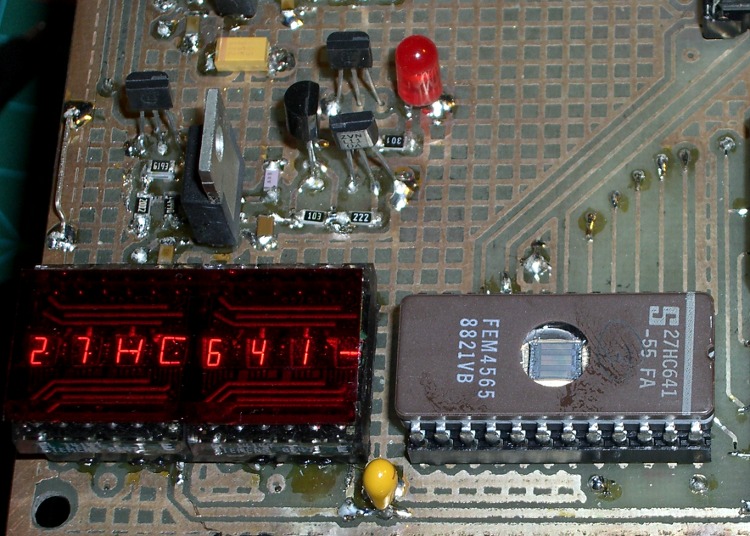
    While I was putting together the Tek 492 memory board reader, I though it’d be a nice idea to add a small display. While the Arduino has USB serial I/O, the update rate is fairly pokey and an on-board display can provide more-or-less real time status.

    Given that the reader was built for an early-80s memory board, I just had to use a pair of Litronix DL-1414 4-character LED displays from my parts heap. The DL-1414 datasheet [Update: link rot? try that] proudly proclaims:

    The 0.112″ high characters of the DL1414T gives readability up to eight feet. The user can build a display that enhances readability over this distance by proper filter selection.

    I think that distance is exceedingly optimistic.

    DL-1414 LED display schematic
    DL-1414 LED display schematic

    However, I needed to see only a few feet to the benchtop. Even better, adding the displays required no additional hardware: the SPI-driven shift registers on the board already had address and data lines, plus a pair of unused bits for the write strobes. What’s not to like?

    This schematic connects to the one you just clicked on; the two big blue bus lines are the same bus as in that schematic.

    If you don’t have anything else riding the data bus, adding a pullup on the D7 bit that isn’t used by these displays will make all the bits float high; the DL-1414s seem to pull their inputs upward. That came in handy when I was debugging the EPROM-burning code, because reading data without an EPROM in the socket produced 0xff, just like an erased EPROM byte.

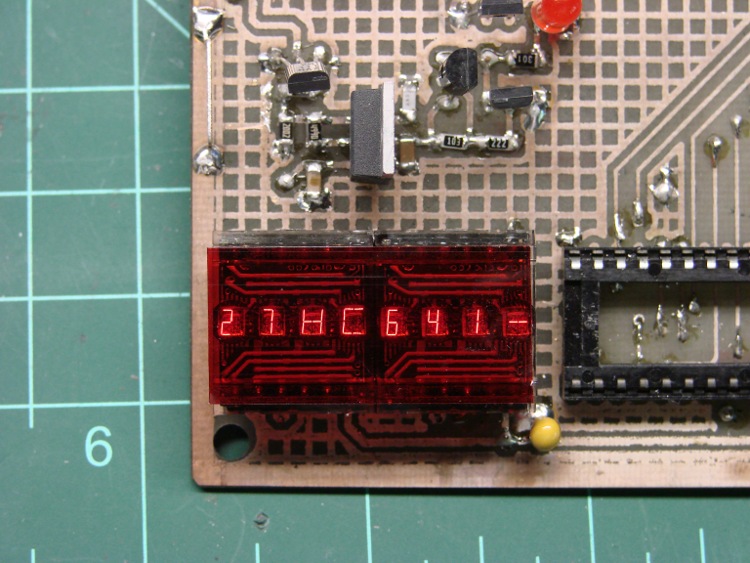
    The two displays are the dark-red rectangle in the lower-right of the first picture, covered with a snippet of the Primary Red filter described there.

    These closeups, without and with the filter, demonstrate why you really, really need a filter of some sort.

    DL1414 Unfiltered
    DL1414 Unfiltered
    DL1414 Filtered
    DL1414 Filtered

    Using the displays is straightforward, given the hardware-assisted SPI code from there. You could actually do it with just the I/O pins on an Arduino board, but you wouldn’t be able to do anything else. If you don’t have any other SPI registers, you could get away with a pair of HC595 outputs:  7 data + 2 address + 2 strobes + 5 outputs left over for something else.

    A few constants set the display size and a global buffer holds the characters:

    #define LED_SIZE            4            // chars per LED
    #define LED_DISPLAYS        2            // number of displays
    #define LED_CHARS           (LED_DISPLAYS * LED_SIZE)
    
    char LEDCharBuffer[LED_CHARS + 1];       // raw char buffer, can be used as a string
    

    A routine to exercise the LEDs by scrolling all 64 characters they can display goes a little something like this:

    Serial.println("Exercising LED display ...");
    
     Outbound.Controls |= CB_N_WRLED1_MASK | CB_N_WRLED0_MASK;        // set write strobes high
     digitalWrite(PIN_DISABLE_DO,LOW);                                // enable data outputs
    
     while (digitalRead(PIN_PB)) {
    
      digitalWrite(PIN_HEARTBEAT,HIGH);
    
      byte Character, Index;
    
      for (Character = 0x20; Character < 0x60; ++Character) {
       for (Index = 0; Index < LED_CHARS; ++Index) {
        LEDCharBuffer[Index] = Character + Index;
       }
       UpdateLEDs(LEDCharBuffer);
       delay(500);
    
       if (!digitalRead(PIN_PB)) {
        break;
       }
      }
    
      digitalWrite(PIN_HEARTBEAT,LOW);
     }
    
     WaitButtonUp();
    

    A routine to plop a string (up to 8 characters!) on the LEDs looks like this:

    void UpdateLEDs(char *pString) {
    byte Index = 0;
    
     while (*pString && (Index < LED_CHARS)) {
    
      Outbound.DataOut = *pString;           // low 6 bits used by displays
      Outbound.Address = ~Index;             // low 2 bits used by displays, invert direction
      Outbound.Controls &= ~(Index < LED_SIZE ? CB_N_WRLED1_MASK : CB_N_WRLED0_MASK);
    
      RunShiftRegister();
    
      digitalWrite(PIN_DISABLE_DO,LOW);      // show the data!
    
      Outbound.Controls |= CB_N_WRLED1_MASK | CB_N_WRLED0_MASK;
      RunShiftRegister();
    
      digitalWrite(PIN_DISABLE_DO,HIGH);     // release the buffers
    
      ++pString;
      ++Index;
     }


    You can use sprintf() to put whatever you like in that string:

    void ShowStatus(word Address,byte Data) {
    
     sprintf(LEDCharBuffer,"%04X  %02X",Address,Data);
     UpdateLEDs(LEDCharBuffer);
    
    }
    

    Not, of course, that anybody would actually use DL-1414 displays in this day & age, but the general idea might come in handy for something more, mmmm, elegant…

  • Useful Hex and Binary File Utilities

    I’m doing some work with a one-off ROM reader & EPROM programmer, so it’s once again time to mess around with Intel HEX files, raw binary images, and the like.

    The key routine (which runs on an Arduino Decimila) to dump a ROM in HEX format goes like this, with all the constants & variables & functions doing the obvious things:

    void DumpHC641(void) {
    
    word Address,Offset;
    byte DataRd,Checksum;
    
     for (Address = 0; Address < ROM_SIZE; Address += IHEX_BYTES) {
      sprintf(PrintBuffer,":%02X%04X00",IHEX_BYTES,(word)Address);           // emit line header
      Serial.print(PrintBuffer);
      Checksum = IHEX_BYTES + lowByte(Address) + highByte(Address) + 0x00;   // record type 0x00
      for (Offset = 0; Offset < IHEX_BYTES; ++Offset) {
       digitalWrite(PIN_HEARTBEAT,HIGH);
       DataRd = ReadHC641(Address + Offset);
       digitalWrite(PIN_HEARTBEAT,LOW);
       Checksum += DataRd;
       sprintf(PrintBuffer,"%02X",DataRd);                                   // data byte
       Serial.print(PrintBuffer);
      }
      Checksum = -Checksum;                                                  // two's complement
      sprintf(PrintBuffer,"%02X",Checksum);
      Serial.println(PrintBuffer);
     }
     Serial.println(":00000001FF");                                          // emit end-of-file line
    }
    

    So getting an Intel HEX file is just a matter of capturing the serial output, whacking off any debris on either side of the main event, and saving it.

    The srec_cat program handles conversions among a myriad formats, most of which I can’t even pronounce. The few I use go a little something like this:

    srec_cat mumble.hex -intel -o mumble.bin -binary
    srec_cat mumble.bin -binary -o mumble.hex -intel
    srec_cat mumble.bin -binary -o mumble.txt -hex_dump
    srec_cat -generate 0x0000 0x2000 -constant 0x00 -o mumble.txt -intel
    

    It’s sometimes handy to apply srec_cat to a group of similarly suffixed files, in which case some Bash string chopping comes in handy. For example, to convert some hex files into binary:

    for f in 27HC641*hex ; do echo ${f%%hex} ; srec_cat "$f"  -intel -o "${f%%hex}"bin -binary ; done
    

    Good old diff works fine on text files, but in this case it’s better to see which bytes have changed, rather than which lines (which don’t apply in the context of a binary file). The vbindiff program looks great on a portrait-mode display.

    I don’t do much binary editing, but tweak serves my simple needs. Confusingly, members of this class of program are called “hex editors”, but they really work on binary files.

    There’s also diff3, for those rare cases where you must mutually compare three text files. Makes my head spin every time…

    All those programs are likely packages in your favorite Linux distro.

  • Arduino Hardware-assisted SPI: Synchronous Serial Data I/O

    Many interesting projects require more digital output bits than the Arduino hardware can support. You then use 74HC595 serial-in/parallel-out chips and that tutorial pretty well explains how it works. The shiftOut() library function squirts a byte out through an arbitrary pin, leading with either the high or low bit.

    Software SPI: Clock and Data
    Software SPI: Clock and Data

    Just drop one byte into shiftOut() for each ‘595 lined up on your board. Remember to latch the bits (LOW-to-HIGH on RCK @ pin 12 of the ‘595) and enable the output drivers (LOW on -G @ pin 13, similarly) when you’re done sending everything. You can have separate latches-and-enables for each ‘595 if that suits your needs, although then you once again run out of Arduino bits pretty quickly. It’s entirely possible to devote a ‘595 to latches-and-enables for the rest of the chain, but that gets weird in short order.

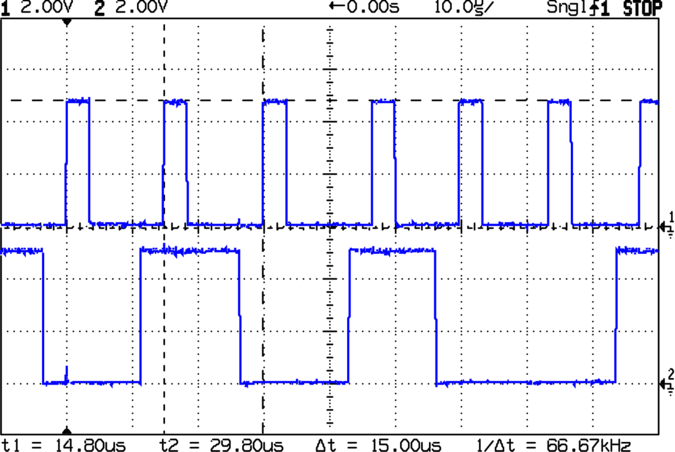
    The scope shot shows that shiftOut() ticks along at 15 µs per bit (clock in the upper trace, data in the lower trace). For back-of-the-envelope purposes, call it 8 kB/s, which is probably less than you expected. If you have a string of 5 external bytes, as I did on a recent project, that’s only 1600 updates / second. It was part of a memory board reader & EPROM programmer: reading an 8 kB ROM chip requires two shift-register runs (one to set the address & data, one to read in the chip output), so the overall rate was on the order of 10 seconds per pass and much worse for programming. You can optimize the number of bits by not shifting out all the bytes, but that’s the general idea.

    Because ‘595 chips are output-only, in order to get 8 bits of data into the Arduino board, add a 74HC166 parallel-in/serial-out chip to the string. Alas, shiftOut() doesn’t know about input bits, so you’re on your own.

    Hardware SPI: Clock and Data
    Hardware SPI: Clock and Data

    If you’re going to have to write some code to get input bits anyway, you may as well use the ATmega168 (and its ilk) hardware SPI as it was intended to be used: for high-speed synchronous serial I/O. This scope shot shows the SPI clock (in the top trace again) ticking along at 1 µs per bit, which is 1/16 the Diecimila’s oscillator frequency. You can pick any power of two between 1/2 and 1/128; I used 1/16 because it’s fast enough to make the rest of the software the limiting factor, while slow enough to not require much attention to layout & so forth.

    Start by Reading The Fine Manual section about the ATmega168’s SPI hardware, starting at page 162.

    The pin definitions, being lashed to internal hardware, are not optional. Note that SCK is also the standard Arduino LED, which won’t be a problem unless you need a tremendous amount of drive for a zillion ‘595s. I stuck an additional LED on Arduino digital pin 2.

    #define PIN_HEARTBEAT     2             // added LED
    #define PIN_SCK          13             // SPI clock (also Arduino LED!)
    #define PIN_MISO         12             // SPI data input
    #define PIN_MOSI         11             // SPI data output
    

    Initial hardware setup goes in the usual setup() function:

    pinMode(PIN_SCK,OUTPUT);       // set up for "manual" SPI directions
    digitalWrite(PIN_SCK,LOW);
    pinMode(PIN_MOSI,OUTPUT);
    digitalWrite(PIN_MOSI,LOW);
    
    pinMode(PIN_MISO,INPUT);       // configure inputs
    digitalWrite(PIN_MISO,HIGH);
    
    SPCR = B01110001;              // Auto SPI: no int, enable, LSB first, master, + edge, leading, f/16
    SPSR = B00000000;              // not double data rate
    

    Basically, the “manual” setup allows you to wiggle the bits by hand with the hardware SPI control disabled.

    Arduino Hardware SPI Schematic
    Arduino Hardware SPI Schematic

    Here’s a chunk of the schematic so you can see how the bits rattle around. You’ll surely want to click it to get the details…

    I put the data in a structure that matches the shift register layout, with the first byte (Controls) connected to the ATmega’s MOSI pin and the last byte (DataIn) connected to MISO. The SCK pin drives all of the serial clock pins on the ‘595 and ‘166 chips in parallel. Your structure will certainly be different; this was intended to suck data from a Tek 492 Spectrum Analyzer memory board.

    typedef struct {      // external hardware shift register layout
     byte Controls;       // assorted control bits
     word Address;        // address value
     byte DataOut;        // output to external devices
     byte DataIn;         // input from external devices
    } SHIFTREG;
    
    SHIFTREG Outbound;    // bits to be shifted out
    SHIFTREG Inbound;     // bits as shifted back in
    

    The functions that make it happen are straightforward:

    void TogglePin(char bitpin) {
     digitalWrite(bitpin,!digitalRead(bitpin));
    }
    void PulsePin(char bitpin) {
     TogglePin(bitpin);
     TogglePin(bitpin);
    }
    
    void EnableSPI(void) {
     SPCR |= 1 << SPE;
    }
    
    void DisableSPI(void) {
     SPCR &= ~(1 << SPE);
    }
    
    void WaitSPIF(void) {
     while (! (SPSR & (1 << SPIF))) {
    //        TogglePin(PIN_HEARTBEAT);       // use these for debugging!
    //        TogglePin(PIN_HEARTBEAT);
     continue;
     }
    }
    
    byte SendRecSPI(byte Dbyte) {             // send one byte, get another in exchange
     SPDR = Dbyte;
     WaitSPIF();
     return SPDR;                             // SPIF will be cleared
    }
    
    void CaptureDataIn(void) {                // does not run the shift register!
     digitalWrite(PIN_ENABLE_SHIFT_DI,LOW);   // allow DI bit capture
     PulsePin(PIN_SCK);                       // latch parallel DI inputs
     digitalWrite(PIN_ENABLE_SHIFT_DI,HIGH);  // allow DI bit shifting
    }
    
    void RunShiftRegister(void) {
     EnableSPI();                             // turn on the SPI hardware
    
     Inbound.DataIn  = SendRecSPI(Outbound.DataIn);
     Inbound.DataOut = SendRecSPI(Outbound.DataOut);
    
     Inbound.Address  =         SendRecSPI(lowByte(Outbound.Address));
     Inbound.Address |= ((word) SendRecSPI(highByte(Outbound.Address))) << 8;
    
     Inbound.Controls = SendRecSPI(Outbound.Controls);
    
     PulsePin(PIN_LATCH_DO);                   // make new shift reg contents visible
     PulsePin(PIN_LATCH_ADDRESS);
     PulsePin(PIN_LATCH_CONTROLS);
    
     DisableSPI();                             // return to manual control
    }
    

    Actually using the thing is also straightforward. Basically, you put the data-to-be-sent in the Outbound variables and call RunShiftRegister(), which drops output bytes into SPDR and yanks incoming bytes out, then stuffing them in the Inbound variables. I have separate latch controls for the Controls, Address, and Data chips, although I don’t use them separately here.

    You must wiggle the parallel latch enable line on the 74HC166 chip before shifting to capture the data, as shown in CaptureDataIn(). That chip also requires a separate pulse on its serial clock line to latch the data, which you do manually with the hardware SPI disabled. If you’re paying attention, you’ll wonder if that clock pulse also screws up the data in the rest of the chips: yes, it does. If this is a problem, you must add some external clock-gating circuitry, disable the ‘595s, or pick a different input shift register chip; it wasn’t a problem for what I was doing.

    Here’s a function that reads data from a RAM chip on the Tek memory board, so it must write the address and read the RAM chip’s output. The PIN_DISABLE_DO bit controls the output buffers on the ‘595 that drives the RAM’s data pins; they must be disabled to read data back from the RAM. Don’t worry about the other undefined bits & suchlike; just assume everything does what the comments would have you believe.

    byte ReadRAM(word Address) {
     digitalWrite(PIN_DISABLE_DO,HIGH);            // turn off data latch output
     digitalWrite(PIN_BUS_READ,HIGH);              // allow RAM read access
    
     Outbound.Controls |=  CB_BUS_CLKPH2_MASK;     // set up RAM -CS gate
     Outbound.Address = Address;
     Outbound.DataOut = 0x55;                      // should not be visible
     RunShiftRegister();
    
     digitalWrite(PIN_BUS_N_SYSRAM,LOW);           // activate RAM -CS
     CaptureDataIn();                              // latch RAM data
     digitalWrite(PIN_BUS_N_SYSRAM,HIGH);          //  ... and turn -CS off
    
     Outbound.Controls &= ~CB_BUS_CLKPH2_MASK;     // disable -CS gate
     RunShiftRegister();                           // tell the board and get data
    
     return Inbound.DataIn;
    }
    
    Hardware SPI - Detail of clock and data timing
    Hardware SPI – Detail of clock and data timing

    Here’s a detailed shot of the outbound bit timing. Notice that the upward clock transitions shift bits into the ‘595 and ‘166 chips, while the SPI output data changes on the downward transitions. You can tweak that to match your hardware if you’re using different shift register chips, by messing with the SPCR settings.

    Bottom line: using the ATmega168 hardware SPI provided a factor-of-15 speedup and serial digital input, too.

  • Simpleminded EPROM Programming Power Supply

    My buddy Eks recently acquired a “guaranteed broke” Tektronix 492 spectrum analyzer that turned out to have a defunct memory board: the ROM holding the initial boot firmware has a bad checksum. He verified that by swapping in a memory board from another 492 and found it worked perfectly.

    The original board used Mostek MK36400 8Kx8 masked ROMs, but they can be replaced by either 27HC641 or (in a pinch) a quartet of 2716 EPROMs. Being a stickler for authenticity, Eks picked up some 27HC641 chips. That means we need a device programmer, as none of the burners we have know anything about 27HC641s. There are other ways of getting the job done, but this has the advantage of getting me some face time with my role model for being a Renaissance Man.

    Tek EPROM Power Supply Breadboard
    Tek EPROM Power Supply Breadboard

    To make a long story somewhat shorter, the 27HC641 is a 8Kx8 EPROM in a 24-pin package with the usual 12 address lines, 8 data lines, power, ground, and a single chip-select / output-enable / programming-voltage pin. Normal EPROMs in 28-pin packages have separate pins for all those functions to make life easier.

    Anyhow, the CE/VPP supply must provide 30 mA at 12.5 V as well as the usual minuscule FET logic currents at 5 V and 0 V. The VCC supply must cough up a staggering 90 mA during normal operation at 5 V and 30 mA at 6 V during programming. Both supply voltages must switch between three levels: unnaturally high during programming, 5 V for normal operation, and 0 V for output-enable and during chip removal / installation in the programming socket.

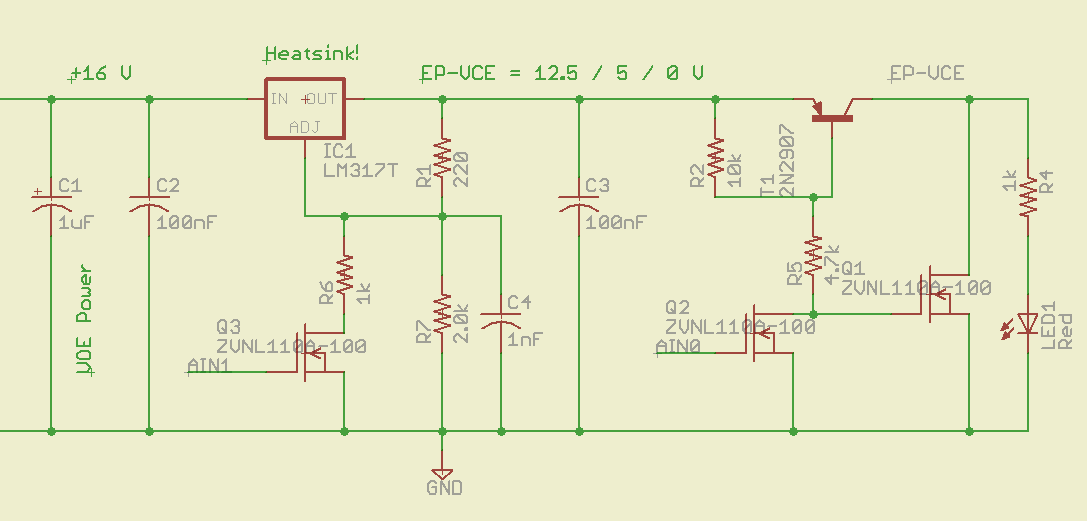
    This being an entirely one-off project, I used good old LM317T regulators with a handful of transistor switches to vary the voltage and clamp the output to ground. The CE/VPP supply looks like this:

    Schematic of VPP-VCE pin supply
    Schematic of VPP-VCE pin supply

    An Arduino will drive the gates of Q2 & Q3, with all the programming logic and timing handled by software. The shortest VPP pulse is a millisecond long, so that’s not a real restriction, and the verification can happen at nose-pickin’ speed. That simplifies a lot of other things about the project, too.

    Switch: 12.5 to 5 V
    Switch: 12.5 to 5 V

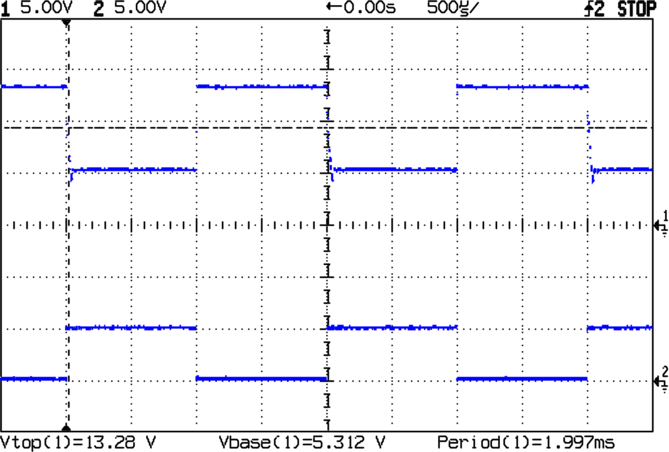
    Q3 selects the output voltage: gate high = 5 V, gate low = 12.5 V. The scope shot shows the gate driven with a 500-Hz square wave, which is about the right width for the programming pulse.

    I prototyped this on a solderless breadboard (ptooie) as shown above with 5% resistors, so the actual voltages aren’t quite nominal. The readout says 13.28 and 5.3 V, which will need some trimming to get inside the EPROM’s 5% spec.

    The 1 nF cap at the LM317 Adjust terminal encourages stablity by knocking off the high-frequency stuff and slowing down the transitions just a smidge. The datasheet suggests up to 10 µF, which turns the transitions into triangles.

    The LM317 can only supply current to its load, so reducing the output voltage requires the load to draw current from C3. Because this is essentially a DC application, C3 can be quite small: there won’t be any other switching going on during the programming pulse. The datasheet recommends 1 – 10 µF, but definitely more than 5 nF.

    The LED is actually a key part of the circuit, as it draws current to pull the output voltage downward: more LED current = faster transition time. However, higher C3 = slower transitions.

    Fall time: 12.5 to  5 V
    Fall time: 12.5 to 5 V

    Seen at a higher magnification, the falling edge of the output waveform shows a decay that lasts 50 µs or so. The LED draws maybe 12 mA at 13 V, so the voltage across C3 should drop at

    (1/100 nF) x (12 mA) = 120 V/ms

    Applying a straightedge to the early part of that curve looks like 25 V in 100 µs; call it 250 V/ms, maybe a bit less.

    What’s a factor of two among friends, particularly given the tolerances on ceramic caps?

    T1 and Q1 (I don’t know why Eagle’s models use both T and Q as transistor prefixes, it’s probably an international thing) switch the output line between the LM317 and ground; I suspect just turning T1 off would work as well, but this way the chip pin is firmly held to 0 V, where it should be, regardless of leakage and other oddities.

    Switch: 5 to 0 V
    Switch: 5 to 0 V

    Because Q1 crops both sides of the transistion, the rise and fall happen in nanoseconds rather than microseconds.

    So, now that I know this will actually work, I can build a PCB and write some firmware…

    Memo to Self: make sure the code waits for the output transitions. Methinks delayMicroseconds() will be a constant companion.

  • Arduino Hack-job LCD Negative Bias Supply

    Most character-mode LCDs seem to be happy with a VEE supply of about 0 V, which produces enough contrast to get by. If you have a negative supply handy, then it’s easy to goose it with a little negative bias and improve the contrast.

    What if you don’t have a negative supply and you’re using an old craptastic LCD that really wants VEE = -1 V and you didn’t realize that until you had everything wired up and it’s a one-off / low-duty-cycle instrument that you don’t want to spend much more time on?

    Just whack up a quick-and-dirty charge pump inverter…

    Quick and dirty LCD VEE Inverter
    Quick and dirty LCD VEE Inverter

    It turns out that the circuitry already had a 33 kHz PWM square-wave signal driving something else, so I air-wired this inverting charge pump to the PWM output. You could, of course, put an otherwise unoccupied PWM output to good use, which is a better idea if you have the option.

    You can use a PWM output, but the charge pump depends on being fully charged & discharged in every cycle. Run your own numbers.

    The LCD’s VEE input dumps about 1 mA to the supply, which means the charge pump must be able to pull out 1 mC/s, more or less. At 33 kHz, each cycle must haul 30 nC.

    Assuming the Arduino (well, any microcontroller will do, but that’s what I’m using) has a 5 V power supply and the output pin isn’t overloaded from the rest of its function and the cap charges & discharges completely during each half-cycle, then the first cap must store that 30 nC of charge. You want a lot more than that so you have a stiff supply to work with.

    Q = CV, so you need at least 30 nC/5 V = 6 nF. Nothing exceeds like excess, so I soldered a 220 nF box cap standing up from the header pin on the circuit board and air-wired the diodes in place. That will transfer lots more charge and keep the voltage nicely negative.

    I have a lifetime supply of 10 µF solid tantalum caps, so that’s what I used for the filter cap. Regulation isn’t critical, but each pump cycle shouldn’t change the voltage on that cap very much. In fact, pulling 220 nF * 5 V = 1 µC from the filter cap while injecting 30 nC from the LCD leaves you with a whopping 970 nC deficit: it’ll stay around -5 V just fine.

    Actually, it won’t. The negative supply will be about two diode drops above -5 V. The diodes aren’t carrying a lot of current, so they’ll be running at maybe half a volt apiece. Call it -4 V, more or less. You could use Schottky diodes if you need more negative volts.

    If the LCD dumps 1 mA into the supply and -1 V produces the right contrast, then a 3 k resistor will drop the necessary voltage from the supply.

    As it turned out, the LCD dumped 800 µA, -0.8 V gave the right contrast, and a 4.7 k resistor worked just fine. Maybe you want a twiddlepot in there to adjust things.

    You need that little cap right at the LCD VEE pin to soak up the spikes from the LCD drive multiplexing, as this “power supply” has nearly 5 k output impedance. Yow!

    If you’re worried about temperature compensation, then you’ll need something fancier. In that case, you’ll also want a Spice model to be sure all these rough-and-ready calculations cut somewhere close to the truth.

    Memo to Self: maybe next time this should be on the PCB right from the start, even if it’s not really needed? Or, much better, just go with a single-chip inverter and be done with it!

    Update: If you’re worried about driving a bare cap from your microcontroller pin, add a small-value series resistor. The time constant should be maybe a third of the square-wave period: 15/3 = 5 µs in this case, so the resistor should be 5 µs/220 nF = 22 Ω. That limits the peak current to no more than 5 V/22 Ω = 230 mA, not a big improvement. Mostly, the microcontroller pin will be OK if you’re using small caps.