Ed Nisley's Blog: Shop notes, electronics, firmware, machinery, 3D printing, laser cuttery, and curiosities. Contents: 100% human thinking, 0% AI slop.
After dumping last month’s data, I conjured up a piece of double-sided circuit board and soldered a turret terminal to each side. It’s thin enough to fit between the cell’s positive cap and the holder’s contact without distorting things too much.
The lowest range on most of my digital meters is 200 mA, which is far too high. I tried an ancient analog meter with a 50 µA range, but the meter’s resistance was too high to keep the Hobo’s PC program happy: it claimed there was no logger out there. Finally I found a digital meter with a 4 mA range and 1 µA resolution, which was just right.
Turns out that the logger draws 8 or 9 µA between readings, which is pretty much what it should be. At that rate, a CR2032 lithium coin cell with a capacity of 230 mA should have a lifetime of 23 k hours: call it three years. Obviously, it’ll be less than that, what with periodic loggings and dumpings and suchlike.
The current’s the same with the external temperature probe plugged in and doesn’t change when I poke the capacitors. So the logger seems to be working perfectly.
Which means I got a bad batch of Renata CR2032s two years ago. I just pulled one from another logger that I installed 5 Feb 09: all of six months ago. If I installed a series of really feeble cells in this logger, well, that would explain what I experienced.
I’m currently using Energizers in the other loggers, so we’ll see what happens a year from now.
But I’ll keep the alkalines on the back of this logger, as they should last basically forever at this rate.
I picked up a Plantronics phone headset that’s nominally compatible with Kyocera phones, but of course not with the Virgin Mobile K127 Marbl I have. More on why I have that phone there. There are, as nearly as I can tell, no third-party headsets available for this phone.
The Plantronics headset has the pinout shown to the upper right in the note below. It’s straightforward:
shell — common
ring 1 — left audio
ring 2 — right audio
tip — mic + button
Plugging the headset in causes the phone to throw a hissy fit.
Jamming an open-circuit plug into the phone’s jack has no effect; the phone thinks there’s nothing going on and still routes the audio to the internal speaker.
Evidently, the phone expects a different combination on the plug.
Some Webbish rummaging produced a list of headset pinouts, which goes to show that there’s nothing like having enough standards that everybody can have one…
Headset Pinouts
More tinkering is in order, but I found this list while I was clearing away the rubble from some completed projects and figured I should put it somewhere obvious.
Got a Digital Concepts CH-3988S charger with quartets of AA & AAA cells from buy.com (which no longer sells it, no surprise, but it’s still available elsewhere) on closeout for about 12 bucks delivered, down from the “regular” price of something like $40; anybody who paid that much got well and truly hosed.
I fully expected the cells to be crap and they were: they don’t even bear a manufacturer’s name. Tellingly, they weigh 25 grams each, lighter than the 28-30 grams of more cough reputable brands.
No-name AA NiMH – Charge 1
The upper trace (click the graphs for readable pix) is the four AA NiMH after the charger said it was happy with them. The trace drops off the cliff at about 25 mAh. Call it 1% of nominal capacity.
The four lower traces are the individual cells after another trip through the charger. The far-right end of those bottom curves is 70 mAh, with the cell voltage barely over 1 V for the entire discharge.
Fairly obviously, they’re not accepting a charge.
Charging the cells in a known-good 400 mA charger (roughly C/6) brought the best cell up to 160 mAh, with the rest around 100 mAh; the charger was happy with them after far less than 6 hours, so apparently the cells display a much higher terminal voltage than they should.
So I plunked them in a dumb 250 mA slow charger and let ’em cook for the full 8 hours. That should, in principle, give them roughly 2 Ah of charge, no matter what the terminal voltage may be; I measured 1.8 V, which is far too high for that rate.
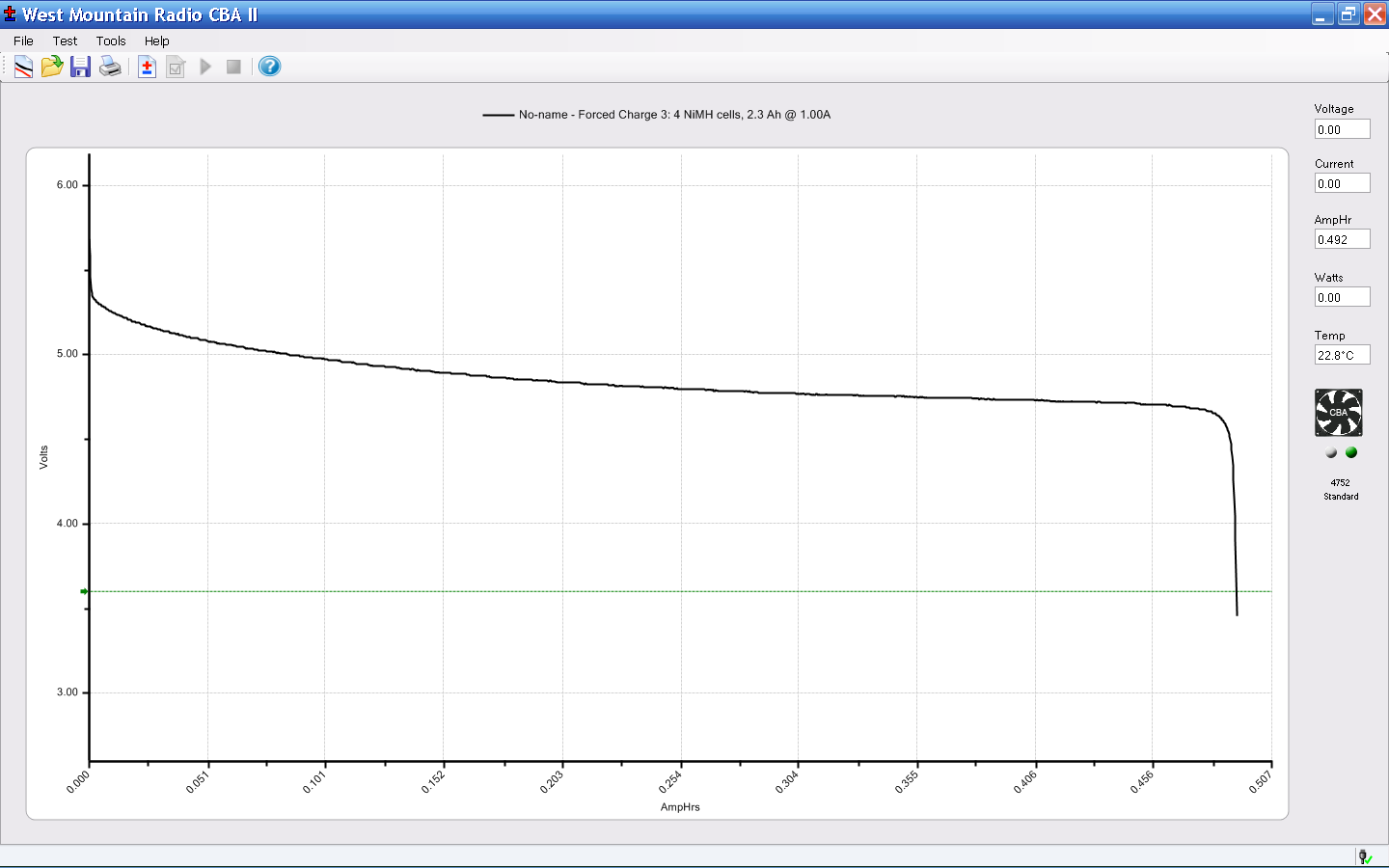
No-name AA NiMH – Forced Charge 3
So, here’s the result…
Crap. Pure, utter, unadulterated crap. The cells supplied 500 mAh, much more than before, but that’s so far below their rating it’s not even funny. There’s obviously one cell in there that’s bad, but the others can’t possibly be far behind.
I didn’t waste any time on the quartet of AAA cells, but I expect they’re pretty much the same.
It’s faintly possible that exercising these turkeys will bring them up to maybe 50% of capacity, but it’s not like that’d make me ecstatic. The reviews you’ll find here and there support the conclusion that something is wrong with these cells.
No-name AA NiMH – Charge 4
Here’s the result of the next cycle, after a night in their very own charger. The upper trace is all four of them together, once again failing after 500 mAh.
The four lower traces labeled “Cell x” are the individual cells, tested without recharging. Three of the four have about 700 mAh left in them, which would bring their total capacity to 1200 mAh, roughly half of their nominal capacity.
Cell B, the green trace, is obviously the weak link, as it failed almost instantly. Recharging it on a known-good charger got it back up to 530 mAh (the “Cell B recharge” curve), roughly 25% of its nominal capacity. So much for the idea it’ll get better if you treat it right.
Now, turning to the charger…
The Digital Concepts CH-3988S charger is advertised on its package as a “2 Hour Charger”, but its manual / datasheet indicates that claim is, mmmm, not strictly correct:
CH-3988S Charging Times
Remember that the nominal AA cell capacity is 2.3 Ah, so charging the four AA cells included with it requires three or four hours. Well, OK, only 2.5 hours if you do ’em pairwise, but that’s five hours total.
On the other paw, the charger does (seem to) monitor the cell voltage and cut off automagically, on either negative delta-V or maybe just peak voltage. Unleashing it on a pair of partially discharged Tenergy RTU 2.3 Ah cells indicates that it cooks the piss right out of them, there toward the end.
The charger is (probably) OK for low-rate charging of known-good cells, which is what I got it for; the cells accompanying it are crap. It’s not worth returning for twelve bucks, seeing as how the shipping would eat half of that.
So, anyway, if you ever wondered what a bottom-dollar charger-with-cells offer gets you, now you know.
Much as I expected, there’s just not enough energy in a 5 V / 200 A resistance soldering unit to weld 8-mil nickel strips to AA cells. But the gadgetry needed to contact the cells works fine for resistance soldering.
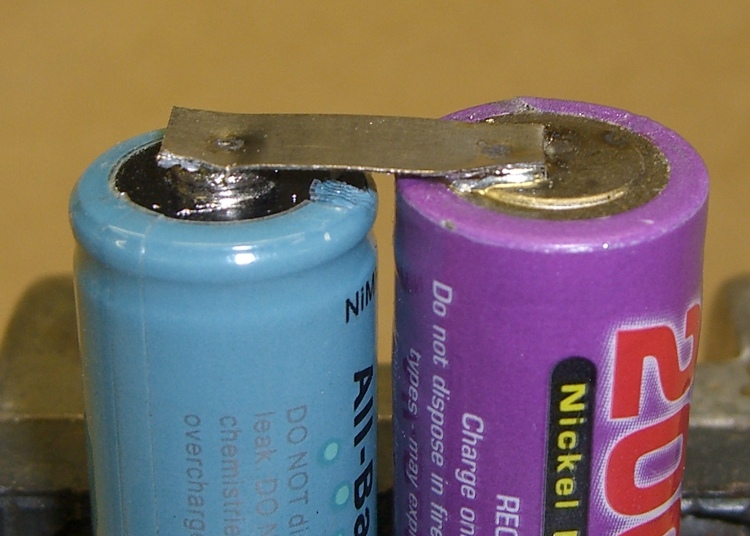
I took a pair of sacrificial cells, grabbed the positive terminal of the blue one in the pliers, applied a flattened snippet of good old rosin-core tin-lead solder (see below), laid the strip atop it, and held things together with pressure from the tungsten electrode.
About 800 ms of current did the trick; the electrode heated to middling orange by the time the current shut off, which indicates it was the highest-resistance part of the circuit. Eyeballing an ammeter clamped around a secondary lead says the peak current was 250 A, a bit over the nominal 200 A, but close enough.
The obvious dent in the strip over the positive terminal shows that the center of the solder strip melted first; I could feel the tungsten electrode sinking into the strip as it heated.
For the negative terminal, I grabbed both cells in a small vise (resting on insulation below the bottom terminals!), tucked another solder strip under the nickel tab, pressed one jaw of the pliers against the cell, and hit the tab with the tungsten electrode. Lovely fillet, isn’t it?
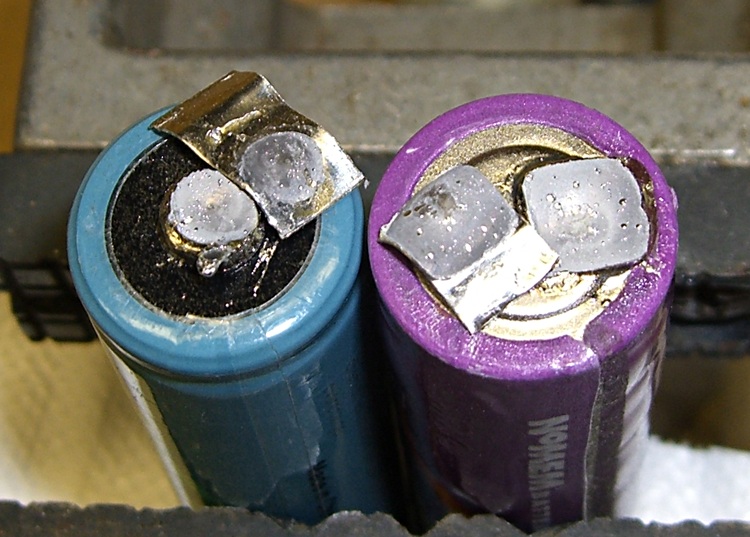
Destructive Joint Examination
The joints look good inside, too. I cut the strip, then peeled the joints apart: they’re both fully wetted. You can see some tiny bubbles from the rosin, but I doubt that’s a problem.
Now, you don’t want to solder to AA cells by hand with a soldering iron, because it’s entirely too easy to cook the piss out of the plastic insulators, pressure relief valves, and other internal gadgetry. Yeah, I’ve done that too, and it works most of the time, but it’s not recommended.
A controlled pulse is all over and done with before the rest of the metal case has time to get more than warm. In fact, by the time I put down the electrodes, the nickel strip was cool enough to touch! The copper jaws act as a heat sink for the positive button and the negative terminal is the entire can around the cell, so I think this will be OK.
I’ll do a bit of testing on some sacrificial cells to figure out the minimum time required for a good joint; I think 600 ms will do. I might use a carbon electrode for the positive terminal to get a somewhat larger contact over the whole button and eliminate that unsightly dent.
Solder prep: I flattened about 3 mm of ordinary solder wire by whacking it with a polished brass hammer on a chunk of PCB stock. Flat solder works better than round solder for resistance soldering, as everything stacks up neatly with lots of contact area. The pix there should give you the general idea.
I’m mildly unhappy with the pliers, which must open a bit too far for my paws. A fixture that fits in the bench vise might be in order…
I’m trying to find out if I can use my hulking resistance soldering setup to weld nickel strips on AA cells, with the intent of making some decent 8-cell packs that don’t have crappy stainless-steel springs. Having slit the copper sheet for the jaws, I just now kludged together some electrodes…
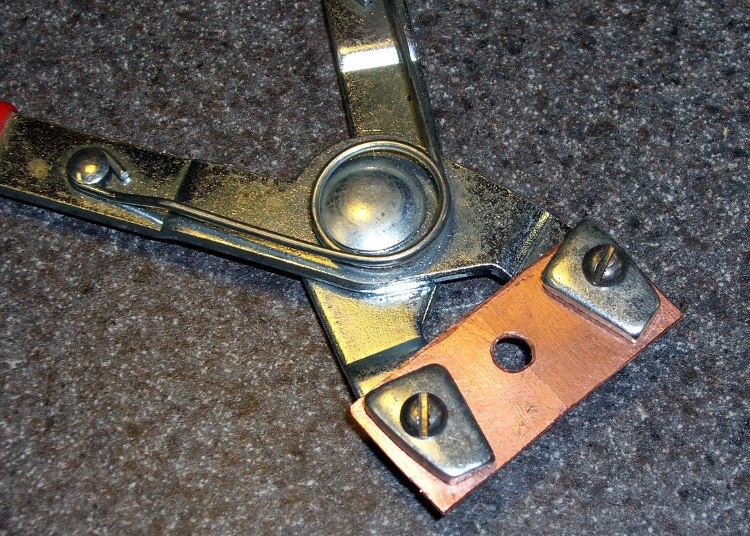
The positive terminal on an AA cell is almost exactly 3/16 inch in diameter, call it 0.188 inches. That’s the hole in the middle of the copper sheet, which is neatly split so it clamps the terminal button from all sides with nearly equal griptitude.
The pliers are snap-ring pliers, with the original weird metric screws (neither 3 nor 4 mm, which is all I have) replaced with stainless steel 8-32 screws. Drill-and-tap the pliers jaws, clearance drill the not-quite-rectangular clamping plates, bend the jaws so the copper sheet aligns properly. It’s all good.
I plan to add a jumper connecting the two copper sheets; obviously, you don’t get good current transfer without a solid connection. The darker gold-copper color in the center section is Kapton tape insulating the top of the jaw sheets.
The cable goes off to one terminal of the resistance soldering transformer, which is a rewound kilowatt-class microwave oven transformer. The basics are 5 V RMS at about 200 A, with a foot switch into a microcontroller that drives a triac on the transformer primary. I can set the timing in multiples of 100 ms (6 AC line cycles) and the duty cycle from 1 to 6 of the cycles in each 100 ms. More on that later; the triac triggering is nightmarishly complex because I was doing a Circuit Cellar column and wanted to show how a triac gets all confused driving an inductive load. It really needn’t be that fancy in real life.
Anyhow, 200 A is at least an order of magnitude less than the current from a capacitive-discharge welding setup, but I’m hoping that with some tweaking I can get enough heat to make it all work out. If not, it’ll still be a king-hell resistance soldering setup.
AA Cell Center Contact Electrode
The center electrode started life as an oil-burner ignition electrode. It’s a steel shaft joined to a (most likely) tungsten probe within the ceramic insulating tube. The cable goes off to the other transformer terminal.
Center Electrode – Side Detail
Tungsten is a fairly crappy conductor, so I forged a copper clamp around the end of the electrode. It started as a section of the same copper pipe that went into the pliers, hammered around the wire. That took many annealing cycles, which basically consists of heating the copper red-hot with a propane torch and letting it cool for a bit.
The two smaller screws apply clamping pressure to the copper around the electrode, which ought to improve the contact area. I plan to anneal the clamping area one more time, scrubulate the inside of the clamp, then screw everything together nice & tight with maybe a bit of anti-oxidation compound in there for good measure.
Center Electrode – Front Detail
The general idea is to apply the current as close to the AA cell’s terminal as I can. I think I must file / grind down the end of the probe so that it’s applying the juice exactly to the center of the nickel strip at the middle of the terminal.
The first test was 500 ms at 100% duty cycle, which produced a nice spatter of sparks from underneath the strip, the tungsten glowed orange, but the 8 mil nickel strip didn’t weld itself to the cell top. No weld nugget. Bupkis.
I’m kludging up a clamp to grab AA cells around their positive terminal so that I can resistance-weld nickel strips to that button. The general idea is that the current passes through the strip, through the button, and out the side to the clamp, rather than trying to heat the button through the strip from the top.
Trial Fitting the Jaws
A snap-ring pliers has pretty nearly all the right attributes, so I’m making up a set of copper jaws with a hole in the middle to grab the terminal. Basically, I whacked off a ring from a copper pipe, hacksawed it lengthwise, hammered it flat (work-hardening it in the process), and drilled some holes.
Then I grabbed it in the Sherline vise and set up a teeny 4-mil slitting saw. A bit of manual CNC ran the saw past the copper and, after a while, the top half just fell over dead with a perfectly shiny cut right down the middle!
Slitting Success
Useful things to remember for the next time around:
Cut only 0.2 mm into the copper per pass
100 mm/min feed is fine
4000 rpm is fast enough
A drop of cutting lube is a bunch on this scale
This worked out a whole lot better than I expected…
Here’s a quartet of discharge tests for a new set of Tenergy Ready-to-Use cells. It’s the same one that produced the green and red traces in that post. It looks as though it still has a weak cell, but it’s not too far off of the others.
Tenergy RTU Pack A Tests – Aug 2009
The lower black trace is after sitting around for a few days, the others are hot off a 4C charger. I think the black trace is more representative of the long-term voltage.
The two middle traces are essentially identical: same charging method, same discharging method.
The blue trace is at 100 mA (C/23); the others are at 500 mA (C/4.6). The cells don’t produce much more energy at the lower rate and, at 1.8 Ah, are still well below their 2.3 Ah rating.
The difference in voltages between the green and blue traces most likely has more to do with the relatively skinny wires and crappy spring-loaded stainless-steel battery connections. The current varies by 400 mA and a mere 0.5 Ω between the battery and the voltage measurement would account for the entire difference.








 The Smell of Molten Projects in the Morning