The Smell of Molten Projects in the Morning

Ed Nisley's Blog: Shop notes, electronics, firmware, machinery, 3D printing, laser cuttery, and curiosities. Contents: 100% human thinking, 0% AI slop.

Month: November 2012

  • Whirlpool Refrigerator: Replacement Freezer Shelf Bracket

    Somehow, one of the brackets that supports the small shelf inside the freezer of our Whirlpool refrigerator went missing over the many intervening years and repairs; we never used that shelf and stashed it in a closet almost immediately after getting the refrigerator, so not having the bracket didn’t matter. We recently set up a chest freezer in the basement for all the garden veggies that used to fill all the space available and decided to (re-)install the shelf, which meant we needed a bracket.

    It’s impossible to figure out exactly which “shelf stud” in that list would solve the problem, but one of the upper-left pair in that set seems to be about right. On the other paw, I don’t need all the other brackets and doodads and screws, sooo… I can probably make one.

    Start with a few measurements, then doodle up the general idea:
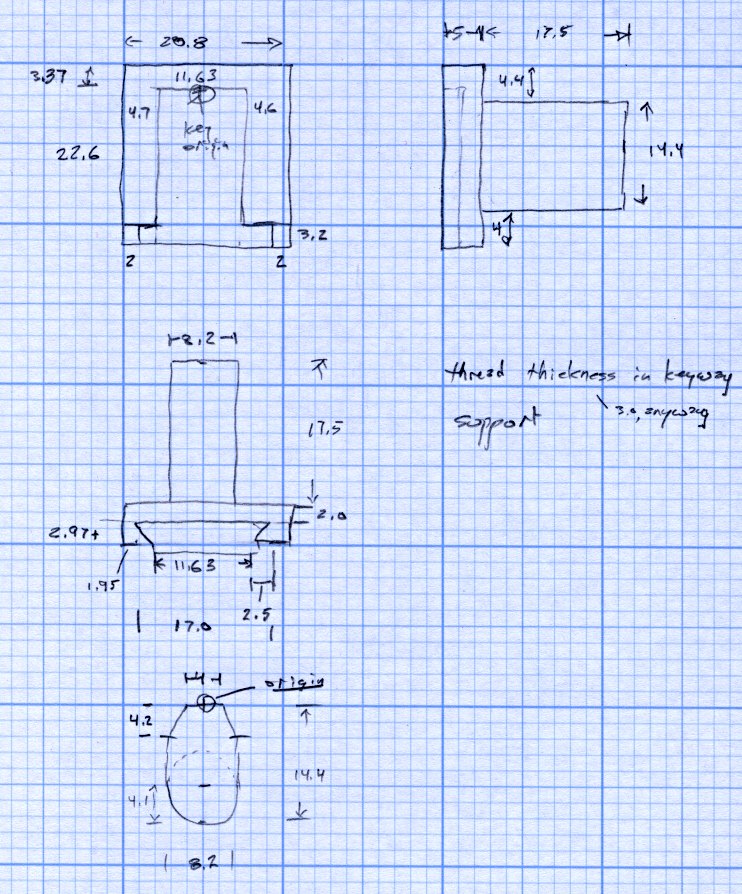
    Refrigerator Bracket - dimension doodle
    Refrigerator Bracket – dimension doodlet’s time to conjure up a solid model:

    A bit of OpenSCAD solid modeling:

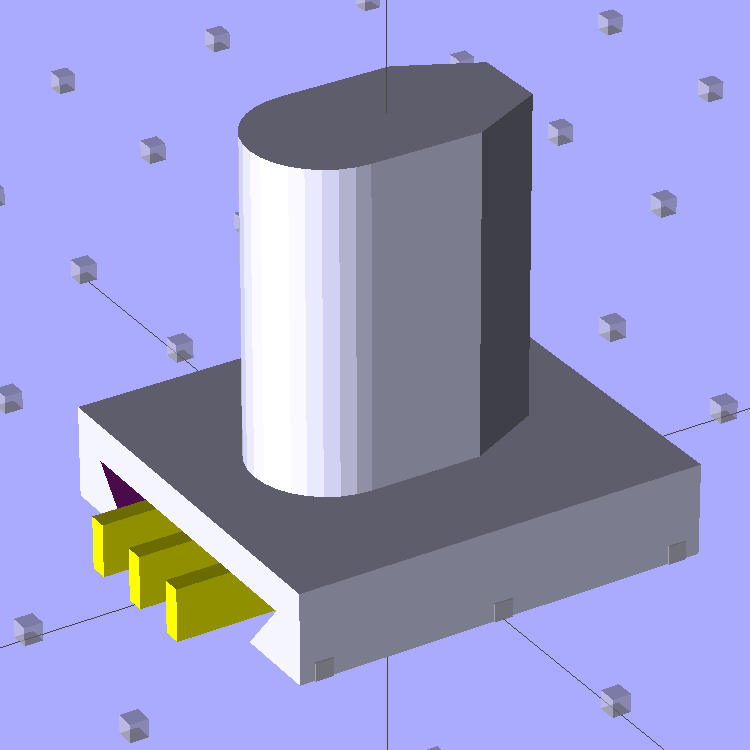
    Refrigerator Bracket Pin - solid model
    Refrigerator Bracket Pin – solid model

    The yellow bars support the ceiling of that big dovetail, which would otherwise sag badly. The OEM bracket has nicely rounded corners on the base and a bit of an overall radius at the end of the post; this was pretty close and easier to do.

    Now it’s time to Fire the Thing-O-Matic…

    I switched from blue to white filament during the print, because I figured I’d print another one after I got the sizes right, so it emerged with an attractive blue base:
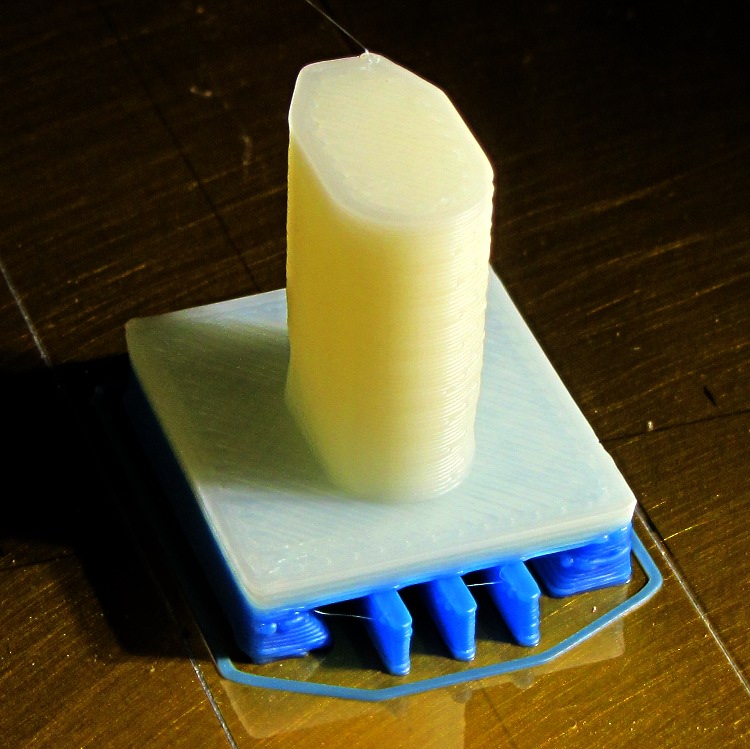
    Bracket on build platform
    Bracket on build platform

    A better view of the support structure:

    Bracket - dovetail support structure
    Bracket – dovetail support structure

    Two of the bars snapped off cleanly, but the third required a bit of scraping:
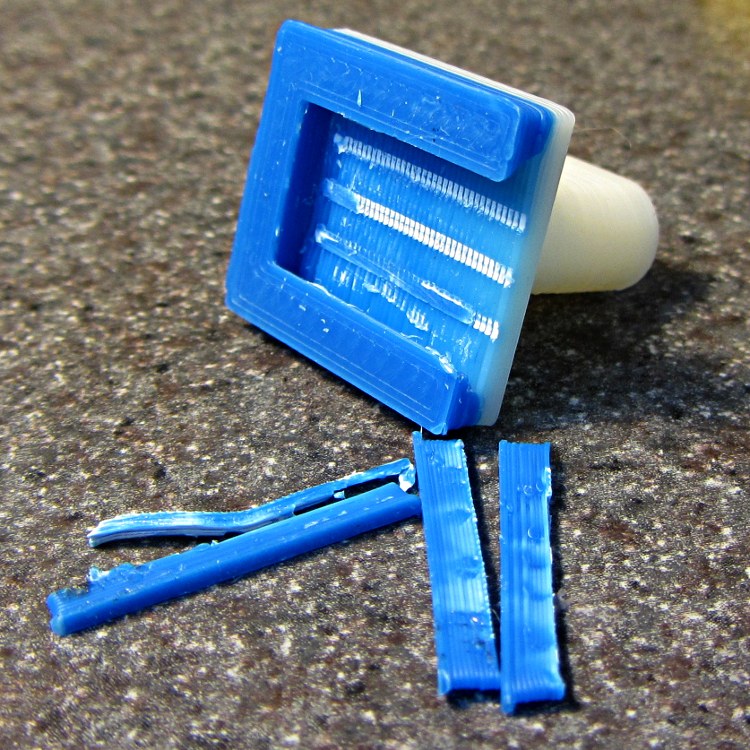
    Bracket - support scars
    Bracket – support scars

    Somewhat to my surprise, Prototype 001 slipped snugly over the matching dovetail on the freezer wall, with about the same firm fit as the OEM brackets:

    Refrigerator bracket - installed
    Refrigerator bracket – installed

    And it works perfectly, apart from that attractive blue base that I suppose we’ll get used to after a while:
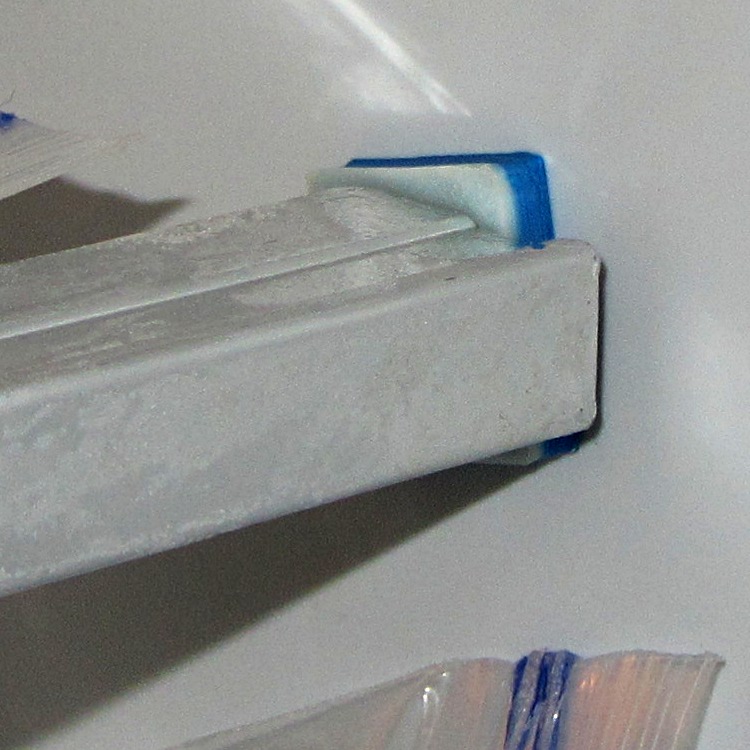
    Refrigerator bracket - in use
    Refrigerator bracket – in use

    I have no idea whether ABS is freezer-rated. It seems strong enough and hasn’t broken yet, so we’ll declare victory and keep the source code on tap.

    The whole project represents about an hour of hammering out OpenSCAD code for the solid model and another hour of printing, which means I’d be better off to just buy the parts kit and throw away the unused bits. Right?

    I loves me my Thing-O-Matic…

    The OpenSCAD source code:

    // Shelf support bracket
    // for Whirlpool freezer
    // Ed Nisley KE4ZNU Octoboer 2012
    
    //include </mnt/bulkdata/Project Files/Thing-O-Matic/MCAD/units.scad>
    //include </mnt/bulkdata/Project Files/Thing-O-Matic/Useful Sizes.scad>
    
    // Layout options
    
    Layout = "Build";
     // Overall layout: Show Build
     // Printing plates: Build
     // Parts: Post Base Keystone Support
    
    ShowGap = 10; // spacing between parts in Show layout
    
    //- Extrusion parameters must match reality!
    // Print with +1 shells and 3 solid layers
    
    ThreadThick = 0.25;
    ThreadWidth = 2.0 * ThreadThick;
    
    HoleWindage = 0.2;
    
    function IntegerMultiple(Size,Unit) = Unit * ceil(Size / Unit);
    
    Protrusion = 0.1; // make holes end cleanly
    
    //----------------------
    // Dimensions
    
    PostLength = 17.5;
    PostWidth = 8.2;
    PostHeight = 14.4;
    PostOffset = 4.4;
    
    PostTopWidth = 4.0;
    PostTopHeight = 4.2;
    
    BaseLength = 22.6;
    BaseWidth = 20.8;
    BaseThick = 5.0;
    
    KeystoneOffset = 3.4;
    KeyThick = IntegerMultiple(3.0,ThreadThick);
    KeyBase = 2.5;
    SlotOpening = 11.63;
    //----------------------
    // Useful routines
    
    module PolyCyl(Dia,Height,ForceSides=0) { // based on nophead's polyholes
    
    Sides = (ForceSides != 0) ? ForceSides : (ceil(Dia) + 2);
    
    FixDia = Dia / cos(180/Sides);
    
    cylinder(r=(FixDia + HoleWindage)/2,
     h=Height,
     $fn=Sides);
    }
    
    module ShowPegGrid(Space = 10.0,Size = 1.0) {
    
     Range = floor(50 / Space);
    
     for (x=[-Range:Range])
     for (y=[-Range:Range])
     translate([x*Space,y*Space,Size/2])
     %cube(Size,center=true);
    
    }
    
    //-------------------
    // Component parts
    
    //--- Post
    
    module Post(h=PostLength) {
    
    PostTopAngle = atan((PostWidth - PostTopWidth)/(2*PostTopHeight));
    PostBottomRadius = PostWidth/2;
    
    PostPolyTop = [PostTopWidth/2,0];
    PostPolyBottom = [PostWidth/2,-PostTopHeight];
    
    hull() {
     linear_extrude(height=h) {
     polygon(points=[
     [-PostPolyTop[0],PostPolyTop[1]],
     PostPolyTop,
     PostPolyBottom,
     [-PostPolyBottom[0],PostPolyBottom[1]]
     ]);
     translate([0,-PostHeight + PostBottomRadius])
     circle(r=PostBottomRadius,$fn=4*8);
     }
     }
    }
    
    //--- Base block
    
    module Base() {
    
     linear_extrude(height=BaseThick)
     square([BaseWidth,BaseLength],center=true);
    
    }
    
    //-- Keystone slot
    
    module Keystone() {
    
    Tx = SlotOpening/2 + KeyBase;
    
     rotate([90,0,0])
     linear_extrude(height=BaseLength)
     polygon(points=[
     [-Tx,KeyThick],
     [ Tx,KeyThick],
     [ SlotOpening/2,0],
     [ SlotOpening/2,-Protrusion],
     [-SlotOpening/2,-Protrusion],
     [-SlotOpening/2,0]
     ]);
    }
    
    //--- Support structure
    
    module Support() {
    
    SupportLength = BaseLength - 2*ThreadWidth;
    SupportWidth = 2*ThreadWidth;
    SupportHeight = KeyThick - Protrusion;
    
    SupportPeriod = 7.0*ThreadWidth;
    
    SupportBeams = 3; // must be odd -- choose to fit
    SIndex = floor((SupportBeams - 1)/2);
    
    for (i=[-SIndex:SIndex])
     translate([(i*SupportPeriod - SupportWidth/2),-(SupportLength + ThreadWidth),0])
     color("Yellow") cube([SupportWidth,SupportLength,SupportHeight]);
    }
    
    //--- The whole thing!
    
    module Bracket(ShowSupp) {
    
     union() {
     difference() {
     Base();
     translate([0,(BaseLength/2 - KeystoneOffset),0])
     Keystone();
     }
     translate([0,(BaseLength/2 - PostOffset),BaseThick - Protrusion])
     Post(h=(PostLength + Protrusion));
     }
    
     if (ShowSupp)
     translate([0,(BaseLength/2 - KeystoneOffset),0])
     Support();
    
    }
    
    //----------------------
    // Build it!
    
    ShowPegGrid();
    
    if (Layout == "Show")
     Bracket(false);
    
    if (Layout == "Build")
     Bracket(true);
    
    if (Layout == "Post")
     Post();
    
    if (Layout == "Base")
     Base();
    
    if (Layout == "Keystone")
     Keystone();
    
    if (Layout == "Support") {
     Support();
    % Keystone();
    }
    
  • Arduino Digital Output Drive vs. Direct-connected LEDs

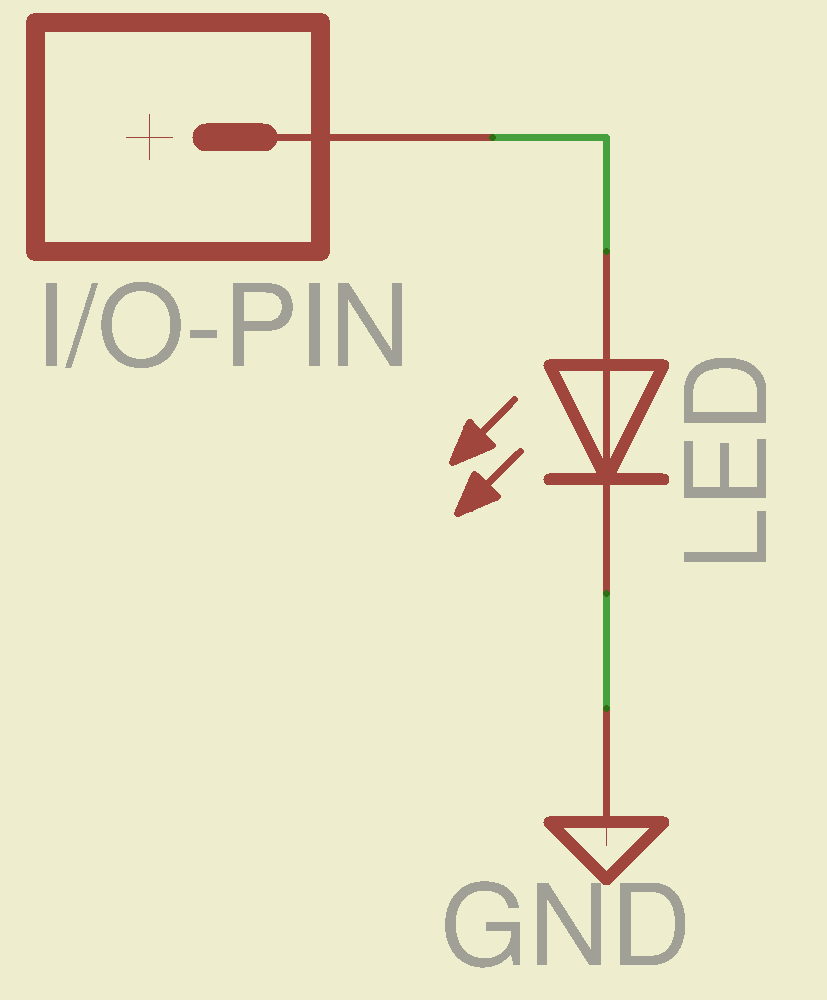
    What happens when you jam an LED into an Arduino digital output and turn it on?

    Direct LED drive - no ballast resistor
    Direct LED drive – no ballast resistor

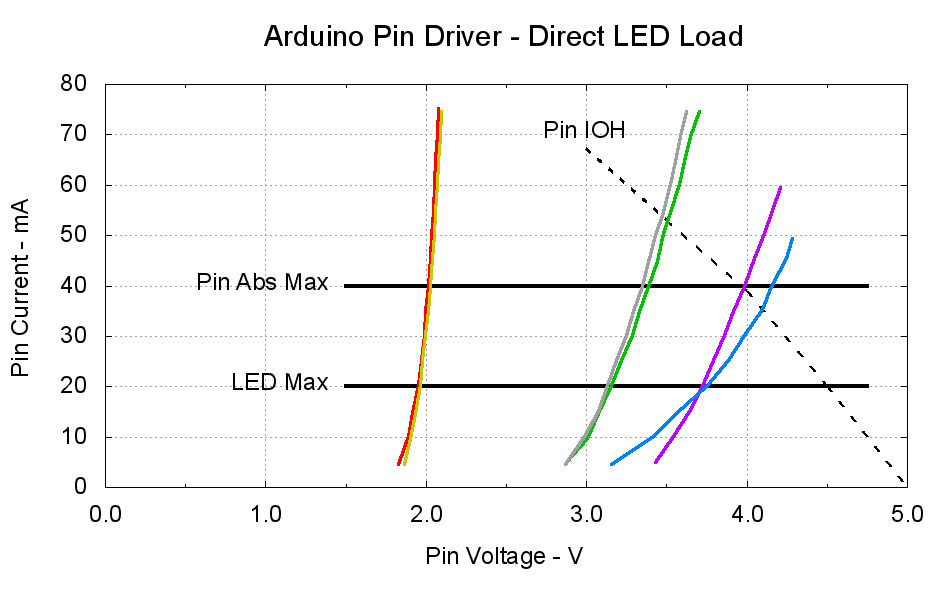
    This plot gives the load-line solution for that situation:

    Arduino Pin Driver - Direct LED Load
    Arduino Pin Driver – Direct LED Load

    The dotted curve comes from Figure 29-22 of the ATmega168 datatsheet and shows the typical source current vs. voltage for a digital output pin on your favorite Arduino.

    The cheerful colored curves show the current vs. voltage characteristics of some random LEDs, with data from the same curve tracer setup as those.

    Given a particular LED directly connected between an Arduino output pin and circuit common (without the formality of a current-limiting ballast resistor), the intersection of the dotted output pin curve with the colored LED curve gives you the current & voltage at the pin. For example, the violet LED would operate at 4 V and 40 mA.

    Some gotchas:

    • Typical 5 mm LEDs, of the sort one might use for this experiment, have a maximum DC current limit of 20 mA
    • Arduino output pins have an absolute maximum current limit of 40 mA

    So all of the direct solutions drive too much current through the LED. Although the blue and violet LEDs don’t quite exceed the output pin limit, the others certainly do. Those old standby red & amber LEDs would have absurdly high intercepts, well beyond the limit of sanity, in the region where the data you see here breaks down, where the pin driver gives up and goes poof, not that that ever stopped anybody from trying.

    You’ve probably seen somebody do it. Next time, aim ’em here in a non-confrontational manner… [grin]

    My Arduino Survival Guide presentation has other info that may help that poor sweating Arduino survive. You don’t get my performance-art patter, but the pictures and captions should carry the tale…

    As part of conjuring up this plot, I discovered that, for whatever reason, Gnuplot’s TrueType font rendering (via gdlib) no longer works in Xubuntu 12.04: the font name has no effect whatsoever, but the point size does.

    The Gnuplot source code:

    #!/bin/sh
    #-- overhead
    export GDFONTPATH="/usr/share/fonts/truetype/msttcorefonts"
    Pinfile="ATmega Pin Driver Data - Source.csv"
    LEDfile="LED Data.csv"
    base="Arduino Pin Driver - Direct LED Load"
    Outfile="${base}.png"
    echo Output file: ${Outfile}
    fontname="Arial"
    echo Font: ${fontname}
    #-- do it
    gnuplot << EOF
    #set term x11
    set term png font "${fontname},18" size 950,600
    set output "${Outfile}"
    set title "${base}" font "${fontname},22"
    set key noautotitles
    unset mouse
    set bmargin 4
    set grid xtics ytics
    set xlabel "Pin Voltage - V"
    set format x "%4.1f"
    set xrange [0:${vds_max}]
    #set xtics 0,5
    set mxtics 2
    #set ytics nomirror autofreq
    set ylabel "Pin Current - mA"
    #set format y "%4.1f"
    set yrange [0:80]
    #set mytics 2
    #set y2label "Drain Resistance - RDS - mohm"
    #set y2tics nomirror autofreq ${rds_tics}
    #set format y2 "%3.0f"
    #set y2range [0:${rds_max}]
    #set y2tics 32
    #set rmargin 9
    set datafile separator "\t"
    set label "Pin IOH" at 3.0,70 center font "${fontname},18"
    set label "Pin Abs Max" at 1.4,40 right font "${fontname},18"
    set arrow from 1.5,40 to 4.75,40 lw 4 nohead
    set label "LED Max" at 1.4,20 right font "${fontname},18"
    set arrow from 1.5,20 to 4.75,20 lw 4 nohead
    plot \
    "${Pinfile}" using 1:3 with lines lt 0 lw 3 lc -1 ,\
    "${LEDfile}" using (\$5/1000):((\$1>0)?\$2/1000:NaN) index 0:0 with lines lw 3 lc 1 ,\
    "${LEDfile}" using (\$5/1000):((\$1>0)?\$2/1000:NaN) index 1:1 with lines lw 3 lc 2 ,\
    "${LEDfile}" using (\$5/1000):((\$1>0)?\$2/1000:NaN) index 2:2 with lines lw 3 lc 0 ,\
    "${LEDfile}" using (\$5/1000):((\$1>0)?\$2/1000:NaN) index 3:3 with lines lw 3 lc 4 ,\
    "${LEDfile}" using (\$5/1000):((\$1>0)?\$2/1000:NaN) index 4:4 with lines lw 3 lc 3 ,\
    "${LEDfile}" using (\$5/1000):((\$1>0)?\$2/1000:NaN) index 5:5 with lines lw 3 lc 7
    EOF
    

    A few early risers got to see a completely broken listing, with all the quotes and brackets and suchlike reduced to the usual HTML escaped gibberish…