The Smell of Molten Projects in the Morning

Ed Nisley's Blog: Shop notes, electronics, firmware, machinery, 3D printing, laser cuttery, and curiosities. Contents: 100% human thinking, 0% AI slop.

Month: March 2009

  • Linux Install Tweaks: The Basics

    The conventional wisdom for Linux installations is to put your /home directory in a separate partition, so that your next installation won’t blow it away. The intent is to save your settings for the new installation and avoid a bunch of tedious reconfiguration.

    That probably made sense back in the day when Unix installations didn’t change very much, very often, but it seems nowadays that hulking programs use elaborate configurations and don’t take kindly to being blindsided by old config files. I can’t provide specific details, but some upgrades have gone awry for mysterious reasons; a clean install fixed everything up again.

    I now do a clean OS installation in a freshly formatted partition, then spend a day or two tweaking everything. This eliminates a tremendous amount of cruft, takes advantage of new features, and generally seems to be more productive than dicking around trying to figure out exactly which old setting pooched the new version.

    Two meta-configuration choices help a lot:

    • All our “data” files live on a file server in the basement that’s mounted via NFS, so the local system doesn’t have much more than its own configuration.
    • Hard drives have plenty of space, so slicing the drive into smaller chunks and preserving the old installations doesn’t cost anything.

    Case in point: I’m setting up Xubuntu 8.10 on a system with partitions containing Kubuntu 7.10 and 8.04. I’ve blown away several different trial installations of Kubuntu & Xubuntu in this partition already; now things are looking good. The trick is to use manual partitioning and aim the installer at the correct spot.

    Make sure you get that right and always back up your partitions first!

    The disk layout on this box:

    sudo fdisk -l /dev/sda
    
    Disk /dev/sda: 160.0 GB, 160000000000 bytes
    255 heads, 63 sectors/track, 19452 cylinders
    Units = cylinders of 16065 * 512 = 8225280 bytes
    Disk identifier: 0xd0f4738c
    
       Device Boot      Start         End      Blocks   Id  System
    /dev/sda1               1           7       56196   de  Dell Utility
    /dev/sda2   *           8        2489    19928633    7  HPFS/NTFS
    /dev/sda3            2489        2973     3888569+  db  CP/M / CTOS / ...
    /dev/sda4            2974       19452   132367567+   f  W95 Ext'd (LBA)
    /dev/sda5            2974        3496     4200966   82  Linux swap / Solaris
    /dev/sda6            3497        6107    20972826   83  Linux
    /dev/sda7            6108       15245    73400953+  83  Linux
    /dev/sda8           15246       19452    33792696   83  Linux

    Yup, it has Windows on it; rarely gets booted, but it’s there. You cannot begin to imagine the number of reboots required to update even a minimal Windows install after a year.

    So, to begin…

    The first steps with a new PC:

    • back up the drive
    • shrink the Windows partition down to maybe 20 GB
    • snuggle the other pre-installed partitions next to it
    • create an extended partition over the rest of the disk
    • set up the Linux partitions

    After you’ve done that the first time, you never have to do it again… just ping-pong between two (or three!) Linux partitions with each new installation. There’s a bit of fussiness with grub, but it’s easy enough to either let the new installation capture the MBR or re-aim it at the old installation after the fact.

    For more details on partitioning & backups, particularly for laptops, go there. Use partimage (use System Rescue CD) for whole-partition backups to a USB drive and move on.

    I favor the mini.iso installation method, as it tends to install less cruft and loads the latest versions right from the start. Start from there and proceed as directed.

    Don’t do an x86_64 installation, even though you think it’d be cool. Flash doesn’t work yet and restarting Firefox a dozen times a day simply isn’t attractive. Trust me on this.
  • Poof: A Post!

    Looking at the calendar shows I missed 16 March… so I’ll just go back and rewrite history.

    I generally have two or three weeks of posts scheduled for release, one a day, just before 8 am Eastern US time. That way I can write ’em when I have the time, edit them a bit to make the answer look better (or, in some cases, come out right), and not have to worry about being somewhere else in the morning.

    Yes, I agree that’s a bit sneaky. Perhaps a blog post should appear when the spirit moves me, but all in all I’d rather not dump a dozen entries in two days, then go dry for a week.

    That’s how it works… and now I’ve filled in the hole.

    Memo to self: scan the dates a little closer next time, eh?

  • Electronic Fluorescent Ballast: Zowie!

    Back in 2000, I replaced the ballast in our bathroom light; the old one failed after a mere 45 years. The casing didn’t sport any PCB-free labels (no surprise there), so I disposed of the carcass at a town hazmat day.

    Under normal circumstances you’d replace the whole fixture, but this is a slender 4-foot chromed steel base with a matching chromed shield over a 4-foot fluorescent tube: charming, in a retro-mid-50s sort of way. We couldn’t find anything suitable at the local big-box home supply stores, so I just cleaned it up and stuck a new ballast inside.

    I indulged in the luxury of a warm-white tube so I didn’t look quite so dead in the morning.

    That ballast just failed, after a mere 9 years, which I confirmed by swapping in a new tube. It seems nothing lasts any more.

    We went through the same “should we get a new fixture?” exercise and, unwilling to drop more than $150 on a really cheesy two-tube fixture that would be way too bright, I bought Yet Another Ballast from, oddly enough, the same manufacturer and possibly even the same Mexican town.

    This time I got an electronic ballast, with an A sound rating which comes mostly for free without that big magnetostrictive iron core. Costs twice what the magnetic ballast does, but I figure you only go around once, right?

    It comes with a scary label telling you to insulate the unused lead (it can drive two tubes) “for 600 V”. That turns out to be the standard wire-nut rating, so I clipped off the exposed copper end and screwed the nut in place over the insulation. Wired the leads up per the diagram and that’s the end of that story.

    Now, I’m here to tell you that going from a nearly dead magnetic ballast to a shiny new electronic ballast is a wonder to behold: the tube pops on at full brilliance, far brighter than it ever was before, and is (no surprise) flicker-free.

    It’s almost enough to make me preemptively re-ballast the kitchen fixtures …

    Update: Which I did, a few months later. The 4-tube kitchen light pops on and is much brighter. However, that may be due to new tubes as much as anything; the ballasts wanted T8 tubes. Alas, I couldn’t find 3000 K warm-whites and had to settle for 3500 K soft-whites. All in all, a good improvement.

    More on electronic ballast adventures there.

  • Kosher-for-Passover Coca Cola: Closer to the Real Thing

    it’s about that time of the year again: get ready to stock up on Kosher Coke!

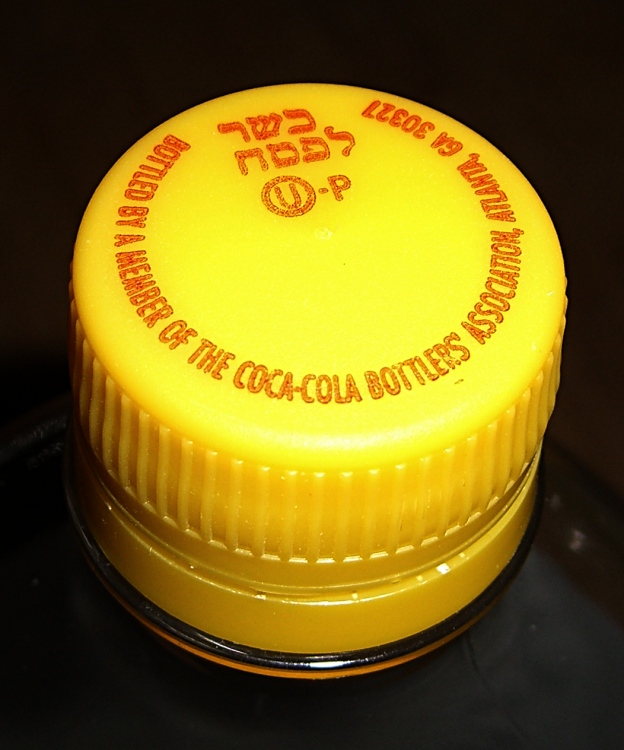
    Turns out that Coca Cola produces sugar-based Coke shortly before Passover each year; their usual high fructose corn syrup, while Kosher, falls into the Chametz category of grains that cannot be eaten during Passover.

    Kosher-for-Passover Coca Cola bottle cap
    Kosher-for-Passover Coca Cola bottle cap

    Bottles containing the special sugar-based formula wear a distinctive yellow cap, so they’re easy to spot against the usual all-red array. To cross-check: the ingredients list runs: Carbonated Water, Sucrose …

    A friend brought me a few two-liter bottles from a Jewish grocery store in the metro NYC/NJ area last year, shortly before I discovered that the local Target had a generous stockpile on the top shelf of their soda section. It’s allegedly available in cans, but I’ve never seen any.

    NB: Pepsi uses yellow caps around this time of year to mark their bottles for some dimbulb contest. At least they did that last year and I’m sure it’s no coincidence. If the cap doesn’t have distinctive Hebrew symbology and the ingredients still include HFCS, it ain’t been cleared for Passover consumption.

    While sugar-based Passover Coke is not the same as the old-school Coke you remember from long ago if you’re enough of an Olde Farte to do so, it’s as close as you’re going to get in these degenerate times.

    In actual point of fact, sugar Coke tastes pretty much like HFCS Coke. That should not be entirely surprising, given the bazillion dollars they spend on development. Run your own side-by-side comparison, blind if you can, and report back.

    If you plan to stock up on the stuff anyway, give the caps an extra twist to ensure they’re on tight before you put ’em on the shelf. I just cracked the final bottle from last year and it’s still plenty fizzy enough for me.

    The phosphoric acid in either formulation is really hard on your teeth & gut, so don’t overdo it.

    Selah.

    Update: As of 22 April, the local Target had a shelf full of yellow-cap Coke; they had none the week before Passover. Perhaps they got the last pallet a day too late? In any event, I stocked up my year’s supply in one shot. Admittedly, it’s $1.89 / 2 liter bottle, but it’s just for special occasions… and half a dozen bottles is a year’s supply for me.

  • Xubuntu: Separate X Sessions

    Although XFCE is rather short on creature comforts, it handles my dual output video card with separate X sessions on two monitors and doesn’t fall flat on its face with the right-hand monitor rotated into portrait mode. Some apps don’t maximize quite correctly, thinking the bottom is at 1200 (1080?) rather than 1680, but overall it works fine.

    The XFCE version shipped with Xubuntu 8.10 is now backlevel, but you can fetch the latest & greatest from www.xfce.org. Add the repository (and corresponding public key), then do a normal upgrade.

    You’ll also want to install/upgrade OpenOffice 3 from the PPA repository. Do the obvious search to find the most current links. There’s no need for the manual install hocus-pocus using a tarball from the OOo site.

    You can’t have separate wallpaper on each virtual desktop, you must have the same number of desktops in each X session, and there are some other aggravations, but … no showstoppers so far.

    Bottom line: It (pretty much) Just Works.

    More on the system setup in a bit, as I get some useful results.

  • Clock-radio Backup Battery vs Current Drain

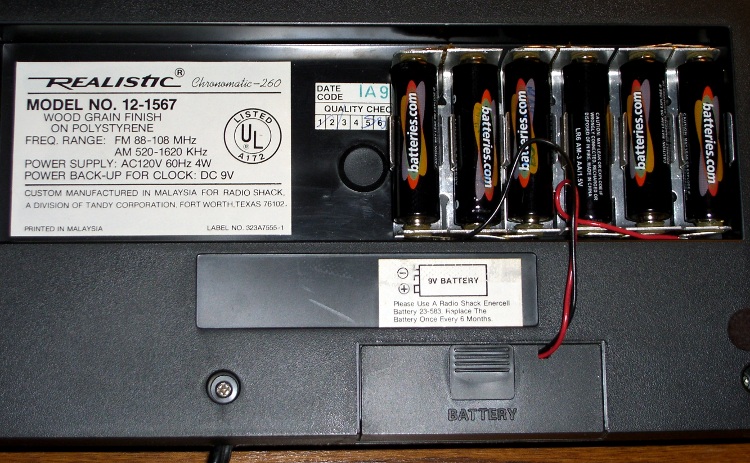
    Clock-radio battery hack
    Clock-radio battery hack

    The little red Battery Sentinel LED on our old Realistic (a.k.a. Tandy a.k.a. Radio Shack) clock radio was on this morning, which means that, once again, the backup battery needs attention.

    It’s supposed to use an ordinary 9V battery, but it ate two or three of those a year. Given the absurd cost of 9V batteries relative to AA cells, that stopped making sense pretty quickly.

    Most devices with backup batteries draw essentially zero power from them during normal operation. This gadget draws 6 µA.

    An alkaline 9V battery has a capacity of about 500 mAh, maybe more with a low-drain load like this. That should last for a few years:

    500e-3 / 6e-6 = 83k hours = 500 weeks = 10 years

    Alas, the clock battery monitor is really fussy and triggers the LED when the voltage drops under about 8.5 V.

    [Update: the clock does a “battery test” every day, which probably accounts for the short battery life. I haven’t measured that current… or the duration of the test.]

    Fortunately, the clock case has a recessed bottom that fits a standard AA cell holder like a glove. I wired up 1-1/2 4-cell holders (yes, I should have used 7 cells, but I wasn’t sure what the upper voltage limit might be) to a standard 9V battery snap connector and screwed the assembly to the case.

    Now all I must put up with are the weak AA cells I got from batteries.com; the most recent order was a disappointment.

    Memo to Self: That snap connector has red = negative / black = positive!

  • Separate X Sessions Do Not Work in Kubuntu 8.10

    I sent this in as a bug to Launchpad, where it became Bug 337777 (not octal, BTW) and was marked as a duplicate of Bug 192413. It’s been triaged as Low priority, so I think my days of using KDE are, alas, pretty much finished.

    Herewith, the straight dope, just in case you were thinking of doing the same thing.

    ————-

    In Kubuntu 7.04, I managed to manually configure separate X sessions using two nVidia video cards driving two monitors. The setup involves a 1600×1200 landscape monitor on the left and a 1680×1050 monitor rotated 90 degrees CCW on the right.

    In Kubuntu 7.10, this worked reasonably well.

    In Kubuntu 8.04 / KDE3, this works poorly. X seems to regard the right-hand monitor as being 1600 (1680?) x 1200, so all windows maximize incorrectly and “centered” dialogs appear off-center to the upper right on that screen. I installed an nVidia-based dual-head card in the hopes that it would work better, but that made no difference. The setup is usable (I’m using it now), but not desirable.

    The automatic configuration tools fall flat on their face: any attempt to use the standard KDE display tools pooches xorg.conf. I must carefully tweak xorg.conf to keep this setup working in the face of any X changes.

    In Kubuntu 8.10 / KDE4.2, this configuration flat-out doesn’t work. After considerable manual fiddling, I got a blank X session on the right with the default X cursor and a black background; the mouse pointer moves from one screen to the other, but that’s as good as it gets. The left screen works more-or-less normally, but with some weirdnesses. Diligent searching reveals this is the common endpoint for all folks attempting this configuration: KDE4 simply doesn’t support separate X sessions.

    I do not want Twinview / Xinerama (which also work poorly for this configuration), because I typically edit a single document in portrait mode on the right screen while flipping between circuit simulators / web browsers / PDF documents / PCB layout editors on the left screen. A single X session using two screens does not support that functionality; particularly in KDE4 which seems to lack the advanced window positioning controls of KDE3.

    Because KDE4 is mandatory with 8.10, I can’t downgrade to KDE3, which might work.

    Although KDE4 seems to be the future, it would be immensely more usable if it didn’t introduce serious regressions from previous functionality. I will gladly trade off all the Plasmoid foo-foos and Compiz go-fast-stripes to get stable X capabilities that work the same way as 7.04.

    The to-be-expected alpha-version issues in 9.04 prevent me from even installing it at this point, so I cannot say whether it’s an improvement or not. From what I read in the forums, things do not look promising.

    Perhaps this is less of a “bug report” and more of a plea for stability: please, first make KDE4 *work*, then make it pretty!

    ————-

    For what it’s worth, I installed Xubuntu in that partition, added one line (Option “Rotate” “CCW”) to xorg.conf, and It Just Worked. XFCE is a bit lacking in creature comforts, but it works in this configuration. I think I can get used to that.