The Smell of Molten Projects in the Morning

Ed Nisley's Blog: Shop notes, electronics, firmware, machinery, 3D printing, laser cuttery, and curiosities. Contents: 100% human thinking, 0% AI slop.

Month: April 2009

  • Laser Pointer Annoyances

    Laser pointer battery contact
    Laser pointer battery contact

    Maybe it’s just me, but all of the laser pointers I’ve bought, even the relatively spendy ones, have crappy switches and unstable battery contacts.

    For example, this is the business end of a $12 (!) pen-style pointer. The battery contact was off-center and poorly secured; I pried the white plastic retainer out, bashed the spring into submission, and replaced the retainer with a length of heat-shrink tubing. It wasn’t pretty.

    This pointer has an actual mechanical switch module inside, with a clicky mechanism actuated by the external button. Cheaper pointers seem to rely on bare PCB contacts bridged by the button’s base. Ugh.

    Laser pointer battery orientation: positive DOWN
    Laser pointer battery orientation: positive DOWN

    Memo to Self: The AAA cells fit into the housing with the positive terminal away from the laser head. The white plastic plug has a molded cross that could be mistaken for a + symbol, but it’s not.

  • Mandatory Setup Slide for All Presentations

    Presentation Setup Slide
    Presentation Setup Slide

    When you put together a presentation, add this slide at the very end.

    Display it while you’re setting up the projector so you can make sure all the corners are on-screen, all the colors work, and that the circles are actually circular. Your audience will appreciate your consideration.

    The text font should be whatever you’re using for the main body text in the presentation. If you think the text I’ve used is too large, then you’ve never sat in the back of your own presentation…

    When you’re ready to start, whack the Home key and your regular title slide will appear.

    Here it is as a single-slide PowerPoint presentation, because WordPress doesn’t allow uploading OpenOffice ODP presentations. Copy the slide into your own file and let your audience move around accordingly.

  • Tour Easy: Fitting Novara Transfer Bike Panniers

    Mary recently replaced her well-worn REI packs with a pair of Novara Transfer panniers, chosen because they’re just about the biggest packs available without insanely specialized world-touring features. They seem rather less rugged than the older ones, so it’s not clear how long they’ll last.

    They fit her Tour Easy recumbent fairly well, but there’s always a bit of adjustment required.

    Ramp on front edge of lower clamp rail
    Ramp on front edge of lower clamp rail

    She hauls tools and clothing and veggies to & from her gardens, food from the grocery store, and the Token Windows Laptop to presentations. She brings the packs inside, rather than leave them on the bike, so they get mounted & dismounted for every ride.

    The packs hang from the top bar of the rear rack, with a sliding clamp near the bottom of the pack that engages the rack’s vertical strut. I adjusted the clamp to the proper fore-and-aft position, but we found that the front end of the rail holding the clamp jammed against the seat support strut. That’s not a problem found on a diamond-frame bike.

    The top picture shows the solution: Mr Pack, meet Mr Belt Sander. A ramp chewed onto the front end of the rail lets it slide neatly over the strut and all is well. The only trick was to avoid sanding through the pack fabric: the line perpendicular to the rail is sanding dust, not a gouge!

    Acorn nut caps inside pack
    Acorn nut caps inside pack

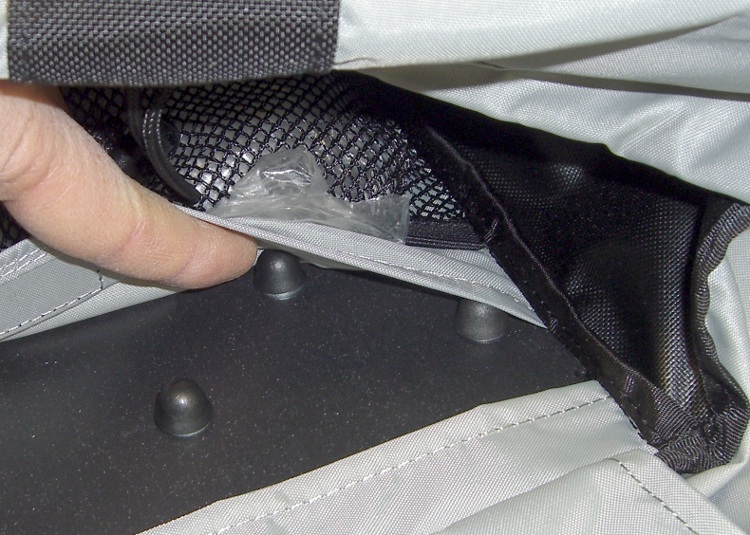
    Each top rack hanger mounts to the plastic pack frame with three bolts covered by plastic acorn nuts on the inside; the acorns cover actual metal nuts, so it’s a lot more secure than it looks. Three more bolts secure the bottom rail to the frame, with three more acorns poking into the pack, for a total of nine acorn nuts.

    Most folks carry clothing and suchlike in their packs, so the 10 mm bump at each acorn presents no problem. Unfortunately, those things look like a nasty bruising hazard for soft veggies and groceries.

    Top hanger pad - outside view
    Top hanger pad – outside view

    I sliced up some closed-cell foam packing material (everybody saves some of that stuff, right?), punched holes at the appropriate locations, and tucked the pads over the acorns. An inner fabric layer covering the frame and nuts should hold the pads in place.

    Bottom pads with hole punch
    Bottom pads with hole punch

    It’s not clear the bottom pads will stay in position, but I wanted to try this without adhesives, mostly because I doubt any adhesive can secure polyethylene foam to whatever plastic the pack frame is made from or coated with. Perhaps double-sided foam tape will work?

    Top pad - with tools
    Top pad – with tools

    So far, the early reviews are good …

  • Capacitor Plague Up Close

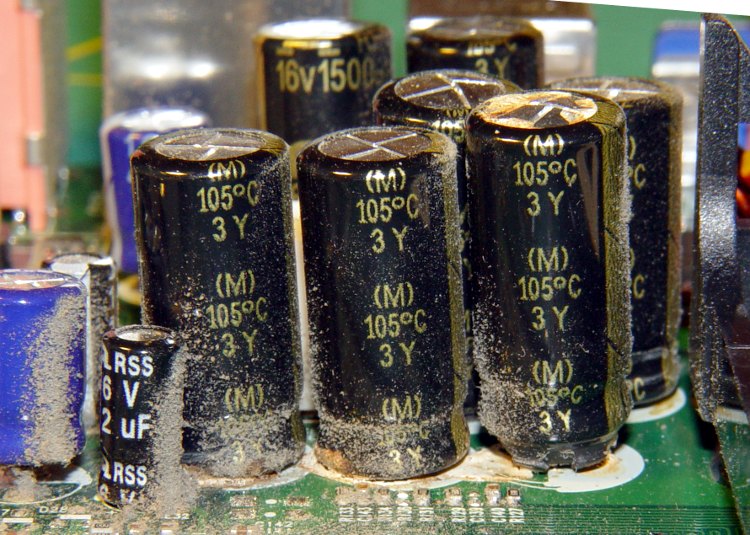
    A friend dropped off a dead eMachines Celeron for my next recycling trip. Peering inside, what do my wondering eyes behold but a nasty case of Capacitor Plague!

    Herewith, some pix of the victims within the box. Note the bulging tops ready to blow along the pressure-relief grooves, the distinct tilt caused by the bulging bottom plug, and the right-hand cap near the power supply on countdown for launch!

    More background on the plague is there.

    I must build an ESR tester one of these days…

  • Backup with Rsnapshot

    Now that our low-budget file server (a stock Dell Inspiron 531S desktop with an additional 500 GB SATA drive) is up & running Xubuntu 8.10, it’s time to get rsnapshot working again.

    All our data files live on the server, so the backup routine need not handle any of the usual /home stuff on our desktop boxes. Rebuilding a dead box is a nuisance, but they’re all pretty much the same and it’s less of a nuisance not worrying about rare failures… haven’t had any failures in many years; they get replaced before they die.

    The backup files go to an external 500 GB USB drive, which is not protection against a catastrophe in the basement. Mostly, this guards against finger fumbles; the external drive gets dumped to another hard drive in the fireproof safe more-or-less monthly.

    So. To begin…

    Install rsnapshot, which will also drag in ssh, the metapackage around the client & server sides of openssh. The server side is already installed so I can sign in using public-key authentication.

    Set /etc/rsnapshot.conf thusly (comments snipped out):

    snapshot_root   /mnt/backup/snapshots
    no_create_root  1
    cmd_cp          /bin/cp
    cmd_rm          /bin/rm
    cmd_rsync       /usr/bin/rsync
    cmd_ssh /usr/bin/ssh
    cmd_logger      /usr/bin/logger
    cmd_du          /usr/bin/du
    cmd_rsnapshot_diff      /usr/bin/rsnapshot-diff
    #interval       hourly  6
    interval        daily   30
    #interval       weekly  4
    interval        monthly 12
    #interval       yearly  1
    logfile /var/log/rsnapshot
    du_args -csh
    backup  /mnt/userfiles/         oyster/
    backup  /mnt/bulkdata/          oyster/
    backup  /mnt/music/             oyster/
    backup  /mnt/diskimages/        oyster/
    

    Basically, that creates a month of daily backups, plus monthly backups for a year. Haven’t ever gotten to a yearly backup, but you get the idea.

    The no-create-root option prevents horrible things from happening if the USB drive wakes up dead and doesn’t mount; you don’t want to back up the drives to the /mnt/bulkdata mount point. The USB drive mounts using a UUID entry in /etc/fstab, as described there.

    Create a pair of scripts in /root to mount the USB drive, do the backup, unmount it, and shut down the system:

    rsnapshot.daily

    #!/bin/sh
    logger "Mounting USB drive"
    mount /mnt/backup
    logger "Starting backup"
    /usr/bin/rsnapshot daily
    logger "Unmounting USB drive"
    umount /mnt/backup
    logger "Power off"
    shutdown -P now
    logger "Done!"
    

    rsnapshot.monthly

    #!/bin/sh
    mount /mnt/backup
    /usr/bin/rsnapshot monthly
    umount /mnt/backup
    shutdown -P now
    

    Note: the rsnapshot executable has moved from /usr/local/bin in Ubuntu 7.10 to /usr/bin in 8.10.

    You could be more clever than that, but, eh, they’re simple & easy.

    The Inspiron 531S 1.0.13 BIOS now powers off dependably with the 2.6.27-14-generic kernel in 8.10, a pleasant change from the 1.0.12 BIOS and the 2.6.22-16-generic kernel used in 7.10. That means the shutdown commands work and I can shave 25% off the server’s power bill. Not that it’s very big to begin with, but every little bit helps.

    Set up /etc/crontab to run the backups (and sync the system clock with reality, for the reasons described there):

    10 23	1 * *	root	/root/rsnapshot.monthly
    30 23	* * *	root	/root/rsnapshot.daily
    #
    00 01	* * *	root	ntpdate north-america.pool.ntp.org
    

    And that’s it.

    Memo to Self: add e2fsck to the monthly backup routine and move it an hour earlier.

  • Ubuntu 8.10 Server Setup: Samba

    We need Samba for the Token Windows Laptop and the CNC box on the milling machine which also runs TurboTax during that season of the year. Despite having done this many times before, it never works right until, suddenly, without warning, everything works. It’s a permission thing, I think.

    To get SWAT running, check there, which boils down to:

    • sudo chmod g+w /etc/samba/smb.conf
    • sudo chgrp adm /etc/samba/smb.conf

    Put this in /etc/xinetd.d/swat:

    ... comments snipped ...
    service swat
    {
            port    = 901
            socket_type     = stream
            wait    = no
    ###     only_from = localhost
            user    = <<your adm-enabled userid>>
            server  = /usr/sbin/swat
            log_on_failure  += USERID
            disable = no
    }
    

    Then use sudo smbpasswd -a -e <> to set up the allowed users and get their passwords aligned. I use the same userids and paswords on all the boxes, which is terrible security.

    Whenever you change anything, use sudo /etc/init.d/samba restart to make sure Samba gets the message.

    Use SWAT to set up all the shares. This is what the config file looked like after the damn thing finally started working:

    # Samba config file created using SWAT
    ... snippage ...
    
    [global]
    	workgroup = whatever-you-use
    	server string = %h server (Samba, Ubuntu)
    	map to guest = Bad User
    	obey pam restrictions = Yes
    	passdb backend = tdbsam
    	pam password change = Yes
    	passwd program = /usr/bin/passwd %u
    	passwd chat = *Enter\snew\s*\spassword:* %n\n *Retype\snew\s*\spassword:* %n\n *password\supdated\ssuccessfully* .
    	unix password sync = Yes
    	syslog = 0
    	log file = /var/log/samba/log.%m
    	max log size = 1000
    	dns proxy = No
    	usershare allow guests = No
    	panic action = /usr/share/samba/panic-action %d
    
    [printers]
    	comment = All Printers
    	path = /var/spool/samba
    	create mask = 0700
    	browseable = Yes
    	printable = Yes
    	writeable = Yes
    
    [print$]
    	comment = Printer Drivers
    	path = /var/lib/samba/printers
    
    [Bulkdata]
    	comment = Assorted useful files
    	path = /mnt/bulkdata
    	read only = No
    
    ... likewise for other file shares ...
    

    Actually, you don’t have to share the printers with Samba. Better to use CUPs directly. Just tell Windows to “Connect to a printer on the Internet or on a home or office network”, then fill in something like:

    http://oyster:631/printers/R380_TP

    And that’ll work even better.


  • Ubuntu 8.10 Server Setup: Tweaks & Glitches

    Having just bumped the basement file server from Kubuntu 7.10 to Xubuntu 8.10, a few notes are in order…

    The general idea was to saw an existing 20 GB partition in half, maintain the existing 7.10 installation, and install 8.10 in the liberated part. The overview:

    • partimage — back up the 7.10 installation in sda6 and the data in sda7
    • resize2fs -p /dev/sda6 5G — squish the filesystem down
    • partimage — save the squished filesystem
    • cfdisk — delete sda6 and create a pair of 10 GB partitions sda6 and sda7
    • partimage — restore the squished filesystem to sda6
    • e2fsck -fv /dev/sda6 — prep it for resizing
    • resize2fs -p /dev/sda6 — expand to fill entire partition
    • tweak /etc/fstab to reflect the fact that sda7 has become sda8
    • reboot and shazam 7.10 started up just fine

    Then install 8.10 in sda7 and configure from there, using the 7.10 installation as a reference to help remember what’s needed.

    The only complication was that the Ubuntu 8.10 mini-ISO install enumerated the USB backup drive as sda, so things got a bit weird; evidently, the USB drive now has the grub MBR. Unplugging that drive, then deploying a bit of grub fu from SystemRescueCD fixed that up:

    • find /boot/grub/stage1 — appears in (hd0,5) and (hd0,6), thus sda6 & sda7
    • root (hd0,6)
    • setup (hd0)

    Then apply the relevant installation info from the series starting there, omitting all the user apps and foo-foos that won’t be needed on the basement box.

    Add useful server programs:

    • nfs-kernel-server
    • xinetd
    • swat

    There’s an authorization bug that may kill local login and sudo, as documented there, triggered when you configure CUPS printers (among other causes). The quick-and-dirty solution seems to be:

    • boot in recovery mode
    • remove samba*
    • install samba
    • install xubuntu-desktop

    It’s worth noting that I’d just finished configuring ssh for public-key logins, so I could get into the box from my Comfy Chair upstairs, but I couldn’t reconfigure anything because sudo segfaulted.

    Create mountpoints, then set up /etc/fstab to automount the various partitions:

    /dev/sda8 /mnt/music		ext3	defaults,noatime,auto,rw,nodev,noexec,nosuid 0 0
    /dev/sdb1 /mnt/bulkdata		ext3	defaults,noatime,auto,rw,nodev,noexec,nosuid 0 0
    /dev/sdb2 /mnt/diskimages	ext3	defaults,noatime,auto,rw,nodev,noexec,nosuid 0 0
    /dev/sdb3 /mnt/userfiles	ext3	defaults,noatime,auto,rw,nodev,noexec,nosuid 0 0
    UUID=069e50dc-1994-47d2-9c7e-0b5179a89041 /mnt/backup ext2 defaults,noatime,noauto,nodev,noexec,nosuid 0 0

    It would be more sensible to use UUIDs for those partitions, but that stuff hasn’t broken yet. If the USB backup drive enumerates as sda again, then I’ll be forced to tweak it.

    Add stanzas like this to /etc/exports:

    /mnt/bulkdata *(rw,async,subtree_check,root_squash,no_all_squash)

    That gets the files served to the other boxes.

    Install Turboprint and tweak the printer drivers accordingly.